Walkthrough to Set Up the Deep Learning Toolkit for Splunk with Amazon EKS
The following post describes capabilities for the Deep Learning Toolkit (DLTK) a Splunk Works solution available on Splunkbase. Splunk is expanding its ML portfolio with new, tightly integrated ML capabilities including Streaming ML and Splunk Machine Learning Environment (SMLE). To learn more about the direction of Splunk’s ML portfolio, checkout Lila Fridley’s blog, Machine Learning Guide: Choosing the Right Workflow.

Splunk DLTK supports Docker as well as Kubernetes and OpenShift as container environments. In this article, we will go through the setup for using DLTK 3.3 and Amazon EKS as a kubernetes environment.
Some Prerequisite
To manage EKS and Kubernetes, you first need to install some CLI tools on your laptop. Please refer to this document for additional details on getting started.
- Install awscli
- Install ekscli
- Install kubectl
Note: To manage EKS, the IAM user must have AmazonEKSClusterPolicy.
Also, please install Splunk DeepLearning Toolkit beforehand. This blog is targeted to DLTK 3.x.
Step Flow Overview
Let's take a look at the set up flow after this. In Amazon EKS, Fargate and Managed Node are available as Computer Nodes, but this time we are using Managed Node. Also, the storage service must support ReadWriteMany, so we used EFS this time. By the way, the default gp2 can be used in DLTK 4.0.
- Create EKS cluster with Managed Node
- Create and Setup EFS Storage Service for ReadWriteMany support
- Create StorageClass and PersisetntVolume for EFS
- Configure SecurityGroup for DLTK NodePort access
- (Option) : Create new namespace
- Setup Splunk DLTK to access EKS
- Run the Pod for EKS
Step 1. Create EKS Cluster with Managed Node
First, create an EKS cluster. See here for details.
$ eksctl create cluster  \
    --name <>  \
    --nodegroup-name <> \
    --region <> \
    --node-type <> \
    --nodes <<1>> \
    --ssh-access \
    --ssh-public-key <> \
    --managed
In this time, we use the t3.medium instance type and one node for verification purposes. You can customize the other items as needed.It will take a while to create a cluster and node group.
Let's check if it has been created successfully.
$ kubectl get svc
NAME         TYPE        CLUSTER-IP   EXTERNAL-IP   PORT(S)   AGE
kubernetes   ClusterIP   10.100.0.1           443/TCP   14d
$ kubectl get node
NAME                                           STATUS   ROLES    AGE   VERSION
ip-192-168-81-176.us-east-2.compute.internal   Ready       9d    v1.18.9-eks-d1db3c
Step 2. Create and Set Up EFS Storage Service for ReadWriteMany Support
Splunk DLTK 3.x uses volumes with "ReadWriteMany" for storage, so we have to use EFS service.
For more information on setup, please refer to this document and proceed.
1. Deploy the Amazon EFS CSI driver to an Amazon EKS cluster
$ kubectl apply -k
"github.com/kubernetes-sigs/aws-efs-csi-driver/deploy/kubernetes/overlays/stable/ecr/?ref=release-1.0"
2. To create an Amazon EFS file system for your Amazon EKS cluster
A. Get the Cluster's CIDR information
Locate the VPC ID for your Amazon EKS cluster. You can find this ID in the Amazon EKS console, or you can use the following AWS CLI command.
$ aws eks describe-cluster --name  --query
"cluster.resourcesVpcConfig.vpcId" --output text

Locate the CIDR range for your cluster's VPC. You can find this in the Amazon VPC console, or you can use the following AWS CLI command.

You'll use this CIDR information at the next step.
B. Create a new security group to allow NFS access.
Create a security group that allows inbound NFS traffic for your Amazon EFS mount points.
- Open the Amazon VPC console at https://console.aws.amazon.com/vpc/.
- Choose Security Groups in the left navigation panel, and then choose Create security group.
- Enter a name and description for your security group, and choose the VPC that your Amazon EKS cluster is using.
- Under Inbound rules, select Add rule.
- Under Type, select NFS.
- Under Source, select Custom, and paste the VPC CIDR range that you obtained in the previous step.
- Choose Create security group.
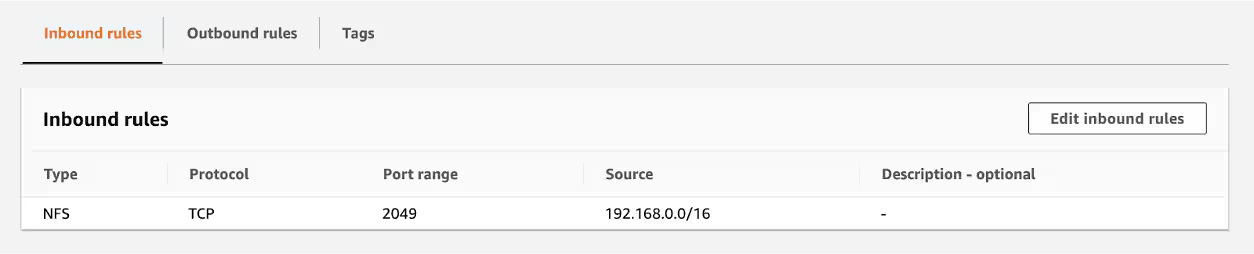
C. Create the Amazon EFS file system for your Amazon EKS cluster.
- Open the Amazon Elastic File System console at https://console.aws.amazon.com/efs/.
- Choose File systems in the left navigation pane, and then choose Create file system.
- On the Create file system page, choose Customize.
- On the File system settings page, you don't need to enter or select any information, but can if desired, and then select Next.
- On the Network access page, for Virtual Private Cloud (VPC), choose your VPC.
- Under Mount targets, if a default security group is already listed, select the X in the top right corner of the box with the default security group name to remove it from each mount point, select the security group that you created in a previous step for each mount target, and then select Next.
- On the File system policy page, select Next.
- On the Review and create page, select Create.
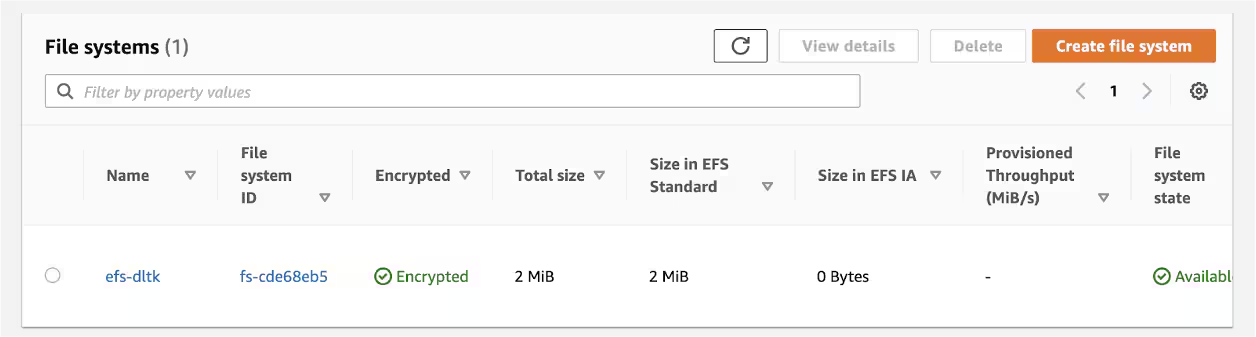
D. Create Access Point
By Default, only root users can access this file system, so the DLTK cluster will fail to deploy the container. You should create a new access point for it.
- Choose Access point in the left navigation pane, and then choose Create access point.
- Choose the file system and enter root directory for this access point. (ex. /dltk)
- On the root directory creation permissions. Enter owner's uid/gid/permission. (ex. 500/500/0777)

Step 3. Create StorageClass and PersisetntVolume for EFS
StorageClass
Copy and create this yaml file to your local laptop.
storageclass.yaml
kind: StorageClass
apiVersion: storage.k8s.io/v1
metadata:
  name: <>
provisioner: efs.csi.aws.com
allowVolumeExpansion: true
Deploy this storageclass to your cluster.
$ kubectl apply -f storageclass.yaml
Verify the deployment.
$ kubectl get sc
NAME            PROVISIONER             RECLAIMPOLICY   VOLUMEBINDINGMODE      ALLOWVOLUMEEXPANSION   AGE
efs-sc          efs.csi.aws.com         Delete          Immediate              true                   14d
gp2 (default)   kubernetes.io/aws-ebs   Delete          WaitForFirstConsumer   false                  14d
Persistent Volume
Copy and create this yaml file to your local laptop.
pv.yaml
apiVersion: v1
kind: PersistentVolume
metadata:
  name: <>
spec:
  capacity:
    storage: 20Gi
  volumeMode: Filesystem
  accessModes:
    - ReadWriteMany
  persistentVolumeReclaimPolicy: Delete
  storageClassName: efs-sc
  csi:
    driver: efs.csi.aws.com
    volumeHandle: <>::<>
Change the name and volumeHandle ("fs-xxxxx" and "fsap-xxxxxxxx") for your environment. Check your EFS configuration on your AWS console.
Deploy this persistent volume to your cluster.
$ kubectl apply -f pv.yaml
Verify the deployment.
$ kubectl get pv
NAME               CAPACITY   ACCESS MODES   RECLAIM POLICY   STATUS   CLAIM          STORAGECLASS   REASON   AGE
dltk-efs-volume    20Gi       RWX            Delete           Available              default/dltk   efs-sc                  25h
Step 4. Configure SecurityGroup for DLTK NodePort Access
DLTK 3.x supports Load Balancer or Node Port as Ingress type for kubernetes. At this time, I use Node Port as an Ingress type.
- Find your EKS node on your EC2 console
- Open the assigned Security Group. (nodegroup-ng-dltk-remoteAccess)
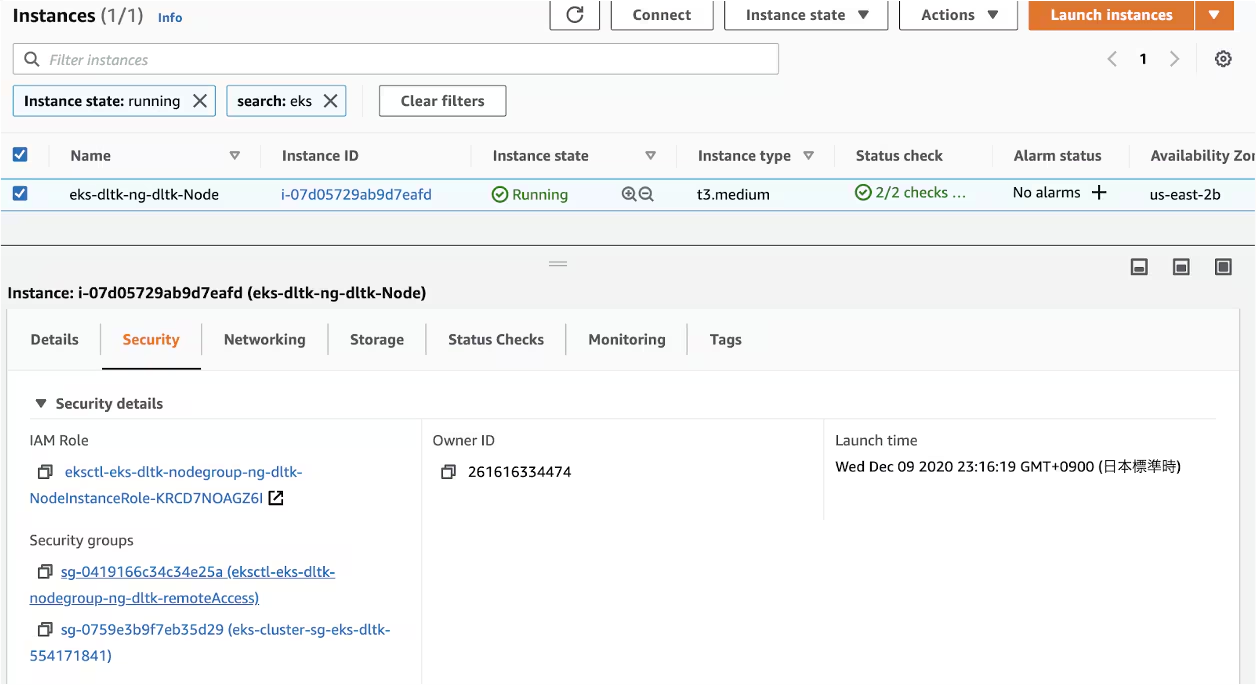
Add this Node Port range for your Security Group.
30000-32767: Node Port
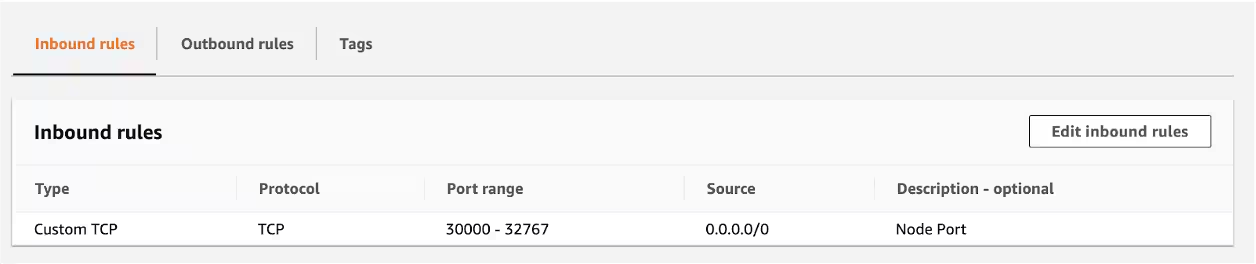
Step 5. (Optional) Create New Namespace
This step is optional and you may skip it if you would like. If you skip this step, use default namespace for DLTK.
1. Create a new YAML file called my-namespace.yaml with the contents:
my-namespace.yamla
kind: Namespace
metadata:
  name: <>
Change the namespace name <> as you like.
Then run:
$ kubectl apply -f ./my-namespace.yaml
2. Verify your namespace. dltk is my new namespace.
$ kubectl get namespaces
NAME              STATUS   AGE
default           Active   15d
dltk              Active   33h
kube-node-lease   Active   15d
kube-public       Active   15d
kube-system       Active   15d
Step 6. Configure Splunk DLTK Set Up.
Go to Configuration --> Setup on DLTK App.
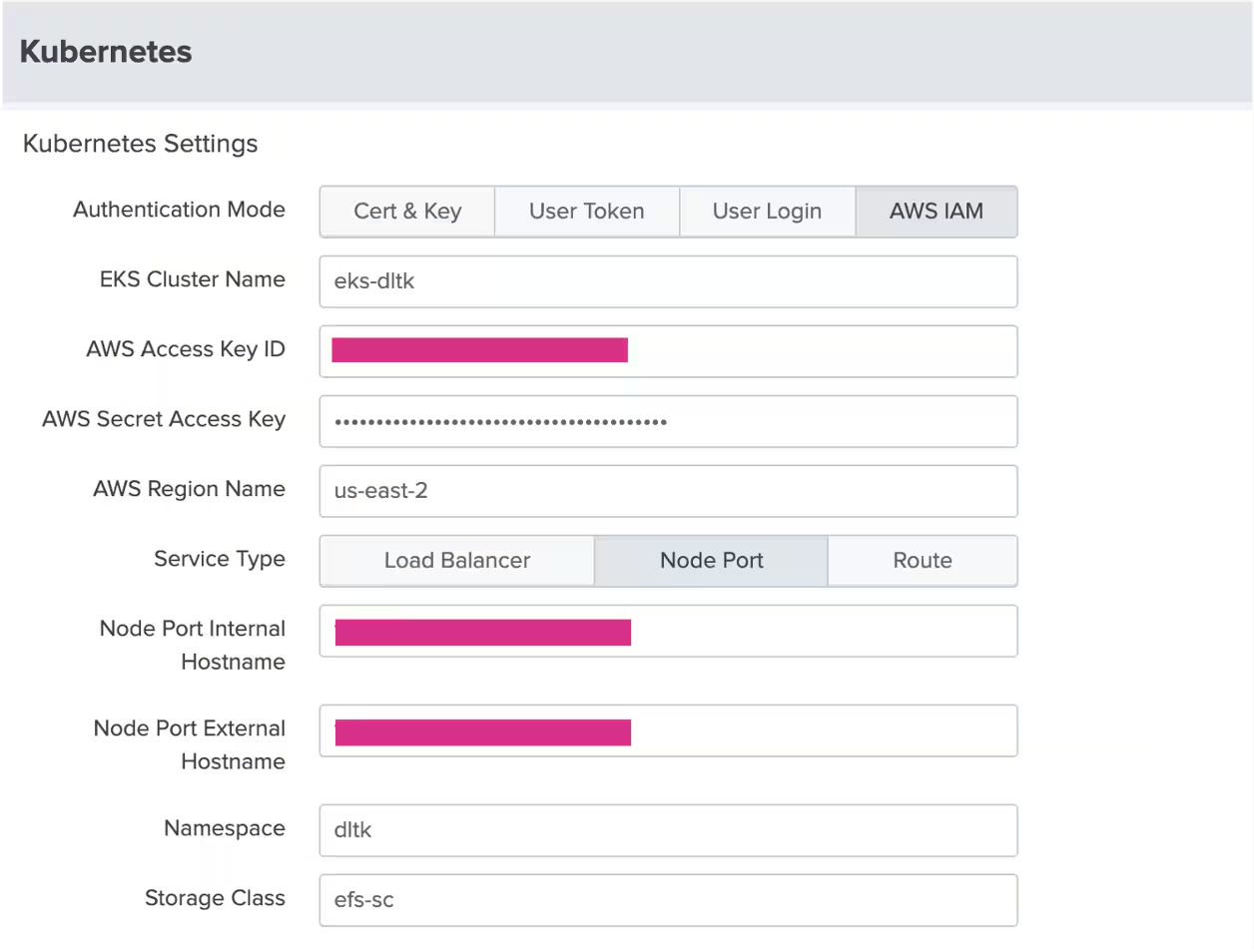
- Node Port Internal Hostname : One of your EKS node's public IP address.
- Node Port External Hostname : One of your EKS node's public IP address.
- Namespace : This is a namespace created at the previous step.
- Storage Class : This is a storage-class created at the previous step.
Step 7. Run the Pod for EKS
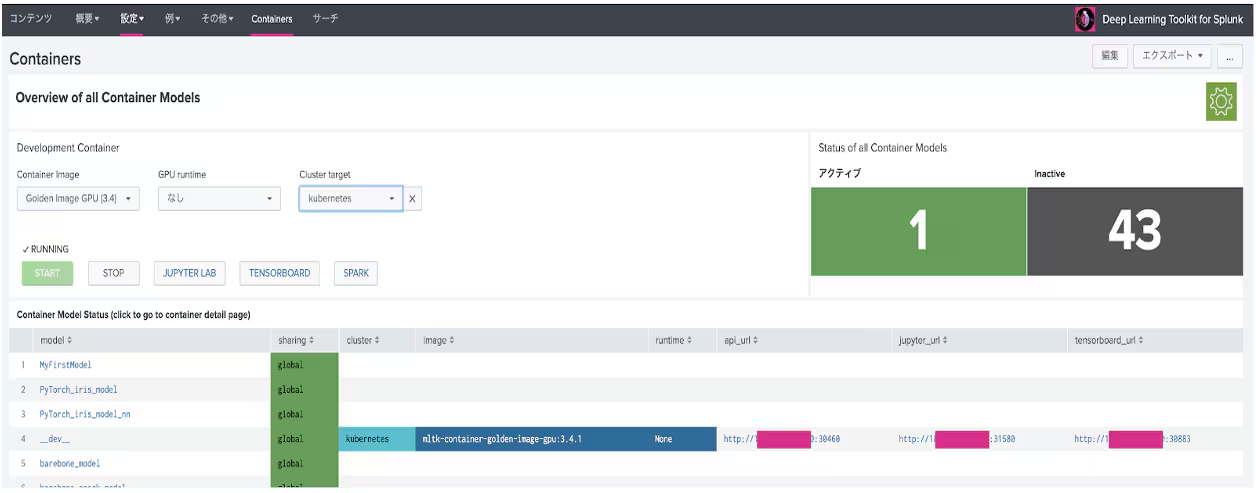
Go to Containers. Choose kubernetes on Cluster target. And Start!
Useful Kubectl Commands for Troubleshooting
If you have met any errors for set up, use this command for troubleshooting.
- Check the Deployments status
$ kubectl get deployments --namespace=dltk
NAME   READY   UP-TO-DATE   AVAILABLE   AGE
dev        1/1           1                      1                    30h

$ kubectl describe deployment dev --namespace=dltk
<< More detail Information>>
- Pods status
$ kubectl get pods --namespace=dltk
NAME                          READY     STATUS    RESTARTS   AGE
dev-7f9cdcc6d7-mzcdb   1/1         Running    0                    30h

$ kubectl describe pod <> --namespace=dltk
<< More detail Information>>
- Persistent Volume Claim
NAME   STATUS   VOLUME             CAPACITY   ACCESS MODES   STORAGECLASS   AGE
dltk   Bound    dltk-efs-volume1   20Gi       RWX            efs-sc         34h

$ kubectl describe pvc <> --namespace=dltk
<< More detail Information>>
- Persistent Volume
$ kubectl get pv
NAME               CAPACITY   ACCESS MODES   RECLAIM POLICY   STATUS   CLAIM          STORAGECLASS   REASON   AGE
dltk-efs-volume1   20Gi       RWX            Delete           Bound    dltk/dltk      efs-sc                  34h

$ kubectl describe pv <>
- Container Logs
$ kubectl logs -f <> --namespace=dltk
Monitoring EKS by Splunk Infrastructure Monitoring
Furthermore, you can monitor Amazon EKS using Splunk Infrastructure Monitoring (formerly Signal FX) to monitor the learning load in real-time.
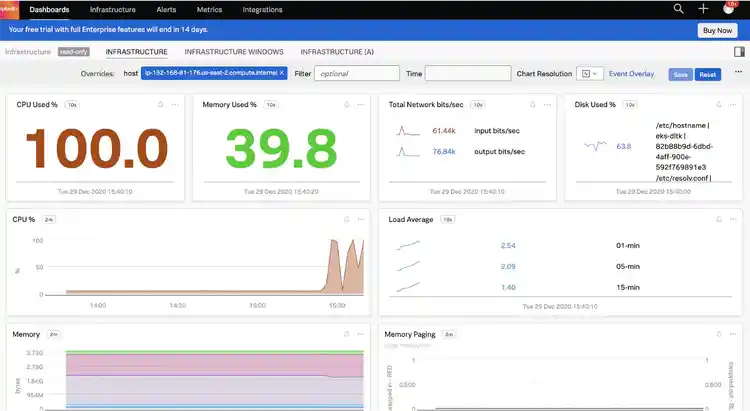
We will not go into the set up of this one. Please refer to the setup guide here.
Summary
Once you complete setting up the DLTK with an EKS environment, you can easily extend and retract the computer resources. Furthermore, multiple DLTKs can share this EKS to optimize resources.
Today, we introduced the set up flow for development and testing purposes. If you need to run this for production, you can talk with your local Splunk engineers.
Finally, I would like to thank Philipp Drieger for his advice and support in writing this blog.
To learn more about all of Splunk’s ML offerings, head over to Machine Learning Guide: Choosing the Right Workflow, and look for more blog posts coming soon.
----------------------------------------------------
Thanks!
Junichi Maruyama
Related Articles

Announcing the General Availability of Splunk POD: Unlock the Power of Your Data with Ease
Introducing the New Workload Dashboard: Enhanced Visibility, Faster Troubleshooting, and Deeper Insights
Leading the Agentic AI Era: The Splunk Platform at Cisco Live APJ

Dashboard Studio: Token Eval and Conditional Panel Visibility
Introducing Resource Metrics: Elevate Your Insights with the New Workload Dashboard
Powering AI Innovation with Splunk: Meet the Cisco Data Fabric

Remote Upgrader for Windows Is Here: Simplifying Fleet-Wide Forwarder Upgrades

Dashboard Studio: Spec-TAB-ular Updates