Dashboard Studio: New Features Highlighted At .conf21
I am very excited that this year’s .conf21was the first .conf where we got to showcase Dashboard Studio, which has come built-in with every Splunk Enterprise and Splunk Cloud Platform release, since 8.2 and 8.1.2103, respectively. I am even more excited to share a packed list of new features in the 8.2.2109 release, which coincides with .conf21!
This blog post will highlight a few capability areas we've been heavily focused on that will help you do even more with your dashboards:
- New and updated visualizations
- New interactivity capabilities (read: tokens)
- New UI for configuring time range on searches
- New UI for configuring dropdown and multi-select inputs
- Scheduled Export for Dashboard Studio (Limited Availability Release)
You'll also notice that we've included a Dashboard Studio tutorial in the 8.2.2109 Dashboard Studio docs. This is a great resource to familiarize yourself with Dashboard Studio, regardless of whether you are new to Dashboard Studio or have been dabbling since the beta app days.
New and Updated Visualizations

In Splunk Cloud Platform 8.2.2109, there are two new visualizations you can use in Dashboard Studio. The first is the Sankey Diagram, which is great for representing flows or processes, and seeing the relative share.

The second new visualization is Parallel Coordinates, which is great for multi-dimensional datasets and comparing multiple variables together.
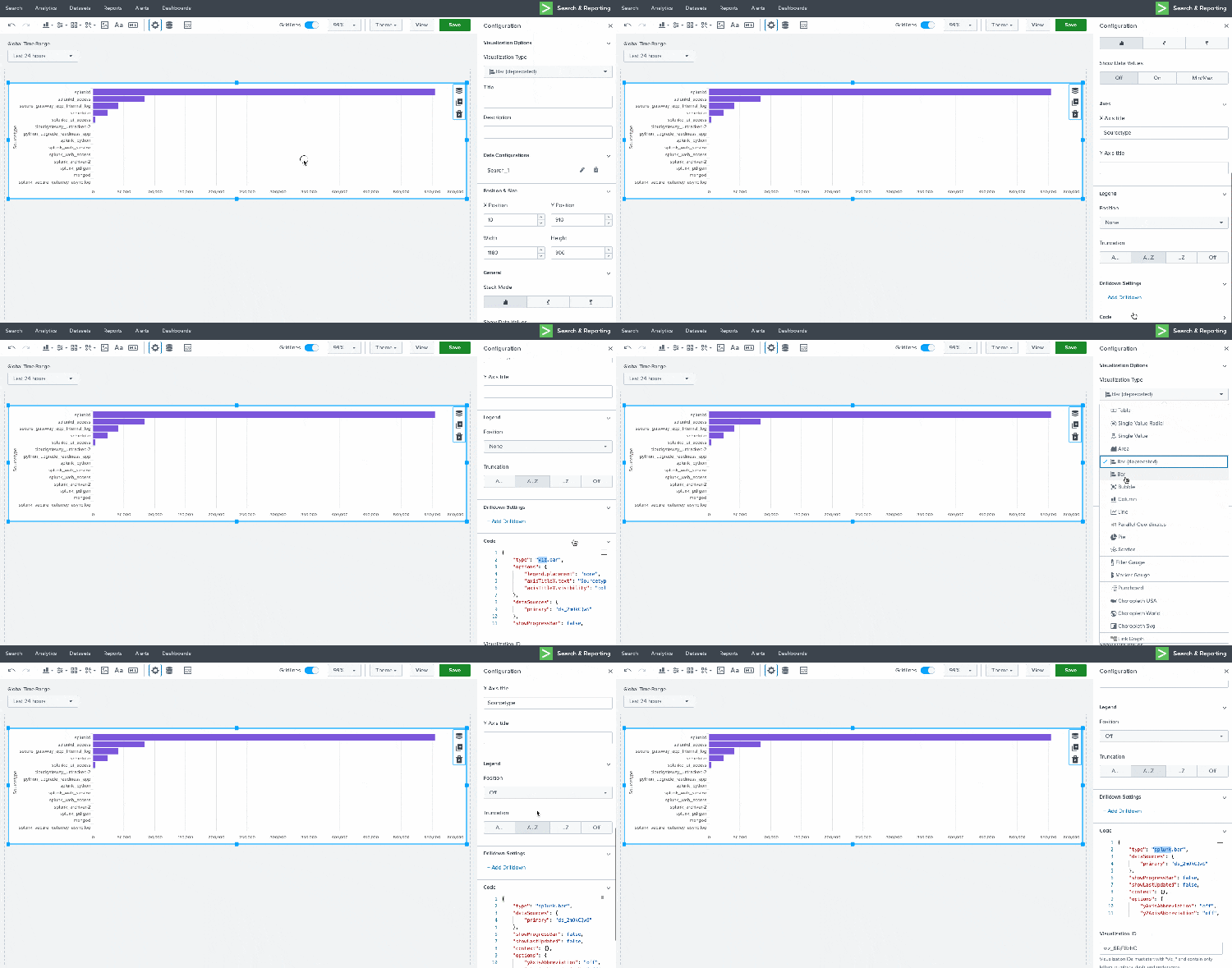
A number of visualizations are now also available as splunk.*: area, bar, column, ellipse, image, line, markdown, pie, rectangle, and scatter. The primary benefit of using the splunk.* visualization instead of viz.* is that you will be able to set tokens when you click on a visualization, which we'll talk about in the next section.
For most chart visualizations (includes: bar, scatter, etc. and excludes: image, rectangle, etc.), you can update the chart from viz.* to splunk.* by simply updating it in the Configuration panel. By updating your visualizations in the UI (and not in source code), the options you've added to your viz.* chart will be migrated to your new splunk.* chart.
For other non-chart visualizations like rectangle and ellipse, the new splunk.* versions also come with an improved editing UI for dynamic coloring.

When you add a new visualization to your dashboard, it will be splunk.* by default.
New Interactivity Capabilities
As mentioned in the last section, the primary benefit for using splunk.* visualization charts is that most charts now support the ability to set tokens from clicking on the visualization. Tokens are variable place holders that you can use to pass dynamic values to searches, options, or visualizations.
Let's look at an example table visualization for the search index=_internal | stats count by sourcetype. The first column will list the various sourcetypes, and the second column will be the corresponding count for the time range.
To create tokens from clicking on a visualization, you will need to configure a Drilldown on that visualization, and select "Set Tokens". You can set multiple tokens from a visualization.

Next, you will specify your token name and token value. The token name is the string that you will use in searches. For example, $sourcetype$. The token value can be one of the following: name, value, or row.<fieldname>.value.
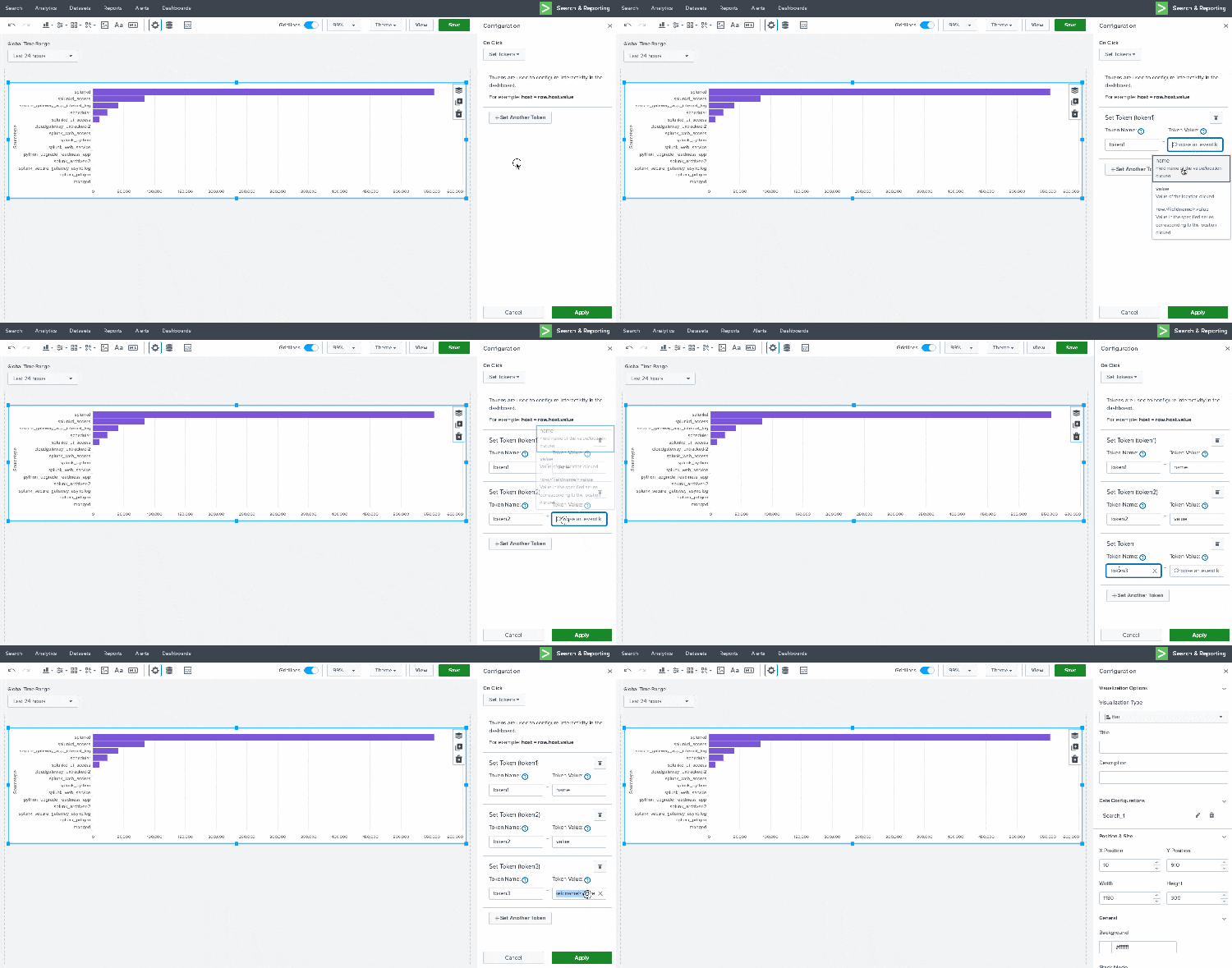
Let's set up three tokens:
- $token1$ = name
- $token2$ = value
- $token3$ = row.sourcetype.value

If a user clicks on the bar associated to splunkd these tokens will resolve to:
- $token1$ = count (which is the horizontal axis' field name)
- $token2$ = # (the actual count value)
- $token3$ = splunkd (the corresponding row value for the field name sourcetype)
New UI for Configuring Time Range on Searches
When using a dashboard or running a search, specifying a time range for your data analysis allows you to control the granularity of the results returned. Dashboard Studio has a few options for setting up time ranges. When editing a search, you can choose to use a time range picker input, a static value, or the default settings.
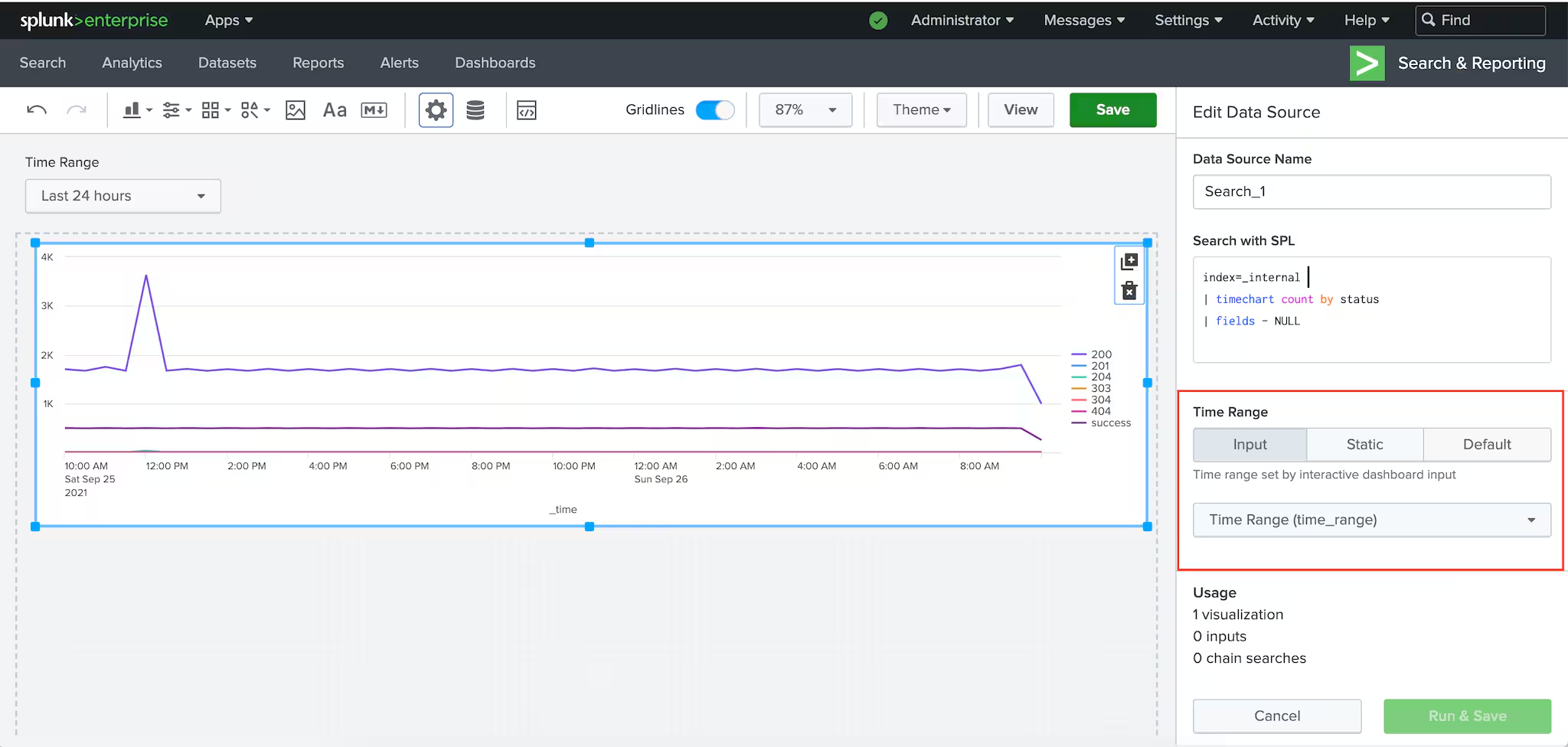

In order to wire a search to a time range input, you must first add a time range input to the dashboard via the Add Inputs menu. Then, in the Edit Data Source panel, select "Input" and use the dropdown menu to find the time range input you want to use. You can identify the time range input by its title and the token name.

If you want to set a fixed time range, you can select the "Static" option, and specify the time range to be used with that search.
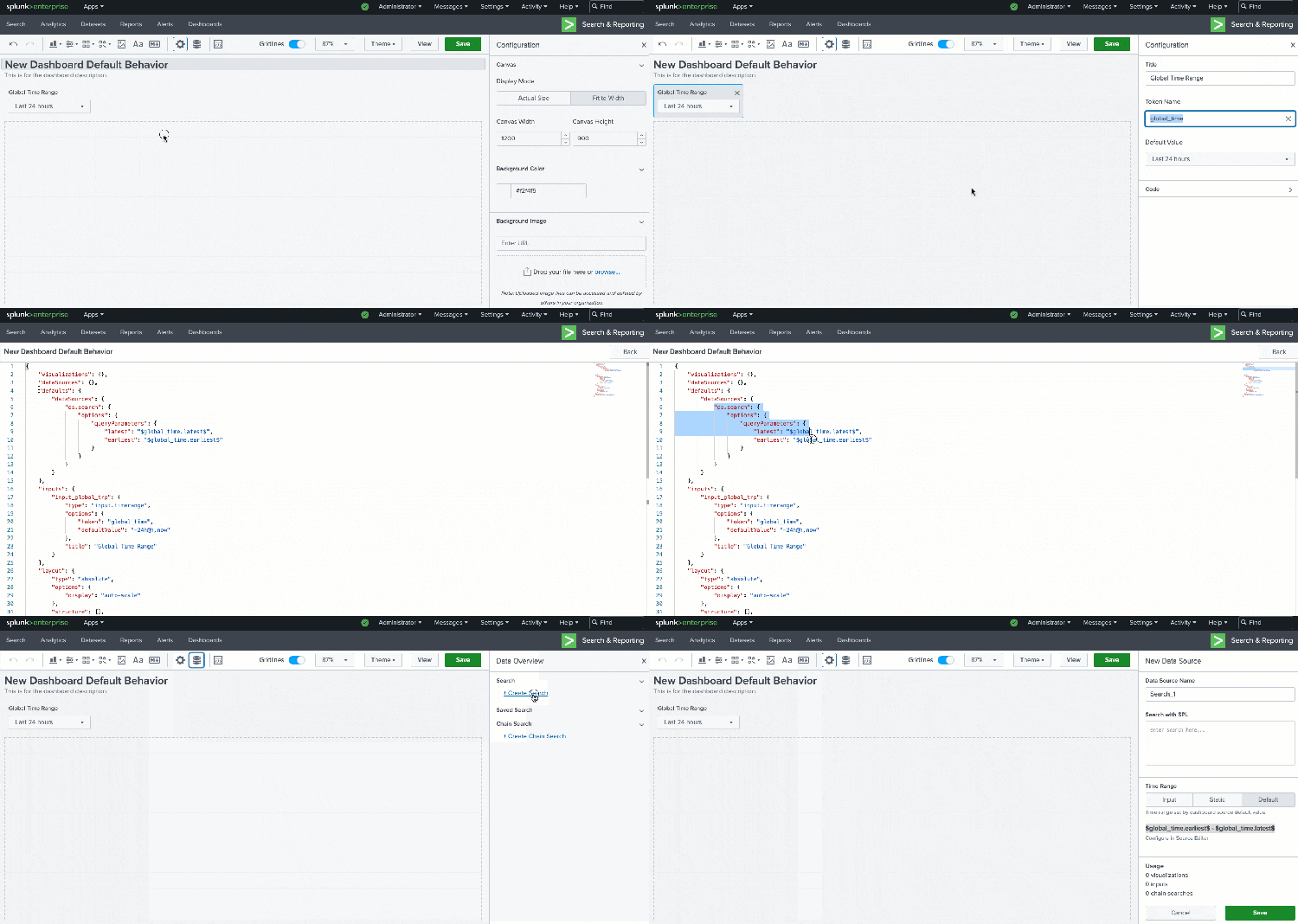
If you select "Default", that search will use whatever time range is specified in the "defaults" section of the dashboard definition. The "defaults" section of your dashboard definition allows you to specify settings to be applied to multiple objects. All new Studio dashboards come with a Global Time Range input, and with the "defaults" section set up to have all searches adhere to the Global Time Range input. When you create a new search, it will already be wired up to use "Default".
New UI for Configuring Dropdown and Multi-Select Inputs
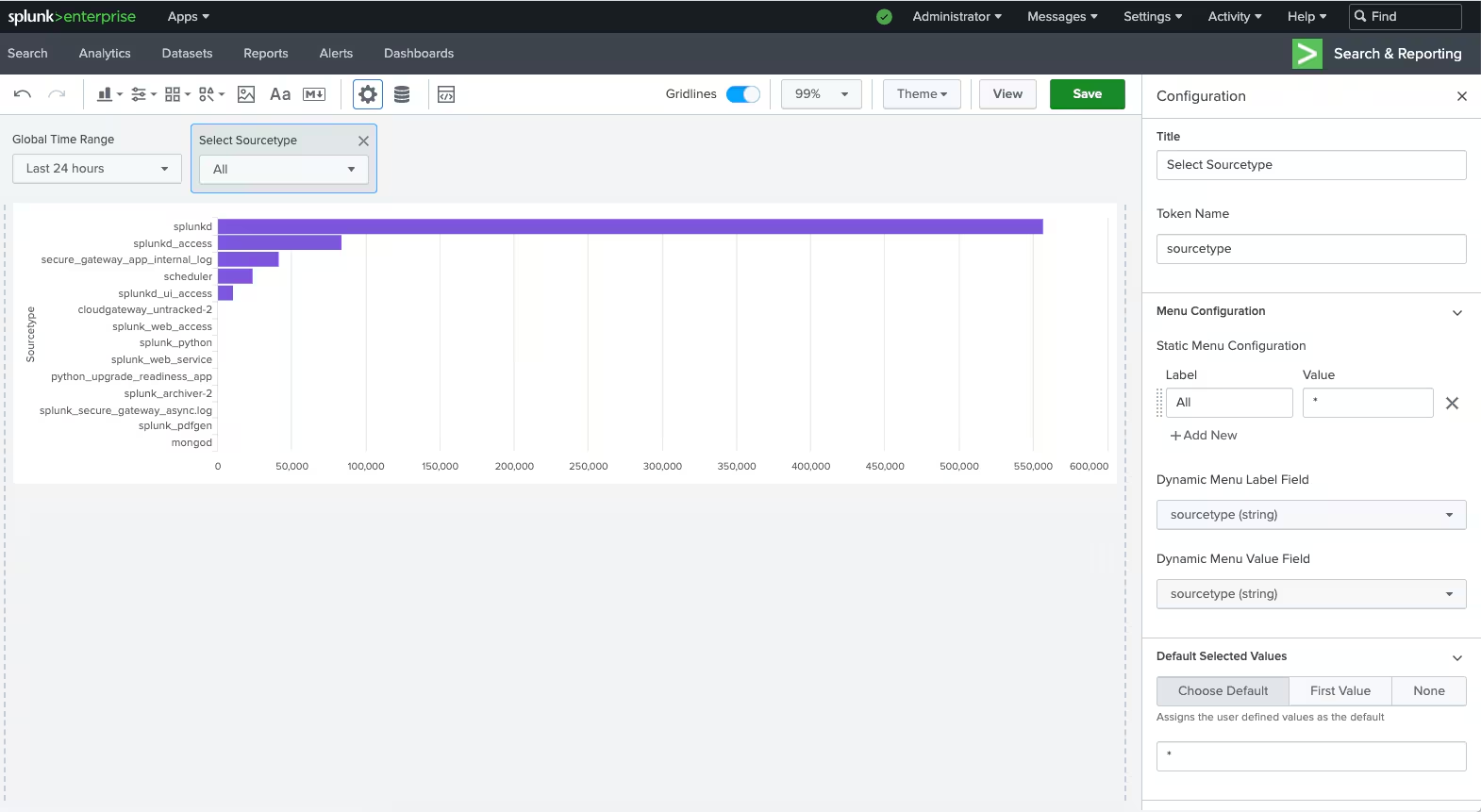
Dropdown and multi-select inputs are great for allowing users to select from a predefined list of discrete options. In our last blog post, Dashboard Studio: What's New in 8.2.2106, we announced new UI for adding data sources to dropdown and multi-select inputs to dynamically generate the menu items. Now, in Splunk Cloud Platform 8.2.2109, there is new UI to configure the default value or to select the first search result for dropdown and multi-select inputs.
Scheduled Export Limited Availability Release
The last but certainly not least new feature that we are excited to announce is the ability to schedule Studio dashboards as PDF exports to attach to emails.

In order to bring this capability to life, we are leveraging Splunk Cloud Services. For this initial Limited Availability Release (LAR), we are only able to offer 50 customers with Splunk Cloud deployments in AWS us-east-1. If you fit this description, or if you are interested in enabling this feature when it is more broadly available, sign up for our Scheduled Email Export for Dashboard Studio LAR program.
Coming Soon
Check out Dashboard Studio and send in your feedback through Splunk Ideas, and you might see your feature request listed on a future blog's "coming soon" list! We are continuing to work on new capabilities, which are delivered incrementally with Splunk Cloud Platform and Splunk Enterprise releases.
- Additional interactivity capabilities with expanded drill downs and tokens support
- Even more UI to configure and manage dashboards
Helpful Resources
- Dashboard Studio Tutorial
- Dashboard Studio Tech Talk
- Splunk Dashboard Studio Documentation
- Splunk Ideas - Dashboard Studio for feature or enhancement Requests
- Examples Hub - Find the Examples Hub from the Dashboards page in Search & Reporting
- Splunk Community - Dashboards & Visualizations for questions
* This information is subject to change at any time, at the sole discretion of Splunk LLC and without notice. This roadmap information shall not be incorporated into any contract or other commitment. Splunk undertakes no obligation to either develop or deliver any product, features, or functionality described here.
Related Articles

Announcing the General Availability of Splunk POD: Unlock the Power of Your Data with Ease
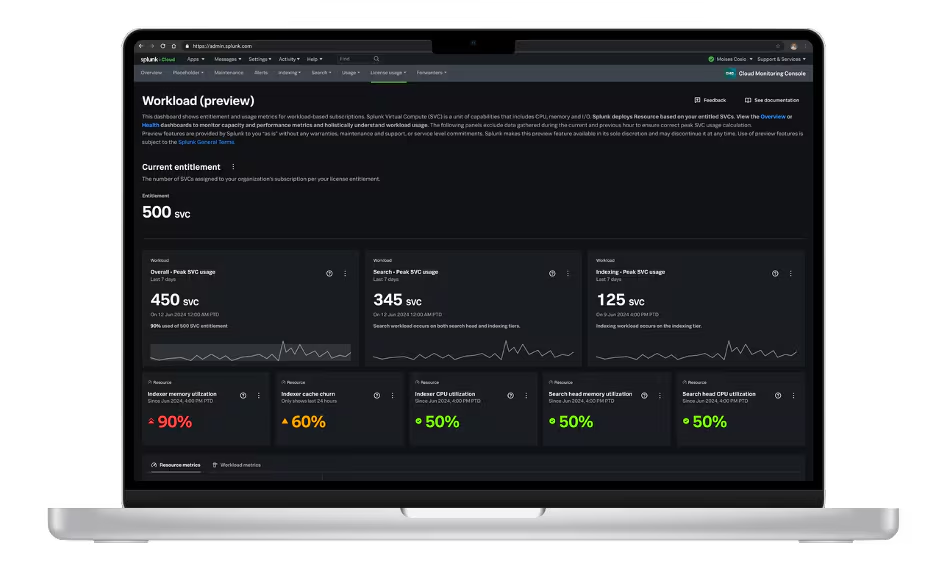
Introducing the New Workload Dashboard: Enhanced Visibility, Faster Troubleshooting, and Deeper Insights

Leading the Agentic AI Era: The Splunk Platform at Cisco Live APJ

Dashboard Studio: Token Eval and Conditional Panel Visibility
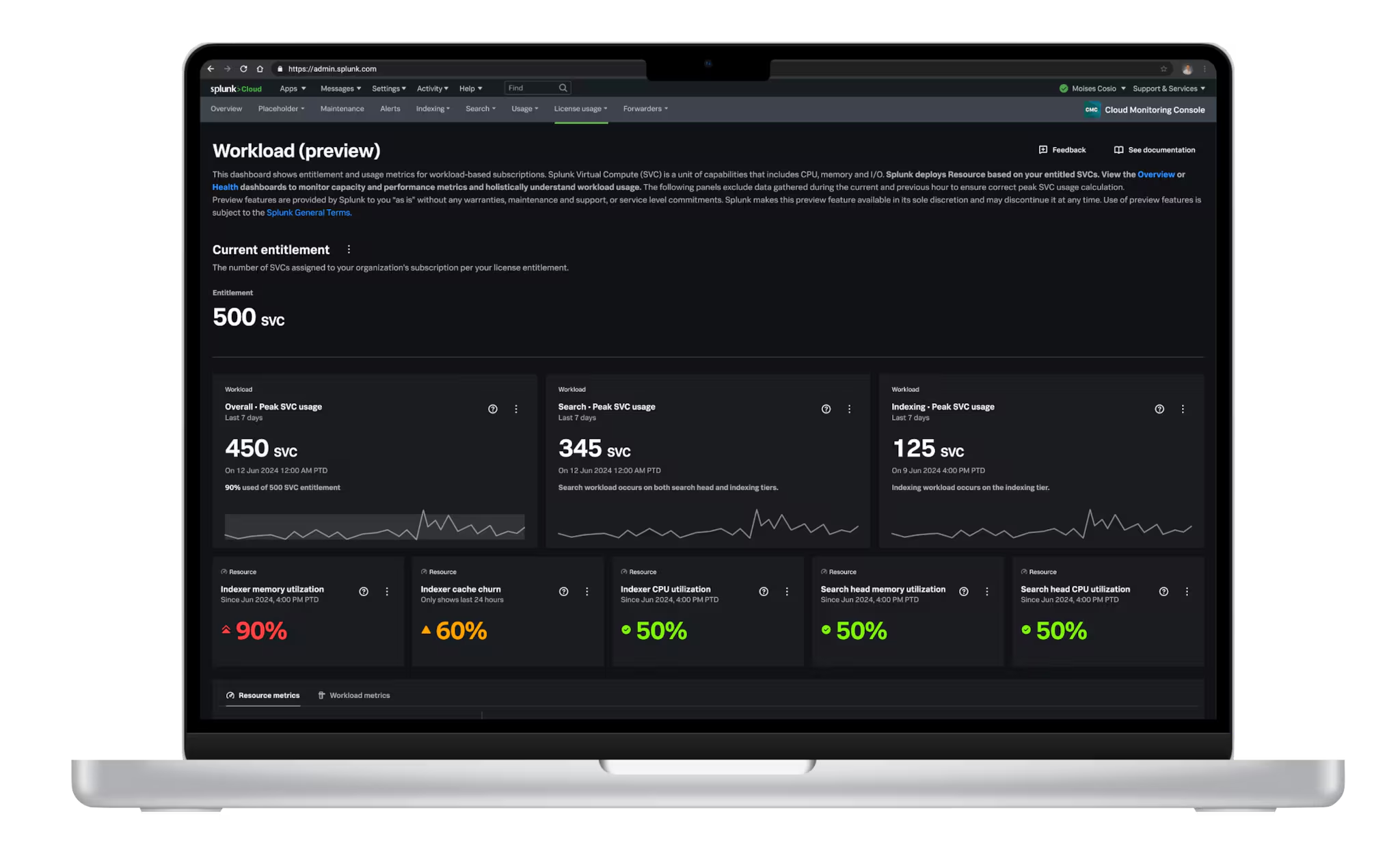
Introducing Resource Metrics: Elevate Your Insights with the New Workload Dashboard

Powering AI Innovation with Splunk: Meet the Cisco Data Fabric

Remote Upgrader for Windows Is Here: Simplifying Fleet-Wide Forwarder Upgrades
Dashboard Studio: Spec-TAB-ular Updates