Introducing Splunk App for Chargeback
The Splunk App for Chargeback provides the ability to analyze and manage how internal business units, departments, and individuals are consuming Splunk resources. The three main features of the App are:
- Chargeback - How much each business unit pays for their Splunk Environment
- Showback - How many resources are being used by each business unit
- Forecasting - Predict future storage and compute needs
The Splunk App for Chargeback allows you to manage, monitor, and forecast resource utilization in your shared Splunk environment. You can use Splunk App for Chargeback to focus on any business unit, department, or an individual user.

(SVC: Splunk Virtual Compute; DDAS: Splunk Cloud Dynamic Data: Active Searchable; DDAA: Splunk Cloud Dynamic Data: Active Archive)
The Splunk App for Chargeback analyzes the same utilization information provided in your Cloud Monitoring Console (CMC) and Monitoring Console (MC) regardless if you are a Splunk Cloud Platform or Splunk Enterprise customer. The end result is a straightforward view into your Splunk utilization across your business hierarchy.
Availability
The Splunk App for Chargeback is a free app on Splunkbase for customers on Splunk Cloud Platform or Splunk Enterprise, regardless of your license type.
The Splunk App for Chargeback provides the framework necessary to analyze Splunk Cloud workload or ingest license models and Splunk Enterprise vCPU or ingest license models.
Click on the links below to learn more about Splunk Cloud Workload Pricing and the different types of licensing the App supports:
Splunk App for Chargeback: Key Highlights
Technical Features
Are you interested in building a powerful executive dashboard to showcase how your business units are consuming Splunk resources? If yes, you are in the right place. Here is an example of an out-of-the-box dashboard to get you started quickly.
Let us showcase how The Splunk T-Shirt Company used the App to give the Splunk team the visibility they needed in their Splunk Cloud stack. The Splunk T-Shirt Company is on the Splunk Cloud Workload (SVC) model. Workload allowed them to have more flexibility on how their business units are consuming Splunk Cloud resources. Like any other organization, The Splunk T-Shirt Company needed to have some way to measure that usage and put a process in place for Showback and Chargeback use cases.
All screenshots in this blog were taken from a demo environment, and we will be focusing on one business unit in particular called Global Information Security, or GIS for short.
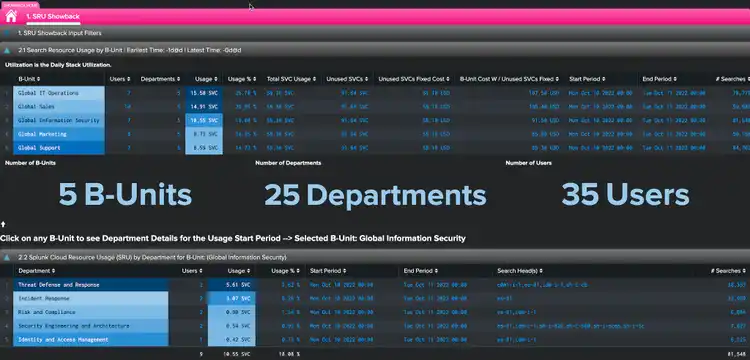
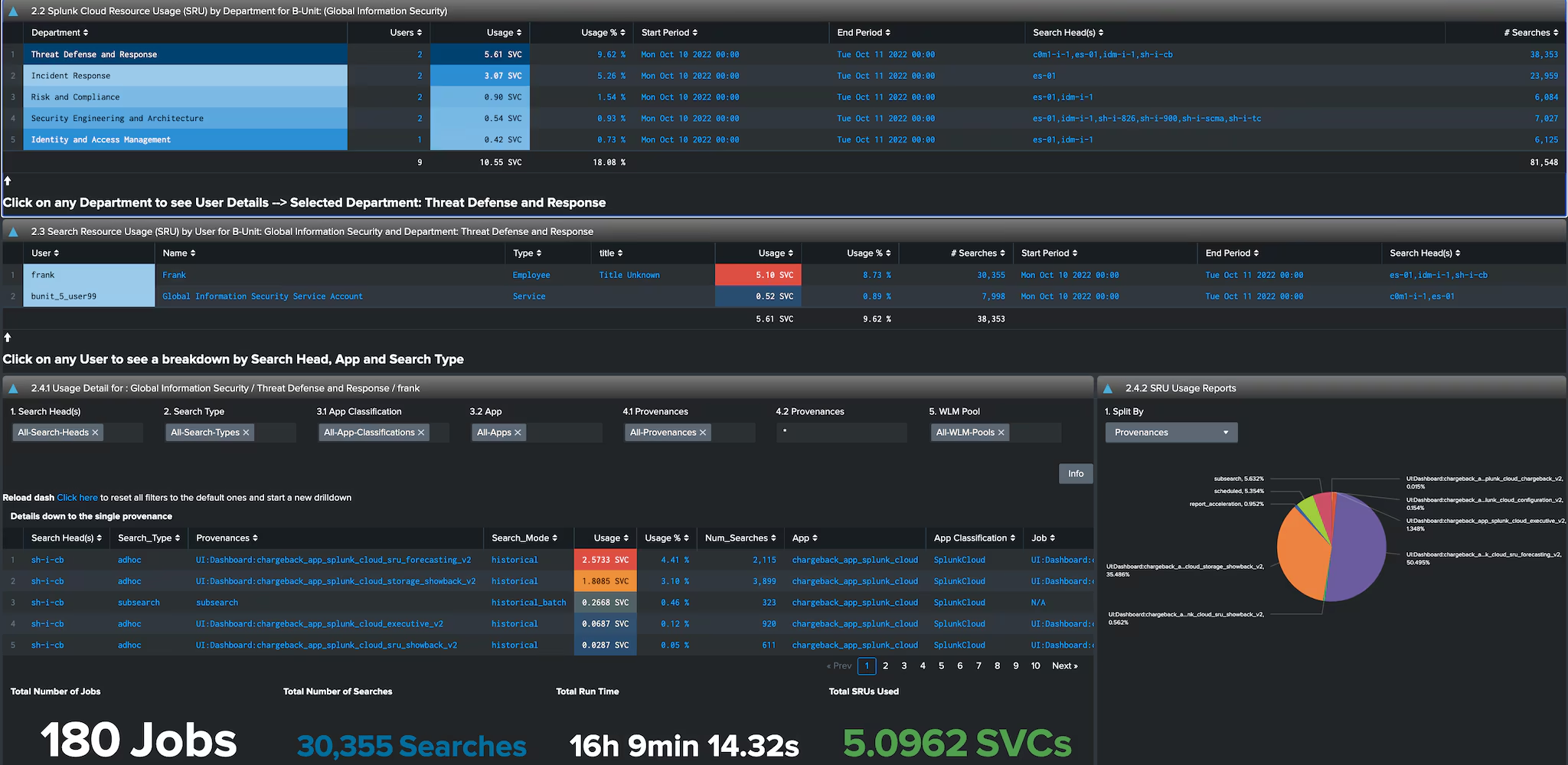
Let’s drill down on GIS, an important business unit in the Splunk T-Shirt company organization, and see a departmental breakdown of SVC usage:
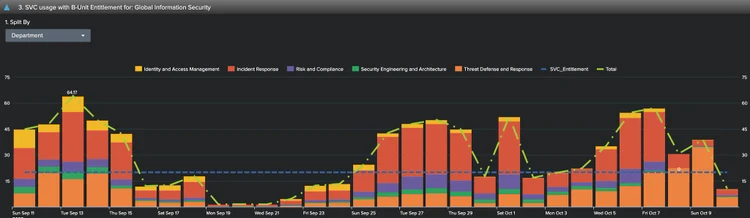
We can also use the App’s executive or reports dashboards to review SVC usage by business unit over time and split that usage by department within the business unit we are analyzing.
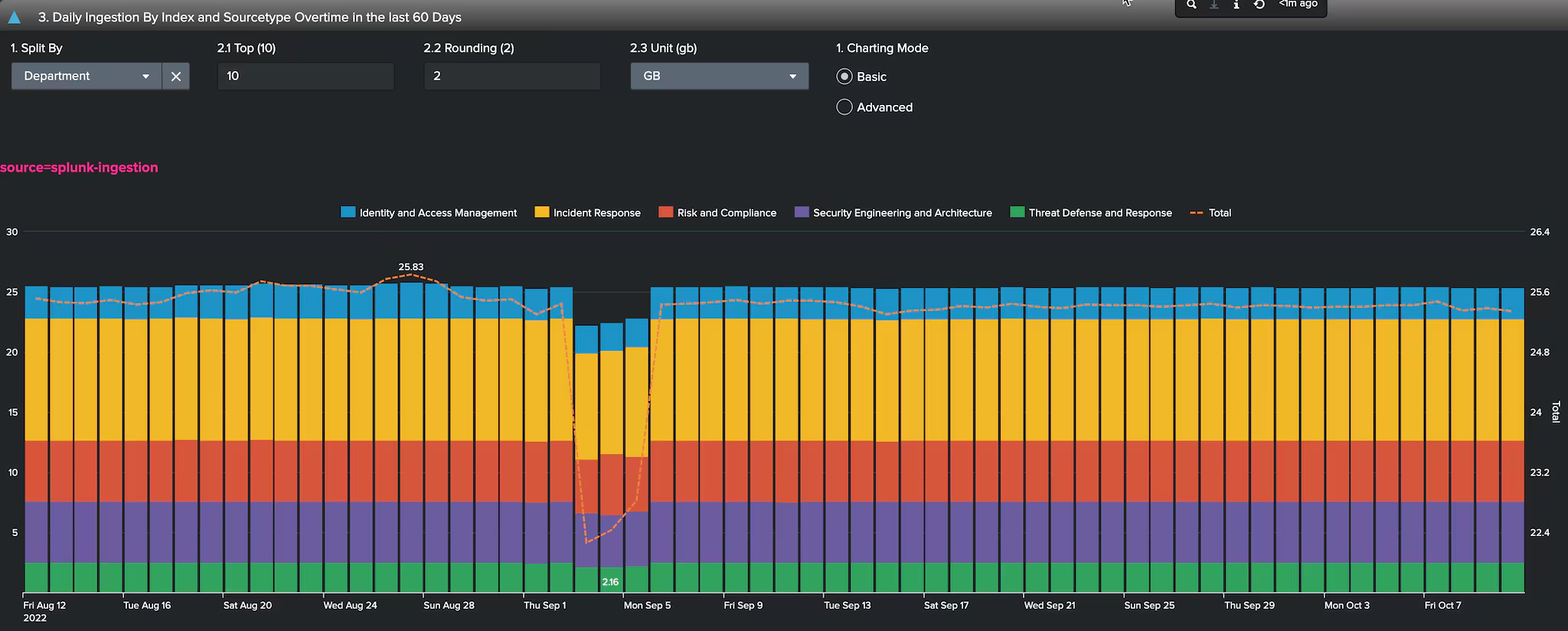
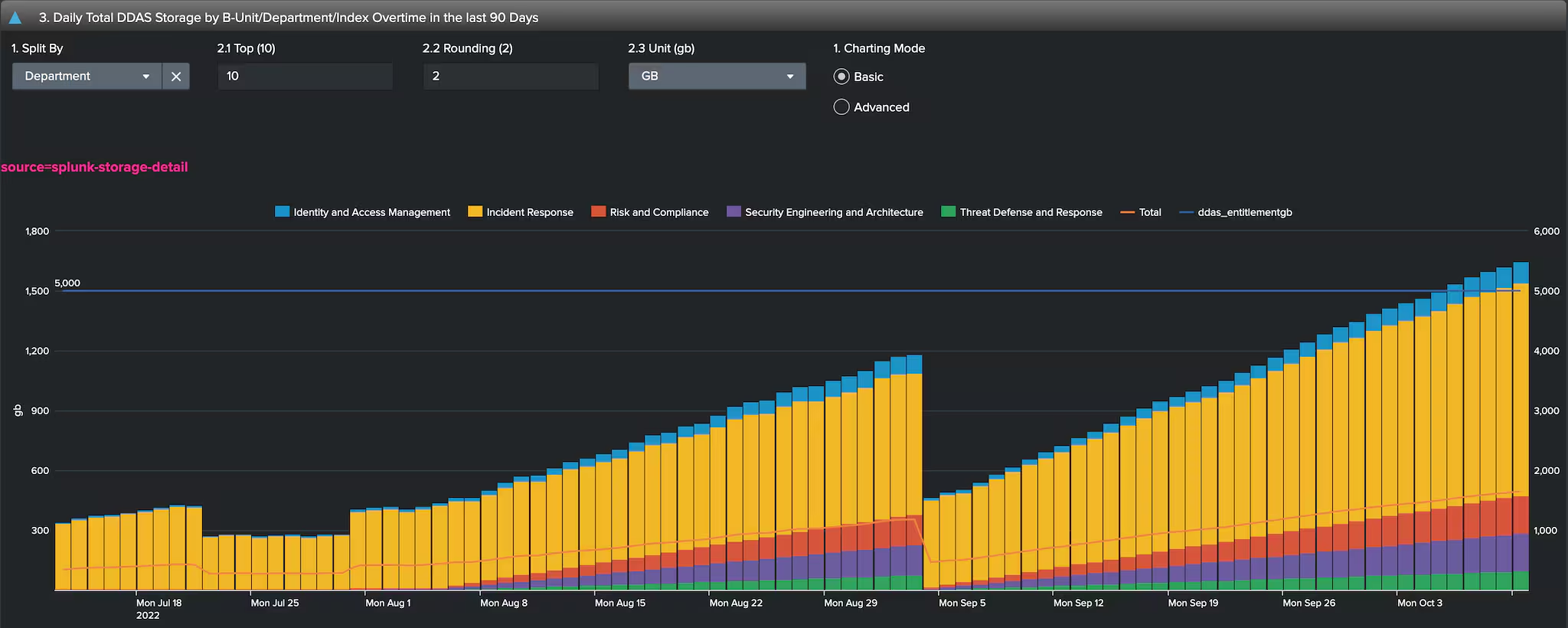
Storage is also an important part of The Splunk T-Shirt Company’s environment. Below, we can see how much data the GIS team has been ingesting on a daily basis by index:
Here we can see the amount of storage GIS used by departments. We also see an overlay of their entitlement the Splunk team set up in the App. We can clearly see that GIS exceeded their quota the first week of October and may need to adjust their index retention to stay within their allocation.
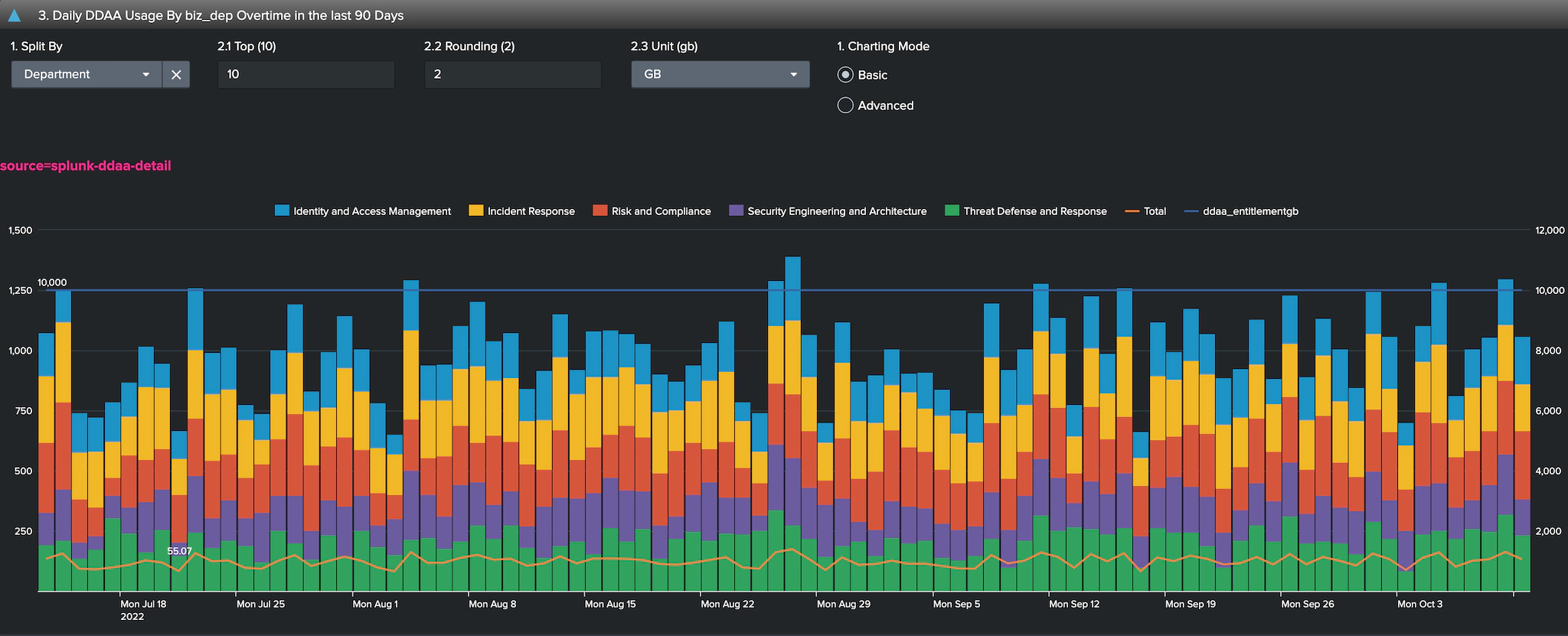
Like any other business units, GIS must archive historical data in case they need to re-index it for auditing purposes. Below we see how much they are archiving on a daily basis, which has a separate cost associated with it. We can also see that GIS exceeded their archiving quota on a couple of occasions, but remained below quota the majority of the time.
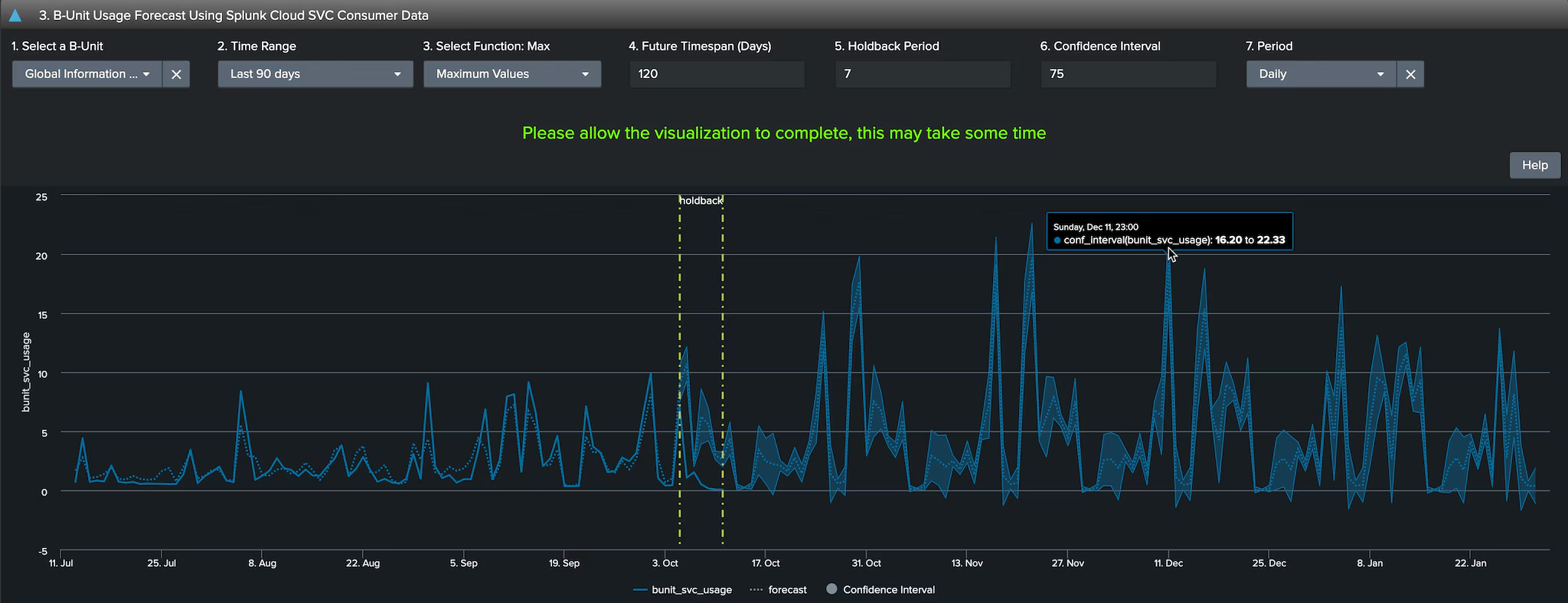
How about we do something cool and be more proactive and predict future Splunk resource usage based on historical data?
What you are looking at below is the State Space Forecast algorithm for time series data using the Splunk Machine Learning Toolkit, available to all customers free of charge. This forecast is based on Kalman filters.
Don’t wait, be the first to get started by simply browsing for more apps by searching for Chargeback, then click on “Install”. No restarts or further steps are required.
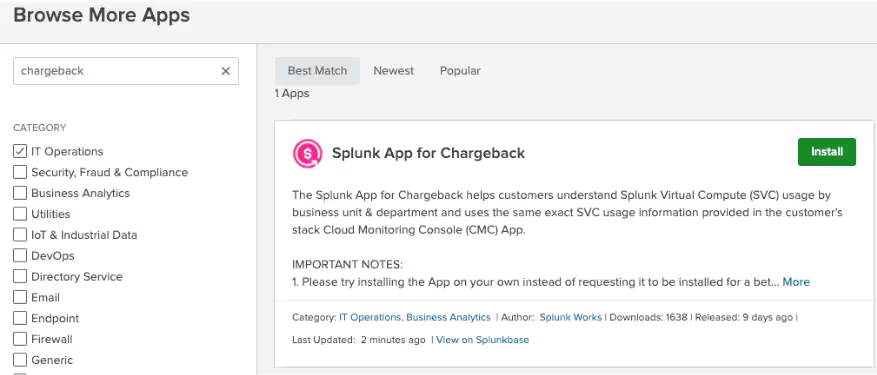
Please note that the App is compatible with Splunk Cloud Self-Service app installation (SSAI), so no need to open a support case to install the app — you can do it on your own!
For more information, check out Splunk Documentation and the Splunkbase posting that has flowcharts and multiple videos to get you started today.
Related Articles

Announcing the General Availability of Splunk POD: Unlock the Power of Your Data with Ease
Introducing the New Workload Dashboard: Enhanced Visibility, Faster Troubleshooting, and Deeper Insights

Leading the Agentic AI Era: The Splunk Platform at Cisco Live APJ

Dashboard Studio: Token Eval and Conditional Panel Visibility
Introducing Resource Metrics: Elevate Your Insights with the New Workload Dashboard

Powering AI Innovation with Splunk: Meet the Cisco Data Fabric

Remote Upgrader for Windows Is Here: Simplifying Fleet-Wide Forwarder Upgrades
Dashboard Studio: Spec-TAB-ular Updates