Configure Jupyter Notebook to Interact with Splunk Enterprise & the Splunk Machine Learning Toolkit
Ever wanted to manage and integrate your Splunk Enterprise deployment using your favorite data science tool? Then this blog's for you. But there are a couple things to keep in mind—this is for development and single instance deployments only, and it also requires sudo/root access to the server in order to properly map user PIDs and ownership of directories inside the Docker container to the host operating system.
Requirements:
- Sudo/Root Access
- Docker & Knowledge of Docker CLI
- Splunk Enterprise
- Understanding of Jupyter Notebook
Preparing the Environment
To prepare the environment you should verify Docker is installed on the host system.
To check if Docker is installed on your server or workstation simply type:
$ docker --version
Docker version 18.09.2, build 6247962
If you see a similar output from the command above, you can move onto the next step. Otherwise, check out the documentation at Docker.com to install for your platform of choice.
Determine Splunk’s UID
Following Splunk’s best practices and a depth in defense strategy, it's suggested to run Splunk Enterprise as a local user. When a user is created in Linux, a user ID (UID) is assigned. This is needed to map directory ownership and processes to the container.
For this example, Splunk Enterprise is currently owned by the user splunk. To determine the UID you can simply use:
$ id -u splunk
1001
You will need this UID to pass to the container running Jupyter Notebook. Full documentation on the different run hooks that can be used as part of building the container image can be found at the following resource here.
If Splunk Enterprise is currently running on your host machine, shut down Splunk as the splunk user:
$ /opt/splunk/bin/splunk stop
Install Jupyter Notebook via Docker
Once Splunk Enterprise has stopped, you can use Docker to install Jupyter Notebook and reassign the splunk web & splunkd ports to the container.
$ docker run -t -i --user root -p 8888:8888 -p 8000:8000 -p 8089:8089 -e NB_UID=1001 -e NB_GID=1001 -e JUPYTER_ENABLE_LAB=yes -e NB_USER=splunk -e CHOWN_EXTRA="/home/splunk" -v /opt/splunk/:/home/splunk/ jupyter/base-notebook
The command above assumes the following:
- Splunk Enterprise is installed in /opt/splunk/
- All the files and directories in /opt/splunk are owned by the user Splunk with a UID of 1001
- Ports 8888, 8000, 8089 are free on the host operating system
Once the container has started back up, you should be able to use the supplied credentials to login to the Jupyter notebook server. You can disconnect from the docker terminal using the following escape sequence: control + p, control + q.
If permissions and mounting options have been assigned correctly, Jupyer should be treating /opt/splunk as /home/splunk (you can verify this using Jupyter Notebook).
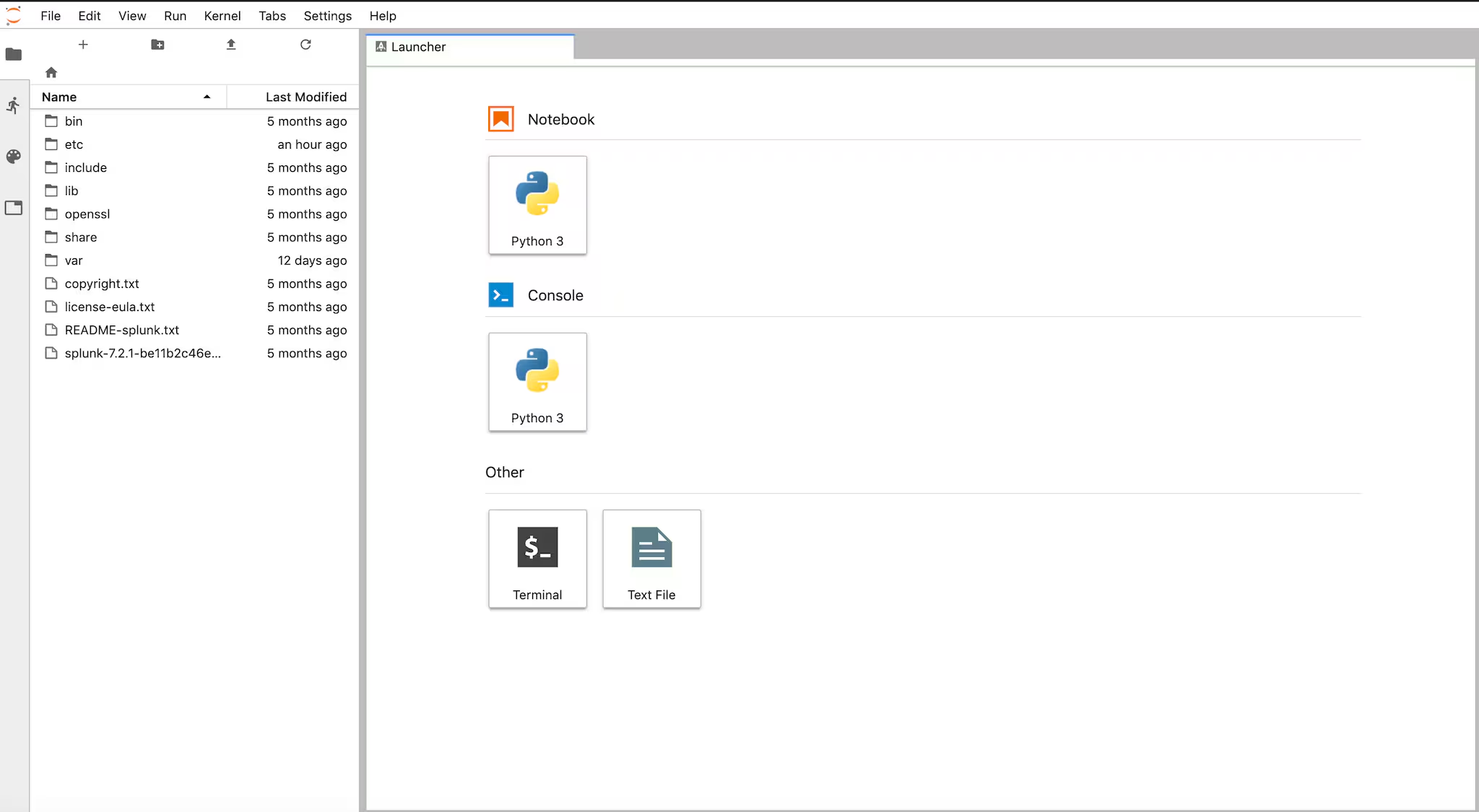
Clicking the terminal option, you can test the permissions of the Splunk user to manipulate Splunk configuration files as well as start Splunk Enterprise.
splunk@6ae2fb6269c4:~$ whoami
splunk
splunk@6ae2fb6269c4:~$ pwd
/home/splunk
splunk@6ae2fb6269c4:~$ ls
bin etc lib openssl share var
copyright.txt include license-eula.txt README-splunk.txt splunk-7.2.1-be11b2c46e23-linux-2.6-x86_64-manifest
splunk@6ae2fb6269c4:~$ bin/splunk start
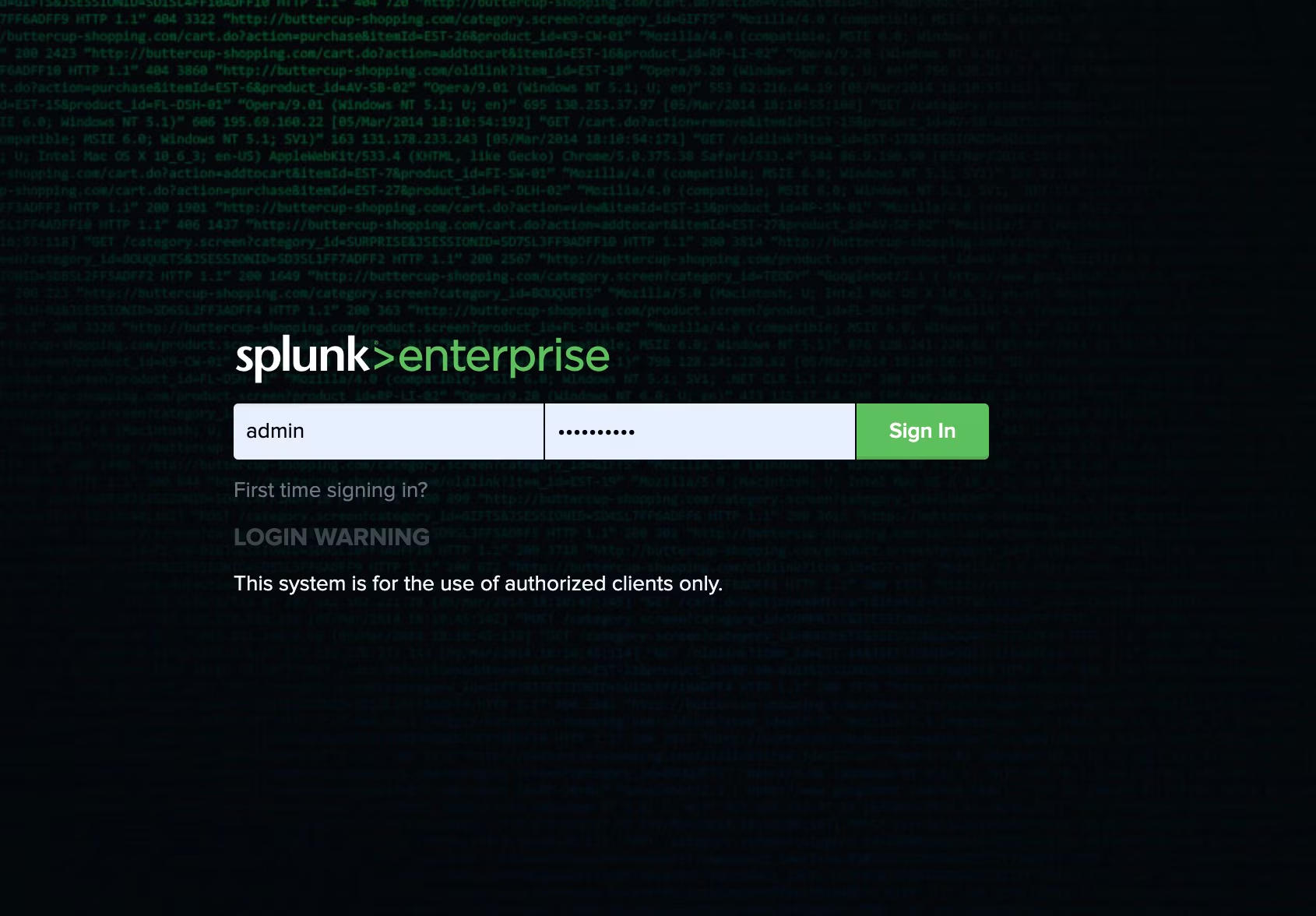
Once Splunk Enterprise has started, you should be able to access the web interface using the same credentials you would normally use.
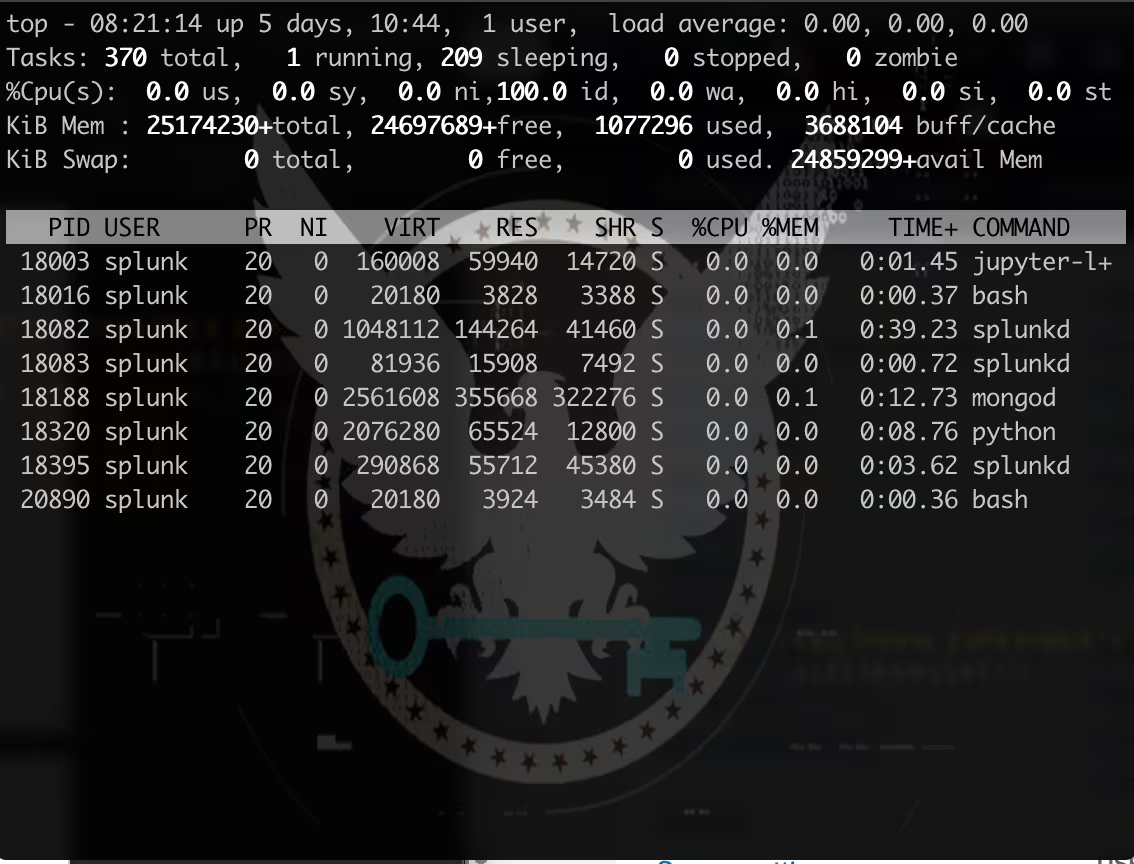
You can also verify Splunk Enterprise is running by using the top command.
Leverage Splunk's CLI for Data Science & Machine Learning
With Jupyter wired up, you can now interact with Splunk Enterprise via CLI to run searches. This can be leveraged to interact with Splunk via Python (REST API) or directly using the CLI interface to search, and transform data.
splunk@6ae2fb6269c4:~$ bin/splunk search 'index=_internal | fields _time | head 1'
Splunk username: admin
Password:
04-01-2019 08:28:15.935 +0000 INFO Metrics - group=thruput, name=thruput, instantaneous_kbps=1.2758811410502788, instantaneous_eps=5.032329004121768, average_kbps=2.109314993992371, total_k_processed=9285, kb=39.5517578125, ev=156, load_average=0
Check out the documentation for the command using:
$ bin/splunk help search
You can change the format to csv or other formats that easier integrate into your python notebook using the output option.
output value indicates how to display the job. Choices are:
rawdata, table, csv, raw, and auto. If not specified,
defaults to rawdata for non-transforming searches
and table for transforming searches.
$ bin/splunk search 'index=_internal | fields _time | head 1' -output csv
Using Splunk & the Splunk MLTK via CLI
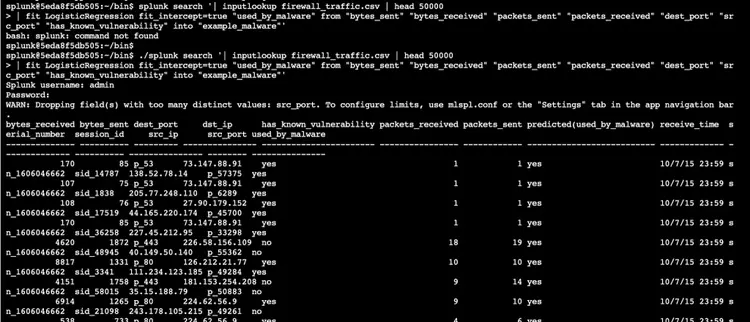
Splunk Enterprise’s CLI supports app contexts and most search commands that have been installed by apps. An example of this is the fit command which can be used to build a model based the results of a Splunk search.
$ bin/splunk search '| inputlookup firewall_traffic.csv | head 50000
| fit LogisticRegression fit_intercept=true "used_by_malware" from "bytes_sent" "bytes_received" "packets_sent" "packets_received" "dest_port" "src_port" "has_known_vulnerability" into "example_malware"'
We hope you enjoyed this blog on how to integrate Jupyter Notebook with Splunk Enterprise. In part two, we'll cover some hands-on examples of how to leverage this configuration for machine learning and analytics.
----------------------------------------------------
Thanks!
Anthony Tellez
Related Articles

Announcing the General Availability of Splunk POD: Unlock the Power of Your Data with Ease
Introducing the New Workload Dashboard: Enhanced Visibility, Faster Troubleshooting, and Deeper Insights

Leading the Agentic AI Era: The Splunk Platform at Cisco Live APJ

Dashboard Studio: Token Eval and Conditional Panel Visibility
Introducing Resource Metrics: Elevate Your Insights with the New Workload Dashboard

Powering AI Innovation with Splunk: Meet the Cisco Data Fabric

Remote Upgrader for Windows Is Here: Simplifying Fleet-Wide Forwarder Upgrades

Dashboard Studio: Spec-TAB-ular Updates