Splunk Remote Upgrader for Linux Universal Forwarders
- Introduction
- What is the Remote Upgrader for Linux used for?
- Why is the Remote Upgrader for Linux a handy solution?
- How does Remote Upgrader work?
- Structure of installation packages
- Simplified installation manual
- Future plans, Remote Upgrader for Windows
Introduction
The Splunk Remote Upgrader (RU) for Linux Universal Forwarders is an Splunkbase app to remotely upgrade your fleet of universal forwarders (UF) for Linux. It monitors for new universal forwarder packages in a predefined folder and upgrades the UF with new packages.
For the distribution of the Upgrader and the universal forwarder, you can use either the Deployment Server or deliver the package manually or with existing automation. You may handle various upgrade use cases: UF upgrade only, RU upgrade only, and UF & RU upgrade.
Tested performance benchmarks of the RU: CPU usage: < 1%, Memory usage: 3 ~ 4 MB.
What Is the Remote Upgrader for Linux Used For?
The Remote Upgrader (RU) for Linux is designed to update the software versions of universal forwarders installed on Linux machines. Its primary purposes are to reduce the time Splunk admins spend on upgrades (improving maintenance), increase the frequency of updates (enhancing security and reducing vulnerabilities), and enable the rapid implementation of new features available in updated versions of universal forwarders. The RU is invaluable for users needing to upgrade data collection agents via Splunk's central agent management server (the Deployment Server).
Why Is the Remote Upgrader for Linux a Handy Solution?
I can already see a long list of advantages offered by the Remote Upgrader, along with its promising extension capabilities:
- You can securely upgrade your Linux forwarders from the Deployment Server.
- You can test this transparent solution on Linux machines and prepare to transition it to Windows machines in the near future.
- All your configuration files remain intact and unharmed in your system.
- You have the flexibility to use RU exclusively for upgrades or integrate it with other automation tools.
- You will manage software upgrades for your universal Forwarders (UFs) using an existing, proven, and stable central server (the Deployment Server).
- All upgrade events are logged and forwarded to your indexer.
- Your upgrade is secured with an automatic rollback mechanism in case of failure.
- The previous version of UF is backed up to ensure recovery.
- A Windows version and additional enhancements are planned by Splunk.
What is truly exciting is the potential for Splunk users to expand this list even further with new improvement ideas. Splunk is fully committed and enthusiastic about this collaborative development journey. Together, we (your team and the Splunk team) will not only create an optimal Remote Upgrader system but also establish best practices for integrating and utilizing this product alongside automation tools (e.g., Infrastructure as Code apps, etc.). Ultimately, this collaboration will result in a comprehensive and powerful solution.
How Does Remote Upgrader Work?
You install the Updater (RU) on the same Linux instance (machine) as your universal Forwarder. The Updater monitors a predefined folder, /tmp/SPLUNK_UPDATER_MONITORED_DIR, for new UF packages. When a new UF package is detected, the RU automatically upgrades the UF with that package.
The UF installation package is delivered to the UF through the Deployment Server, encapsulated within the delivery app (a typical scripted Splunk app) and placed in the directory $SPLUNK_HOME/etc/apps. Once the delivery app is automatically initiated on the UF, it copies the UF installation package (comprising the .tgz file and its signature .sig file) into the RU's predefined folder, /tmp/SPLUNK_UPDATER_MONITORED_DIR.
Since the RU triggers installation based on monitoring the predefined folder (and not the UF app folder), a simple scripted delivery app is required.
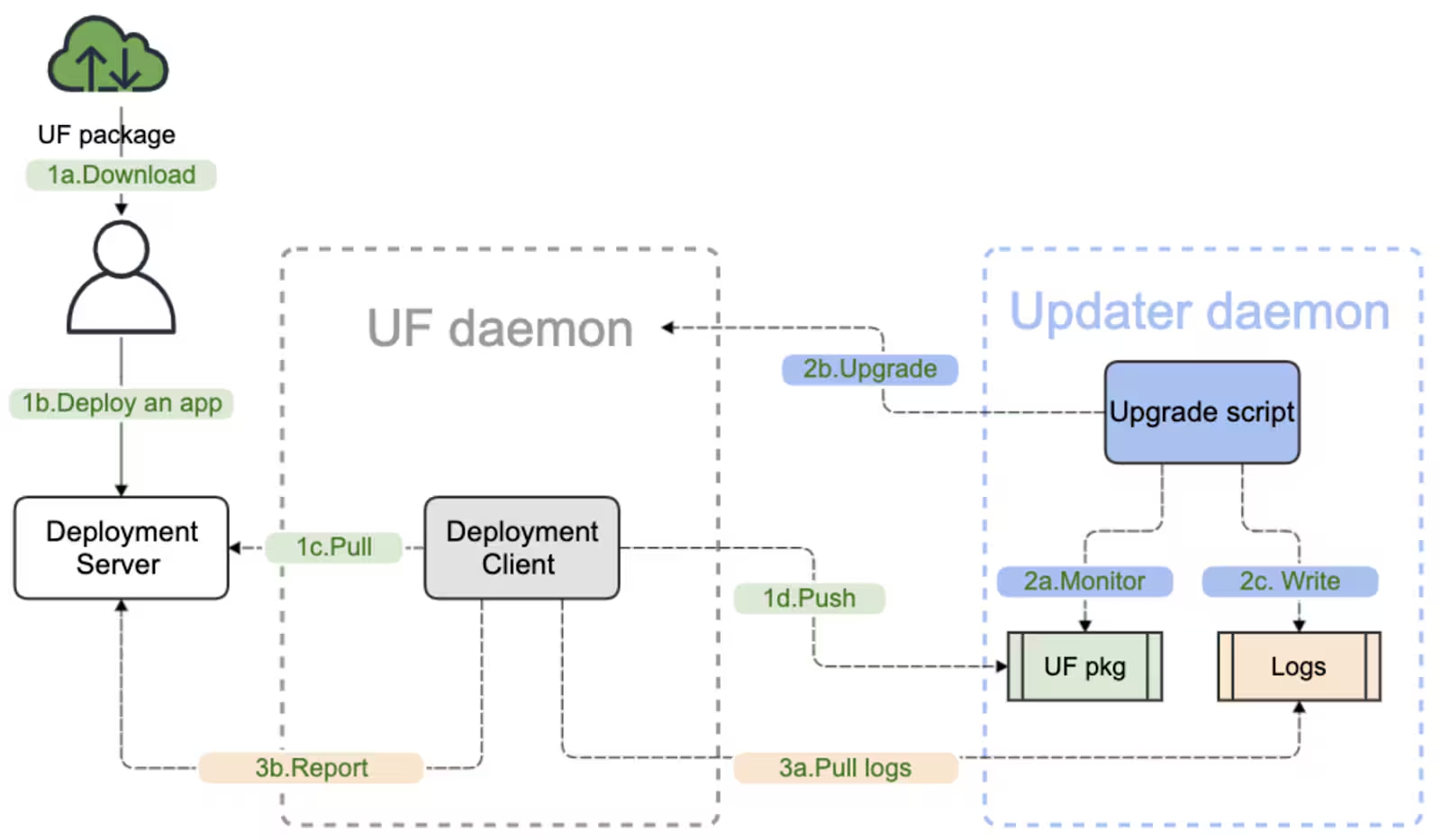
Due to operating system constraints, the Remote Upgrader must be installed manually and executed with elevated privileges (sudo or root) for the first time. This change enhances security while enabling the universal Forwarder to function as a non-root application.
Structure of Installation Packages
Please note that the described solution includes the following packages:
- Remote Upgrader for Linux
- Delivery app
- UF installation package
An important detail about these packages is that during the installation process, you only need two packages: the Remote Upgrader for Linux and the delivery app containing the encapsulated UF installation package. The first package is part of the application downloaded from Splunkbase. The second package is assembled using the application downloaded from Splunkbase and the UF installation package obtained from splunk.com.
Remote Upgrader for Linux: When you download the RU application from Splunkbase, you will receive the complete directory structure of a typical Splunk application, with the RU package incorporated as a single .tgz file (e.g., "splunk-upgrader-100.tgz" in the initial version of the RU). Please note that only the RU installation .tgz file is required for installation; the full application structure will be utilized later for upgrading UFs.
Delivery app: This app has the structure of a typical Splunk application, including components such as the delivery script (.sh file), the UF installation file (.tgz file), and the UF signature file (.sig file). The UF installation and signature files must be downloaded from splunk.com and added to the RU application downloaded from Splunkbase.
UF installation package: This consists of the UF installation file (.tgz file) and the UF signature file (.sig file). These files must also be downloaded from splunk.com and included in the RU application from Splunkbase.
The diagram below illustrates the structure of the RU for Linux application (version 1.0.0) as downloaded from Splunkbase, including the integrated 9.4.0 UF installation package.
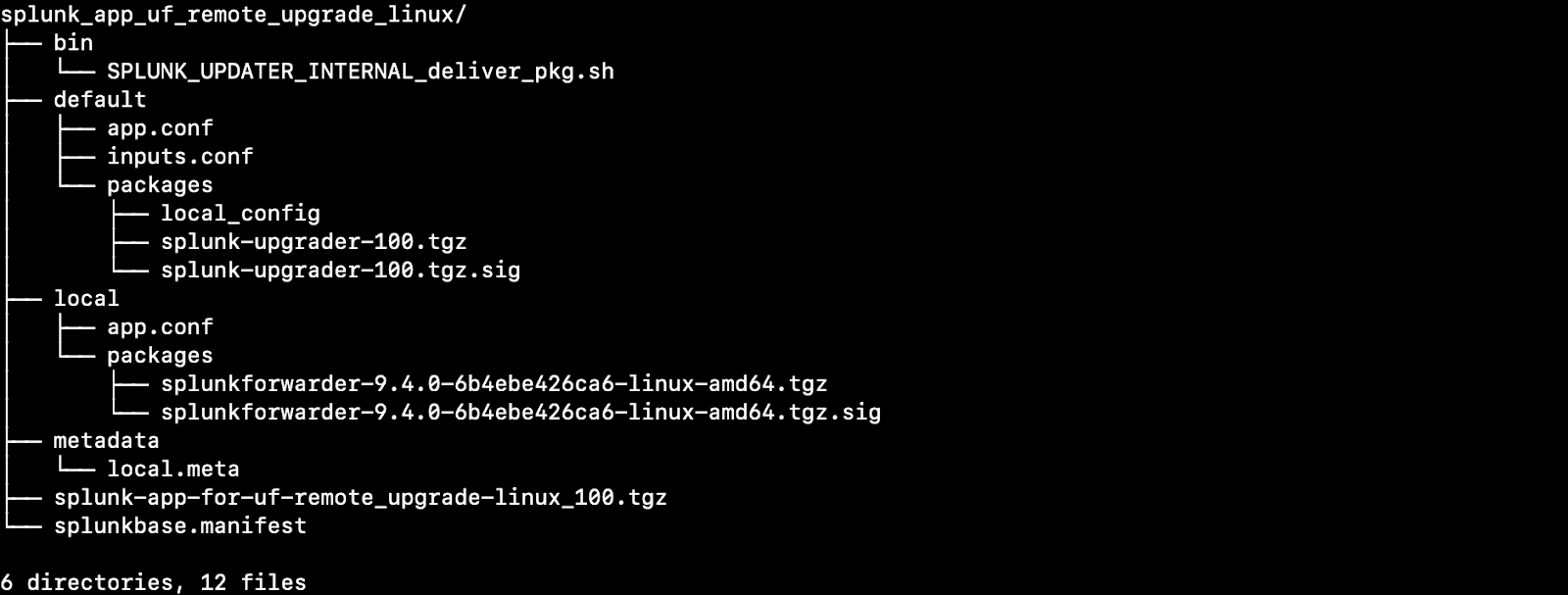
Fig. Structure of the RU (ver. 1.0.0) for Linux app downloader from Splunkbase (with UF 9.4.0)
Simplified Installation Manual
Below, you will find a condensed installation manual outlining how to distribute the Remote Upgrader package via the Deployment Server and how to upgrade universal Forwarders using the same method. This section aims to provide you only with an overview of the distribution and installation process.
Distribute the Remote Upgrader package using DS
- Download the Splunk Remote Upgrader for Linux Universal Forwarders from the SplunkBase
- Untar the file and find in the directory RU package:
splunk-upgrader-{version}.tgz file - Distribute this file using the deployment server to the Universal Forwarders where you plan to install the Remote Upgrader.
On the Deployment Server, the applications should be placed in the directory
‘$SPLUNK_HOME/etc/deployment-apps. The application is then delivered to the directory$SPLUNK_HOME/etc/appson destination Universal Forwarders. - Move the Universal Forwarder upgrader package into the forwarders installation directory
Run the Remote Upgrader side-by-side with the Universal Forwarder home, so for example, ifSPLUNK_HOME = "/opt/splunkforwarderthen copy the upgrader package into/opt. - Untar the package
- Start the installation process
sudo ./bin/install.sh --accept-license --create-user
Upgrade UF using DS and the Remote Upgrader
- From splunk.com, download the 9.0.0+ Universal Forwarder installation package and the respective .sig file
- Put the Universal Forwarder and .sig file inside the untared Remote Upgrader package (the one you downloaded from the SplunkBase) into the directory: splunk_app_uf_remote_upgrade_linux/local/packages.
- Now the directory splunk_app_uf_remote_upgrade_linux is a ready application to be distributed using DS to selected Universal Forwarders. Please distribute that application to Universal Forwarders using DS. After the application is distributed, the Universal Forwarder upgrade shall be performed automatically.
For a detailed installation guide, please refer to the Splunk documentation: https://docs.splunk.com/Documentation/Forwarder/1.0.1/ForwarderRemoteUpgradeLinux/About
Future Plans, Remote Upgrader for Windows
We are currently developing Remote Upgrader for Windows, modeled after the efficiency of Remote Upgrader for Linux. The release is planned once the solution is positively tested, and then it will be officially scheduled. Following this launch, we aim to continue refining the solution to achieve even greater improvements. Stay interested, look forward to upcoming advancements, and stay in touch with us.
We welcome your suggestions and ideas and look forward to collaborating with you. Your input will be instrumental in shaping this groundbreaking tool into a unified, seamless, versatile, and reliable solution for managing system upgrades efficiently.
Related Articles

Announcing the General Availability of Splunk POD: Unlock the Power of Your Data with Ease
Introducing the New Workload Dashboard: Enhanced Visibility, Faster Troubleshooting, and Deeper Insights

Leading the Agentic AI Era: The Splunk Platform at Cisco Live APJ

Dashboard Studio: Token Eval and Conditional Panel Visibility
Introducing Resource Metrics: Elevate Your Insights with the New Workload Dashboard

Powering AI Innovation with Splunk: Meet the Cisco Data Fabric

Remote Upgrader for Windows Is Here: Simplifying Fleet-Wide Forwarder Upgrades

Dashboard Studio: Spec-TAB-ular Updates