Schedule Windows vs. Skewing
Splunk Enterprise 6.3 added the feature of Schedule Windows that allows the Search Scheduler to distinguish between searches that really should run at a specific time (just like cron) from those that don't have to, thereby greatly reducing lag or skipping. Splunk Enterprise 6.6 adds Schedule Skewing that allows the Search Scheduler to randomly distribute scheduled searches more evenly over their periods.
What’s the practical difference? When should you use one vs. the other? I’ll explain. But first, I’ll review each feature separately.
Scheduler Terms
There are a few terms used when discussing the Search Scheduler:
- Dispatched Time: The time a search instance was actually dispatched (run); cf. scheduled time.
- Lag: The difference in time between a search instance’s dispatched time and its scheduled time.
- Next Runtime: The actual time of day of the scheduled time of a search instance that is next. For example, for a search that runs every 5 minutes, if it is now 12:03, then the next runtime is 12:05.
- Scheduled Time: The time when a search instance is supposed to run (the zeroth second of some minute of some hour); cf. dispatched time.
- Search Instance: A saved search that is scheduled to run at a particular time. For example, a search that runs every 5 minutes has a distinct instance at each of 00:00, 00:05, etc.
- Skipped: When a search instance can not be run for whatever reason, despite repeated attempts, and the scheduled time of next runtime of the next search instance is at hand, the current search instance is skipped (it will not now nor ever will be run).
Schedule Windows
Background As mentioned, schedule windows allow the Search Scheduler to distinguish between searches that really should run at a specific time (e.g. every hour as close to the top of the hour as possible) from those that don't have to (e.g. approximately every hour, but when specifically within the hour is not critical). Hence, giving a search a window is altruistic: it helps other searches. In savedsearches.conf, the parameter is specified as:
schedule_window = window-in-minutes | auto
where window-in-minutes when greater than 0 indicates the specific window of time during which the search will be altruistic—i.e. have a priority score higher (worse), and allow other searches to run first. (However, if at any time there is sufficient capacity to run the search, it will be run). If the search instance hasn’t run and the window expires, then the scheduler will treat the search instance from that point on as if it never had a schedule window (until it either finally runs or is skipped).
The auto value tells the scheduler to calculate the window of time automatically based on historical run-times of the search. For example, if a search runs every five minutes and has historically taken approximately twenty seconds to run, then—in order to have been run within its five-minute period—the search can be deferred at most four minutes and forty seconds; so that is the auto value.
To illustrate a use-case for schedule windows, suppose you have a mixture of searches: some run frequently—say every 5 minutes or even every minute—and some run less frequently—say once an hour or even once a day. At times, when many of those searches scheduled times align on a Splunk deployment with insufficient capacity to run them all concurrently, those searches with schedule window will allow other more important searches to run first.
Before & After To illustrate the benefit of schedule windows, here are some “before” vs. “after” scheduler performance charts.
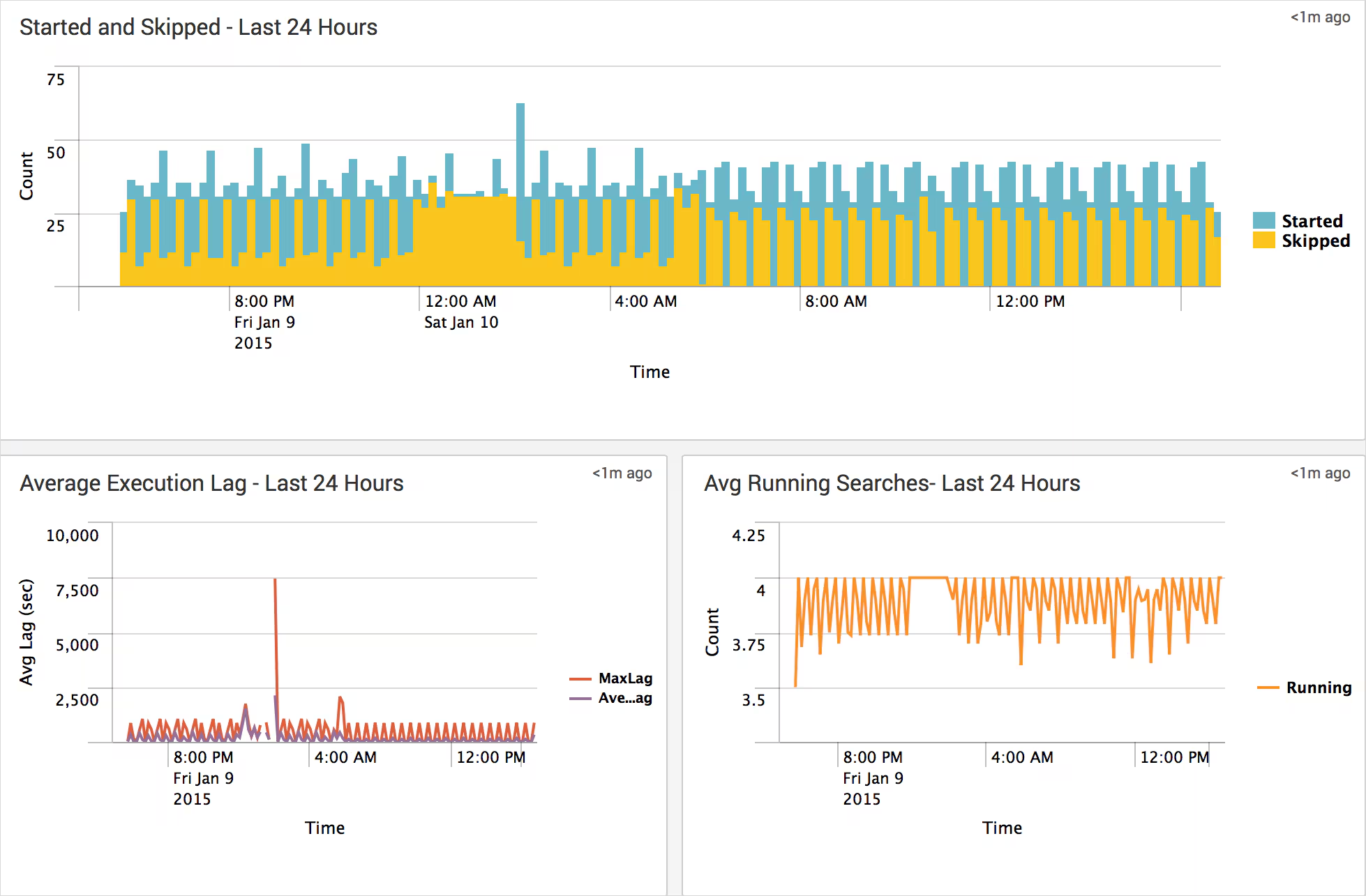
Things to notice:
- In the Started and Skipped chart, the searches that are skipped form a repeating pattern meaning that the same searches are attempted to be run in the same order and the same searches are skipped.
- From 12–2am, many searches are skipped since “daily” searches run at midnight.
- In the Avg Running Searches chart, the number of searches running on average is erratic and not fully using the scheduler’s capacity.
Here is the “after” set of schedule performance charts.
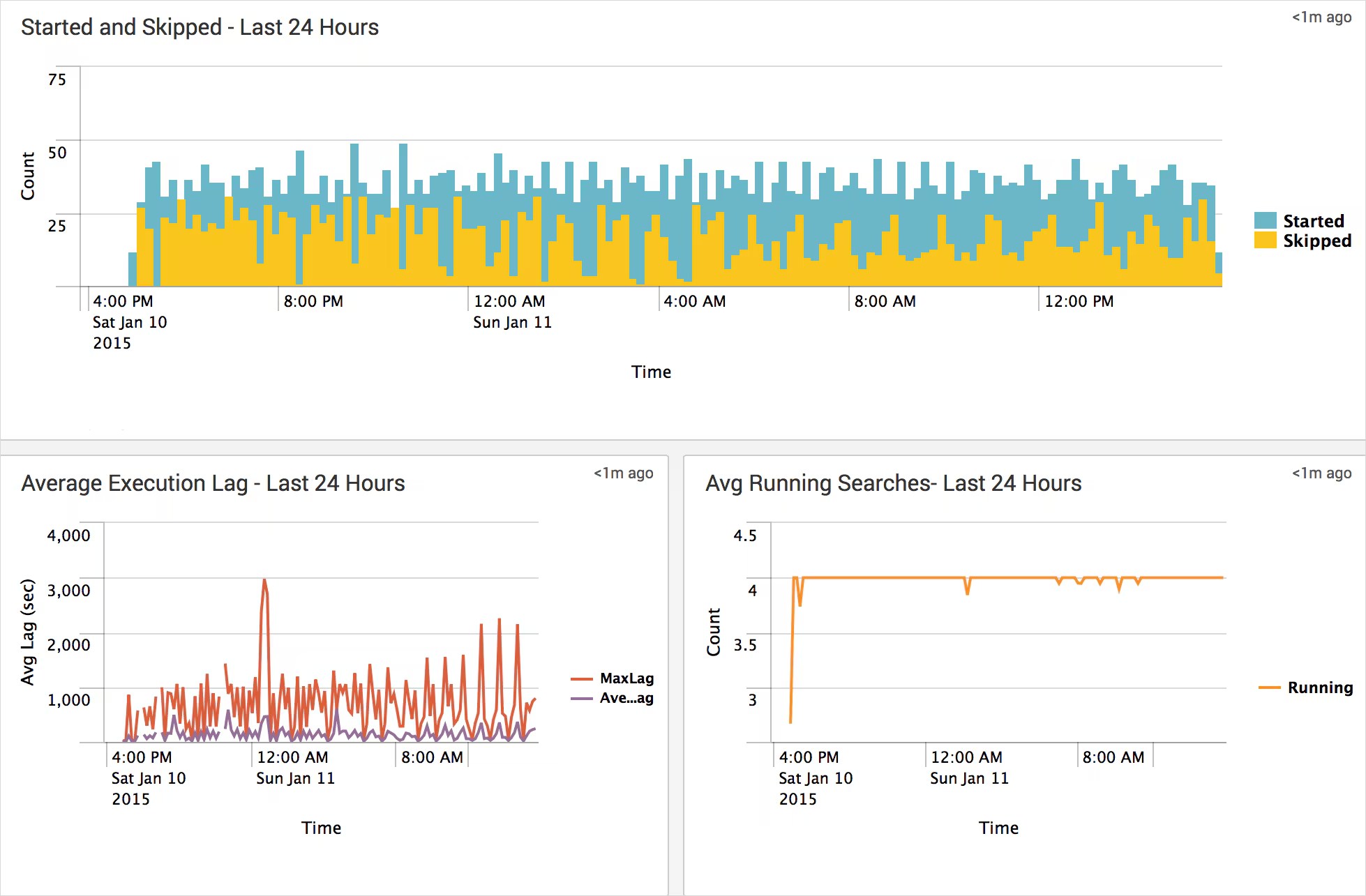
Things to notice:
- In the Started and Skipped chart, the searches that are skipped form much less of a repeating pattern meaning that searches are attempted to be run in different orders and different searches are skipped.
- From 12–2am, far fewer searches are skipped and there is no noticeable difference between midnight and any other time.
- In the Avg Running Searches chart, the number of searches running on average is fairly constant thus fully using the scheduler’s capacity.
Schedule Skewing
Background As mentioned, schedule skewing allows the Search Scheduler to randomly “skew” a set of searches’ scheduled times more evenly over their periods. In savedsearches.conf, the parameter is specified as:
allow_skew = percentage% | duration
where:
- percentage: Specifies the maximum amount of time to skew as a percentage of the search’s period. For example, for a search that runs every ten minutes, a value of 50% would mean skew by at most five minutes.
- duration: Specifies the maximum amount of time to skew explicitly, e.g., 5m for five minutes or 1h for one hour, etc.
To illustrate a use-case for skewing, suppose you have very many searches that run for only a few seconds every minute. Despite having very many searches, your Splunk deployment can run all the searches simultaneously. However, the simultaneous network bandwidth used by those searches exceeds the capacity of your switches; and, just a few seconds later when all the searches have completed, the network bandwidth drops back close to zero. Since your Splunk deployment can run all the searches simultaneously, this isn't a problem that scheduler windows can solve. What you want is to spread the dispatching of the searches out over time to decrease the network saturation. This is precisely what skewing does.
A few things to note about skewing are:
- Skewing does not consider a search’s estimated run time.
- Skewing plays no role in priority score calculation.
- Skewing is effective only when a set of searches are all skewed. (Skewing only a few or just one search won’t make any difference.)
- Skewing effectively opts searches into lag (something you ordinarily try to reduce), but for the greater good.
- Skewing and windows don't interact. However if a particular search both is skewed and has a window, the skewing is applied first; then, for all those searches that just so happen to skew to the same time, windows affect which of those searches will have a better or worse priority score.
Before & After To illustrate the benefit of schedule skewing, here is one “before” vs. “after” scheduler performance chart.
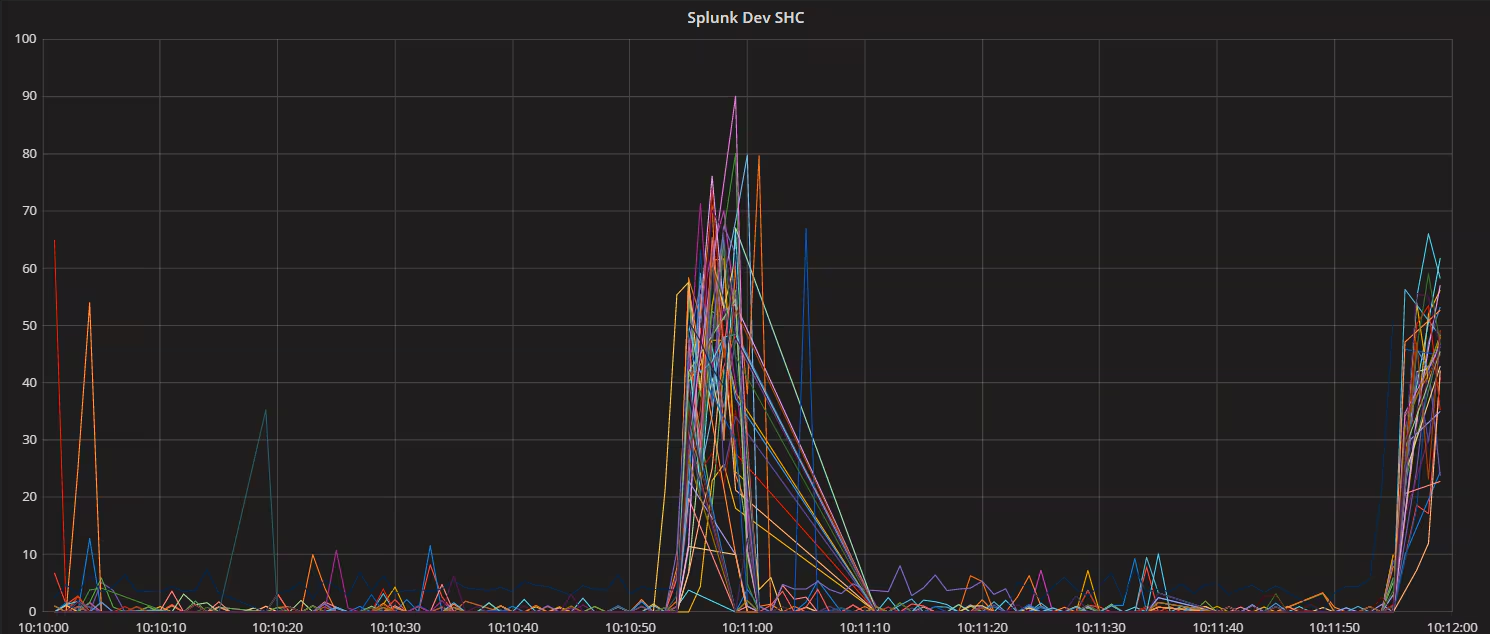
The thing to notice is that the majority of searches are running every minute at the top of the minute saturating the network.
Here is the “after” schedule performance chart.
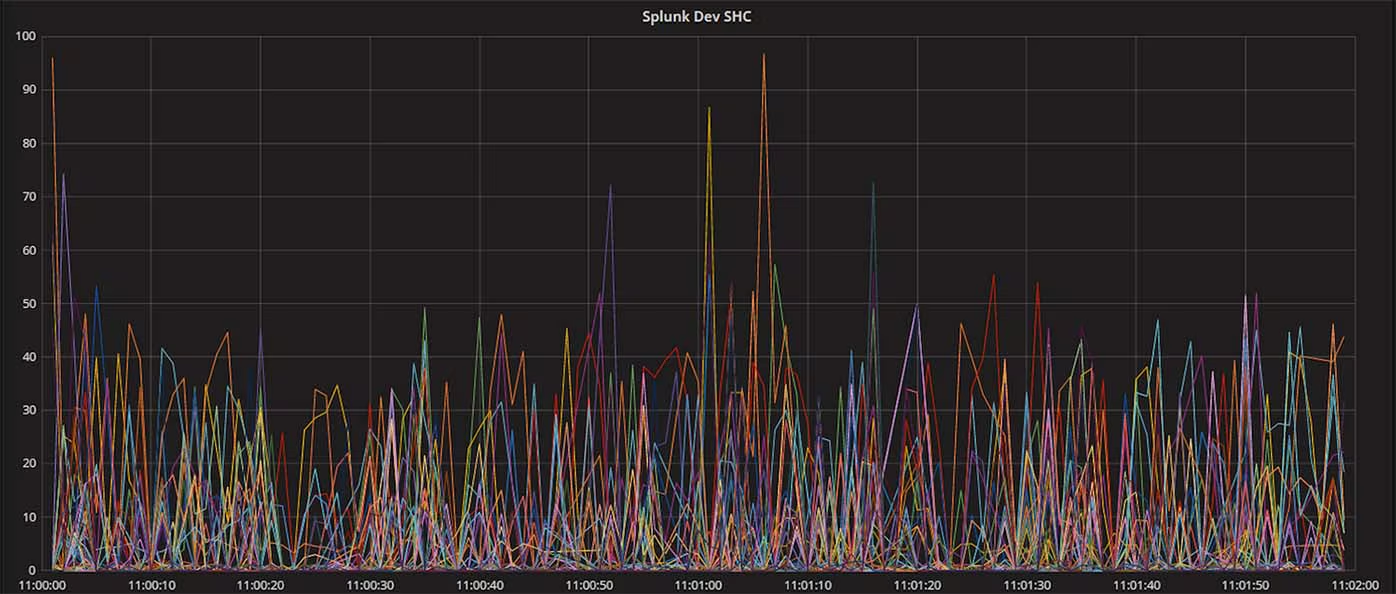
The thing to notice is that the searches are now much more evenly spread over time thus reducing the network load.
Schedule Windows vs. Skewing
Now that each feature has been explained, when should you use one versus the other?
- You should always schedule windows for all searches that do not have to be run at precise times.
- You should use schedule skewing only when you are running so many searches frequently and simultaneously that their collective bandwidth exceeds the capacity of your network switches. That is, don’t use skewing unless you absolutely have to.
Want to learn more? Check out the slides and recording of my .conf2017 session "Making the Most of the Splunk Scheduler."
----------------------------------------------------
Thanks!
Paul Lucas
Related Articles

Announcing the General Availability of Splunk POD: Unlock the Power of Your Data with Ease
Introducing the New Workload Dashboard: Enhanced Visibility, Faster Troubleshooting, and Deeper Insights

Leading the Agentic AI Era: The Splunk Platform at Cisco Live APJ

Dashboard Studio: Token Eval and Conditional Panel Visibility
Introducing Resource Metrics: Elevate Your Insights with the New Workload Dashboard

Powering AI Innovation with Splunk: Meet the Cisco Data Fabric

Remote Upgrader for Windows Is Here: Simplifying Fleet-Wide Forwarder Upgrades
Dashboard Studio: Spec-TAB-ular Updates