Splunking Your *.conf Files: How to Track Configuration Changes Like a Boss

For years customers have leveraged the power of Splunk configuration files to customize their environments with flexibility and precision. And for years, we’ve enabled admins to customize things like system settings, deployment configurations, knowledge objects and saved searches to their hearts’ content.
Unfortunately a side effect of this was that multiple team members could change underlying .conf files and forget that those changes ever occurred. Add up the myriad of configuration changes that can happen every day and you might encounter realities that are different than expected for any number of reasons.
These changes have never been natively tracked within Splunk, leading to confused team members and befuddled customer support reps. Don’t you wish there was a way to track .conf file changes?
In the Splunk Enterprise Spring 2022 Beta (interested customers can apply here), users have access to a new internal index for configuration file changes called “_configtracker”. The log files come from configuration_change.log which include .conf file changes related to the creation, updating, and deletion of .conf files in the monitored file paths.
Use Case #1: See Config File Changes in a Simple Table View
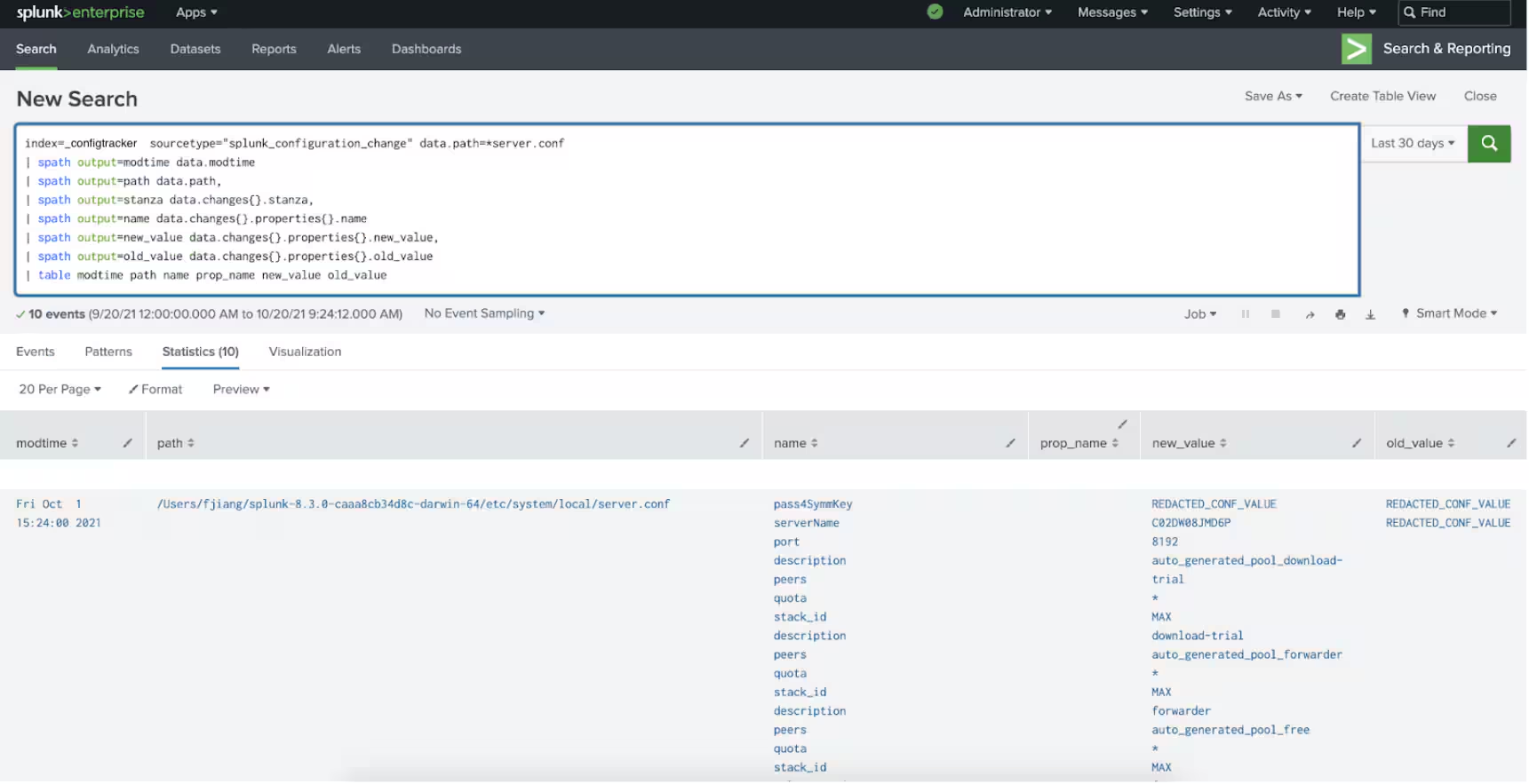
A simple table view with the following query can provide a fast way for users to understand what types of file paths, stanzas, and properties are changing within an environment:
index=_configtracker sourcetype="splunk_configuration_change" data.path=*server.conf
| spath output=modtime data.modtime,
| spath output=path data.path,
| spath output=stanza data.changes{}.stanza,
| spath output=name data.changes{}.properties{}.name,
| spath output=new_value data.changes{}.properties{}.new_value,
| spath output=old_value data.changes{}.properties{}.old_value,
| table modtime path name prop_name new_value old_value
Use Case #2: See Saved Search Changes
Below, you can see an example of how local configuration changes made in the UI are seamlessly translated to the underlying configuration files. Thus, a user changing the configuration settings with an existing alert can find these changes logged in the “_configtracker” index.
- In the “Search & Reporting” App, navigate to the “Alerts” tab and on an existing alert click Edit > Edit Alert.
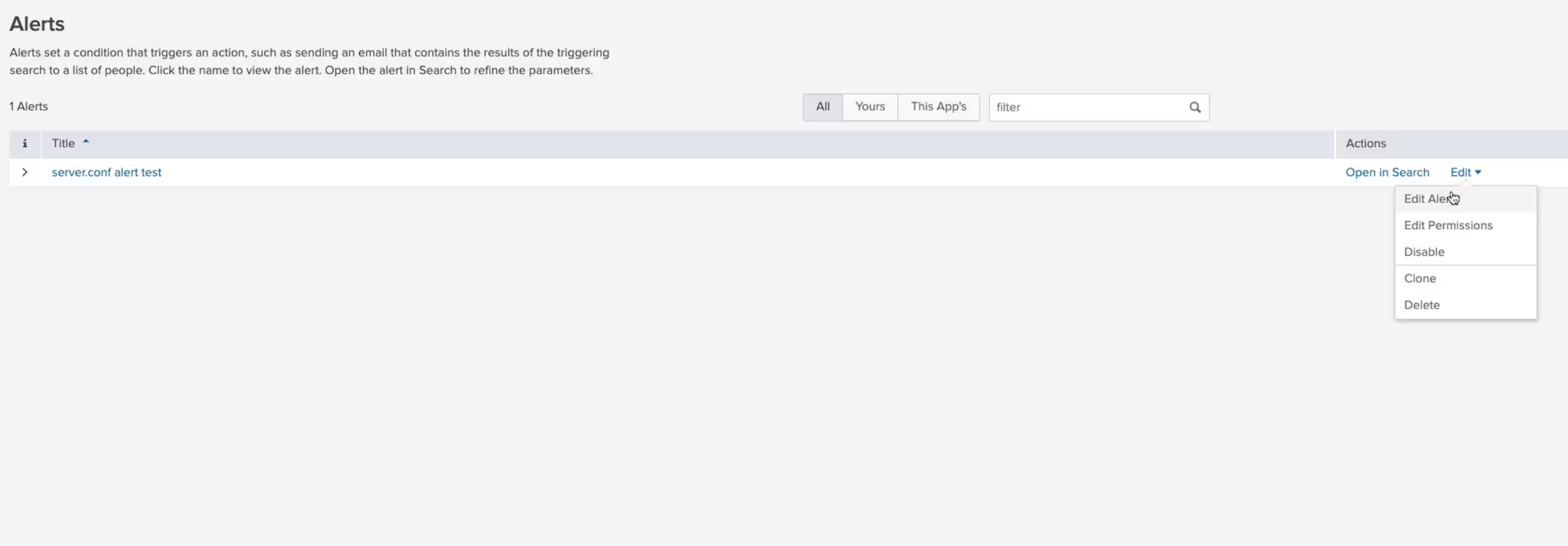
- In the “Frequency dropdown” section, change Run every day to
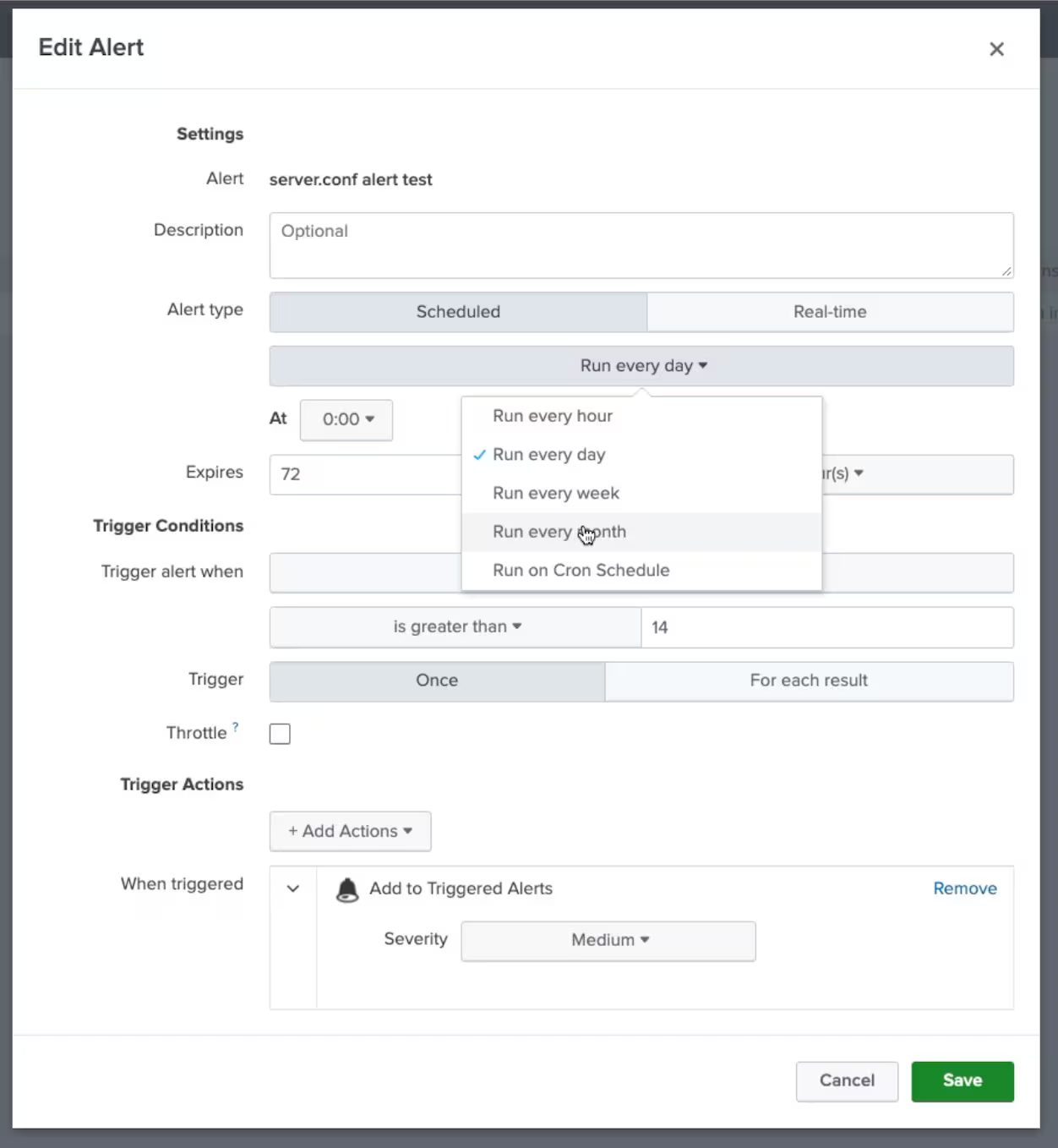
- Change the Expires 72 hours option to Expires 56 hours.
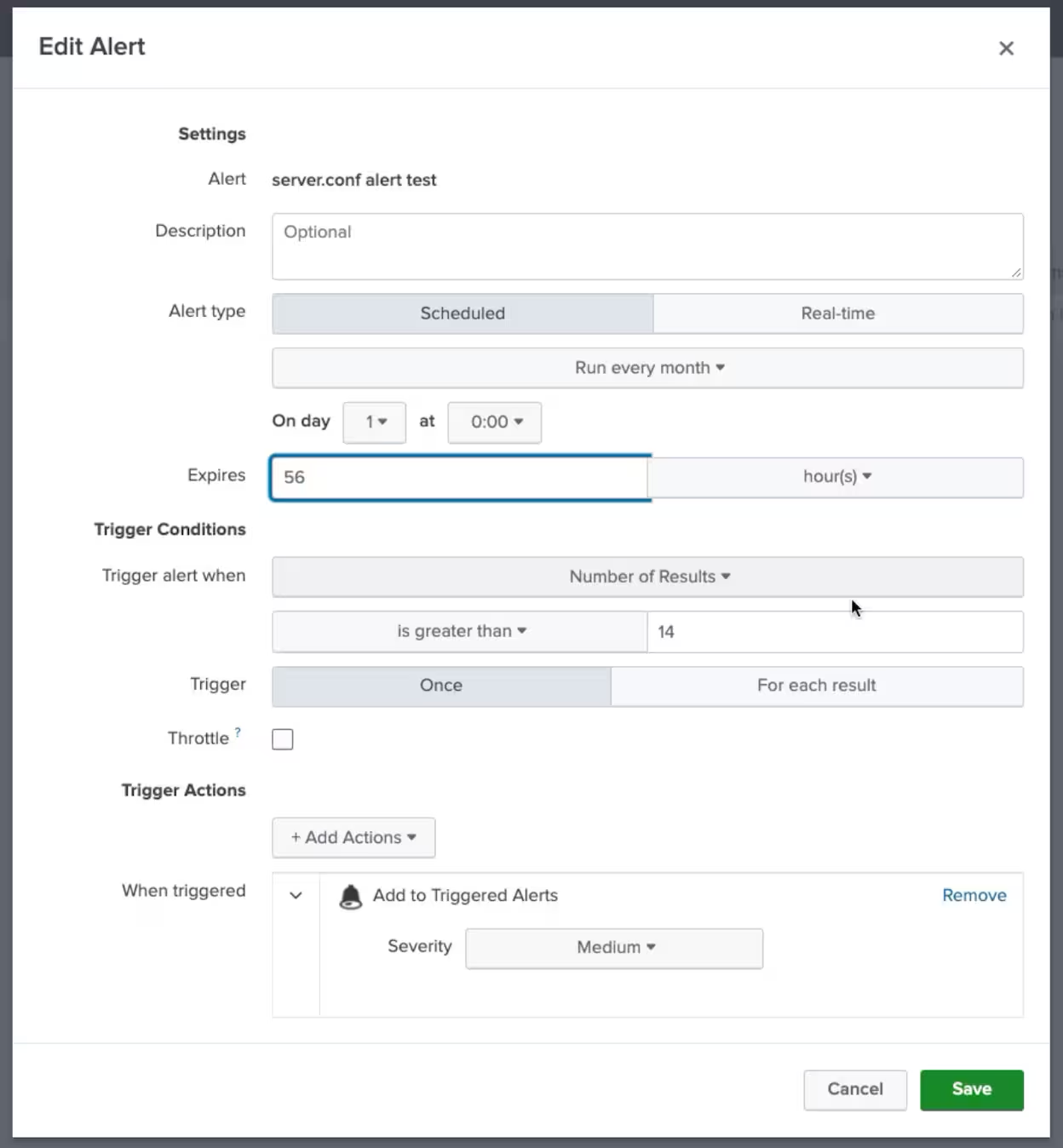
- Change the “Trigger Conditions” section from is greater than 14 to is greater than 23.
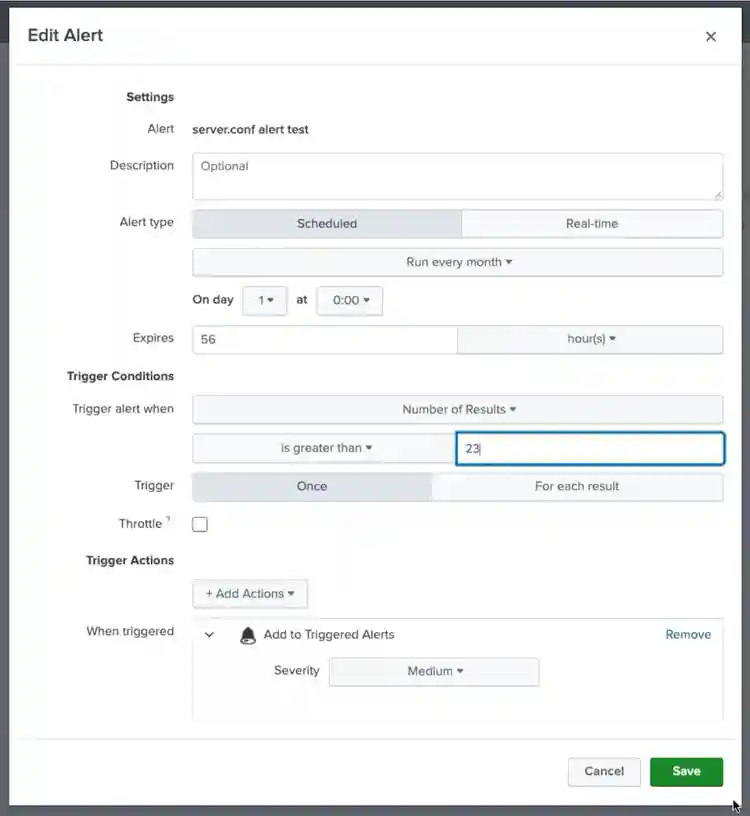
- Click Save.
- Navigate to the “Search” tab and execute the following search: index= “_configtracker” sourcetype=”splunk_configuration_change” data.path = “*savedsearches.conf”
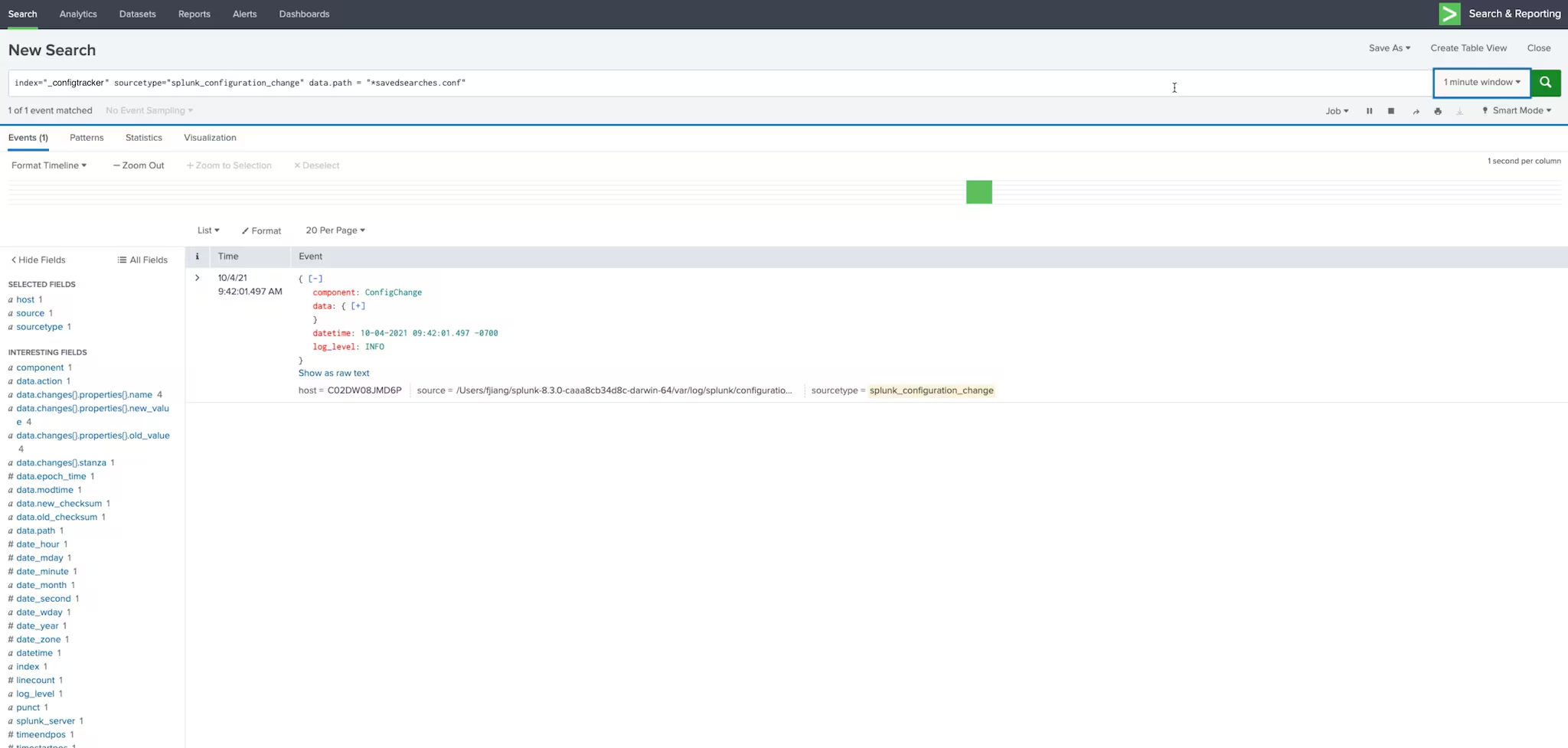
- In your latest search result, expand the “changes” and “properties” sections to see the new and old values of your alert configurations.
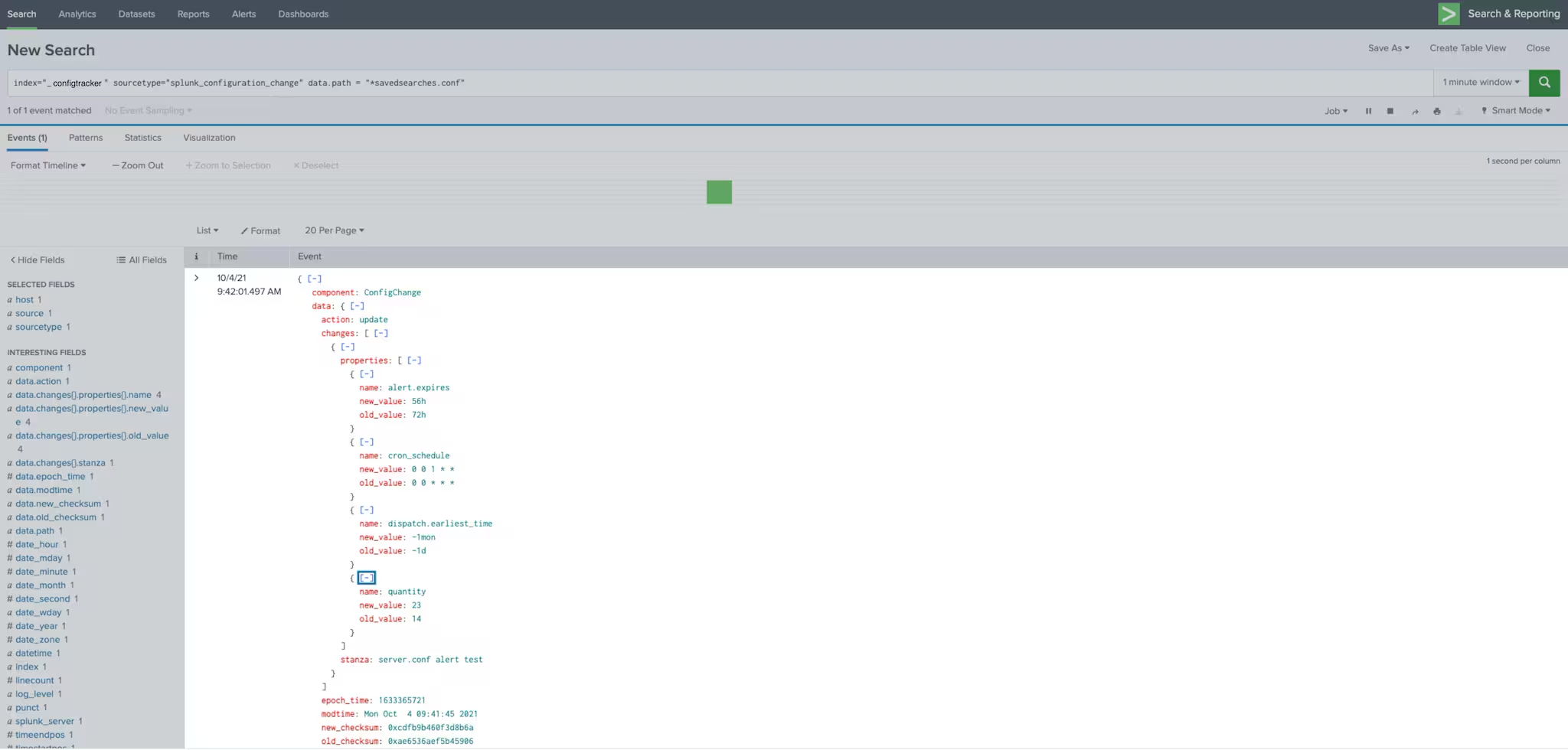
Note: UI changes don’t always map 1-to-1 with .conf file changes. For example a change of certain alert values to 24 hours may show up as null (instead of 24h) in the corresponding .conf file since it is interpreted as a default value in the filesystem. However, the .conf files changes themselves will always show up exactly as they changed in the _configtracker index.
Use Case #3: See Previous Troubleshooting Attempts
Lastly, this new feature can be used to diagnose previous troubleshooting sessions. For example, a common troubleshooting tactic in the case of a blocked queue is to increase the queue size under indexes.conf. Although this may solve for a symptom in the short term, the actual root cause of the problem may still be lurking in the background. When the larger issue still manifests via new symptoms later on, a deeper investigation usually takes place. At this point, it’s important for the admin or support representative to know what settings were previously tinkered with before. With Splunk’s new config change tracker feature, it’s easy for admins or support reps to look back and understand if queue size settings were previously manipulated, and better yet, what queue size values were specifically attempted.
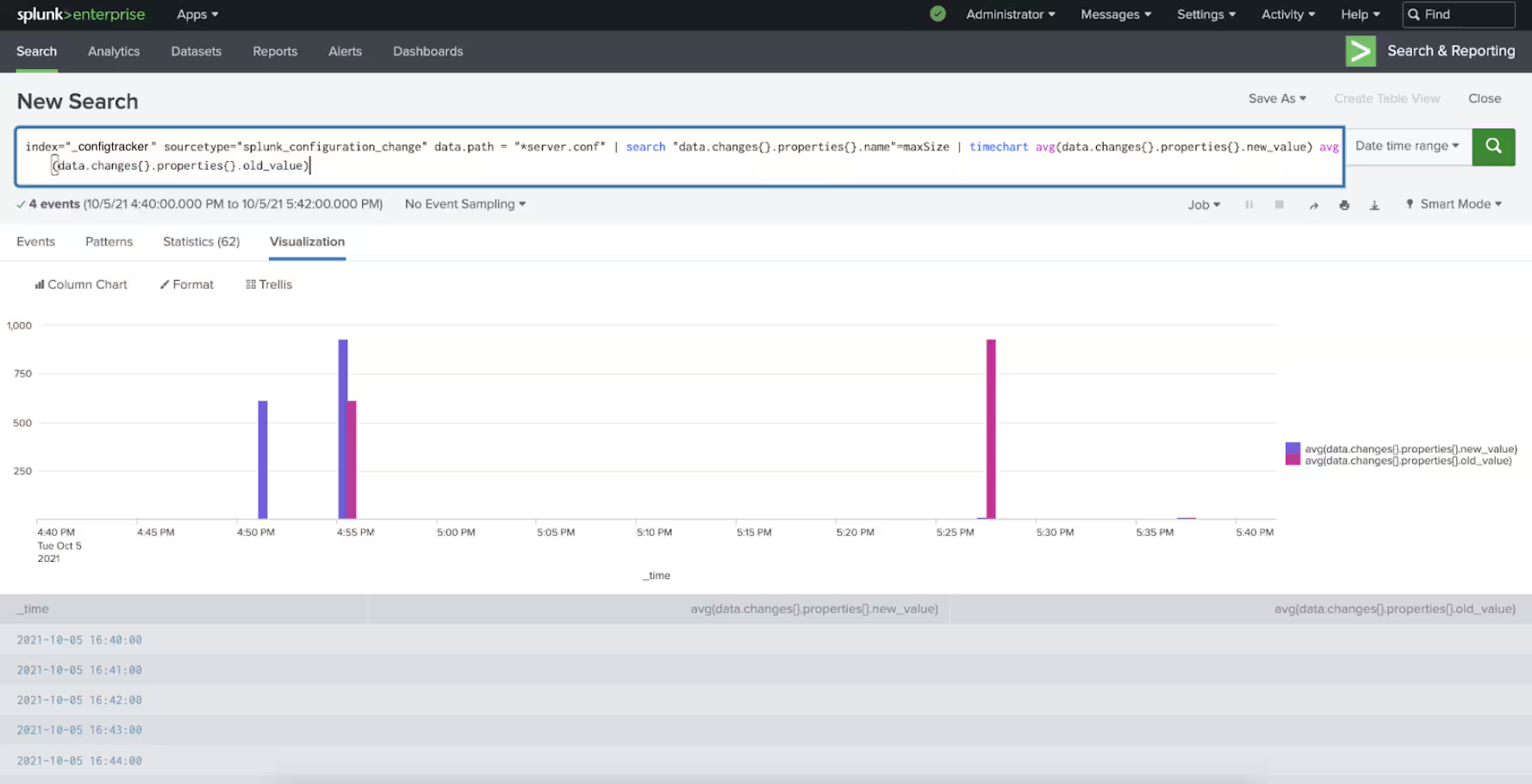
This same use case can be extended to a whole host of other configuration values like timeouts and concurrency limits just to name a few.
That’s all folks! We can’t wait for our customers to start leveraging the configuration change tracker feature today. Please do leave any feedback or suggestions under “Enterprise Administration - Internal Logs” in the Splunk Ideas Portal.
- Start using this feature today!
- Access additional feature details like denylisting and throttling in the Splunk Configuration Change Tracker document and the server.conf spec document.
- Enjoy additional BETA features like “Ingest Actions” and “SmartStore for Microsoft Azure”
Related Articles

Announcing the General Availability of Splunk POD: Unlock the Power of Your Data with Ease
Introducing the New Workload Dashboard: Enhanced Visibility, Faster Troubleshooting, and Deeper Insights

Leading the Agentic AI Era: The Splunk Platform at Cisco Live APJ

Dashboard Studio: Token Eval and Conditional Panel Visibility
Introducing Resource Metrics: Elevate Your Insights with the New Workload Dashboard

Powering AI Innovation with Splunk: Meet the Cisco Data Fabric

Remote Upgrader for Windows Is Here: Simplifying Fleet-Wide Forwarder Upgrades
Dashboard Studio: Spec-TAB-ular Updates