Improving Security: Updates to Classic (SimpleXML) Dashboards Containing External Links or Content
Classic (SimpleXML) dashboards are a powerful tool for you to share information with users and can include links for users to continue their investigations in other pages. As you likely already know, you can include external content in your Classic dashboard using HTML panels. You can also include external links or configure drilldowns to external URLs.
At Splunk we are continuously working to improve security and prevent incidents. As part of this commitment to security, we want to ensure you have a chance to review and verify external content or links, and you will now see a modal requesting you to review and determine whether you trust the external content or link. In this blog, we'll cover the scenarios in which you will see a modal, and what actions you can take.
On Dashboard Load
When your Classic dashboard loads, if any external links are detected in an HTML panel, you will be prompted with a modal to review all the links and choose whether to load them in the dashboard or not.
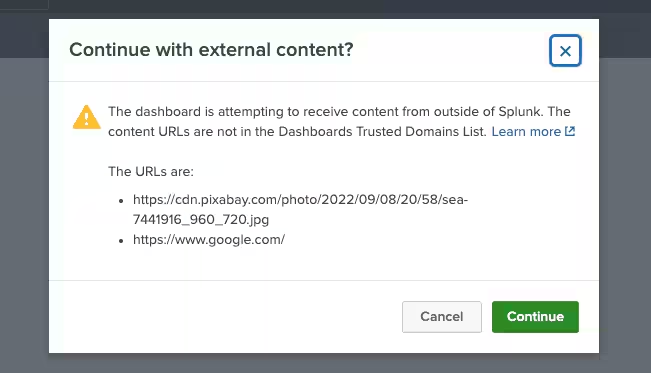
Select "Continue" to load the dashboard with the external content or links. Select "Cancel" to load the dashboard without the external content or links. If you select Cancel, all other content will still load.
This modal will not show for www.splunk.com pages, and select subdomains, such as docs.splunk.com.
If there are links that you trust, you can work with your Splunk admin to add those domains or links to the Dashboards Trusted Domains list. We recommend using as specific of a link as possible. For example, www.splunk.com/products instead of www.splunk.com.

When Navigating to an External URL
Imagine you have a dashboard with a custom URL drilldown such as https://www.google.com/search?q=$click.name2$.
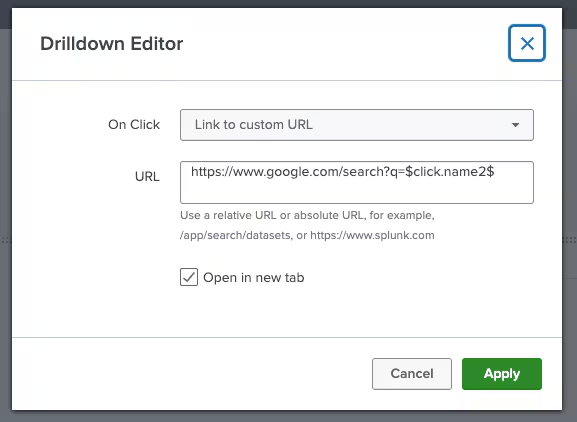
When you select an external link or a visualization with a custom URL drilldown, you will be prompted with a modal to review all the links and choose whether to navigate away from Splunk.
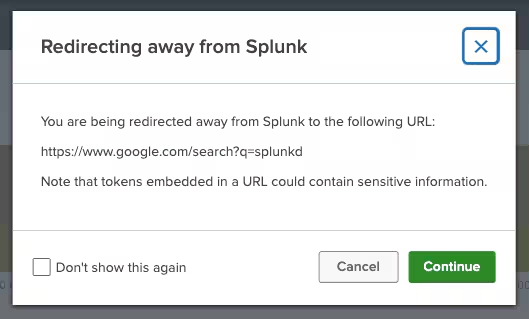
Select "Continue" to continue navigating to that URL. Select "Cancel" to stay on the Splunk dashboard. You can select "Don't show this again" to suppress the warning for the same URL. Note that if the URL changes, for example because token values change, the warning will display again.
We appreciate your understanding as we evolve our product with preventative mechanisms to provide our customers with a secure experience.
Related Articles

Announcing the General Availability of Splunk POD: Unlock the Power of Your Data with Ease
Introducing the New Workload Dashboard: Enhanced Visibility, Faster Troubleshooting, and Deeper Insights

Leading the Agentic AI Era: The Splunk Platform at Cisco Live APJ

Dashboard Studio: Token Eval and Conditional Panel Visibility
Introducing Resource Metrics: Elevate Your Insights with the New Workload Dashboard

Powering AI Innovation with Splunk: Meet the Cisco Data Fabric

Remote Upgrader for Windows Is Here: Simplifying Fleet-Wide Forwarder Upgrades
Dashboard Studio: Spec-TAB-ular Updates