Dashboards Beta v0.8: Examples Hub
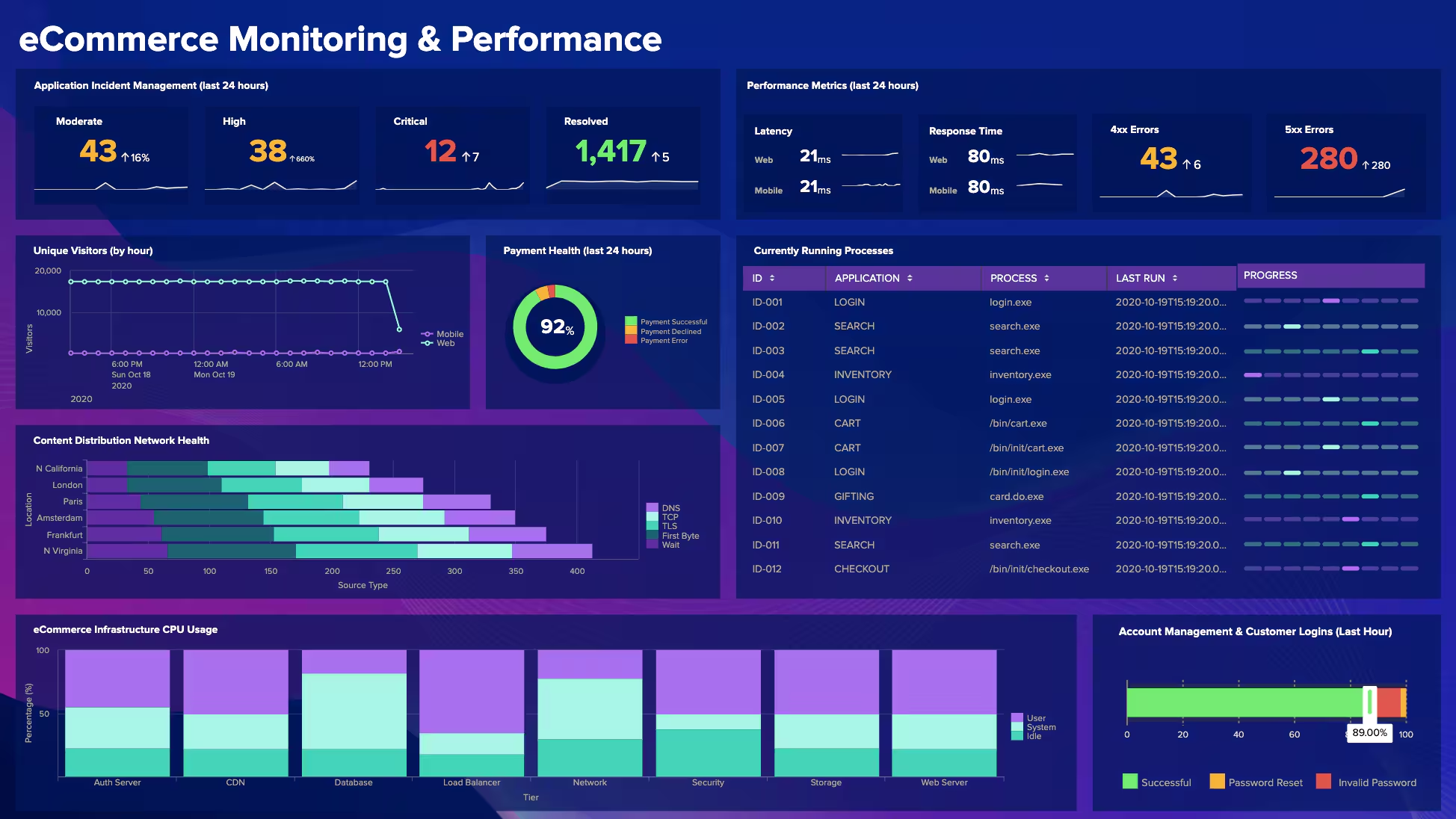
If you’re new to the Splunk Dashboards app (beta) on Splunkbase and you’re trying to get started with building beautiful dashboards, this blog series is a great place to start. The Splunk Dashboards app (beta) brings a new dashboard framework, intended to combine the best of Simple XML and Glass Tables, and provides a friendlier experience for creating and editing dashboards. Read more about this new dashboarding framework, or catch up on previous posts in this blog series about custom SVG choropleth maps, using Grid layout and Saved Searches, and using dashboard defaults for visualizations.

This post will cover the new Examples Hub in the app, how to edit a visualization or data source’s source code in the UI, and updates to dashboard inputs. For notes on every feature, see the release notes on Splunkbase.

Examples Hub

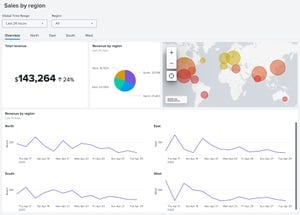
Whether you’ve been using the Splunk Dashboards app (beta) for months or are just getting started, you may have found yourself thinking “gee, I wish there were some examples I could look at, to use as a starting point.” Well, look no further! The Splunk Dashboards app (beta) v0.8 comes equipped with a multitude of examples for visualizations, data source types, inputs, dashboard defaults, and complete dashboards.
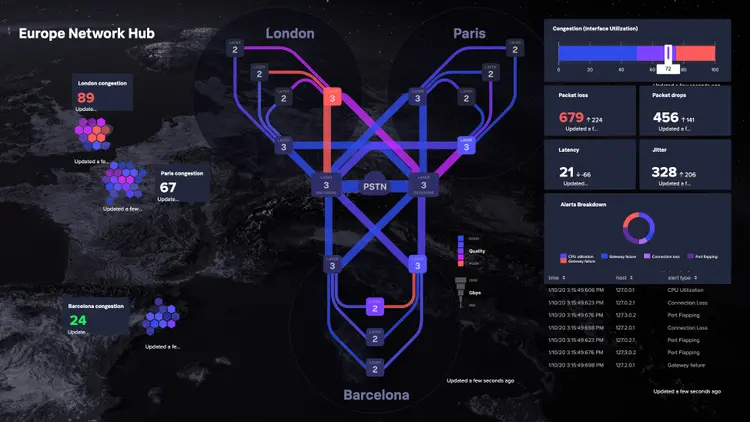

To get started, find the “Examples” menu option in the Splunk Dashboards app (beta), then explore the topic you are interested in. Each example also comes equipped with the source code, so you can double click to select, then ctrl-C to copy it into your own dashboard to edit and use!

Edit Visualization or Data Source IDs in the UI

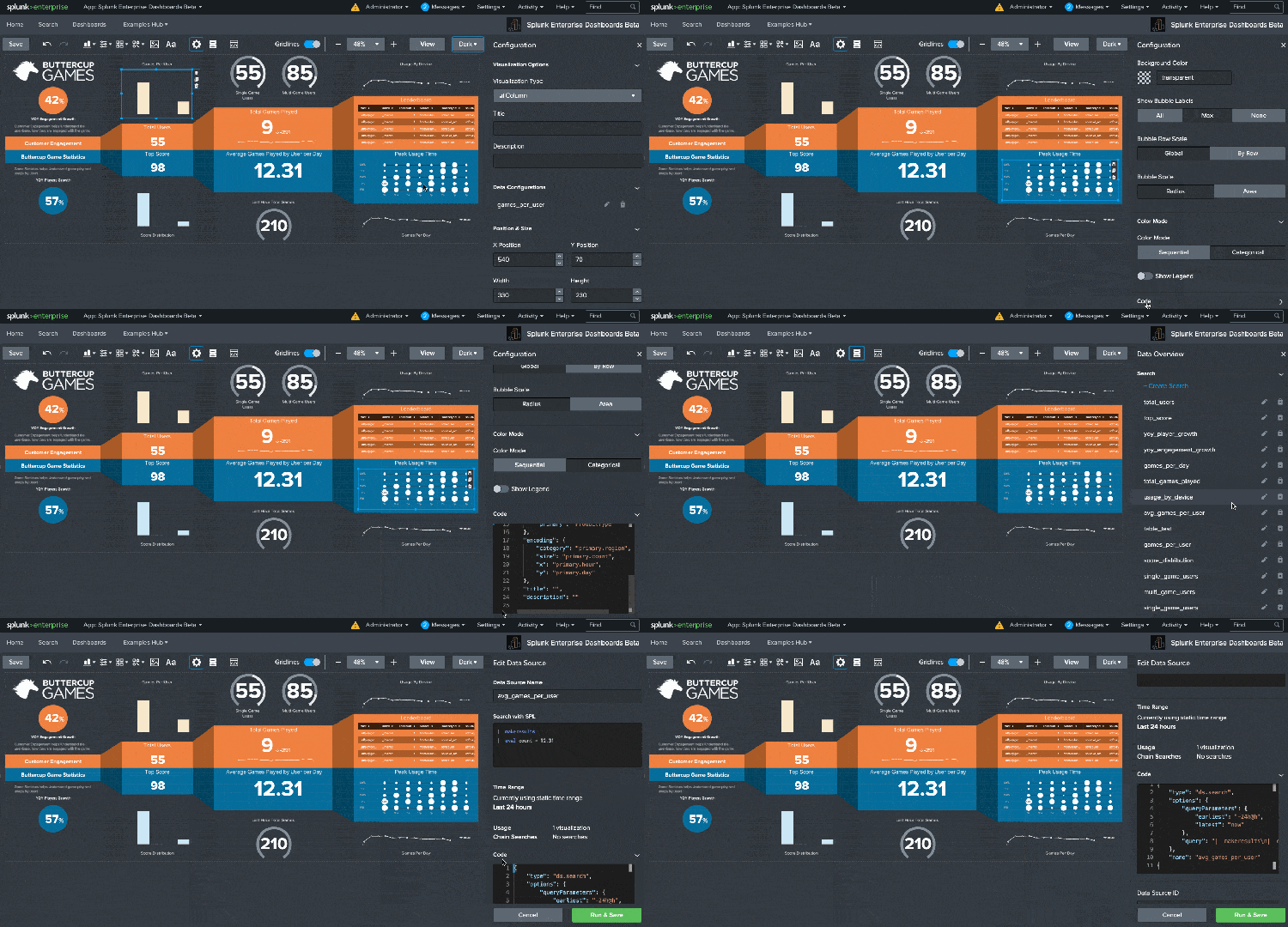
You know it, we know it, it is not easy to rename the unique ID for the visualization and data source in all the right places in source code. With the Splunk Dashboards app (beta) v0.8, you can now view and edit the ID and source code for a selected visualization or data source in the UI. Look for the “Code” section in your right side editor panel.
Inputs Updates

Global Time Range Input

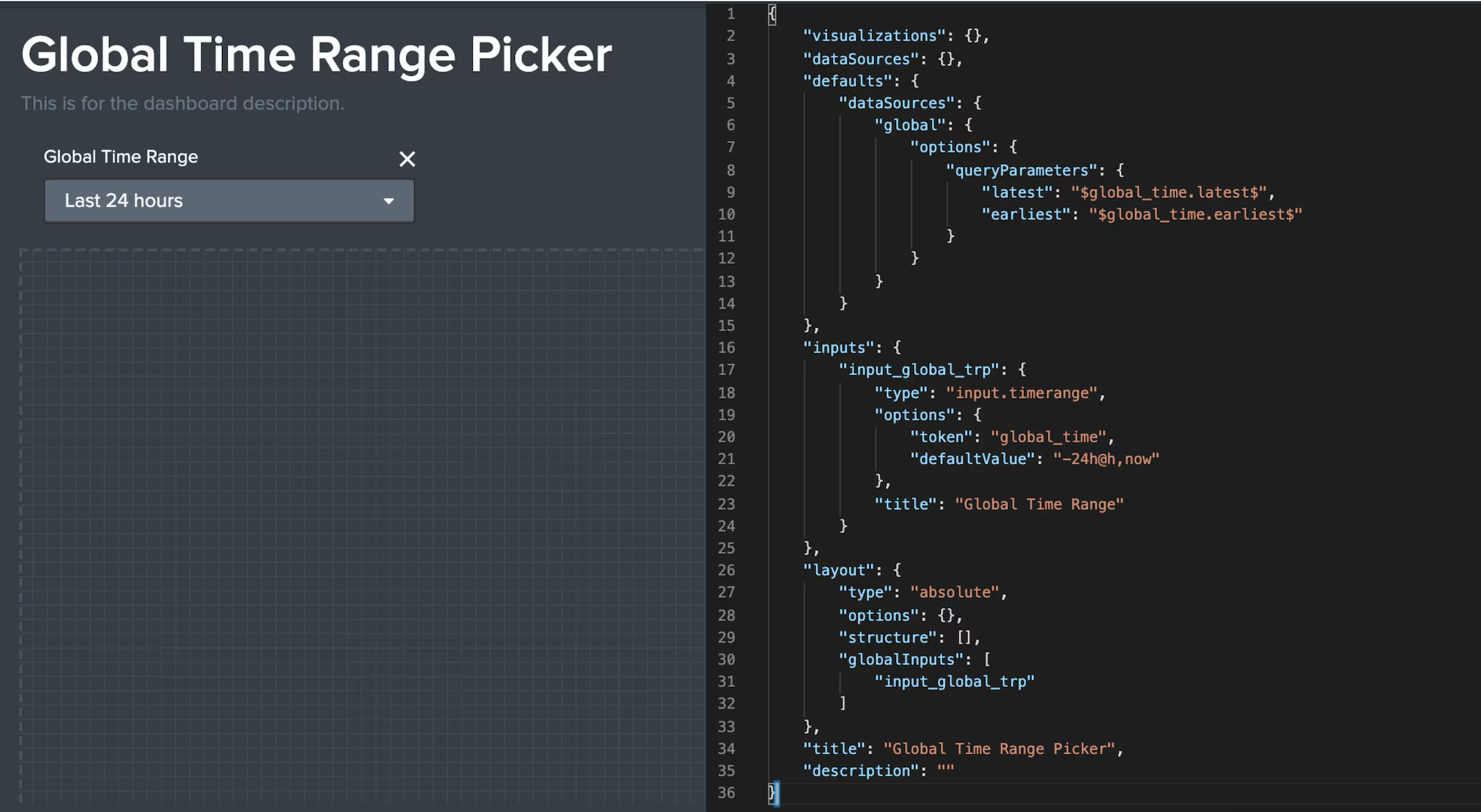
Splunk Dashboards app (beta) v0.8 comes with a handful of updates for inputs. First up: all new dashboards will automatically have a global time range picker input included. This means all your data sources will automatically be wired up to this time range picker, unless you choose to override that for a specific data source. In the source code of a new dashboard, you’ll see that the inputs, layout, and defaults stanzas are updated to include the global time range picker.
Add and Delete Inputs from the Editor UI & New Number Input


Gone are the days when you had to add an input via source code! In the editor UI, you can now add inputs to your dashboard from a dropdown menu in the toolbar. You’ll also notice the option to add a new input type: a Number input. This allows you to ensure a dashboard consumer can only enter a numeric value. You can also remove inputs directly from the canvas.
UI Editors for Single Value Font Sizes


Continuing with the new UI theme, the Splunk Dashboards app (beta) v0.8 also comes with UI editors for single value major and delta font sizes. You can now customize the font sizes and immediately see the visualization update, rather than going back and forth between the UI editor and source code editor.
Using Tokens with Base/Chain & Saved Searches

Using tokens in base and chain (post process) searches is a critical piece of functionality, so here is an example of how to do so.

This example will use an input to drive a token that is then passed into a tree of base and chain searches. More information is available in the base and chain documentation.

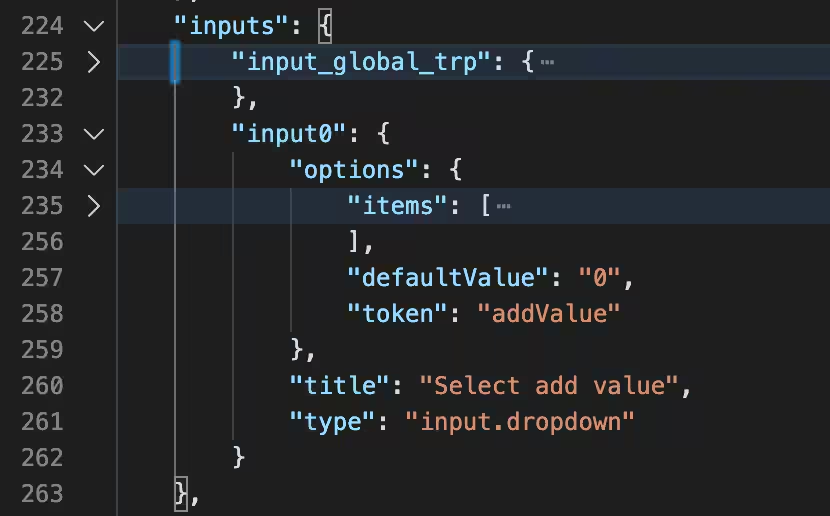
To do this, you must first define the input and its token in the inputs stanza. Don’t forget to specify it in the globalInputs section of the layouts stanza to ensure it displays on your dashboard. In this example, the input is “input0”.

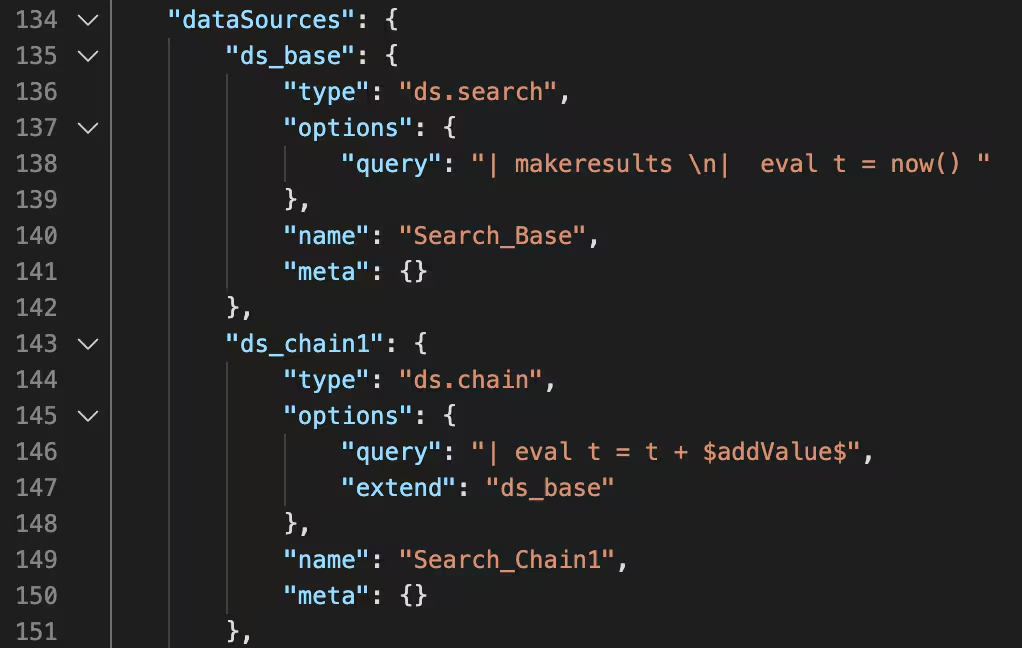
Then, make sure to reference this token when authoring your queries. The source code snippet below shows the base search and one of the chain searches. In the chain search’s query, you can see that it is only a partial query, because it is an extension of the base search, which is referenced by the extend option. You can also use ds.savedsearch as a base search. The token, which was defined in the inputs stanza, is demarcated in the query by the dollar symbol $ on each side.

Any time a token is updated, it changes the query, and therefore will refresh the entire base and chain tree. For more information about best practices, visit the documentation.

Coming Soon

Try out the Splunk Dashboards app (beta) and let us know if you have any questions, enhancement requests, or bugs to report at dashboards-beta@splunk.com and our team will be sure to respond!

*This information is subject to change at any time, at the sole discretion of Splunk LLC and without notice. This roadmap information shall not be incorporated into any contract or other commitment. Splunk undertakes no obligation to either develop or deliver any product, features, or functionality described here.

Related Articles

Announcing the General Availability of Splunk POD: Unlock the Power of Your Data with Ease
Platform
2 Minute Read

Announcing the General Availability of Splunk POD: Unlock the Power of Your Data with Ease

Splunk POD is designed to simplify your on-premises data analytics, so you can focus on what really matters: making smarter, faster decisions that drive your business forward.
Introducing the New Workload Dashboard: Enhanced Visibility, Faster Troubleshooting, and Deeper Insights

Platform
3 Minute Read

Introducing the New Workload Dashboard: Enhanced Visibility, Faster Troubleshooting, and Deeper Insights

Announcing the general availability of the new workload dashboard – a modern and intuitive dashboard experience in the Cloud Monitoring Console app.
Leading the Agentic AI Era: The Splunk Platform at Cisco Live APJ
Platform
5 Minute Read

Leading the Agentic AI Era: The Splunk Platform at Cisco Live APJ

The heart of our momentum at Cisco Live APJ is our deeper integration with Cisco, culminating in the Splunk POD and new integrations, delivering unified, next-generation data operations for every organization.
Dashboard Studio: Token Eval and Conditional Panel Visibility
Platform
4 Minute Read

Dashboard Studio: Token Eval and Conditional Panel Visibility

Dashboard Studio in Splunk Cloud Platform can address more complex use cases with conditional panel visibility, token eval, and custom visualizations support.
Introducing Resource Metrics: Elevate Your Insights with the New Workload Dashboard

Platform
4 Minute Read

Introducing Resource Metrics: Elevate Your Insights with the New Workload Dashboard

Introducing Resource Metrics in Workload Dashboard (WLD) – a modern and intuitive monitoring experience in the Cloud Monitoring Console (CMC) app.
Powering AI Innovation with Splunk: Meet the Cisco Data Fabric

Platform
3 Minute Read

Powering AI Innovation with Splunk: Meet the Cisco Data Fabric

The Cisco Data Fabric brings AI-centric advancements to the Splunk Platform, seamlessly connecting knowledge, business, and machine data.
Remote Upgrader for Windows Is Here: Simplifying Fleet-Wide Forwarder Upgrades
Platform
3 Minute Read

Remote Upgrader for Windows Is Here: Simplifying Fleet-Wide Forwarder Upgrades

Simplify fleet-wide upgrades of Windows Universal Forwarders with Splunk Remote Upgrader—centralized, signed, secure updates with rollback, config preservation, and audit logs.
Dashboard Studio: Spec-TAB-ular Updates

Platform
3 Minute Read

Dashboard Studio: Spec-TAB-ular Updates

Splunk Cloud Platform 10.0.2503 includes a number of enhancements related to tabbed dashboards, trellis for more charts, and more!
Introducing Edge Processor for Splunk Enterprise: Data Management on Your Premises
Platform
2 Minute Read

Introducing Edge Processor for Splunk Enterprise: Data Management on Your Premises

Announcing the introduction of Edge Processor for Splunk Enterprise 10.0, designed to help customers achieve greater efficiencies in data transformation and improved visibility into data in motion.