Detecting Ransomware Attacks with Splunk
Splunk is committed to using inclusive and unbiased language. This blog post might contain terminology that we no longer use. For more information on our updated terminology and our stance on biased language, please visit our blog post. We appreciate your understanding as we work towards making our community more inclusive for everyone.
A few days ago, a customer asked me if Splunk could be used to detect Ransomware – y’know, the malware that encrypts all of the files on your hard drive and asks you to pay a ransom to get them back. (If you’ve been trapped under something heavy for the last few years, see here and here.)
Ransomware has been around for a few years now, and in fact Michael Gough, a local “Malware Archeologist” published a blog post about using Splunk to detect it way back in 2014. So yes, Splunk has been able to detect Ransomware for about as long as its been around.
Michael’s technique relies on enabling File Auditing within the Advanced Auditing features of later Windows operating systems for the directory of data that you want to monitor. I was about to do the same on my test systems, when I discovered that I could get a file creation timestamp using Windows Sysmon data. Haven’t heard of Sysmon? Still trapped under something heavy? From the Sysmon home home page:
System Monitor (Sysmon) is a Windows system service and device driver that, once installed on a system, remains resident across system reboots to monitor and log system activity to the Windows event log. It provides detailed information about process creations, network connections, and changes to file creation time. By collecting the events it generates using Windows Event Collection or SIEM agents and subsequently analyzing them, you can identify malicious or anomalous activity and understand how intruders and malware operate on your network.
You want this. This is good stuff.
So how exactly to detect ransomware with Sysmon data? I installed Sysmon and a Splunk Universal Forwarder on a test system – then I infected it with some ransomware to find out. It turns out that ransomware is easy to find if you dial back your spam-filter/anti-virus/discretion and actually click on the links or unzip and run the attached scripts.
Sysmon’s output is XML, so it’s relatively easy to parse. To make things even easier, use the Splunk Add-on for Microsoft Sysmon at: https://splunkbase.splunk.com/app/1914/
Using this add-on, we can easily search for new file creation by including EventDescription=“File Create Time” in our search. Since ransomware creates a whole ton of new files (your data: encrypted!) we want to look for a file name that’s creating a large number of new files in a short amount of time. We can accomplish this with a Splunk search using the streamstats command. This command calculates statistics for each event at the time the event is seen. In this case, we want to keep a running total of new files created over a relatively small time window – let’s say one minute. Then we want to look for instances where the number of new files crosses some arbitrary threshold.
sourcetype="xmlwineventlog:microsoft-windows-sysmon/operational" EventDescription="File Create Time" | streamstats time_window=1m count(EventDescription) AS "new_files" | search new_files>10
For my testing environment, I chose 10 new files per minute as my threshold. You will DEFINITELY want to adjust this in your own environment.
So, the search above returns events, and these events contain the full path to the process image (e.g. C:\Windows\Explorer.EXE) If we take the values for Image and feed them back into a Splunk search, we can find the SHA1 hash of the file that’s generating so many new files. We can also list the ParentCommandLine value and get a timestamp for this activity:
sourcetype="xmlwineventlog:microsoft-windows-sysmon/operational" [ search sourcetype="xmlwineventlog:microsoft-windows-sysmon/operational" EventDescription="File Create Time" | streamstats time_window=1m count(EventDescription) AS "new_files" | search new_files>10 | fields + Image ] | stats last(Image) as File by sha1, _time, ParentCommandLine
See anything suspicious? This is what ransomware looks like:
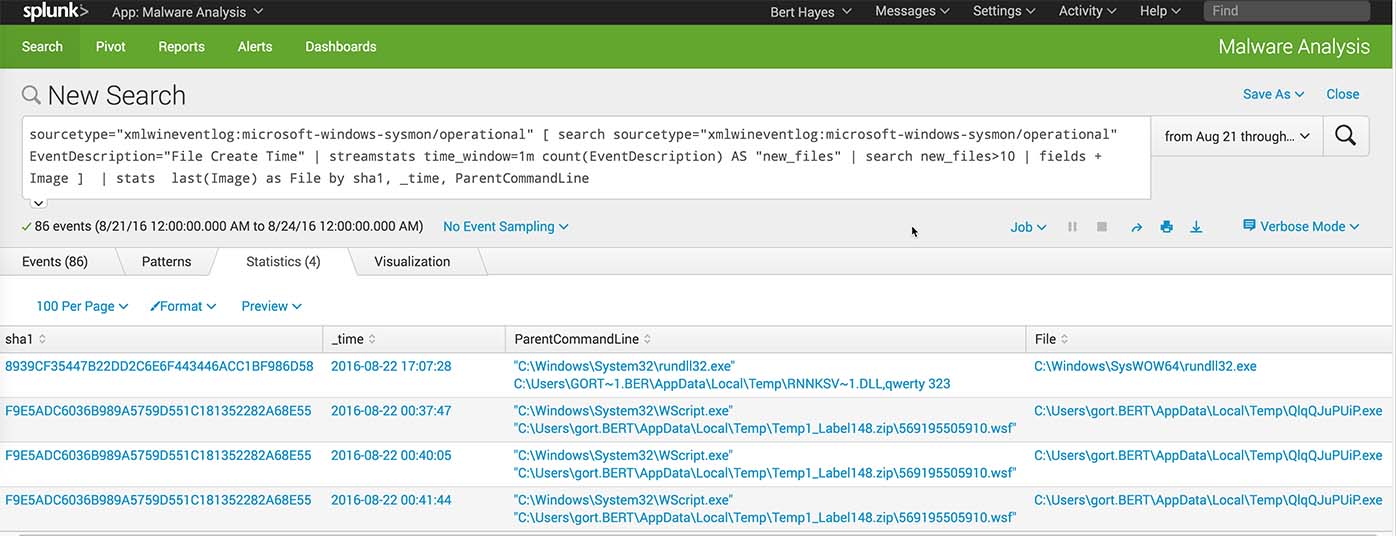
When I mentioned this use case to a colleague, he thought this was cool, but wanted to know if this would also detect a large number of files being created by unzipping a file or simply copying lots of files from one drive to another. Yes it does!
This is what copying a bunch of files around looks like:
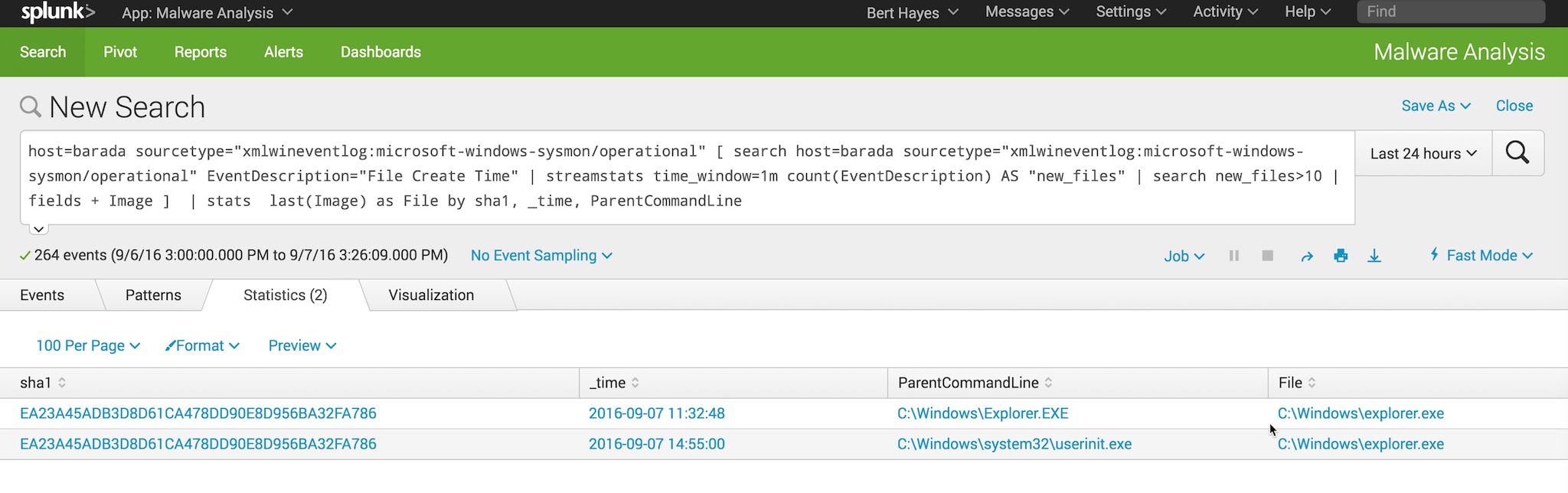
Since I’ve got the SHA1 hash of each running file, I can use that to first: query virustotal.com and verify that the hash that of a known good file. Then, I can use that SHA1 hash to build a lookup table to use as a whitelist. Anything that I haven’t already whitelisted as a know good file should raise a flag.
Here’s an example lookup file named sha1_whitelist.csv
sha1,whitelisted_file EA23A45ADB3D8D61CA478DD90E8D956BA32FA786,C:\Windows\explorer.exe
And here’s the transforms.conf entry to use it:
[sha1_lookup] filename = sha1_whitelist.csv min_matches = 1 default_match = NOT_FOUND
The last two lines of the transforms.conf file means that if the hash of a running process isn’t in your lookup file, Splunk returns “NOT_FOUND”.
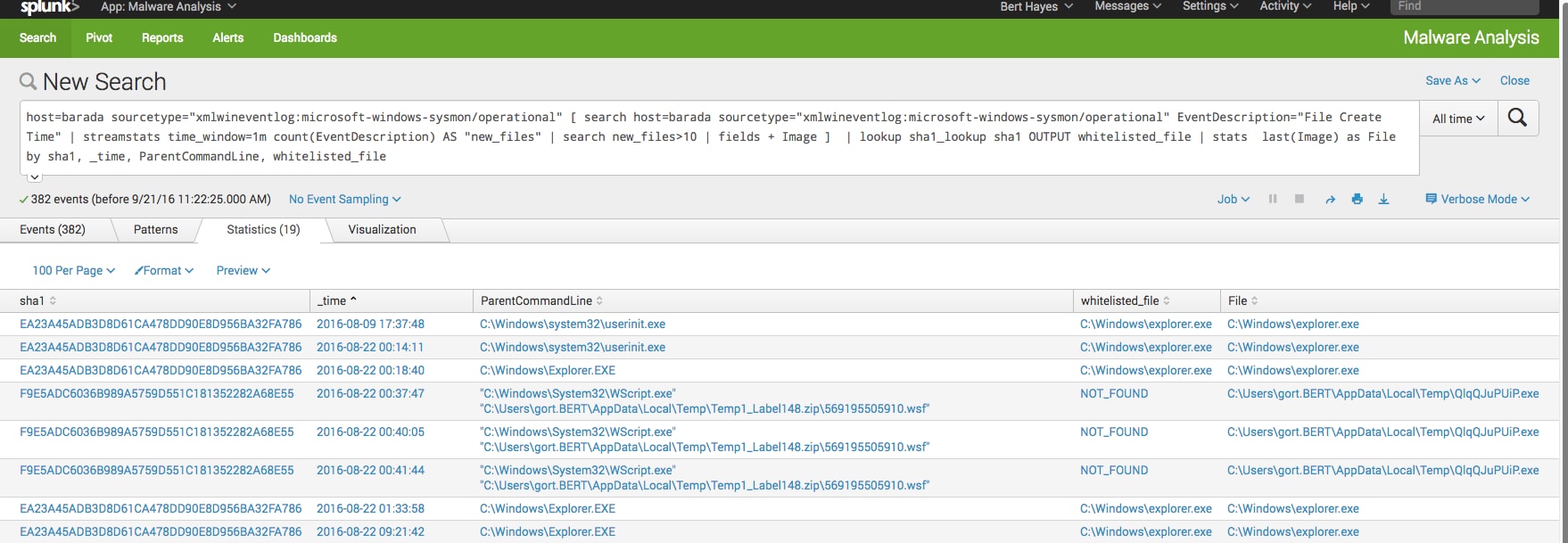
From here, I can click on the value of a sha1 hash to the raw data for the event that has that hash. From there, I can use a custom workflow to search for the hash at virustotal.com.
Configuring the workflow via GUI:
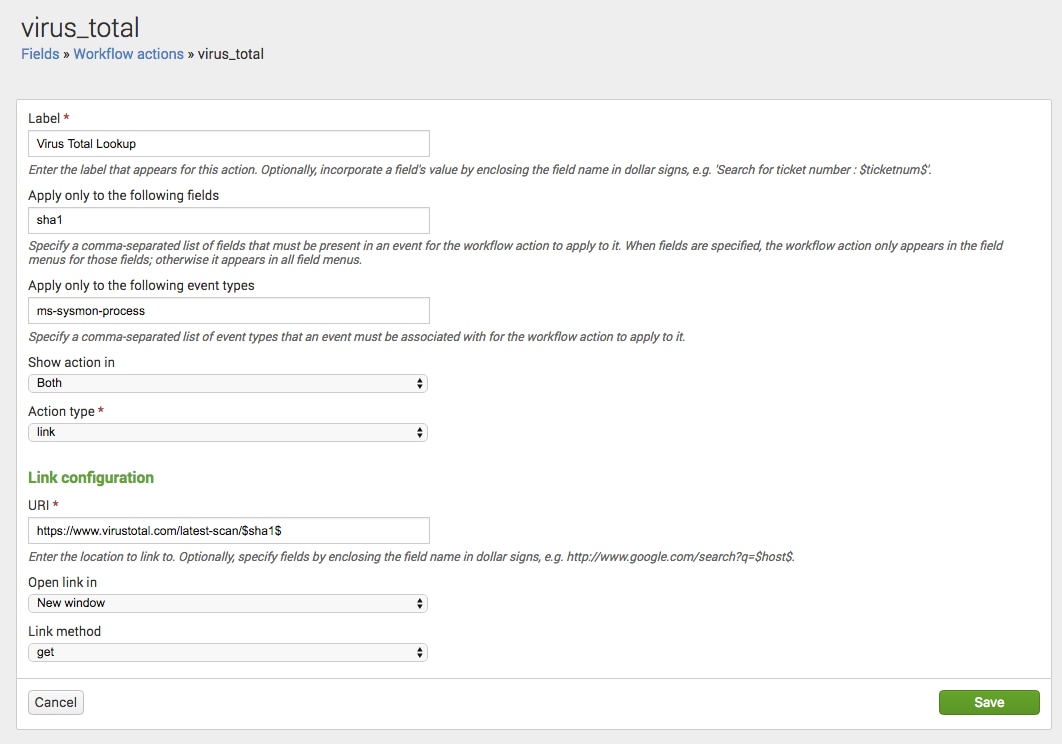
The resulting workflow_actions.conf file (if you’re not into using a GUI):
[virus_total] display_location = both eventtypes = ms-sysmon-process fields = sha1 label = Virus Total Lookup link.method = get link.target = blank link.uri = https://www.virustotal.com/latest-scan/$sha1$ type = link
And here’s the workflow in action:

Clicking on “Virus Total Lookup” opens a new tab in my browser and takes me to the search results on virustotal.com. Yep, it’s ransomware.
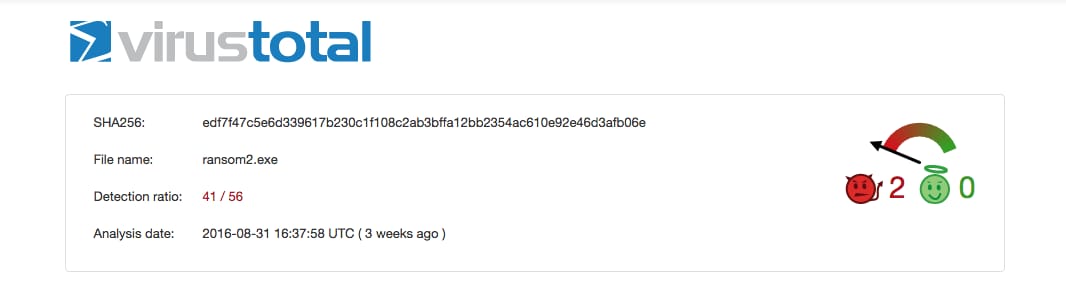
This is just one example of the great stuff you can do simply by applying analytics to Microsoft Sysmon data.
It’s a very rich data source that can be applied to a number of different use cases. And when it’s combined with Splunk’s rich search processing language, you’ve got a powerful digital forensics and incident response tool. This is just one example of how Splunk can be used to combat ransomware. Point your Google to splunk.com for more!
----------------------------------------------------
Thanks!
Bert Hayes
Related Articles

How Splunk is Helping Shape the Future of Higher Education IT by Tackling EDUCAUSE 2026 Top Issues

Enhancing Government Resilience: How AI and Automation Empower Public Sector Missions

Solving Manual Mayhem in Telecom with Agentic AI

Upgrading to Splunk Enterprise 10.0 and Splunk Cloud Platform 10.0: Key Resources for Public Sector Customers

Building the Next Generation of Defenders: From the Classroom to the SOC of the Future

Analytics That Work: 3 Approaches for the Future of Contact Centers

Observability + Security: Real-Time Digital Resilience for SLED

Digital Resilience for State and Local Governments (Part Two)