How To Start Threat Hunting: The Beginner's Guide
Quickly observing your surroundings, orienting yourself based on those observations, and acting upon them is an essential skill — both in cybersecurity and in life.
Whenever you start hunting in a new environment, you’ll want to get used to it first, before you begin your hunt. So, in this tutorial, we explore the wild world of hunting threats in a new environment.
Whether you hunt daily or are just getting started, you’ll get some excellent threat hunting tips and tricks here. This article is organized into four sections:
- Starting the hunt process
- Focusing your hunt (for time, data & context)
- Searching in Splunk with the right commands
- Using OSINT (open source intelligence) and other external resources
For this Splunky tutorial, we're making the wild assumption that your data is already in Splunk. There are many articles written about getting data into Splunk, so this is focused on the analyst getting information back OUT.
(Part of our Threat Hunting with Splunk series, this article was originally written by John Stoner. We’ve updated it recently to maximize your value.)
Step 1. Starting the hunt process
When you're starting a hunt, it's important to have a clear objective in mind. To help figure out what and where you should be hunting, we suggest a couple paths forward:
- Developing a hypothesis to steer your efforts.
- Using the PEAK Threat Hunting Framework as a method to establish guardrails around your hunt.
If I can hypothesize, for example, that PowerShell is running on my Windows systems, that provides a focus for my hunt — that way I won’t get caught looking at other bright shiny objects.
Of course, if/when you do find other bright shiny objects during your hunt, take note of them and then use them to build hypotheses for subsequent hunts.
(Don't need a hands-on tutorial? Check out this threat hunting introduction.)
Step 2. Focusing your hunt
When I look at my Splunk console, I may have hundreds of data sources (“sourcetypes”) stretching over days, weeks, months or years.
One of the first steps I need to take is narrowing down this extensive scope of data and time to a more specific range or subset. That doesn’t mean I won’t need to pivot back to a broader search, but to be effective, I need to start narrowing my focus.
How do we focus? Let’s start with time.
Time
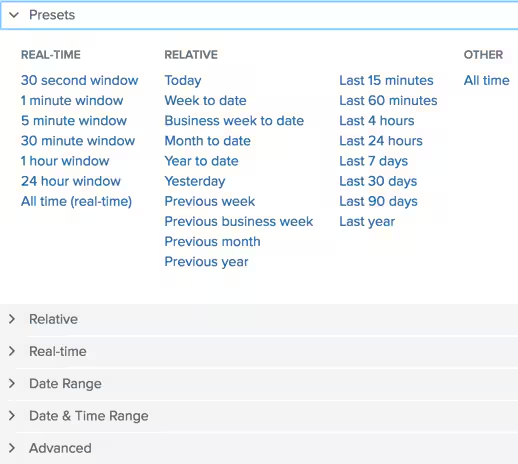
On the right side of my Splunk search bar, a drop-down known as the Time Picker allows me to set the time range that the search will run within. Clicking on the drop-down returns a number of time presets, as well as the ability to search specific data and time ranges. The use of Time Picker in searches is incredibly important during any hunt.
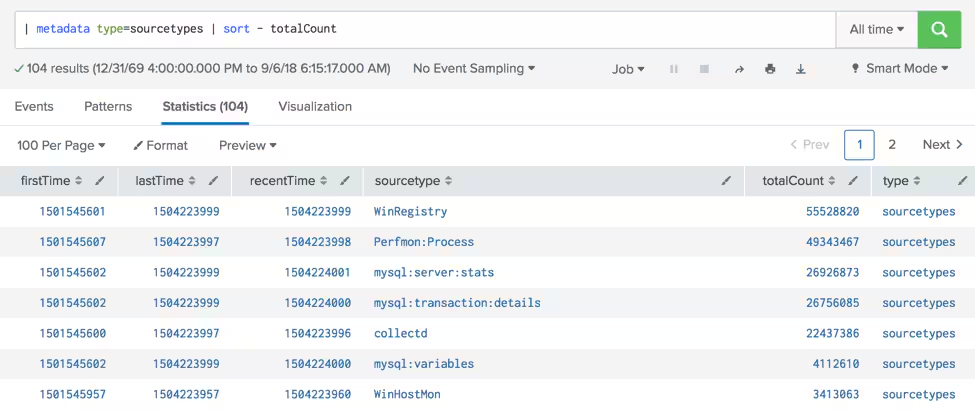
To effectively focus on specific data sources — sourcetypes — I need to understand what sourcetypes are available. To quickly determine the sourcetypes available, I can use the metadata command like this:
| metadata type=sourcetypes | sort - totalCount
My search provides a list of:
- The sourcetypes
- The number of events based on the time range
- The first, last, and most recent time see
(For more information on this search, check out Using metadata & tstats for Threat Hunting.)
Data sources
Now that I have a hypothesis (or a question to answer), a time boundary, and sourcetypes, I can start digging into the data. What kind of data should I focus on? It will depend on the hypothesis or question being asked.
- In my earlier example, if I'm hunting PowerShell, I probably want to focus on host-based data sources like Microsoft Event Logs and/or Microsoft Sysmon. That isn’t to say that I won’t end up looking at network data sources, but it'll help me initially focus my hunt.
- If, on the other hand, I'm hunting for indications of data exfiltration using data compression, I might start by focusing on network data sources.
Network data sources can help me determine what data was sent and in which direction. Understanding if data is flowing to my cloud provider or from my servers to my workstations are important pieces of information to gather.
Network data sources can include:
Wire data can be seen in the form of Splunk for Stream which is broken out by network protocols including TCP, HTTP, SMTP, DNS and many more.
Your organization may not be running Splunk for Stream, but you may have PCAP data or Zeek, and these data sets can provide other valuable insight into the specific protocols operating on your network.
(Related reading: Using Splunk Stream for hunting.)
Context
In addition to log events, I want contextual data to better understand the network, systems and users. Here are other types of data you may want to consider:
- **Asset and identity data**provides people context. For example, who owns specific systems, or the departments users work in. That context may provide a clue that an individual’s workstation connecting to a specific server is suspect.
- Understanding where systems reside, as well as their addressing, is crucial for hunting. If I see activity in my workstation address space, but don’t recognize that the source IP is part of my enterprise, I can waste precious time hunting for activity from a source that doesn’t pose a threat to my systems.
- **Threat intelligence**can be helpful particularly if I get external indicators that can be hunted for in the context of my environment. That said, if I find these indicators, it may indicate that my organization won't have a great day!
Step 3. Searching in Splunk
Now that we have data, context, and the ability to narrow our time frame, let’s look at Splunk searches. I can execute unstructured or structured searches in Splunk and get results.
Unless I know precisely what I'm looking for when hunting, I want to initially make my search broad for the following reasons:
- I don’t want to write the most beautiful Splunk search (and if you've ever seen my searches, you know that won’t likely happen...) and not get any results back.
- I'd rather start broad and then refine my search to tighten my net. I can review my search results and use the Selected Fields and Interesting Fields on the left side of the screen to review specific field values as well as pivot on specific fields to refine my search.
In this example, we're searching for events on August 23, 2017, and searching our Microsoft Sysmon data. (Yes, we recognize that this data is older — fortunately, the content and lessons learned here are still very relevant.)
sourcetype="xmlwineventlog:microsoft-windows-sysmon/operational"
My search returns over 40,000 events! But by using the fields available to me, I can narrow my search dramatically if I'm hunting for an activity that Amber Turing is performing. I can do this on multiple fields just by pointing and clicking!
sourcetype="xmlwineventlog:microsoft-windows-sysmon/operational" user="FROTHLY\\amber.turing"
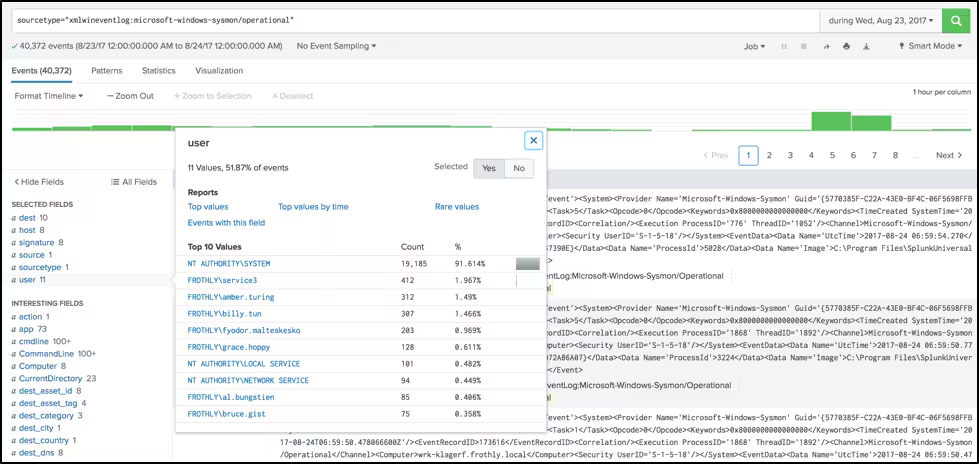
From my results, I can see that Amber seems to be running tor.exe on her system. Interesting. Now, I can start using the awesome Splunk transforming commands to finesse my data.
What's a transforming command? These are commands that take the output of a search and transform the data output…:
- Using functions as simple as sort or tail.
- Performing calculations and comparisons using commands like stats, eval, transaction and rex.
Helpful command references
Splunk publishes a helpful command reference — which I always keep near — that you should leverage during your hunts! (If you aren’t familiar with the commands in Splunk and you generally use keywords for searching, no worries: this threat hunting series has you covered.)
That said, if I was stuck on a desert island with only two Splunk commands, I would start with stats and eval because they're so powerful. Here's an example of using both of them in concert with one another.
sourcetype="pan:traffic" (src_ip=10.0.2.101 OR dest_ip=10.0.2.101)
| stats count AS event_count sum(bytes_in) AS bytes_in sum(bytes_out) AS bytes_out sum(bytes) as bytes_total by src_ip dest_ip
| eval mb_in=round((bytes_in/1024/1024),2)  | eval mb_out=round((bytes_out/1024/1024),2) | eval mb_total=round((bytes_total/1024/1024),2)
| fields - bytes*
| sort - mb_total
| head 10
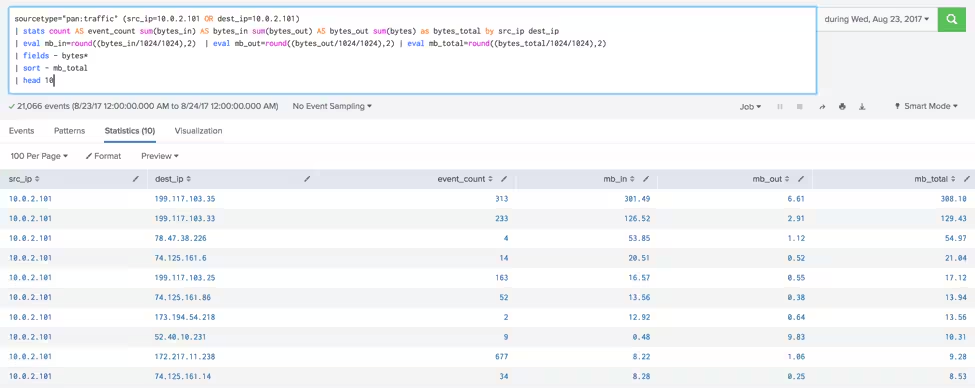
In this example, I want to see what communication paths existed between Amber’s system and other systems. Because I have contextual information, I know her IP address is 10.0.2.101 and so my initial search is looking at the firewall data with her IP address being either the source or destination:
- I use the stats command to sum the bytes_in, bytes_out and bytes fields, and generate a count of events based on the unique combination of source and destination addresses.
- The eval command is used to create a new field that calculates MBs instead of bytes and is rounded to two decimal places.
I could stop there because I said those two commands were my favorites, but I'll throw a few extra commands in to show you what I can do from there:
- I use the fields command to exclude the original byte fields from my result set.
- I can sort the mb_total field from largest to smallest ,and I returned the top 10 results with the head command.
With that, I have a top 10 talkers list between a system of interest and the rest of the world. Pretty cool, huh?
Step 4. Using OSINT & other resources
The last important component to keep in mind when going hunting is OSINT — open source intelligence. (Check out this quick introduction to OSINT from this hunting series.)
My favorite OSINT site starts with the letter G. Anyone? That’s right, it’s google.com.
Google is an often-underused weapon when hunting. I don’t know about you, but I just can’t seem to remember all 1000+ Windows Event codes, so being able to quickly search for this kind of information is invaluable.
After Google, here are other sites I find helpful:
- VirusTotal for researching malware.
- RiskIQ for researching passive DNS.
- Censys.IO is particularly useful if I am trying to correlate SSL certificates to adversary infrastructure.
Continuing the hunt
Wow, we covered a lot of new ground in a short time! If you're interested in hunting on some datasets to keep your skills sharp, try out some new techniques, or just practice your Splunk search skills, you can head to the Splunk GitHub and download BOTS datasets (for example botsv3) to use in your own sandbox environment.
And you’ve got plenty more tutorials in this series to explore, too.
As always, happy hunting!
Related Articles

LLM Security: Splunk & OWASP Top 10 for LLM-based Applications

Driving vSOC Detection with Machine Learning

Embracing Observability Tools to Empower Security Incident Response
Staff Picks for Splunk Security Reading July 2024

AcidPour Wiper Malware: Threat Analysis and Detections
How Splunk SOAR is Helping Organizations Achieve a More Resilient Approach to Security

Splunk Security Content for Impact Assessment of CrowdStrike Windows Outage

Splunk at Black Hat 2024: Strategic Transformations to Power the SOC of the Future