Automating AWS Data Ingestion into Splunk
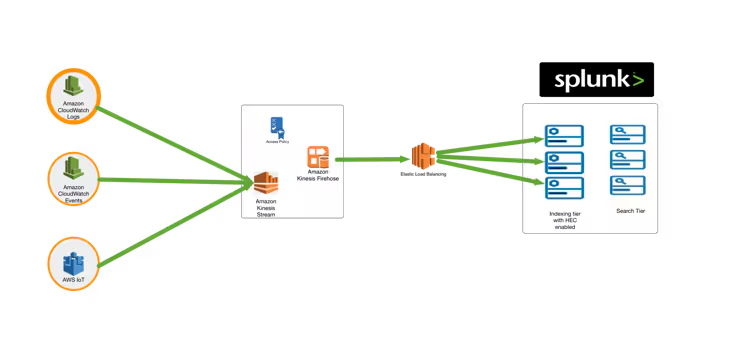
When it comes to ingestion of AWS data into Splunk, there are a multitude of possibilities. Trumpet is a new option that automates the deployment of a push-based data ingestion architecture in AWS. It builds on the recent native Splunk Amazon Kinesis Data Firehose integration to provide a high throughput, fault-resistant approach to sending data from AWS CloudTrail, AWS Config, and any service that can push data to CloudWatch Events (such as AWS GuardDuty).
Trumpet is available as a CloudFormation template that initially deploys an Amazon S3-backed configuration website, where you can select which AWS data sources you would like to send to Splunk. Once you've made your selections, the site will generate a second, customized CloudFormation template, which you can deploy to start pushing data into Splunk. Other than installing a few Splunk Add-Ons and creating HTTP Event Collector (HEC) tokens in your Splunk environment, no additional Splunk side configuration is required. This means that in 5-10 minutes, you can start streaming all the AWS data needed to populate much of the Splunk App for AWS. In addition, leveraging a push-based architecture allows for ingested data to be sent even closer to real-time.
Trumpet is currently a prototype for AWS to Splunk automation. Although it leverages scalable, fault-tolerant AWS and Splunk-supported solutions such as the Amazon Kinesis Data Firehose to Splunk integration, it's not a Splunk-supported solution and is instead provided as an open source tool. It can be used as a template for wider-scale automation initiatives.
The rest of this blog will walk through the process of using the Trumpet CloudFormation template.
You must first clone or download the Trumpet source code repository from Github. For most users of Trumpet, the auto_hec_conf_website_template.json CloudFormation template will be the only file needed from this repository. However, the source is provided for users who wish to use Trumpet for their own Splunk automation projects.
This walkthrough will demonstrate a Trumpet deployment in a single AWS region all from the AWS console; consider using AWS StackSets for a multi-region deployment of Trumpet. The walkthrough assumes you have already downloaded the source files from GitHub.
Use of Trumpet should keep Splunk side configuration to a minimum, however there are a few housekeeping items. We will want the Splunk App for AWS, the Splunk App for Kinesis Data Firehose, and the Splunk Add-on for AWS installed on our Splunk environment. If you aren't using the automatic HEC configuration version of the template, you'll need to set up an HTTP Event Collector HEC token for each data source we want to send to Splunk—this process is further described in the GitHub README. If you are using the automatic HEC configuration version of the template, you will need to make sure that the Splunk management port (typically 8089 in most Splunk deployments) is open while the template deploys. The walkthrough will demonstrate the automatic HEC configuration version of the template.
Trumpet uses AWS Kinesis Data Firehose for several of the data sources. The Amazon Kinesis Data Firehose integration requires the Splunk HEC endpoint to have a valid (not-self signed) certificate installed for the HEC port, but as a workaround, the HEC endpoint can be an AWS ELB (with a valid certificate) or other load balancer that terminates SSL and forwards to the HEC endpoint.
We will start by deploying the AWS-side logging architecture using AWS CloudFormation.
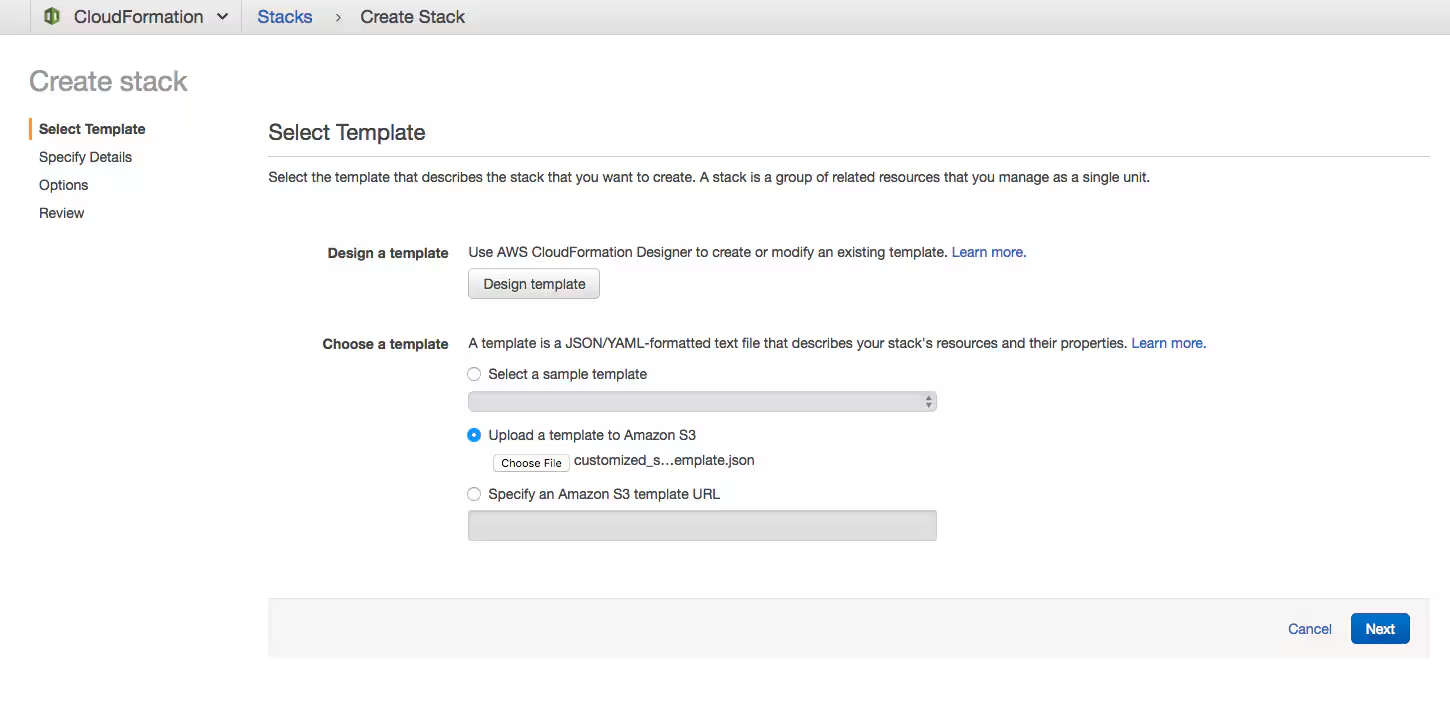
From the AWS CloudFormation console, create a new stack and upload the auto_hec_conf_website_template.json. Click “Next”.
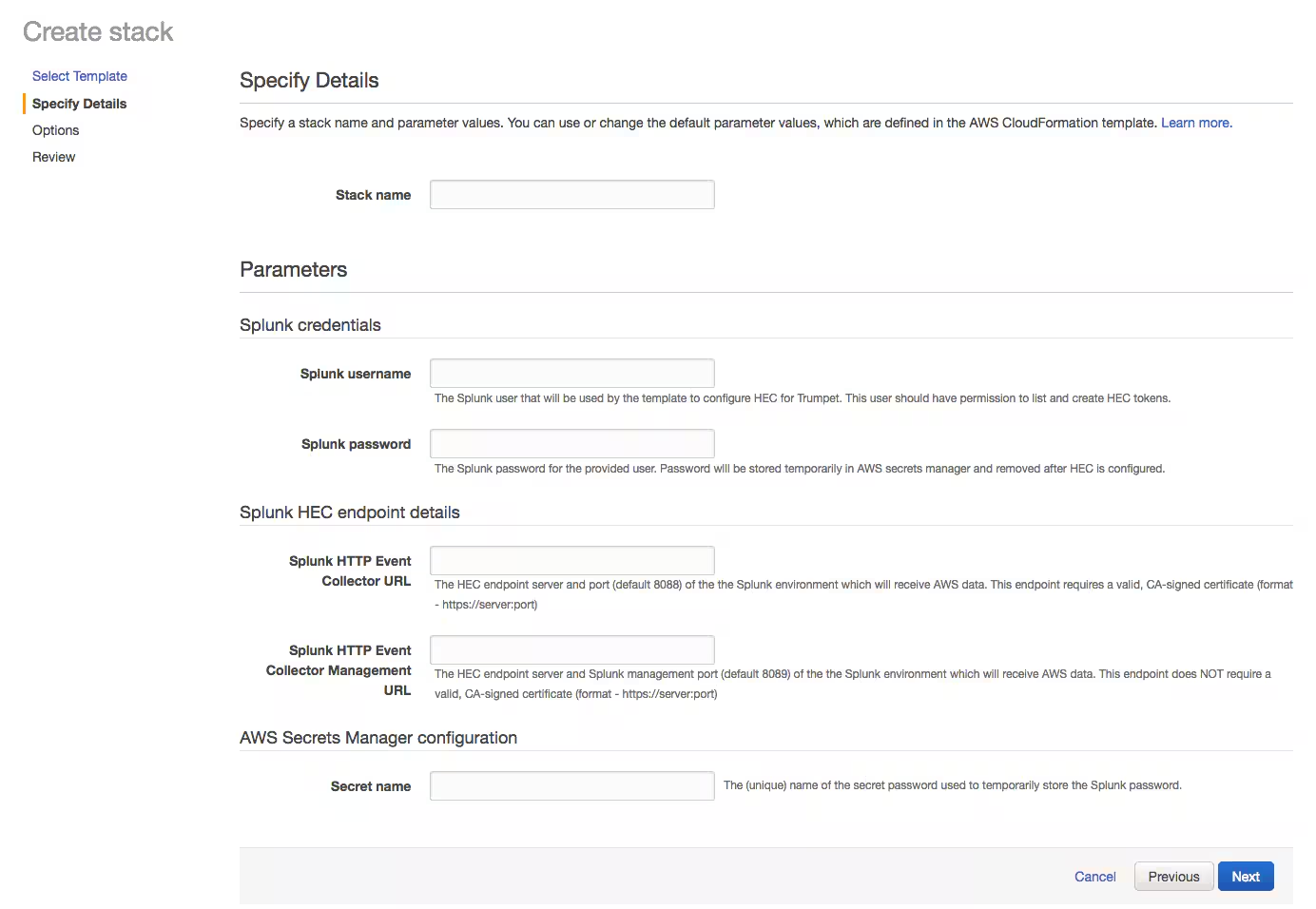
On the “Specify Details” page, you should provide the requested parameters. Provide a CloudFormation “Stack name” of your choice. As mentioned previously, the Splunk HEC endpoint must have a valid (not-self signed) certificate installed for the HEC port. The management URL may be the same as the HEC URL, but the port will be different. As a workaround, the HEC endpoint can be an AWS ELB (with a valid certificate), or other load balancer that terminates SSL and forwards to the HEC endpoint. Note that the Management URL can use a self-signed certificate.
You will need to provide a valid username/password combination for the Splunk endpoint, as well as secret name of your choice for the AWS Secrets Manager configuration.
If providing Splunk authentication details and/or having the the Splunk management port open while the template runs isn't possible, the manual HEC token version of the template is also an option. If using this alternative, you'll create HEC tokens on the Splunk endpoint manually and then provide those tokens to the template later on. This option does not remove the requirement for a valid certificate on the HEC endpoint mentioned earlier—this requirement comes from the AWS Kinesis Data Firehose integration.
Once you have provided all the parameters, click “Next” to continue.
You will not need to configure any Tags, Permissions, Rollback Triggers, or any options from the Advanced Settings. Click “Next” to review.
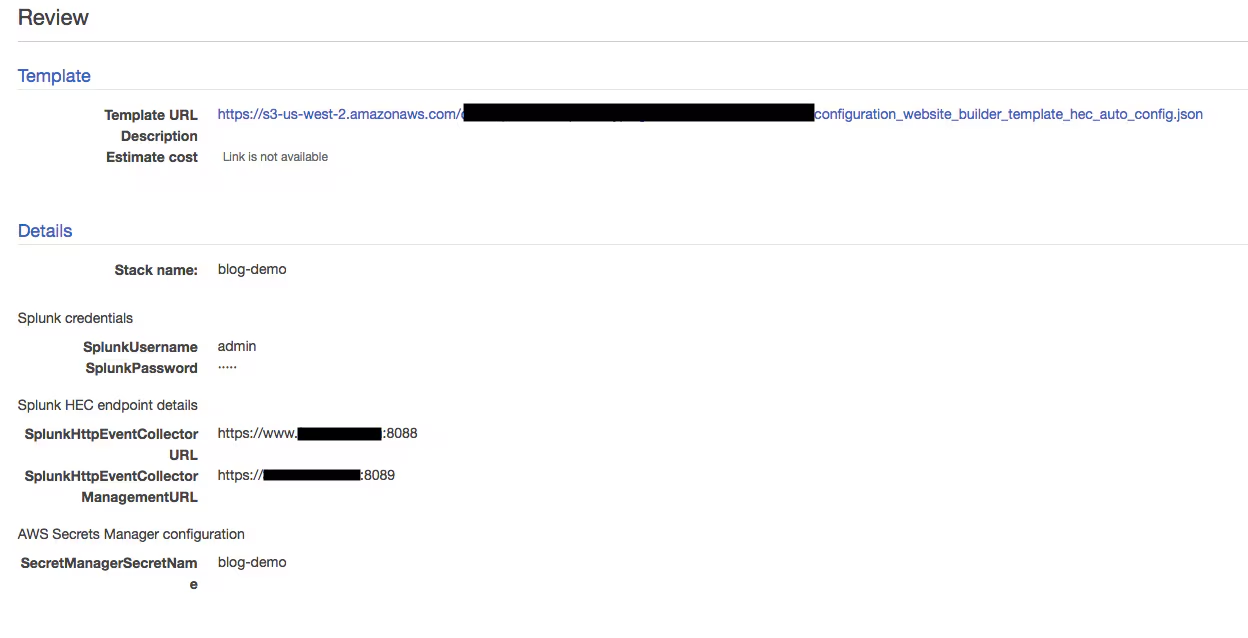
Acknowledge that AWS CloudFormation might create IAM resources while deploying this stack, then click “Create.”
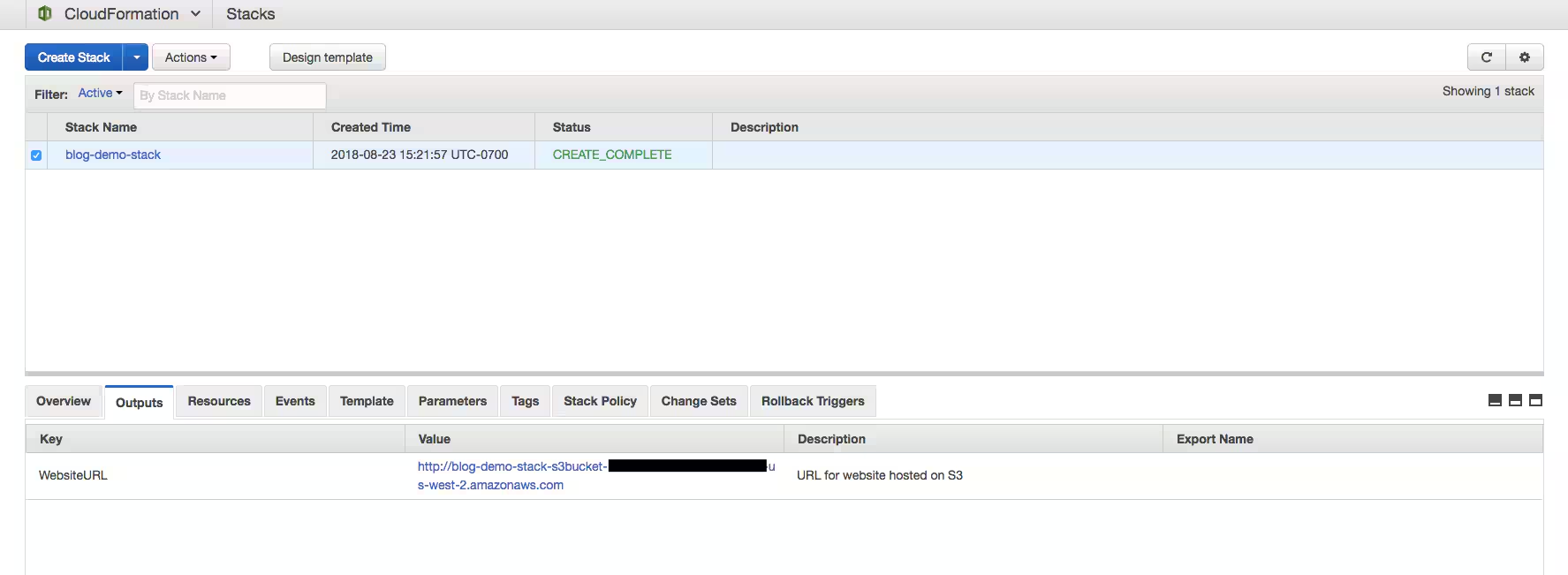
After you click “Create,” the CloudFormation stack will begin deploying. After 1-2 minutes, the stack status will update to “CREATE_COMPLETE,” at which point you can check the “Outputs” tab for a URL to the configuration site. Click this link to begin configuration of your AWS to Splunk logging setup.
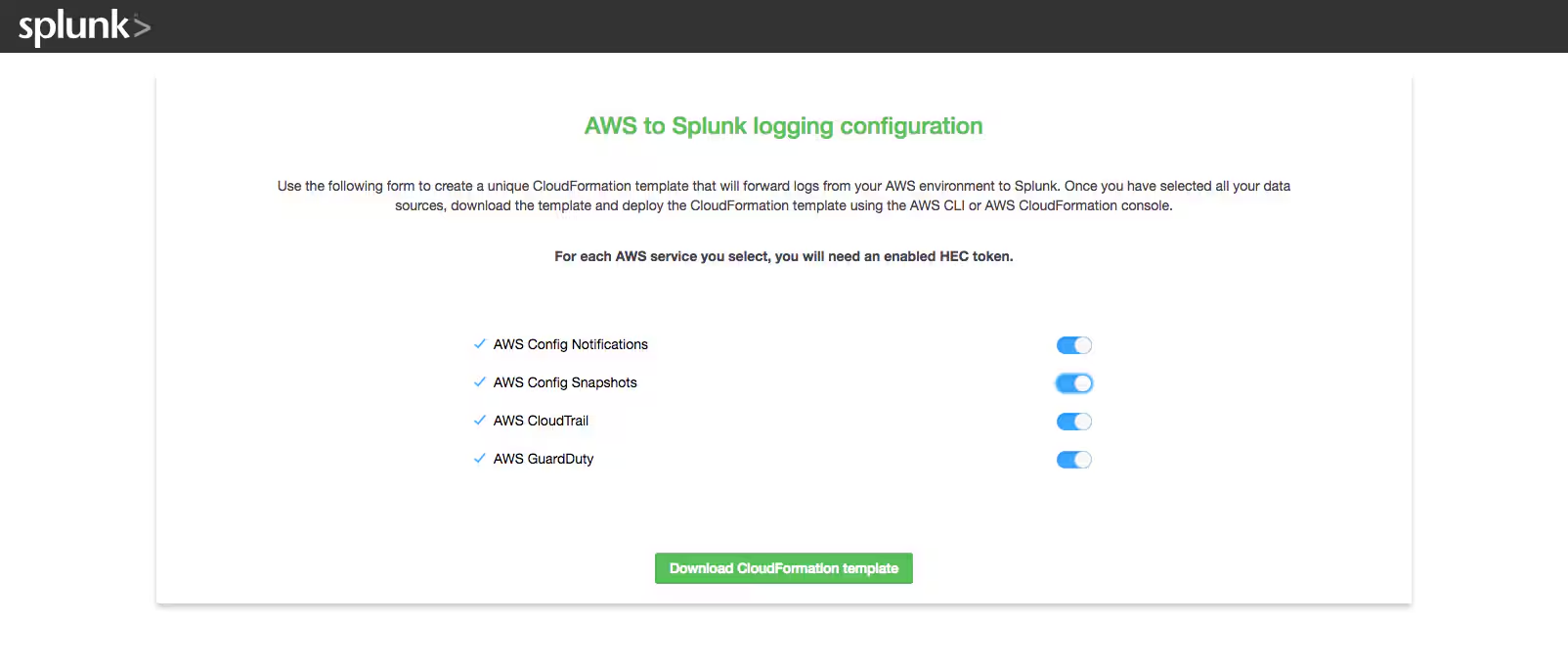
In this configuration site, select each AWS service that you'd like to send data from to Splunk. Once done, click “Download CloudFormation template”—this will create and download a customized CloudFormation template with your selected settings that is ready to deploy.
The AWS to Splunk logging configuration site runs entirely local to your browser, so there's no outbound communication other than the loading of static resources. Creation and download of the customized CloudFormation template is handled with browser-side JavaScript.
Similar to before, we will deploy the stack in the downloaded CloudFormation template from the AWS CloudFormation console. In addition, you should delete the stack used to deploy the configuration website. If you need to make changes in the future, you can always redeploy the configuration website template following the same steps as the first time.
To deploy the downloaded custom template from the AWS CloudFormation console, click “Create Stack,” and upload the downloaded template. Then click “Next.”
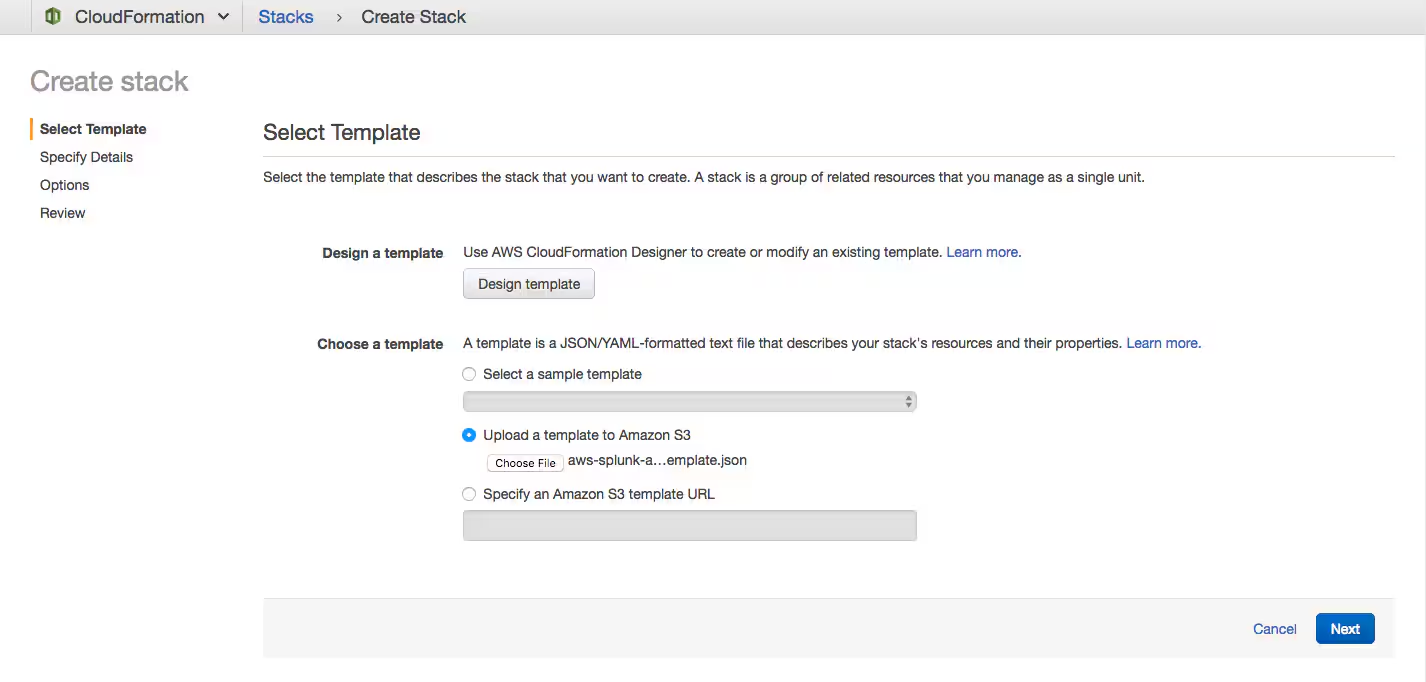
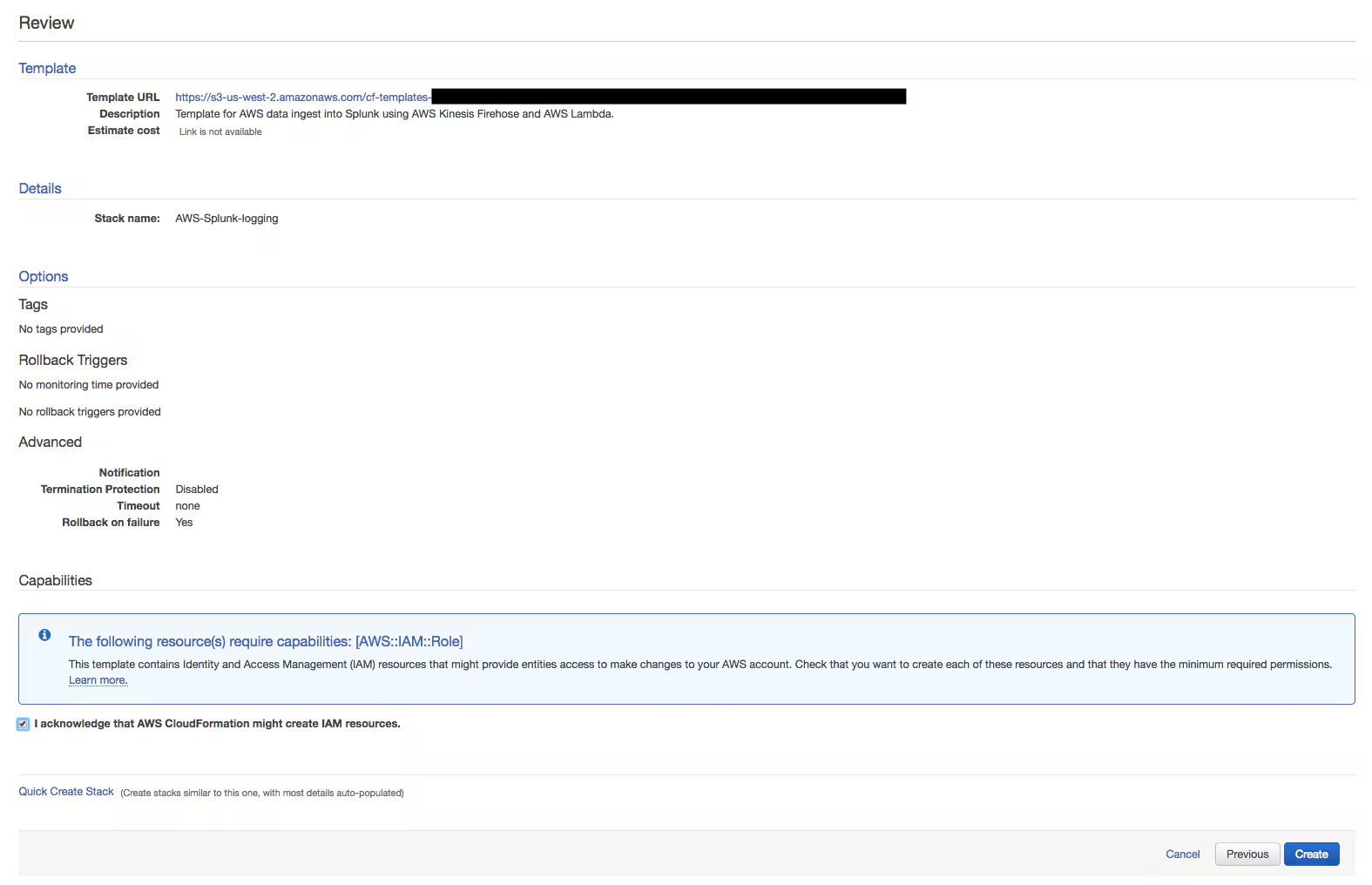
Click “Next” and name your stack. Click “Next” again. You won't need to configure any Tags, Permissions, Rollback Triggers, or any options from the Advanced Settings. Click “Next” to review, then acknowledge that AWS CloudFormation might create IAM resources while deploying this stack.
This stack will take 3-5 minutes to fully deploy and once the status of the stack updates to “CREATE_COMPLETE,” data will begin being sent to Splunk. It may take 5-10 minutes for the first events to come in, but after the initial setup delay, events will be sent and ingested by Splunk as they are made available. The aws:config sourcetype describes AWS Config snapshots, which are generally scheduled on an hourly, daily, etc. basis. You can create a snapshot manually using the AWS CLI to confirm events are being sent to Splunk, or wait for the scheduled snapshot to run. If config snapshot data is not sent to Splunk after a prolonged period of time, check your AWS Config snapshot schedule settings.
Although templates generated using Trumpet will work out of the box, you can also use Trumpet as a starting point for your own automation initiatives. The customized template generated by the configuration website should be an excellent start. As an example, you could modify the generated template to include additional features or tweak certain settings (tagging, etc.) to better suit your environment.
For more information about Splunk solutions for AWS visit our AWS Partner Page.
----------------------------------------------------
Thanks!
Nic Stone
Related Articles

Ringing In the New Year With Splunk and Microsoft: Three New Integrations

Getting to Know Google Cloud Audit Logs
Splunk Named Launch Partner of AWS Network Firewall

Manage Your Splunk Infrastructure as Code Using Terraform
Splunking Slack Audit Data
Analyzing Performance at the Virtual Monaco Grand Prix
Google GSuite to Splunk HEC Configuration

Automating AWS Data Ingestion into Splunk