Visual Link Analysis with Splunk: Part 2 - The Visual Part
In part one of the "Visual Analysis with Splunk" blog series, "Visual Link Analysis with Splunk: Part 1 - Data Reduction," we covered how to take a large data set and convert it to only linked data in Splunk Enterprise. Now let’s look at how we can start visualizing the data we found that contains links.
Why, you may ask, when we just developed a nice table of data that shows us links? Tables of data don’t always work well if you have more than one page of data. It is easy to forget what you saw or you have to keep sorting and filtering. And although I could buy a link analysis tool from some vendor, if I already have Splunk, why not try to use what I have first.
Luckily, Splunk users simplify their lives by leveraging apps in Splunkbase to perform the heavy lifting of visual link analysis.
Remember from part one, that most visualization tools will try and visualize everything, even nodes with no links, and without some data reduction we can kill our browser. So even if I don’t mention (in my examples) using eventstats to limit our data to just linked data, I am still doing that first.
My goal was to take my table of reduced, linked data and get a nice visualization that’s easy for any human to understand. Ideally, this would include different icons, colors and labels.
Testing Splunkbase Apps for Link Analysis
I started with the Splunkbase application named Link Analysis App For Splunk. It works well for some types of analysis things, but it has some problems in my more advanced situation – this app can really only link on one criteria at a time, and the visualizations it gives me are all circles. I quickly abandoned this path:
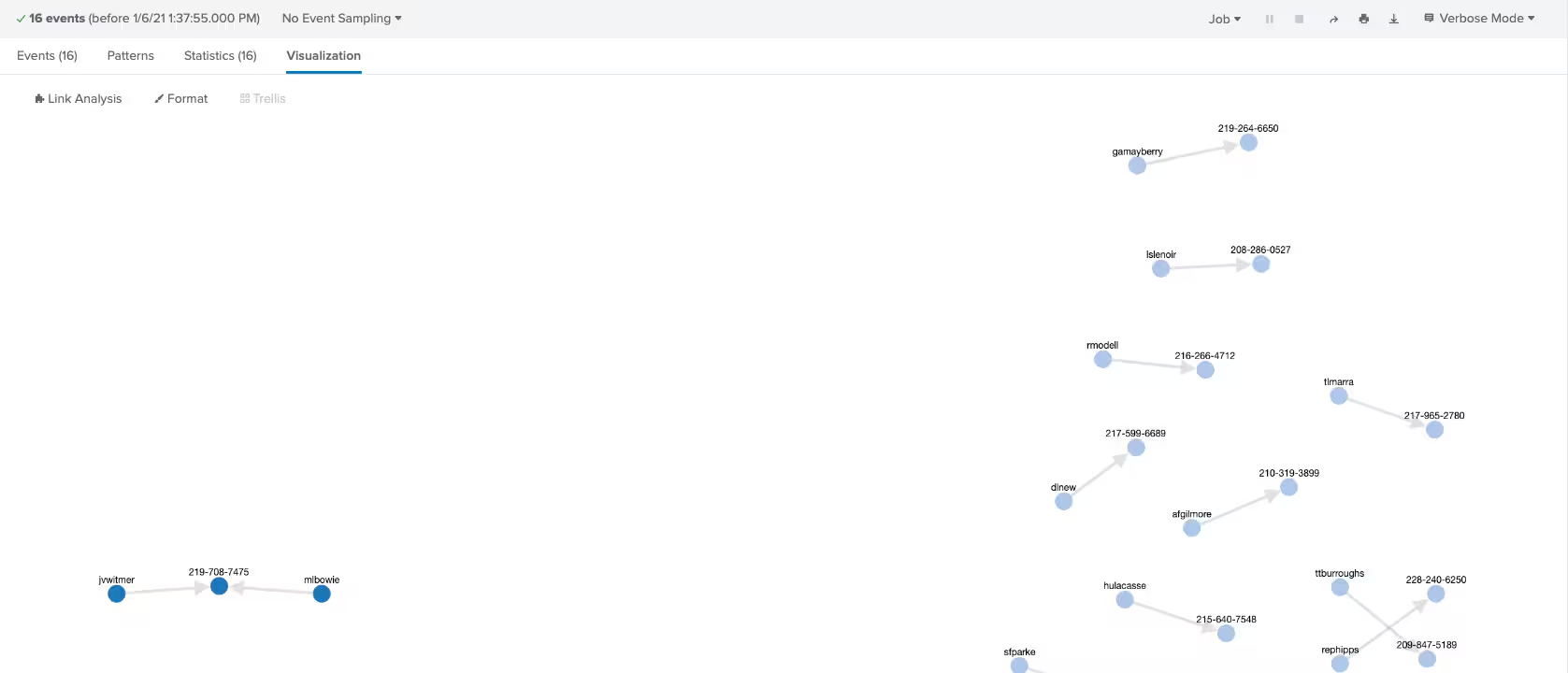
So, I moved on to using another tool by the same author that could do multi-level link analysis: Force Directed App For Splunk. This app worked better in my analysis and allowed me to define multiple nodes with links, but I couldn’t control much around the layout and again, the visualizations relied heavily on circles. There also is no drill down capability, and that is a must-have feature.

A colleague of mine, Jim Apger (of RBA fame), turned me on to the Network Diagram Visualization app. This app appeared to have the functionality I wanted: different icons, colors, named links, drilldowns and more.
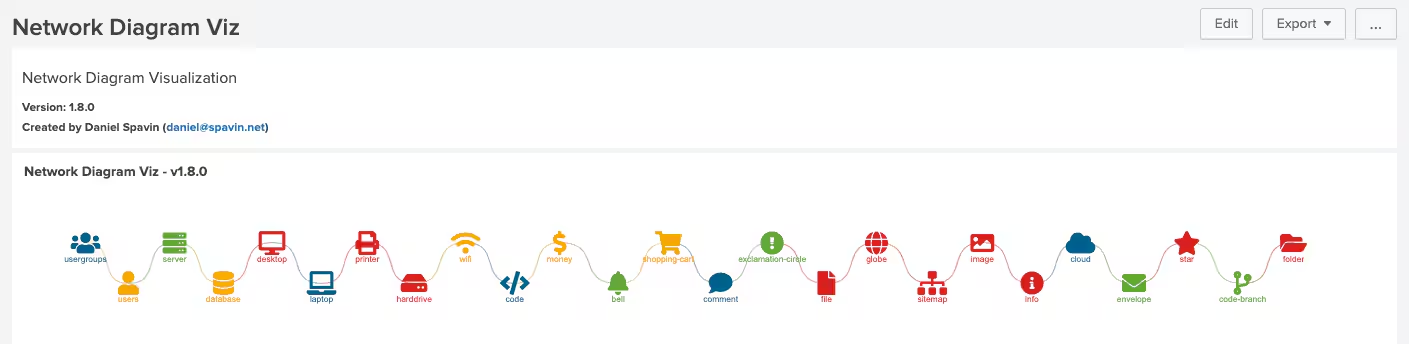
Unfortunately this app also requires very specific data formatting to get it to work. My first attempt, was wrong:

The Network Diagram Visualization app is well documented, and I discovered that I needed to build a table so that all attributes that need an icon appear in a column named “FROM” and have values for “COLOR” and “VALUE”. If a link is required, then a “FROM” and “TO” relationship is needed.
In a simple example showing a username and it’s related fields of ip_address, phone and password, we have to manipulate this to get the structure we want for the visualization.

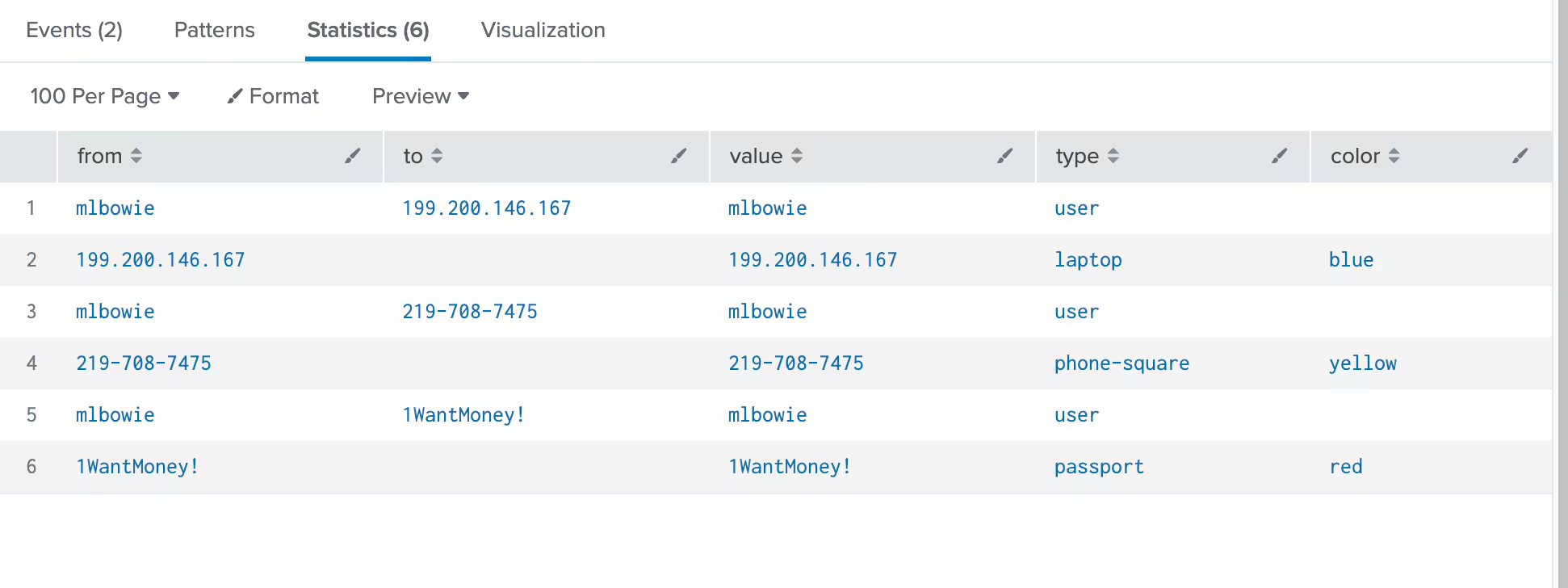
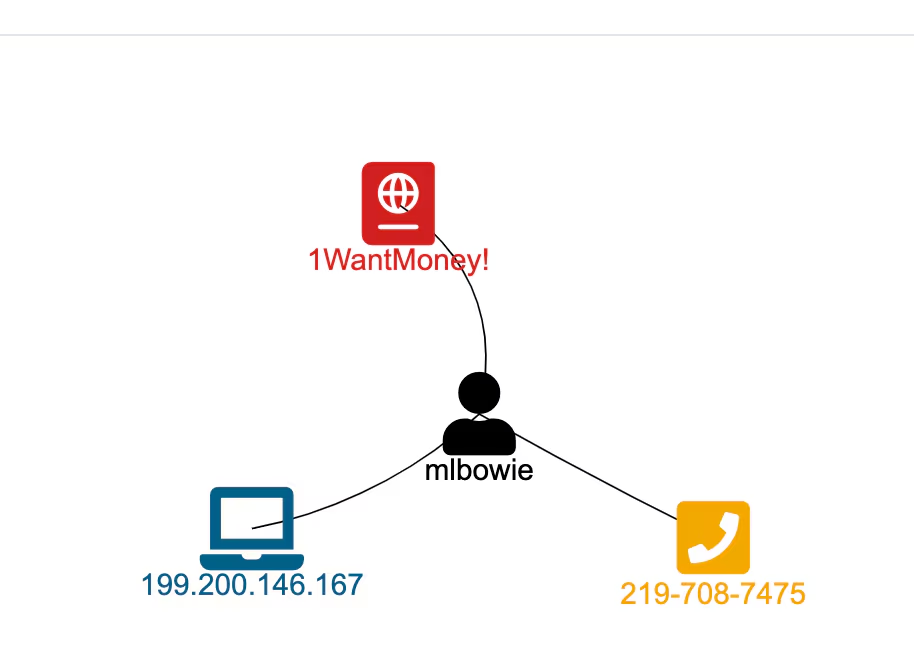
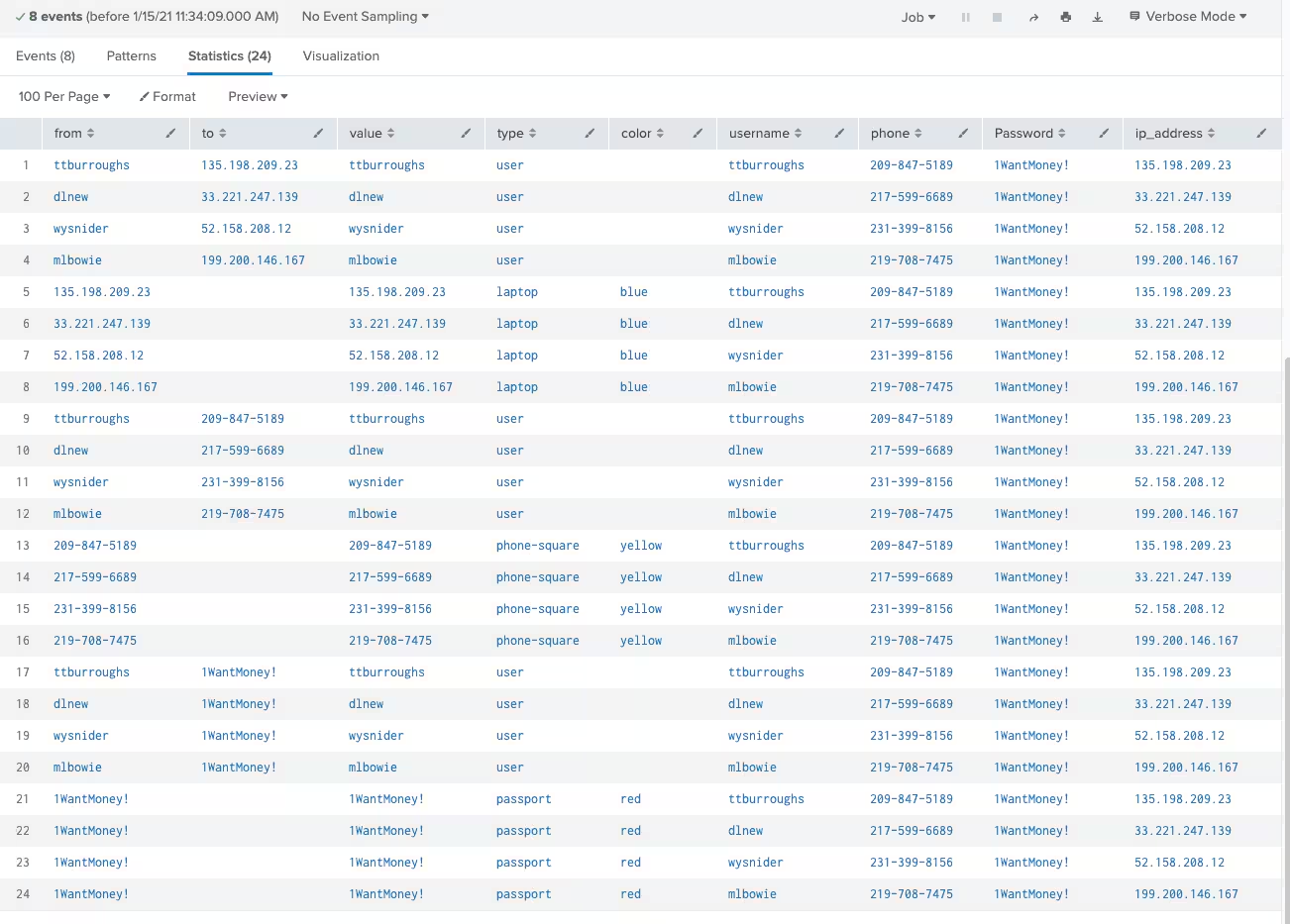
I settled on the “appendpipe” command to manipulate my data to create the table you see above. Here is some sample SPL that took the one event for the single user and creates the output above in order to create the visualization:
| eval from=username, to=ip_address, value=from, type="user"
| appendpipe
[| eval from=to, value=to, to=NULL, type="laptop", color="blue"]
| appendpipe
[ | where isnotnull(to)
| eval from = from, to=phone
| appendpipe
[| eval from=to, value=to, to=NULL, type="phone-square", color="yellow"]
| appendpipe
[| where isnotnull(to)
| eval from = from, to=Password
| appendpipe
[| eval from=to, value=to, to=NULL, type="passport",color="red"]
] ]
| table from, to, value, type, color
The confusing part of this, is that I am using nested “appendpipe” commands to limit what is visible as so I build out my table of data without duplicates.
Appendpipe: “Appends the result of the subpipeline to the search results. Unlike a subsearch, the subpipeline is not run first. The subpipeline is run when the search reaches the appendpipe command.”
Let’s look at the code in a larger example. First, let’s remember all of my data manipulation is happening in memory, and the table command draws it all out in the end. Maybe, I could have written to disk in places to make things simpler to follow, but I didn’t want to slow things down with disk IO, and disk is not very Splunky (comments included to show how SPL generates table of data below):
source="NewAccounts.csv"
| rename "Phone No" as phone
| eventstats count as dupphone by phone
| eventstats count as dupip by ip_address
| eventstats count as duppass by Password
| eval total = dupphone+dupip+duppass
| where total > 5 (increased total to make output table to fit one screen)
| eval from=username, to=ip_address, value=from, type="user" (lines 1-4 created)
| appendpipe (creates lines 5-8 using lines 1-4 as input)
[| eval from=to, value=to, to=NULL, type="laptop", color="blue"]
| appendpipe
[ | where isnotnull(to) (creates lines 9-12 based on lines 5-8)
| eval from = from, to=phone
| appendpipe (creates lines 13-16 based on lines 9-12)
[| eval from=to, value=to, to=NULL, type="phone-square", color="yellow"]
| appendpipe
[| where isnotnull(to)(creates lines 17-20 based on lines 13-16)
| eval from = from, to=Password
| appendpipe (creates lines 21-24 based on lines 17-20)
[| eval from=to, value=to, to=NULL, type="passport",color="red"]
]]
| table from, to, value, type, color, username, phone, Password, ip_address
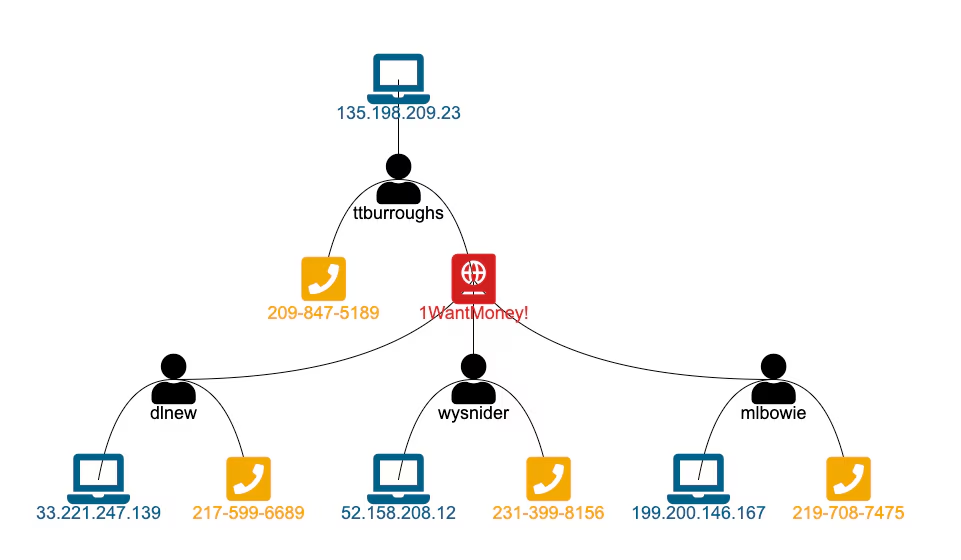
Now I extend this technique to a larger dataset with more fields and 15,888 events. This data is evaluated, reduced to only linked events, and visualized with named, colored icons (more relationships to the right didn’t fit on screen).
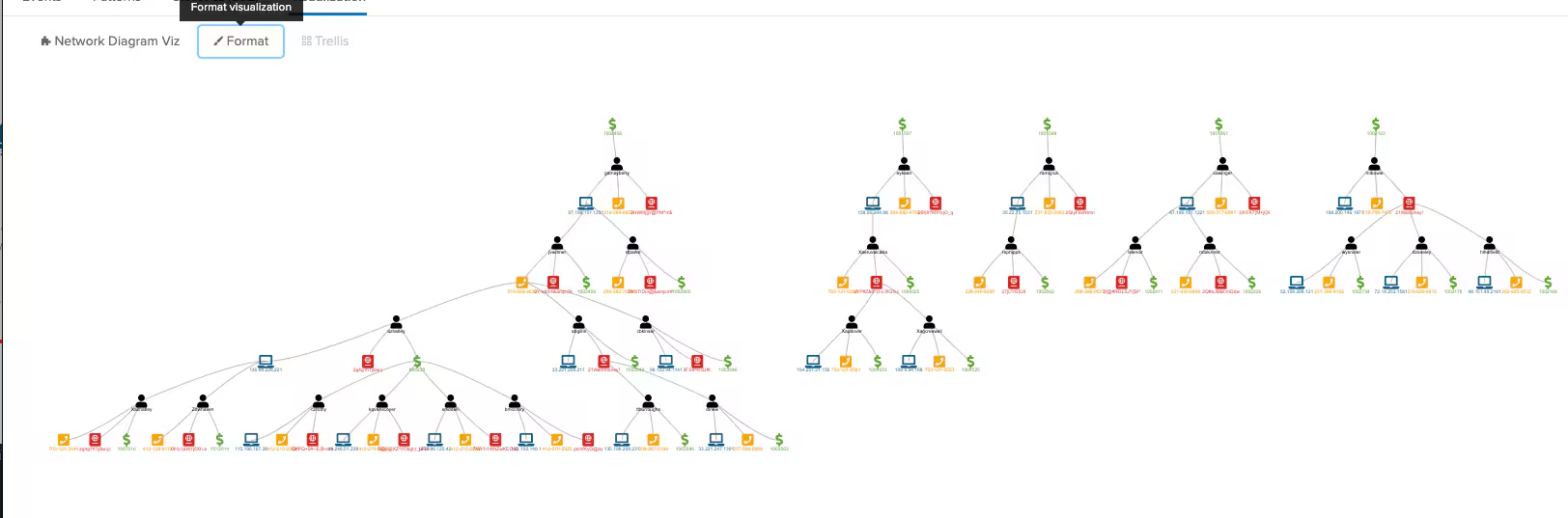
Huzzah! I met the criteria I was striving for; and, although not covered here, drilldown functionality works well as the Network Diagram Visualization app supports it through some built-in tokens.
Stay tuned for part 3, where I will tackle some problems that still exist when using visualizations with very large data sets.
Thanks for following, and happy Splunking!
----------------------------------------------------
Thanks!
Andrew Morris
Related Articles

Predicting Cyber Fraud Through Real-World Events: Insights from Domain Registration Trends

When Your Fraud Detection Tool Doubles as a Wellness Check: The Unexpected Intersection of Security and HR

Splunk Security Content for Threat Detection & Response: November Recap

Security Staff Picks To Read This Month, Handpicked by Splunk Experts

Behind the Walls: Techniques and Tactics in Castle RAT Client Malware

AI for Humans: A Beginner’s Field Guide

Splunk Security Content for Threat Detection & Response: November 2025 Update

Operation Defend the North: What High-Pressure Cyber Exercises Teach Us About Resilience and How OneCisco Elevates It