Hunting with SA-Investigator & Splunk Enterprise Security (SIEM)
Though this article is part of our Threat Hunting with Splunk series, in this article we aren’t going to talk about specific Splunk commands to assist with hunting. Instead, we want to show how the frameworks of Splunk Enterprise Security (ES) can make your data sing. By using SA-Investigator, analysts can use a single view of an asset or identity to:
- Streamline their hunt.
- Conduct incident response to do deep-dive investigations.
This short walkthrough of SA-Investigator for Splunk Enterprise Security gives a glimpse into how the app streamlines investigations. The latest release (version 4.0.0) adds support for searching multiple assets at once and includes enhanced filtering options to cut down on noise from commonly seen domains, file names, Windows Event Codes, processes, and services. These updates help analysts focus on what actually matters.
(This article is part of our Threat Hunting with Splunk series. We’ve updated it recently to maximize your value.)
Using specific indicators to begin hunting
When hunting, it’s sometimes more efficient and effective to search for a specific indicator (rather than searching by data type). That “indicator” can take many forms, but a few that come to mind are:
- Assets
- Accounts
- File names
Assets of interest could be internal or external. It could be an IP address, but it could also be a MAC or hostname. On the other hand, your hunt may be focused on user accounts and the identity associated with those accounts. Finally, we might want to hunt for the presence of a specific file or process within our environment. These artifacts can all be hunted with SA-Investigator for Enterprise Security.
Brief overview of Splunk Enterprise Security
For those not familiar with Splunk Enterprise Security (ES), it's a market-leading SIEM and security analytics platform built to support core workflows like:
- Threat detection
- Risk analysis
- Asset and identity correlation
- Incident response
ES allows teams to search across diverse data sources — such as network traffic, authentication logs, and cloud activity — and build correlation searches that can generate alerts or initiate automated actions based on defined conditions. This includes:
- A unified threat detection, investigation, and response (TDIR) experience
- Risk-based alerting (RBA) to help prioritize high-risk activity
- Features like detection versioning and enhanced analyst queues that make investigations more efficient
Overview of SA-Investigator
SA-Investigator enhances Enterprise Security (ES) by providing focused, entity-specific views for assets, identities, files, and processes — all within a unified interface. Analysts can seamlessly explore tabs aligned to data types (such as network traffic, malware, or certificate activity), eliminating the need to jump between dashboards or manually construct searches.
This add-on integrates directly with ES, enabling analysts to pivot from notable events in the Incident Review framework to detailed entity views using the existing Asset and Identity framework. It supports both alert triage and exploratory threat hunting by offering quick access to relevant context around assets or identities.
By reducing friction in the investigative process, SA-Investigator helps security teams surface key details, enrich threat intelligence, and follow investigations through to resolution. Its features streamline workflows, allowing users to trigger notable events and dive deeper into specific threats with ease. The latest version of SA-Investigator is available for free on Splunkbase.
Now, let’s take a closer look at how this works in practice.
Tutorial and use cases: Using SA-Investigator with ES
Let’s say we're focusing our hunt on an internal IP address that has had some suspicious activity. To build our hypothesis, we need to learn more about this system, so we enter the value of the asset—10.0.2.107
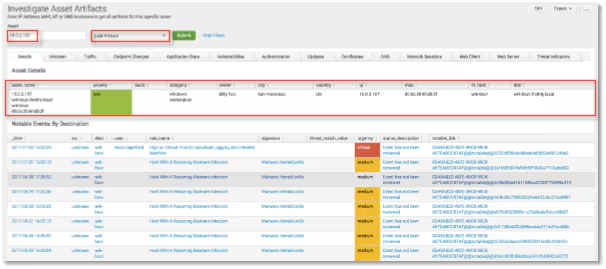
You'll immediately notice the context of the asset and the notable events associated with it. But wait, what happens if we don’t have assets in our system? No problem — we can still search for these artifacts, we just won’t have the additional context available to us.
(As a side note: we've populated the asset table in Splunk ES which provides this context. As such, we can see multiple ways the same asset is characterized; IP, hostname, MAC, NT hostname. If we associate the asset with more than one of these values, by entering just one of the asset values, it will search across the rest! We can also set a time range for our hunt.)
We can begin hunting across different types of data. From alerts generated by Intrusion Detection Systems and antivirus to network traffic, authentication events, audit logs, and other events associated with the system, the choice is yours!
Finding endpoint changes
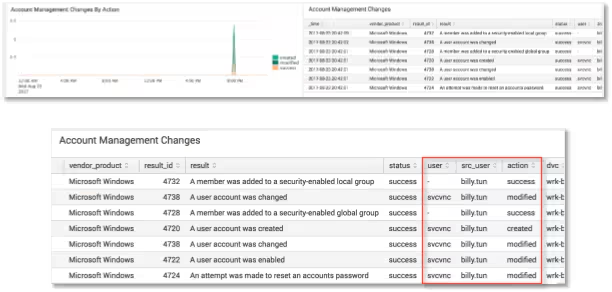
For example, if you wanted to determine what Endpoint Changes happened on this system, you could pivot in Splunk to see any changes that happened at a specific time of day. This would allow you to review…:
- Any associated Window Event logs for that system
- Any changes being made by particular users
The box in red shows that a user appears to be creating and modifying a new account on the system.
Viewing authentication data
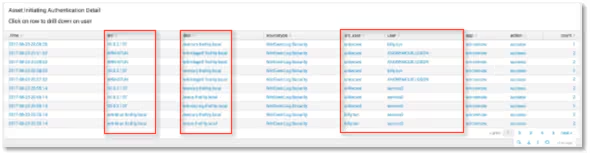
Pivoting to view authentication data, we can see that authentications occurred to various systems on the network from our asset in question using several different credentials, including a service account. We might want to understand more about where that service account is being used and potentially abused, so let’s pivot from an asset view to an identity view.
Much like assets, if multiple accounts are associated with an identity, searching one account will return all associated accounts! Hunting for the “service3” account, we see within the Application State data that a series of processes are kicking off under this account on both our original system of interest as well as others. Interestingly, the processes executing are triggering in the same order on each system as well — this is definitely of interest!
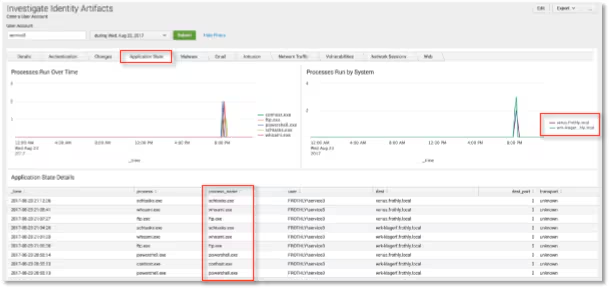
Since we started with a system of interest and then pivoted to a potentially suspicious account, we may want to continue our hunt to see what any associated processes are doing.
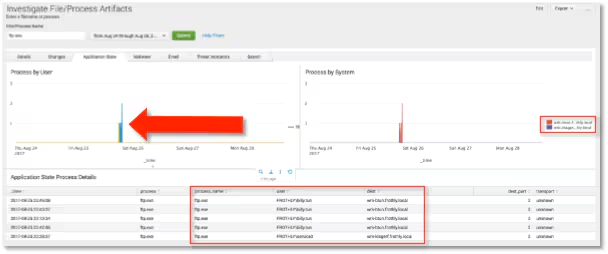
As an incident responder, your eyes are probably drawn to the after-hours FTP activity by user billy.tun directly after the original cluster of events. Notice that we also see ftp events from two other distinct workstations under the same user account. Using Splunk visualizations, we can expand the processes over time and drill in on that user.
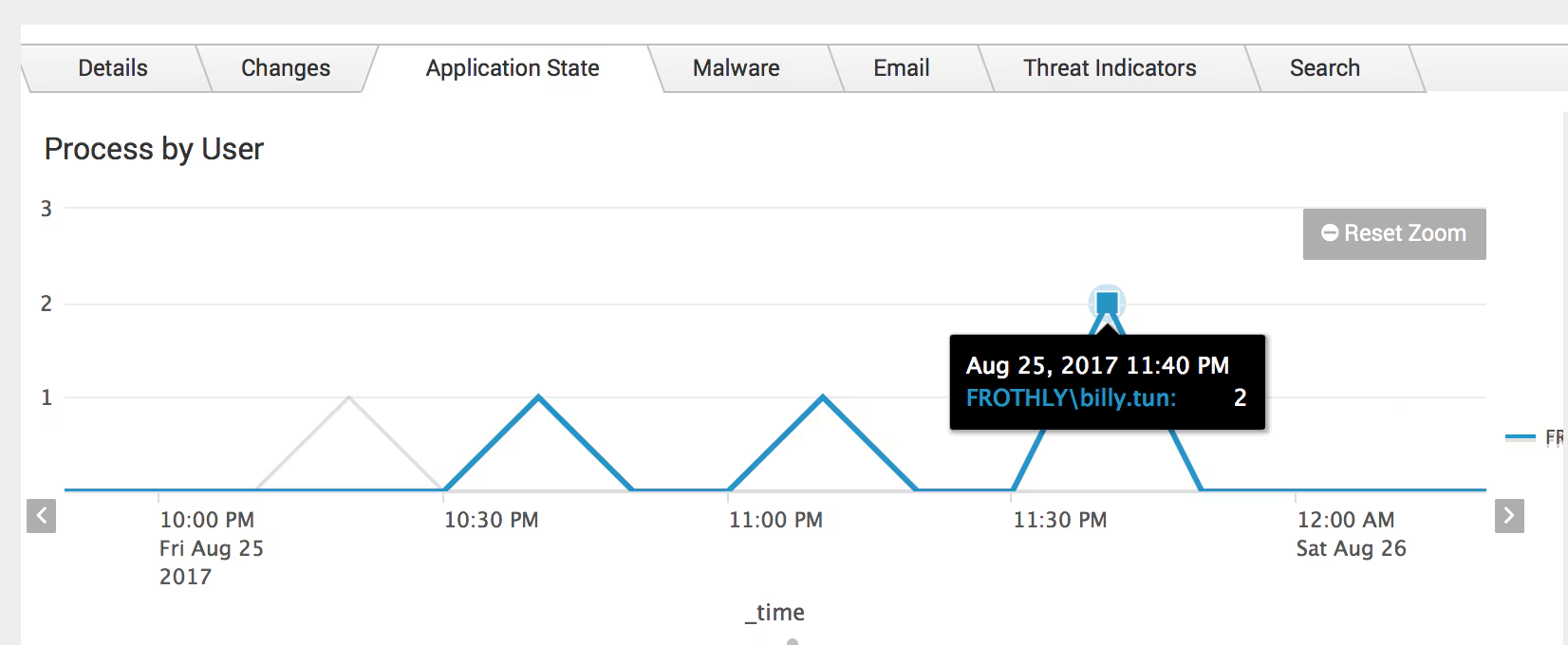
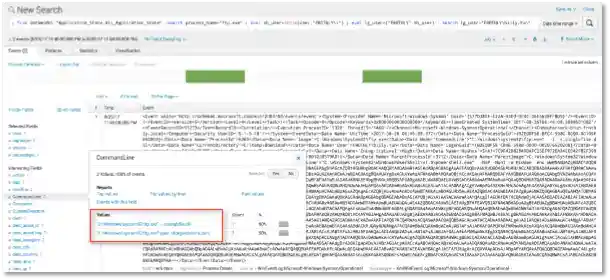
Since we are brilliant and use Microsoft Sysmon, when we click on the timechart, we trigger Splunk to drill down into the raw data. In this case, we can see all the events where ftp.exe was seen as the process during our selected time frame by the user Billy Tun.
Splunk returns two events that match this criteria and we are able to review the encrypted PowerShell commands being executed, along with their parent processes, that may be useful for this hunt or a future hunt.
Setting up new alerts
You would then take these indicators and feed them back into Splunk Enterprise Security to alert on similar indicators in the future.
That concludes this tutorial. Happy hunting!
Related Articles

Predicting Cyber Fraud Through Real-World Events: Insights from Domain Registration Trends

When Your Fraud Detection Tool Doubles as a Wellness Check: The Unexpected Intersection of Security and HR

Splunk Security Content for Threat Detection & Response: November Recap

Security Staff Picks To Read This Month, Handpicked by Splunk Experts

Behind the Walls: Techniques and Tactics in Castle RAT Client Malware

AI for Humans: A Beginner’s Field Guide

Splunk Security Content for Threat Detection & Response: November 2025 Update

Operation Defend the North: What High-Pressure Cyber Exercises Teach Us About Resilience and How OneCisco Elevates It