Updated Keyword App
Last year I created a simple app called Keyword that consists of a series of form search dashboards that perform Splunk searches in the background without having to know the Splunk search language. You can read about the original app here and see how it easy it is to use. This year, I added some dashboards for the Rare Command, but I didn’t think it was newsworthy to blog about it.
Then, Joe Welsh wrote a blog entry about using the cluster command in Splunk, which allows you to find anomalies using a log reduction approach. Joe’s example using Nagios is easy to follow and gives the novice a useful approach to get rare events. So, using this approach, I decided to update the Keyword app to add a Cluster dashboard where the user simply puts in a search filter (something to search for), a threshold on matching like events, and a time range to to get results. This should work on any data and allow you to quickly see grouped anomalous events without having to know the search language. As I wrote about it before, a picture is worth more than a description. Here’s an example using SSH logs:
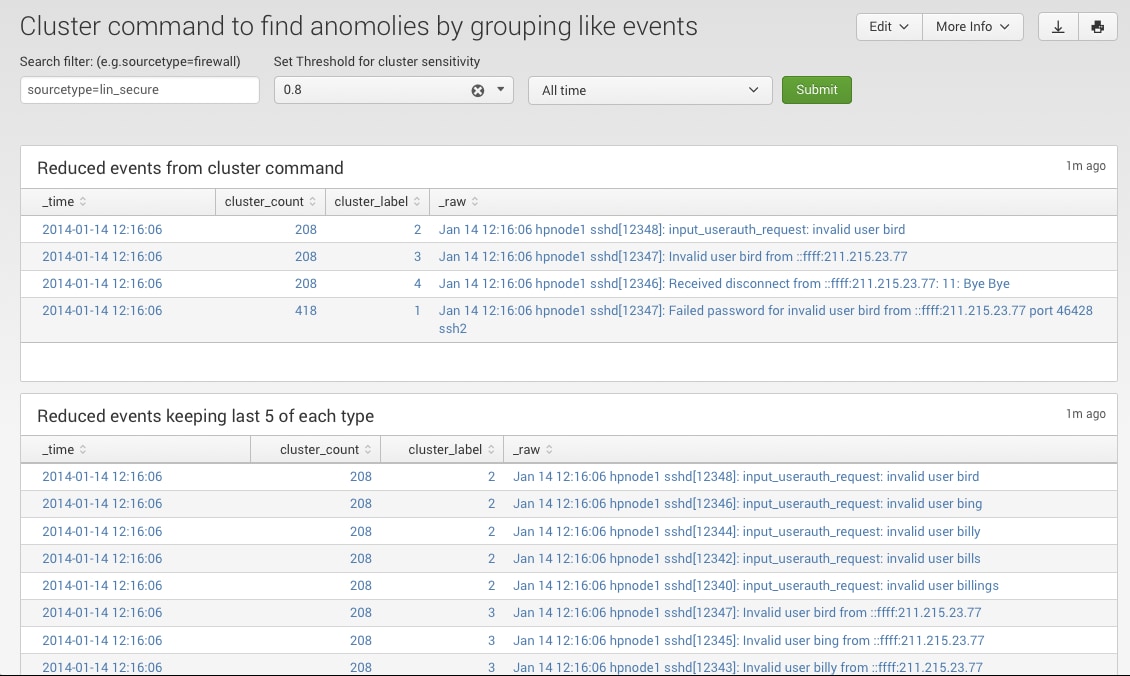
Cluster Dashboard
It follows the same pattern as Joe’s blog entry. For completeness, I’ll include a picture of the Rare dashboard that shows you counts of rare sources, hosts, and sourcetypes for a keyword search:
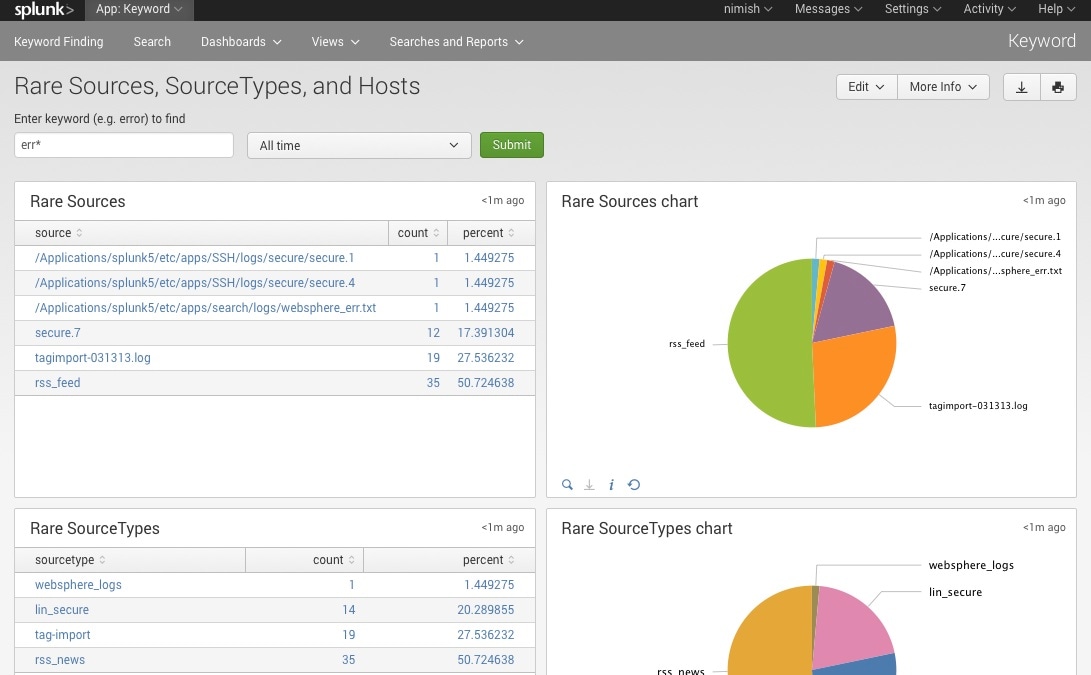
Rare Sources, Sourcetypes, and Hosts
Finally, you can also split each rare result by the punctuation of the result and either its source, sourcetype, or host. As Splunk automatically captures the punctuation of each event, as usual, all you have to do is search by a keyword or set of keywords separated by OR or implicit AND.
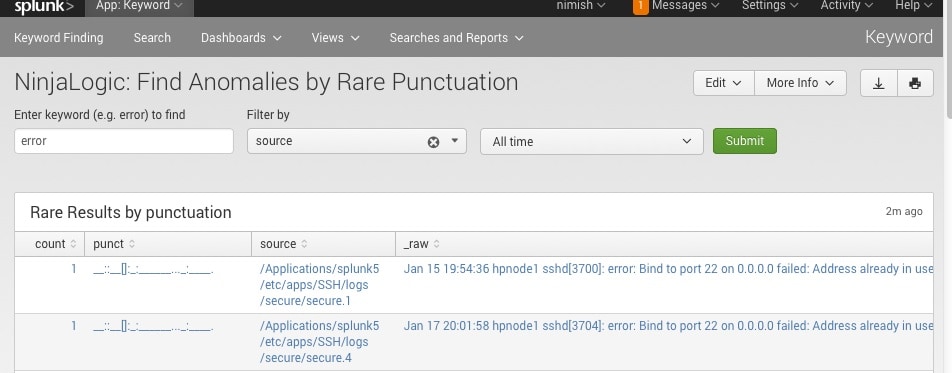
Rare Punctuation
This could really help in your IT and Security use cases. Enjoy the the update.
Related Articles

Next Level Automation: What’s New with Splunk Phantom

Detecting Lateral Movement with Splunk: How To Spot the Signs