Advanced Link Analysis: Part 2 - Implementing Link Analysis
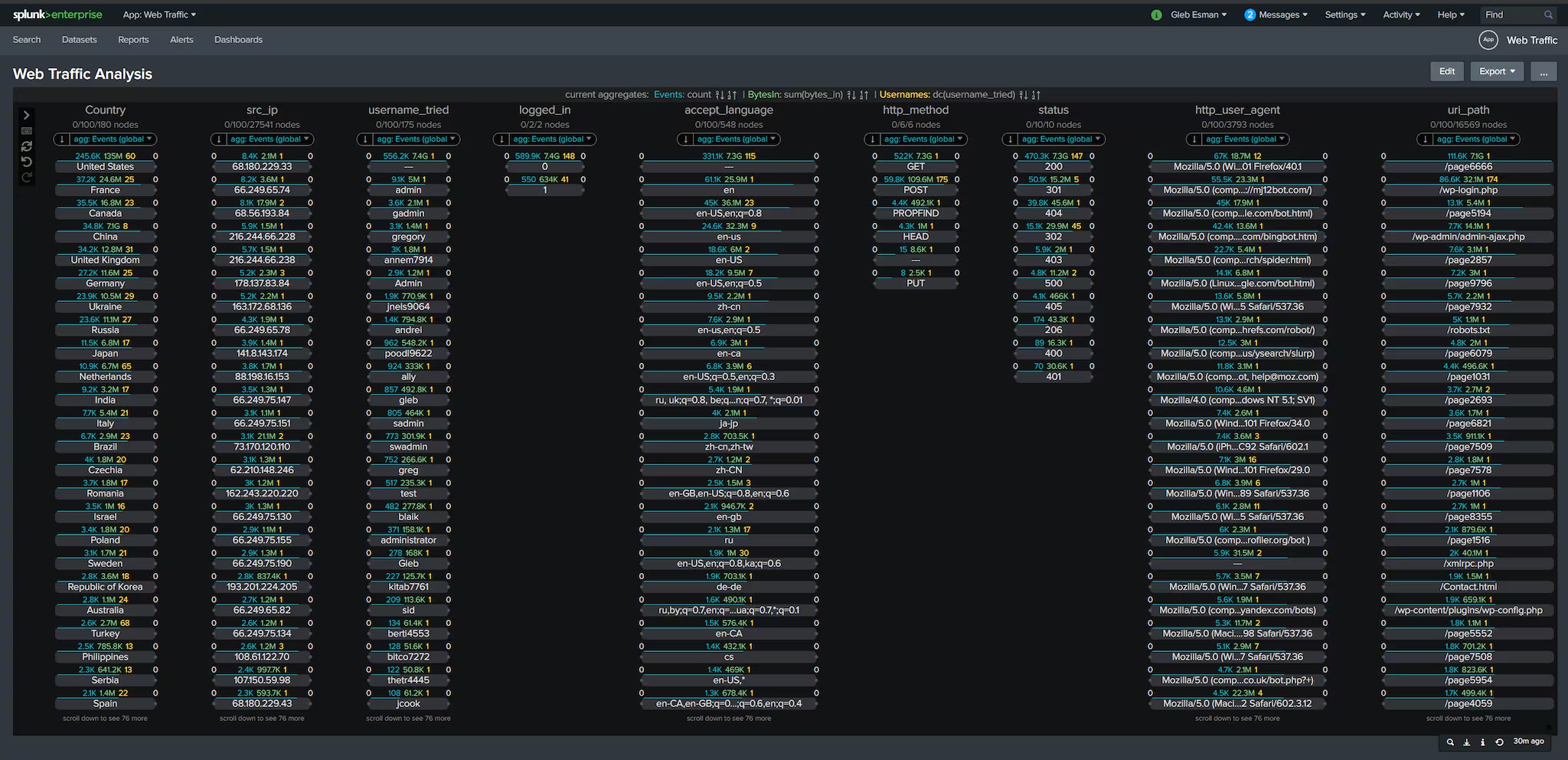
In this post, I'll show you a step-by-step process to building the dashboard with Sigbay Link Analysis visualization app from scratch.
How Sigbay Link Analysis Differs
There are few key differences between how Sigbay Link Analysis viz functions compare to other Splunk visualization applications:
1. Sigbay Link Analysis app does not use predefined SPL query like other Splunk visualization tools. In its current implementation, visualization is powered by the data model, defined within settings and optional timeframe defined within a custom filter.
2. It is powered by an Accelerated Data Model (ADM) defined within settings. It does not pull data from raw indexes.
3. When a user interacts with the visualization, such as clicking on the nodes, it dynamically generates custom TSTATS queries to ADM. ADM allows for quick evaluation of important metrics and statistics for every node. Dynamic query generation gives the user greater flexibility to focus on investigating the data and discovery of insights instead of struggling with custom queries and the need to constantly update the dashboard.
4. Visualization contains custom filter area where you can define the time range, such as:
earliest=$timeframe.earliest$ latest=$timeframe.latest$
This allows the user to pass time tokens and other tokens to define initial data coverage for visualization.
5. Visualization populates few tokens, such as:
$token_la_filter$
This token contains a fragment of SPL filter query representing nodes that user is currently interacting with. This is suitable for driving other panels within the same dashboard, depending on values clicked in Link Analysis.
To implement the first dashboard with link analysis visualization, we will follow this process:
- Create custom, basic Splunk app
- Ingest data
- Create an Accelerated Data Model
- Build an actual dashboard with Link Analysis
I've recorded the full demo video which you can follow to accomplish all steps here:
Here is the copy of the anonymized dataset (web_traffic2.csv) used for this demo.
To follow the step-by-step guidance in the video above, make sure that you already have Splunk Cloud and the dataset example downloaded locally, as well as the Sigbay Link Analysis app installed (if you don’t, go to “Manage Apps” -> [Install App from File]).
Creating a custom basic Splunk app
- Navigate to Manage Apps
- Click [Create app] button. Fill in dialog like this:
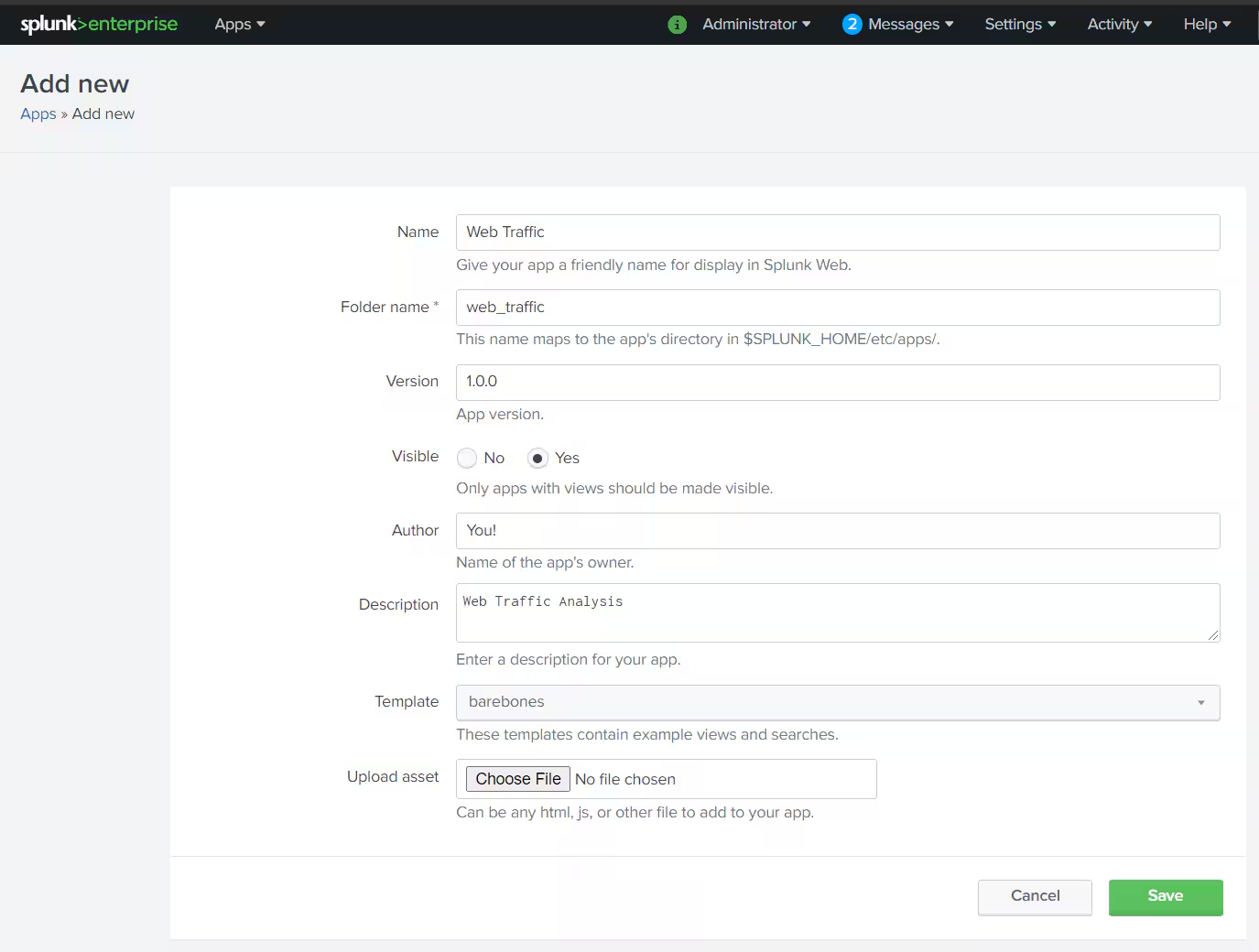
- Click [Save] button.
This will create a blank app as a placeholder for us to build the dashboards.
Start Ingesting Data
- Make sure "Web Traffic" app is currently viewed.
- Navigate to: Settings -> [Add Data] -> [Upload files from my computer]
- Click on [Select file], Navigate to location of web_traffic2.csv file on your local computer
- Click [Next] button.
- You'll be presented with table with data.
- Click [Save As] to set the source type for your data. It is a good practice to assign customer source type to your data in case you want to customize it away from "csv" defaults later on.
- Follow conventions on the image below. Click [Save]
- Click [Next]
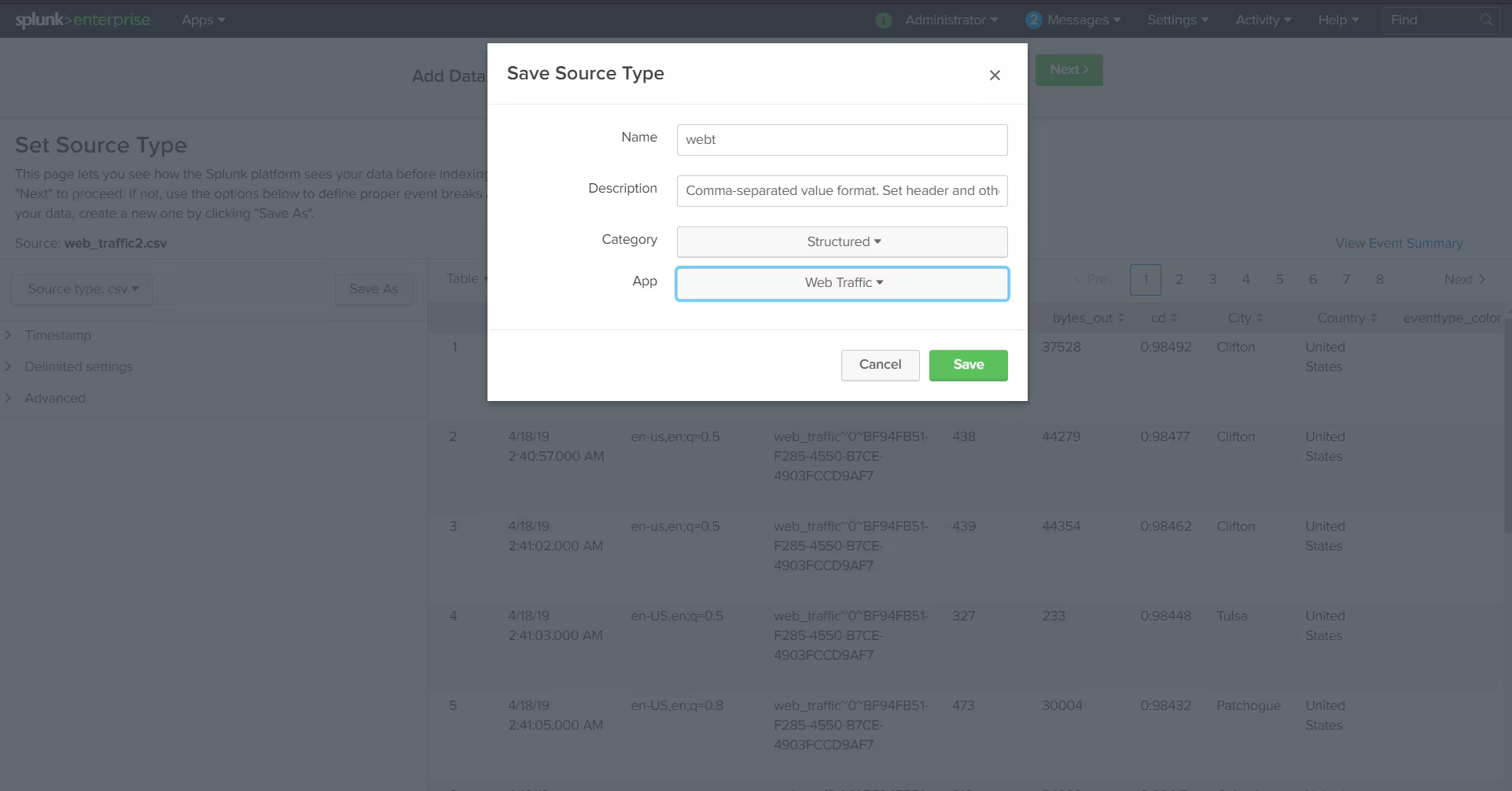
- On the next page "Input Settings" Click on "Create a new index" and for "Index Name" type: "webt"
- Press [Save]
- Press [Review] button. Then [Submit] button
- The file upload will continue. Once finished - you may click on [Start Searching] to see raw data
Creating an Accelerated Data Model
- Navigate to Settings -> Data models
- Click [New Data Model]
- Enter "Title" = "webt". Make sure App = "Web Traffic" is selected.
- Press [Create] button. Data model creation dialog will open.
- Click [Add Dataset] -> [Root Event] and fill in dialog as follows:
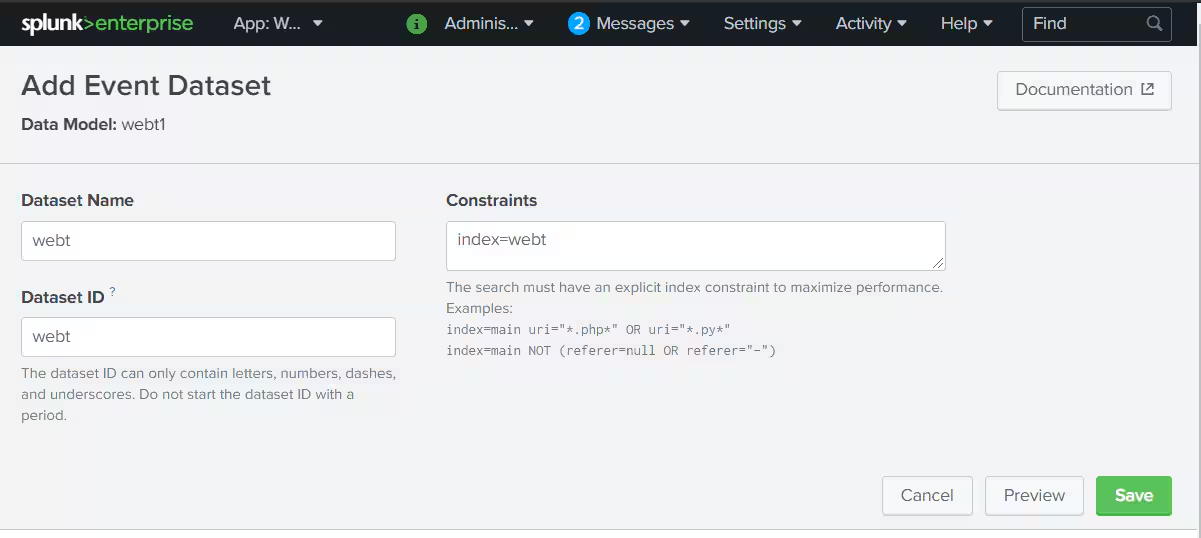
- Press [Save] to create initial data model
- Click [Add Field], [Auto-Extracted]
- The "Add Auto-Extracted Field" dialog will open.
- Check the following fields at least (you may select more for experimenting):
Country, src_ip, username_tried, logged_in, accept_language, http_method, status, http_user_agent, uri_path
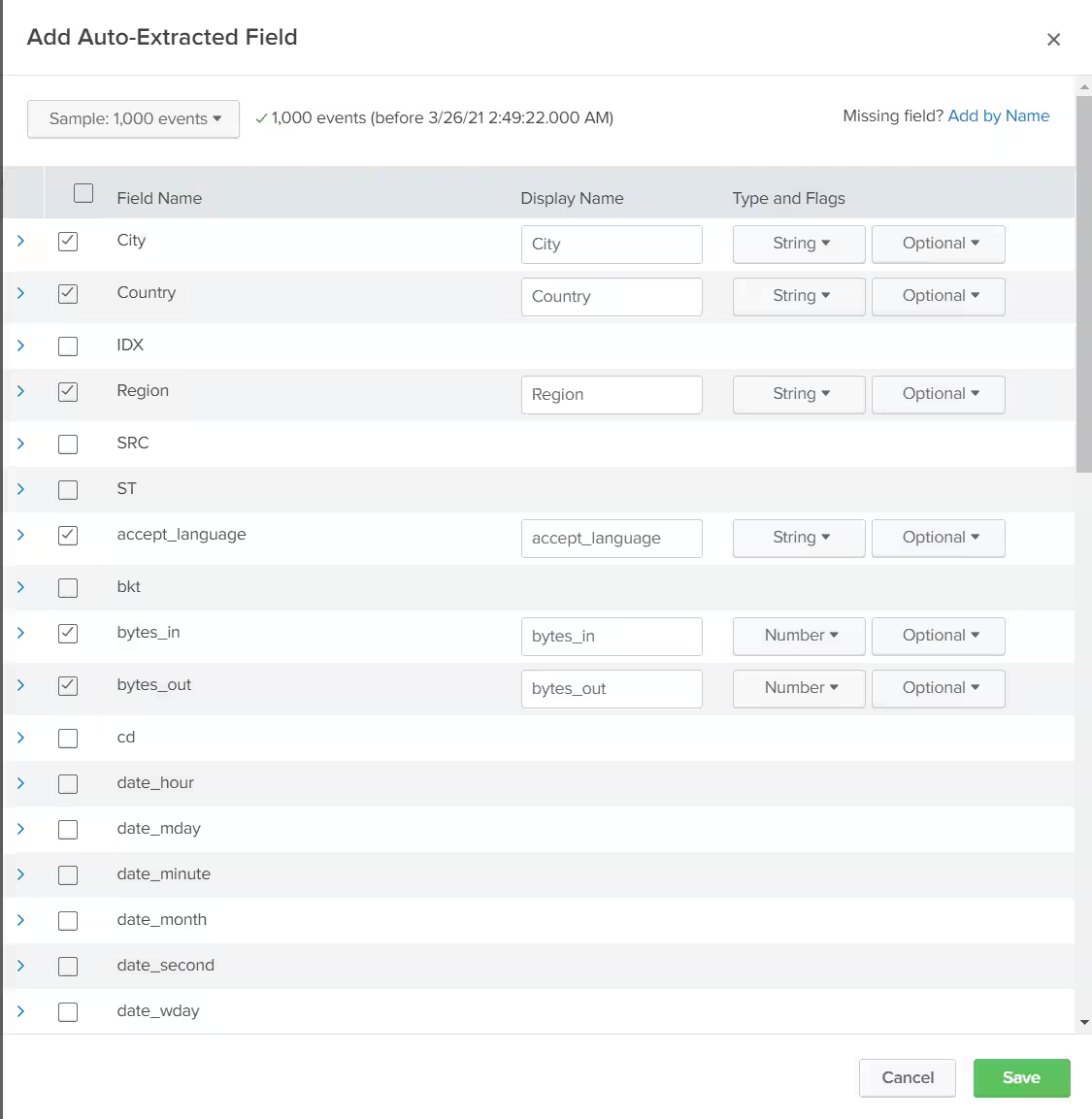
- Press [Save]
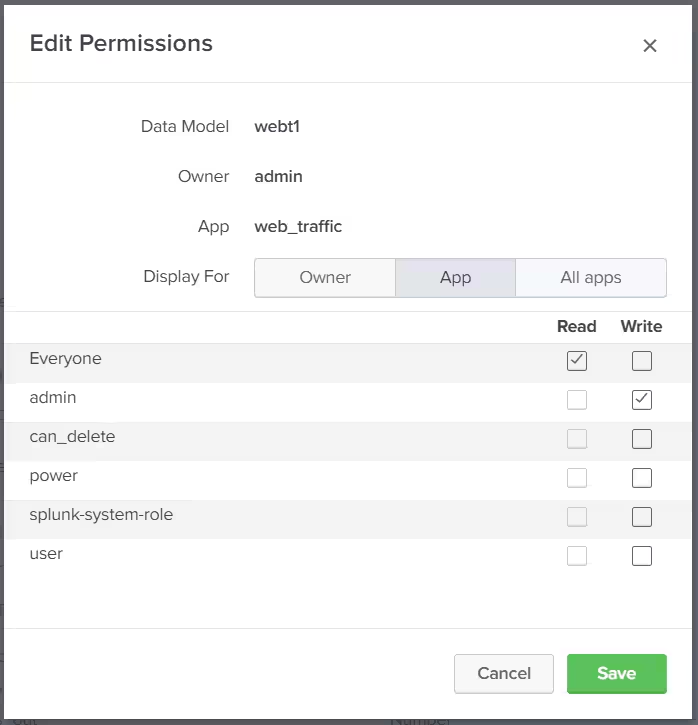
- Press [Edit], [Edit Permissions], fill settings as follows. Press [Save] when done.
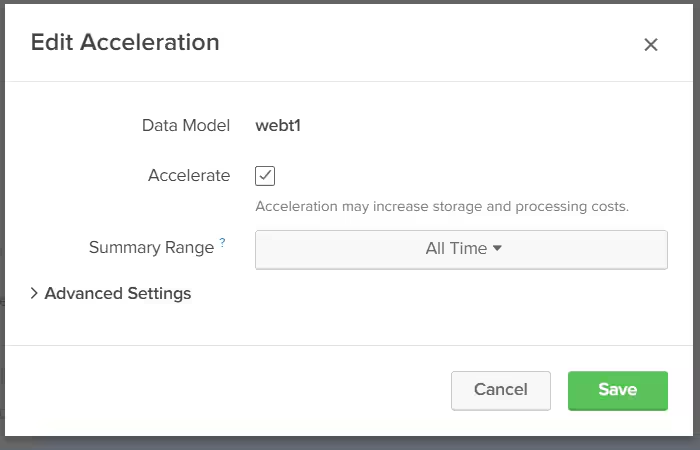
- Press [Edit], [Edit Acceleration] and fill in the dialog and press [Save]:
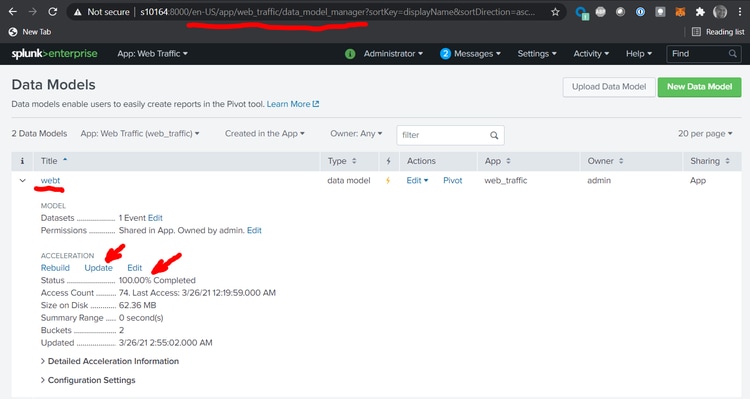
This Data Model Acceleration process will begin and it may take up to an hour depending on the speed of your server. You can monitor this process until 100% completion by clicking "Update" link at data model manager panel here:
Build the Dashboard with Sigbay Link Analysis
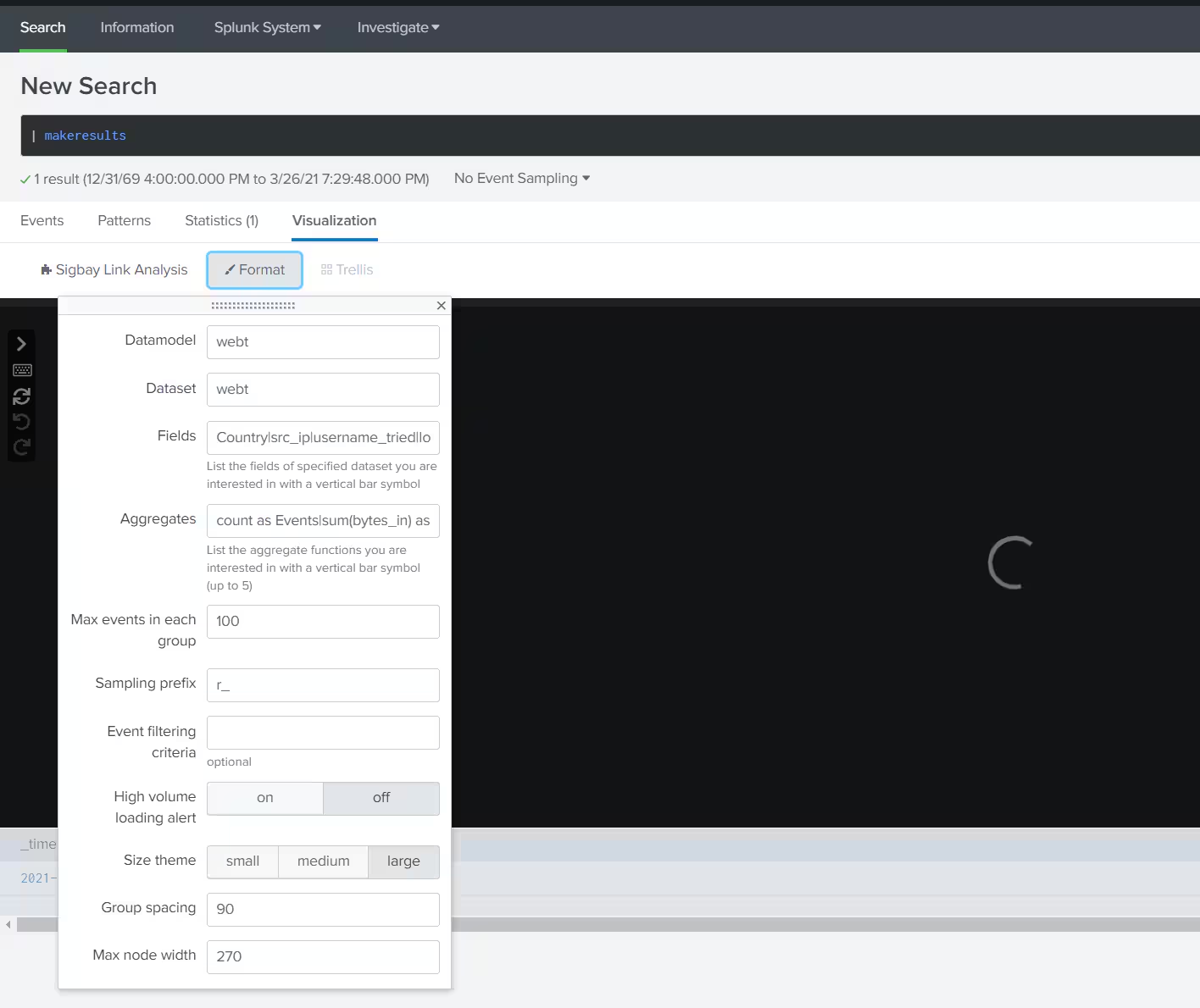
The easiest way to build a dashboard with Sigbay Link Analysis app is to start with a simple, dummy SPL search and then select an appropriate visualization and apply configuration:
Fill the configuration form as shown on the image.
For "Fields" input, enter:
Country|src_ip|username_tried|logged_in|accept_language|http_method|status|http_user_agent|uri_path
For "Aggregates" input, enter:
count as Events|sum(bytes_in) as BytesIn|dc(username_tried) as Usernames
Fields of interest are separated with a "|" character. Aggregate functions of interest can also be separated with a “|” character.
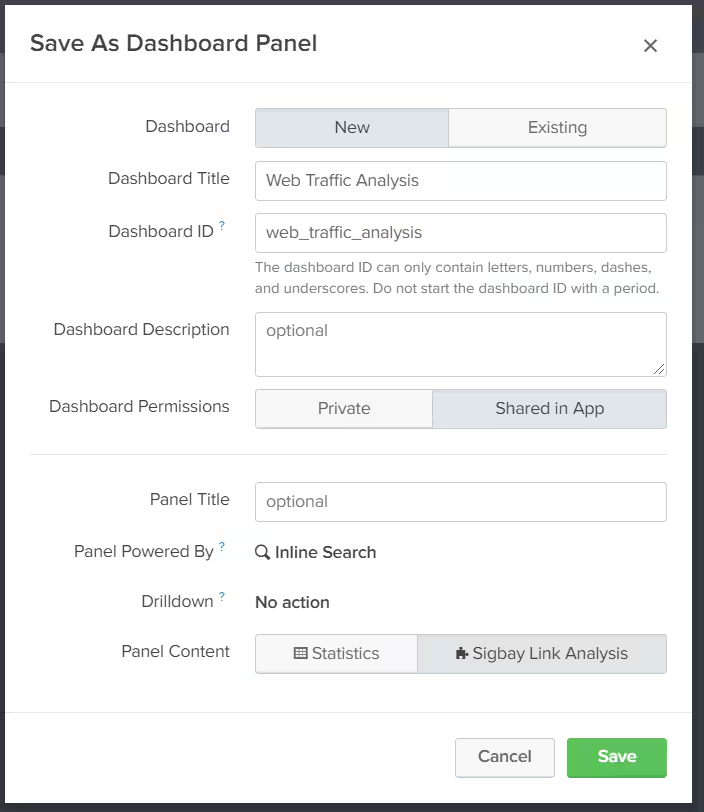
Once you filled in the dialog - click "Save As" -> "Dashboard Panel", give dashboard name - "Web Traffic Analysis" and press [Save]:
Once the dashboard is created - click [View Dashboard] button.
That's how the dashboard should look like:
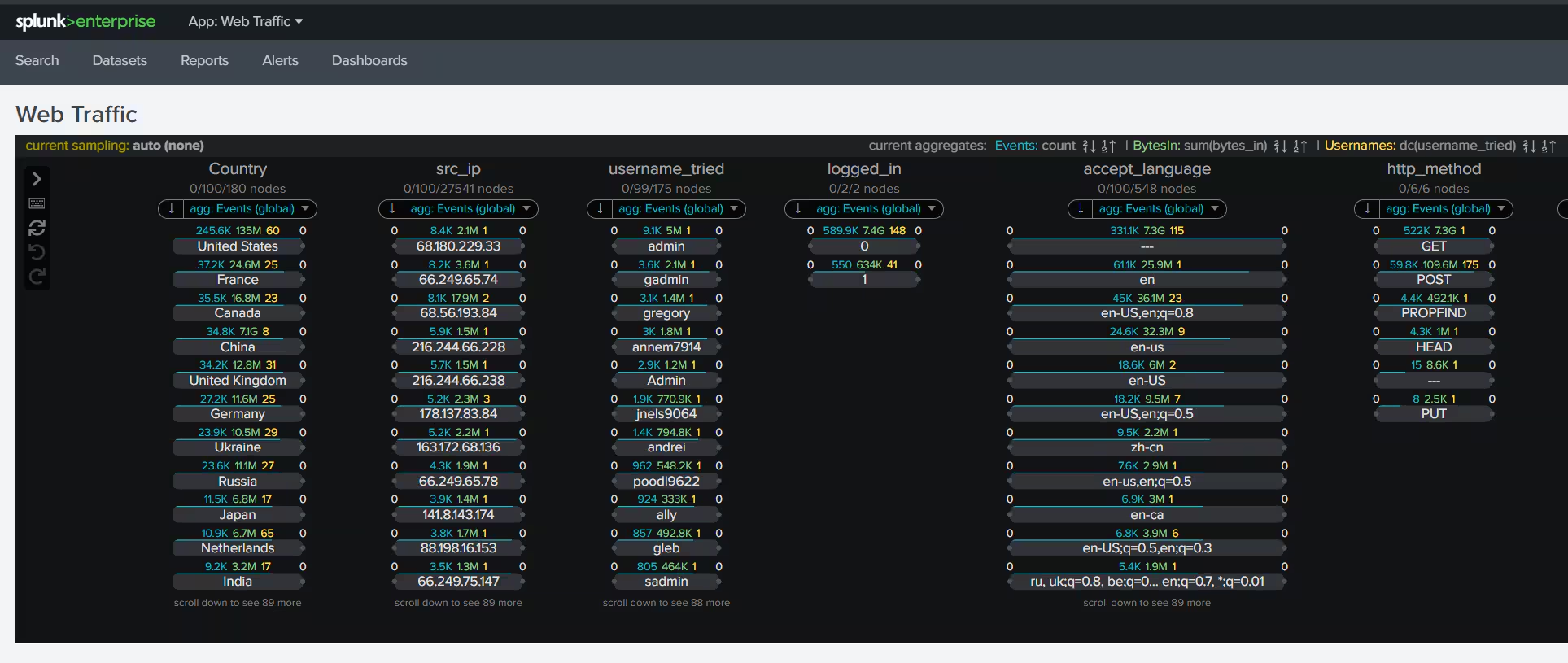
At this point, you may slightly customize the dashboard by pressing the [Edit] button. I would prefer to make visualization slightly bigger (taller) and switch the dashboard theme to "dark" mode:
We may also start clicking on nodes or selecting multiple nodes (Ctrl+Click on node will select it) and executing more complex filters.
Here we selected Country=Russia and status=500 - to investigate all traffic originating from Russia and causing 500 errors:
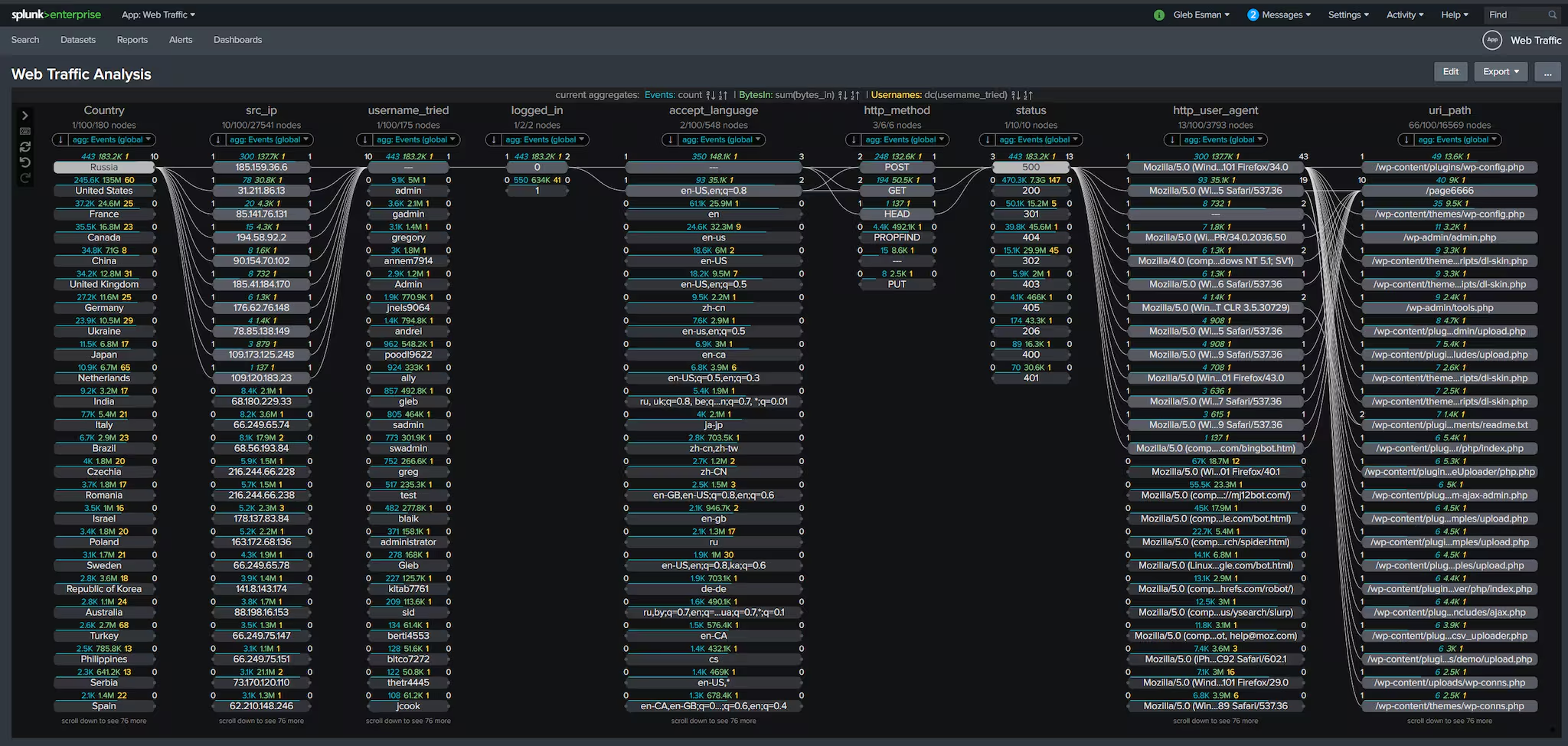
Now that we build the fully functioning dashboard you may start doing investigations.
Full video is here:
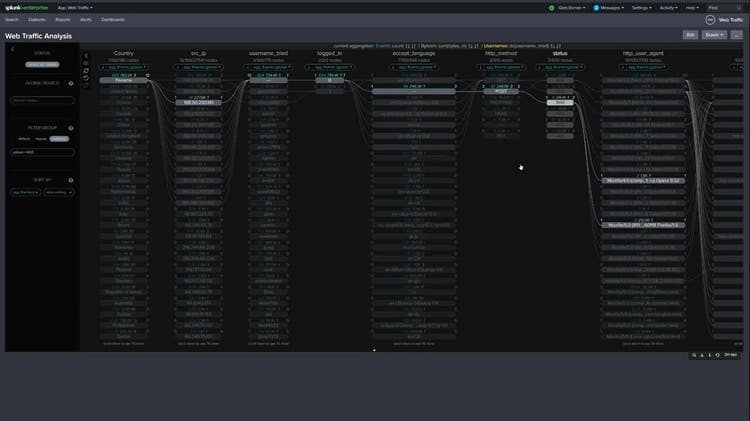
Here are short examples:
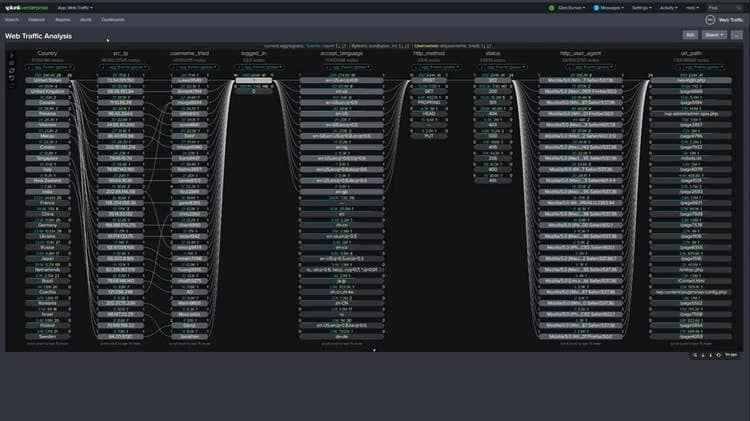
Analysing all successful logins (where logged_in flag = 1):
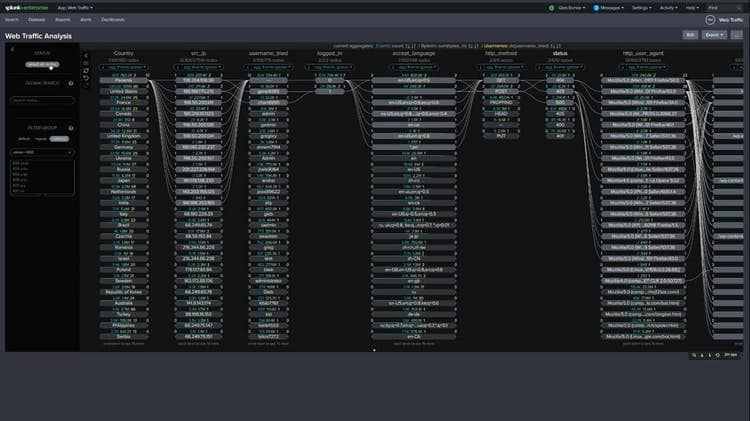
Selecting all traffic that caused error codes >=400. Link analysis allows to use math expressions to select numerical nodes efficiently:
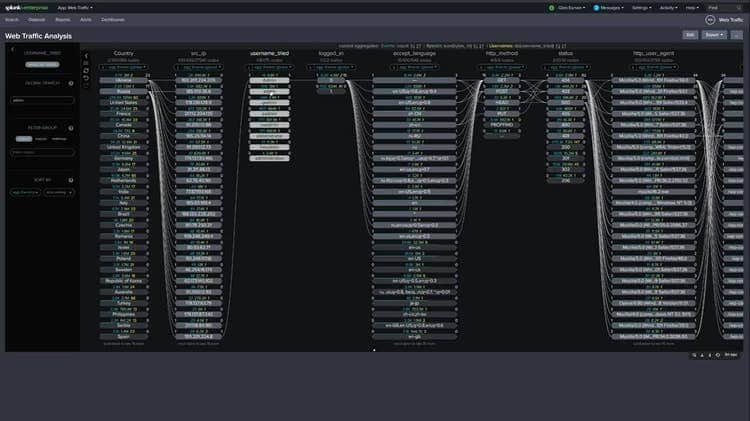
Analyzing all traffic accessing administrative accounts. Link analysis allows to dynamically select matching nodes by typing partial value in "global search" input within the sidebar:
Feel free to contact me with any questions at the link in my profile.
Related Articles

Predicting Cyber Fraud Through Real-World Events: Insights from Domain Registration Trends

When Your Fraud Detection Tool Doubles as a Wellness Check: The Unexpected Intersection of Security and HR

Splunk Security Content for Threat Detection & Response: November Recap

Security Staff Picks To Read This Month, Handpicked by Splunk Experts

Behind the Walls: Techniques and Tactics in Castle RAT Client Malware

AI for Humans: A Beginner’s Field Guide

Splunk Security Content for Threat Detection & Response: November 2025 Update

Operation Defend the North: What High-Pressure Cyber Exercises Teach Us About Resilience and How OneCisco Elevates It