Splunking Azure: Event Hubs
Platform Ryan LaitEvent Hubs are a big data streaming PaaS capability provided by Azure. Event Hubs can process data or telemetry produced from your Azure environment. They also provide us a scalable method to get your valuable Azure data into Splunk!
Splunk add-ons like the Splunk Add-on for Microsoft Cloud Services and the Microsoft Azure Add-on for Splunk provide the ability to connect to, and ingest all kinds of data sources from your Azure environment. If you’re managing large Azure environments, this might require configuring dozens of inputs to ensure you are collecting data from all your subscriptions and resource groups.
By using Event Hubs, we can consolidate some of this effort by configuring logging in Azure to route to an Event Hub and off to your Splunk environment.
This blog covers everything you need to use Event Hubs as your delivery method for getting Azure data into Splunk!
-
Configuring an Azure Event Hub
-
Configuring Azure logging to Event Hub
- Tenant - Azure Active Directory Logs
- Subscription - Activity Logs
- Resources - Resource Logs
-
Enabling an Event Hub input in Splunk
Configuring an Azure Event Hub
1. In the Azure Portal: All Services > Event Hubs
2. Add
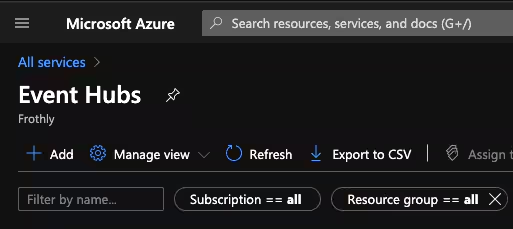
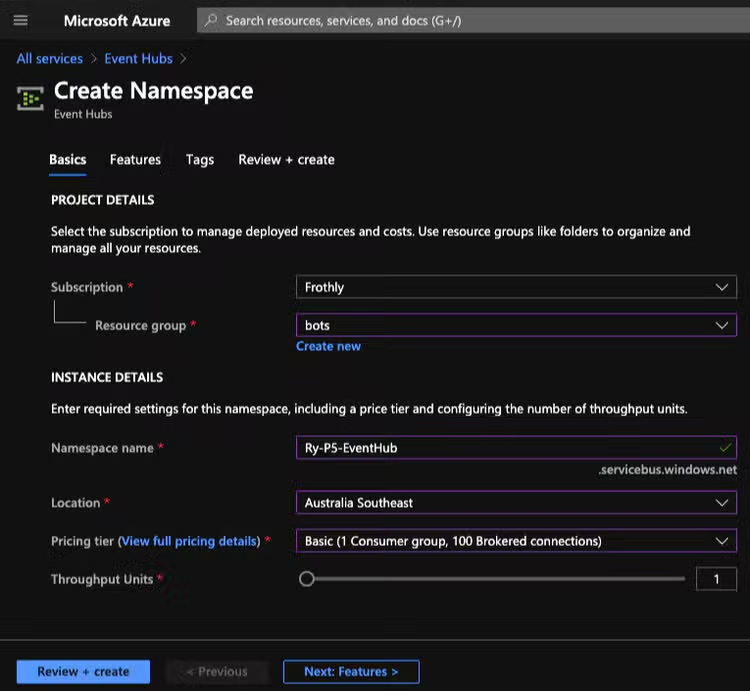
3. Create a new namespace
Note: A namespace is a scoping container for Event Hub topics. It provides a unique FQDN. A namespace serves as an application container that can house multiple Event Hub topics. For details around pricing tiers and throughput units, check out this FAQ
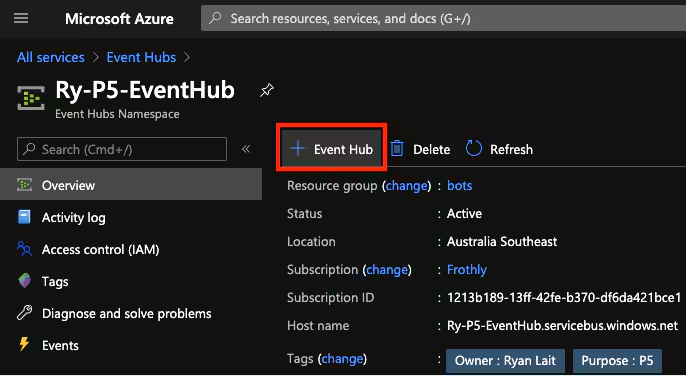
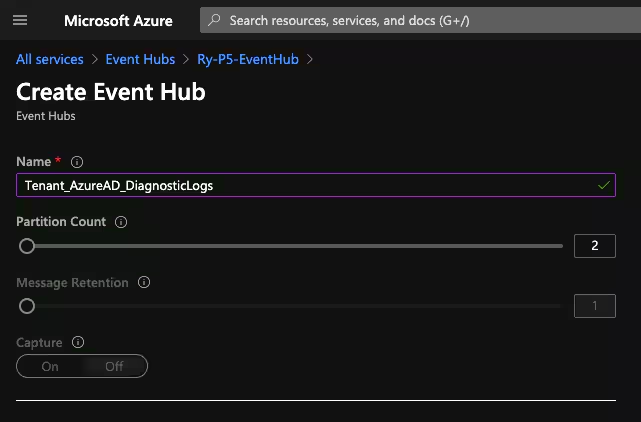
4. Add an Event Hub to your namespace
5. Assign a name for the Event Hub (Eg. Use the log type you intend to send - AAD, Tenant, Subscription logs etc)
Note: The number of partitions in an event hub directly relates to the number of concurrent readers you expect to have.
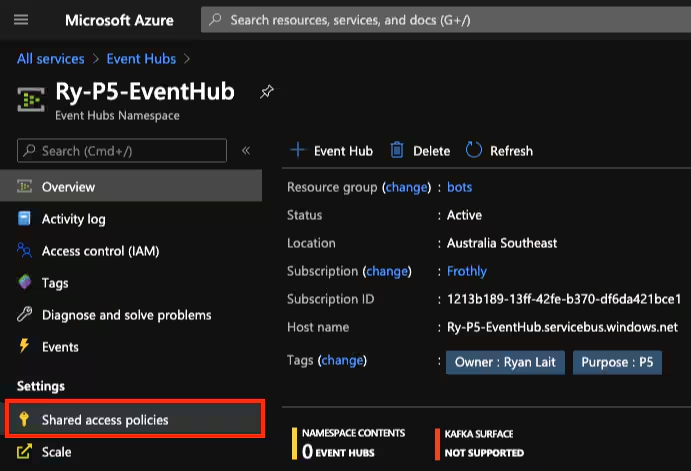
6. Select Shared access policies
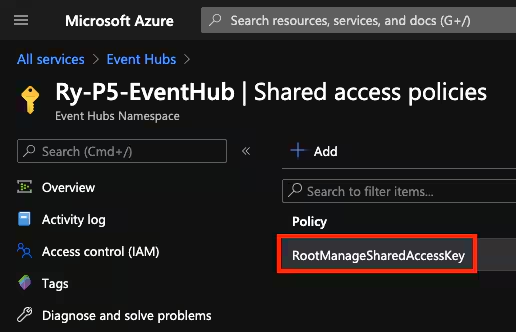
7. Select RootManageSharedAccessKey
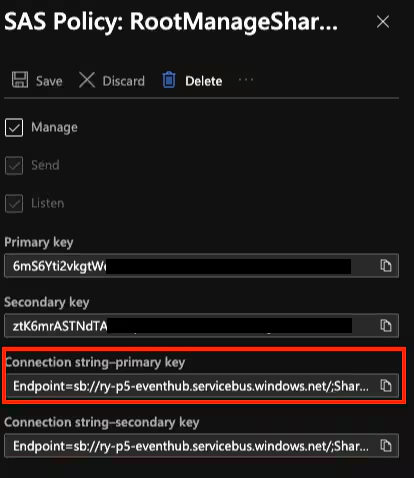
8. Store a copy of the Connection string-primary key. This is needed for the Splunk input.
Configuring Azure logging to Event Hub
Azure Active Directory Logs
Contain the history of sign-in activity and audit trail of changes made in the Azure Active Directory for a particular tenant.
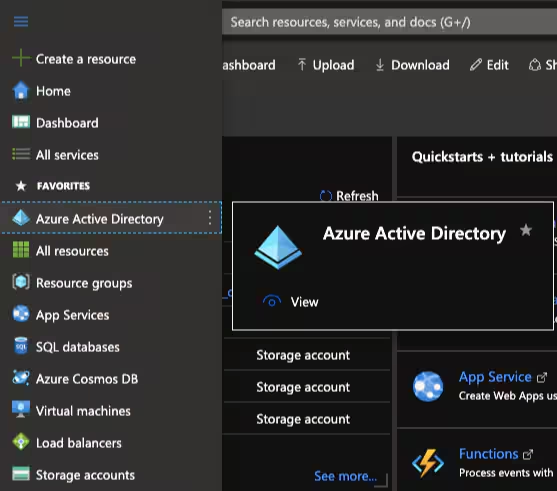
1. All Services > Azure Active Directory
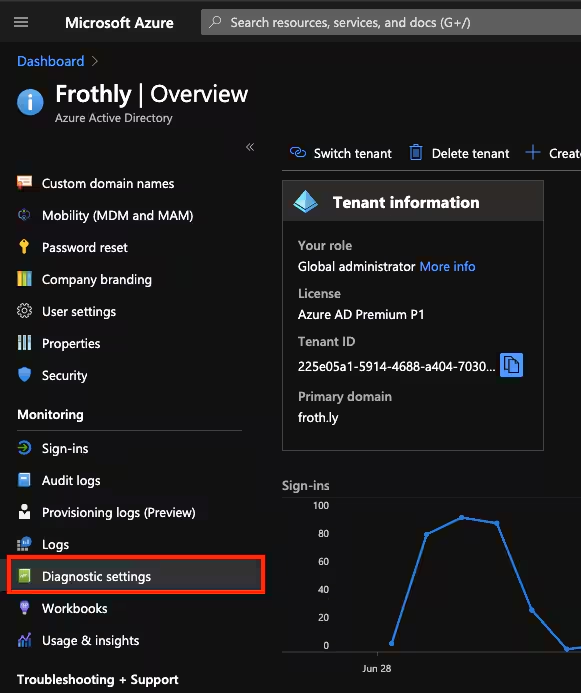
2. Select Diagnostic settings
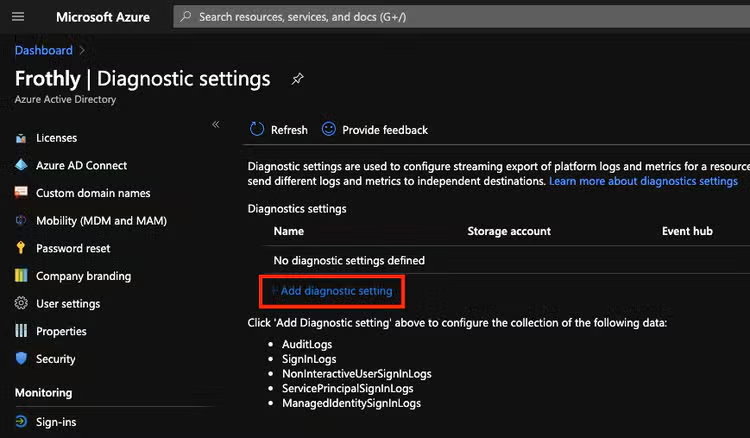
3. Select Add diagnostic setting
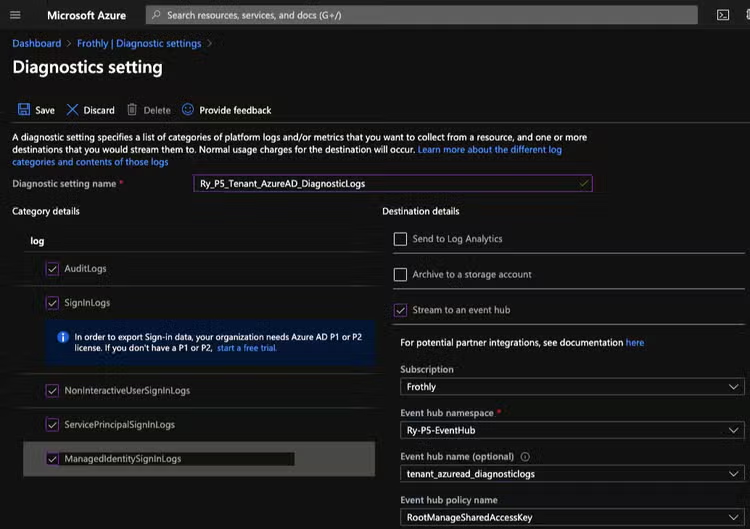
4. Configure:
- Name
- Desired logs
- Stream to an event hub - provide details of event hub
- Save
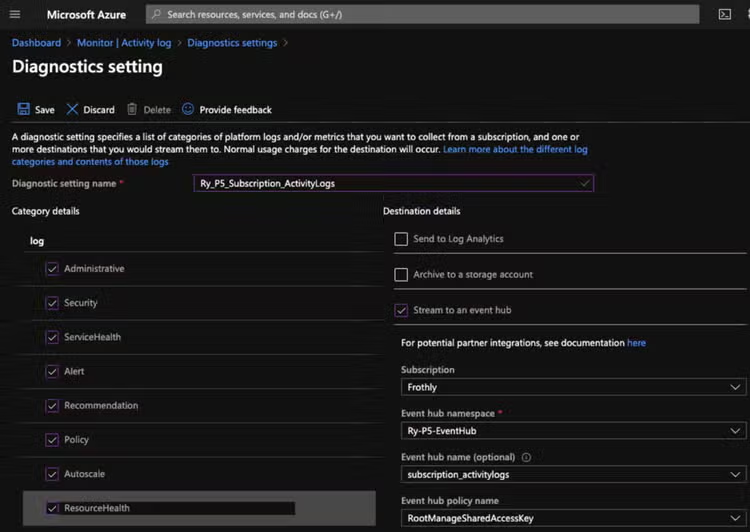
Azure Subscription Activity Logs
Provide insight into the operations on each Azure resource in the subscription from the outside (the management plane) in addition to updates on Service Health events. Use the Activity Log, to determine the what, who, and when for any write operations (PUT, POST, DELETE) taken on the resources in your subscription. There is a single Activity log for each Azure subscription.
1. All Services > Monitor
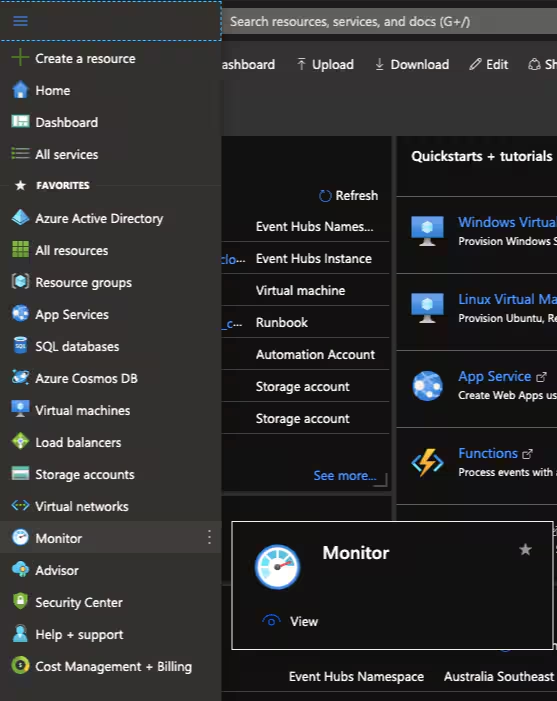
2. Select Activity log
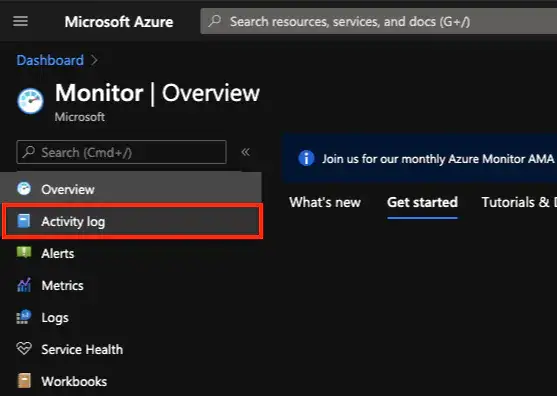
3. Select Diagnostic settings
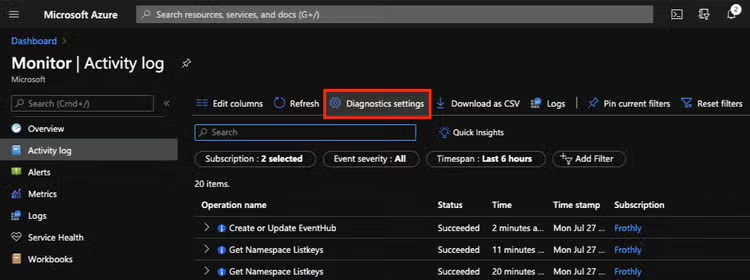
4. Select Add diagnostic setting
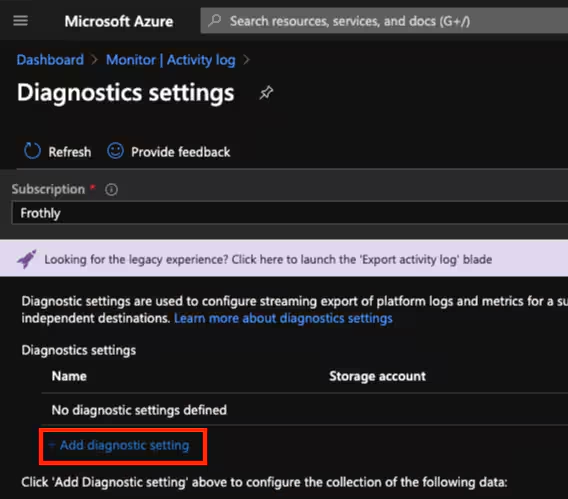
5. Configure:
- Name
- Desired logs
- Stream to an event hub - provide details of event hub
- Save
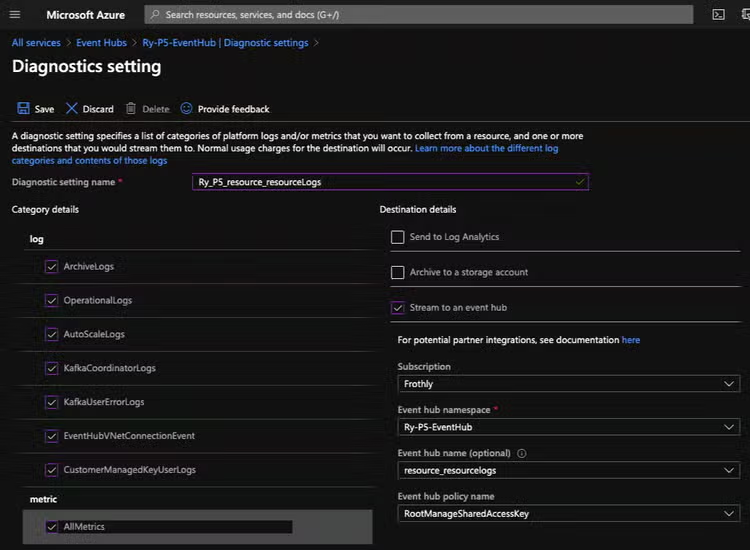
Azure Resource Logs
Provide insight into operations that were performed within an Azure resource (the data plane), for example getting a secret from a Key Vault or making a request to a database. The content of resource logs varies by the Azure service and resource type.
1. Select a Resource in your subscription (for our example we’ll use the Event Hub we created)
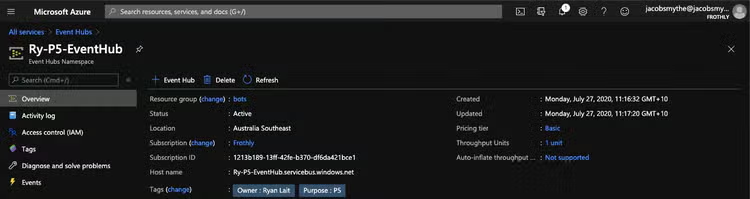
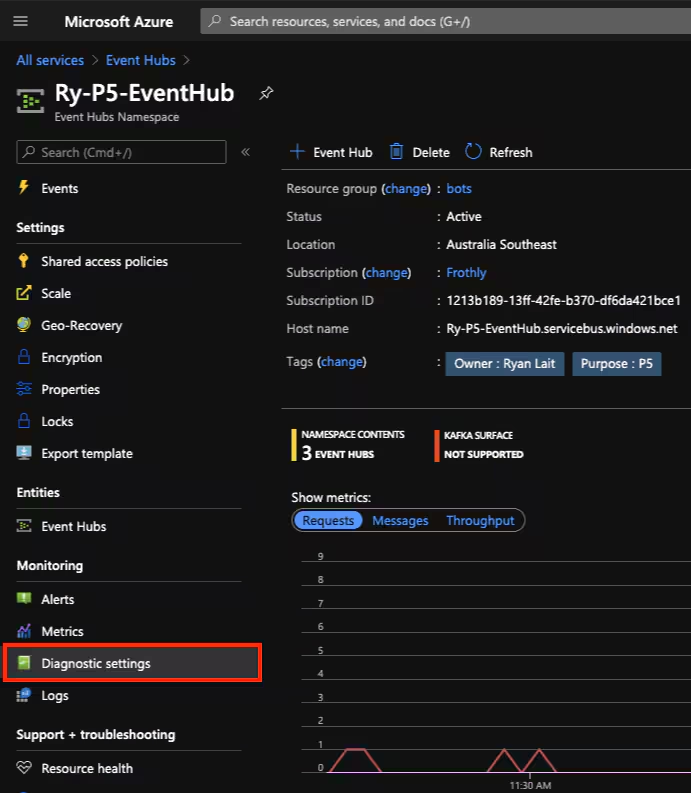
2. Select Diagnostic settings
3. Select Add diagnostic setting
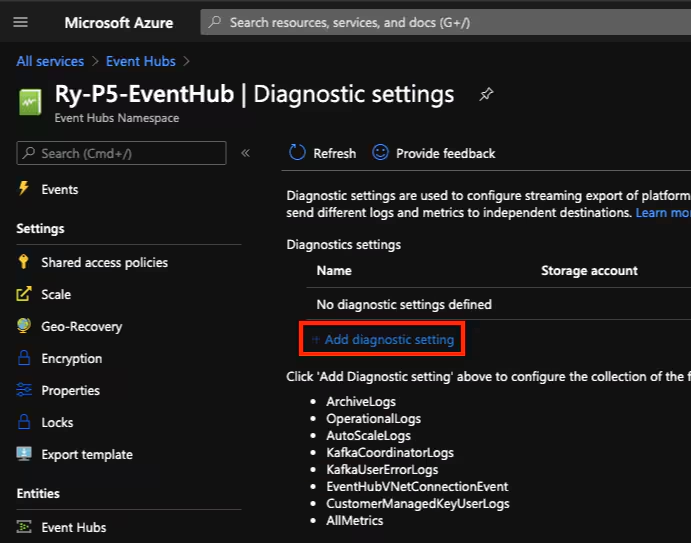
4. Configure:
- Name
- Desired loigs
- Stream to an event hub - provide event hub details
- Save
Configure Splunk Event Hub Input
1. Install the Microsoft Azure Add-on for Splunk
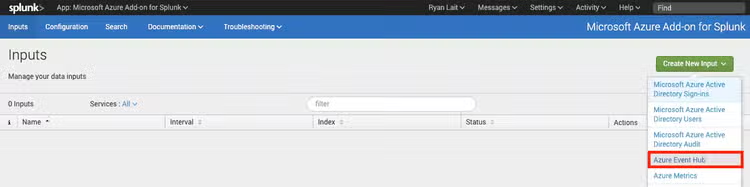
2. Azure Add-on for Splunk > Inputs
3. Create New Input > Azure Event Hub
4. Configure:
- Name
- Interval
- Index
- Connection String (Event Hub RootManageSharedAccessKey)
- leave other settings as default
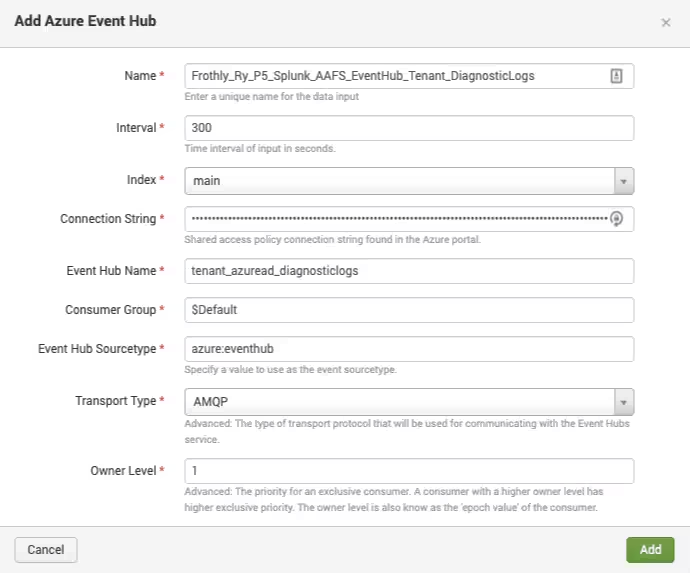
Note: Transport Type AMQP uses ports 5671 & 5672 for communication. AMQP over WebSocket uses ports 80 & 443 - FAQ
Troubleshooting: index=_internal source="/opt/splunk/var/log/splunk/ta_ms_aad_azure_event_hub.log"
Using Event Hubs you can leverage a smaller set of Event Hub inputs in Splunk to capture a broad set of Azure data across multiple subscriptions and resource groups.
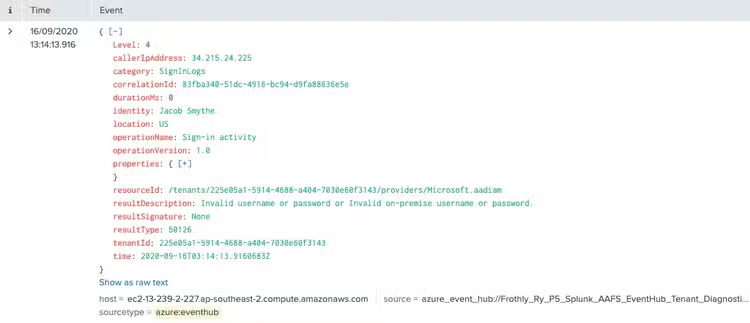
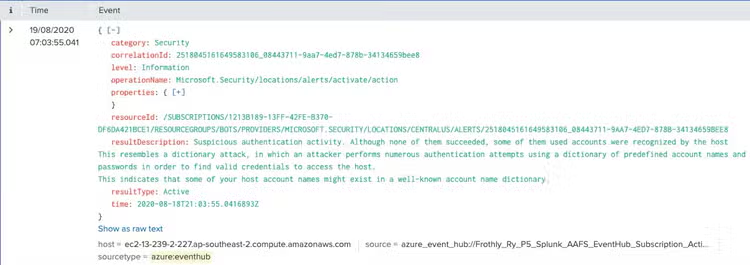
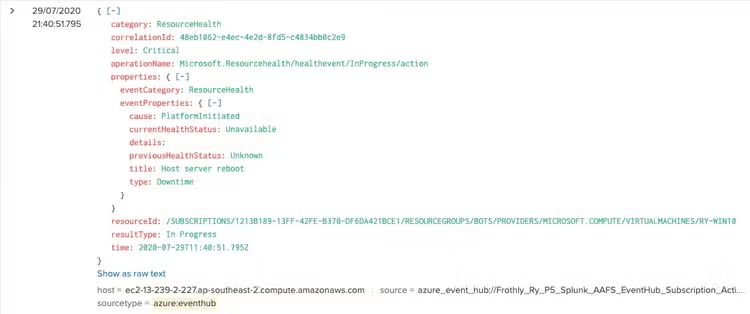
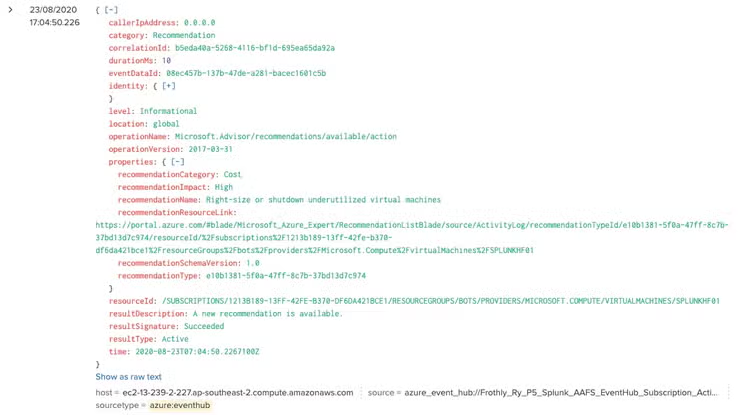
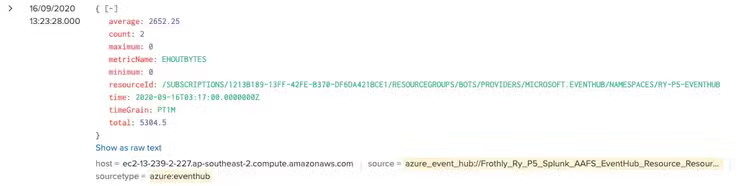
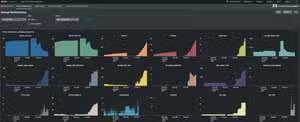
The great thing about using the Event Hub inputs is that all the data comes through in a clean JSON format, meaning that all our events are automatically field-extracted regardless of the source!
SignInLogs
Security Alerts
Service & Resource Health
Recommendations
Resource Metrics
Happy Splunking!
- Ry
Related Articles

Data Manager Enables Microsoft Azure Data Onboarding!
Genesys + Splunk = Complete Control Over Your Contact Center