I Azure You, This Will Be Useful

This blog post is part twenty of the "Hunting with Splunk: The Basics" series. The cloud is coming and how you choose to handle that may define your career in the coming months. One thing that's here today is Azure Active Directory. Not only does it power the authentication of Office 365 and Azure, but it also can be used for NON-cloud assets like Windows 10 workstations. Hopefully this acts as a good introduction DFIR/hunting concepts for Azure AD and doesn't leave you hanging with Novell-esque knowlege gaps. – Ryan Kovar

In our previous missive about Microsoft Cloud services, I discussed Microsoft Office 365 and some of the valuable fields that could be used for hunting. This post will pivot a bit to Azure. Azure is well known as a service that allows customers to create virtual machines, however, it can also be used for more exciting things like Active Directory. That's right; you can run Active Directory natively in the Azure cloud. When you authenticate to Office 365, it's actually using Azure Active Directory in the backend! You may not have access until you pay for it. :-)

In this blog post, we'll discuss what logs from Azure AD look like and what you can do with them. If you're looking for a blog on Azure VM events...keep waiting.

Azure Active Directory

In Splunklandia today (because this can change literally in an afternoon), Azure AD logs come into Splunk looking something like this:

sourcetype=ms:aad*
| stats count by sourcetype
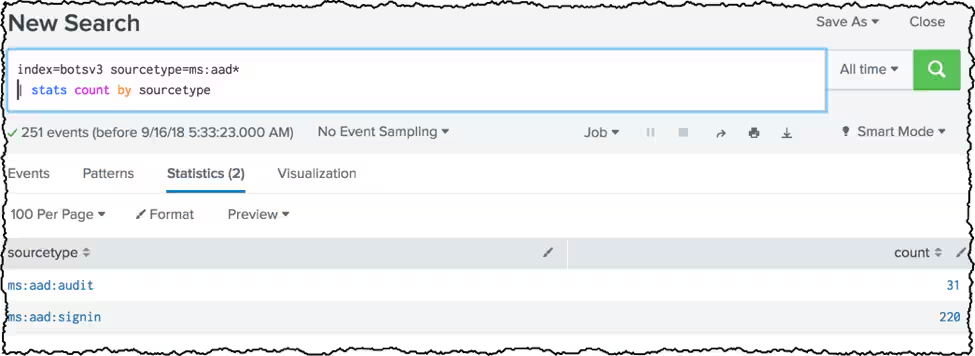
Pretty simple, right? Two different sourcetypes: “audit” and “signin.” Perhaps surprisingly, they do exactly what they say on the tin. Audit gives you information about activities around user accounts. Signin tells you… when… users…. sign in.

Audit

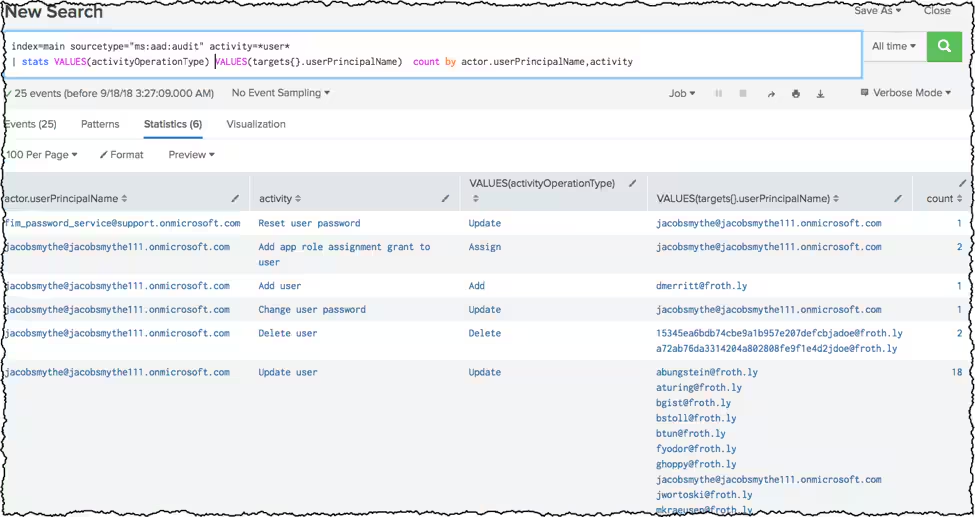
The "msaudit" sourcetype audits the "changes" made to the Azure Active Directory (A.A.D… get it?). This is where you can find the user changes, updates to groups, removals of users/groups, and much more. The search below shows some key fields that I have found to be consistently useful: activityOperationType, activity, targets{}userPrincipalName, and actor.userPrincipalname.

sourcetype="ms:aad:audit" activity=*user*
| stats VALUES(activityOperationType) VALUES(targets{}.userPrincipalName)  count by actor.userPrincipalName
Field
Description
activity
This is the nice description of what's happening, like "Reset user Password" or "Add user."
activityOperationType
Provides a short one-word value for what occurred in the event. "Add" or "Delete." Could be a group, could be a user. You will need to check "activity" or one of the Byzantine numeric codes in the log to find out.
actor.userPrincipalName
“Actor” is always the user “acting” upon Azure Active Directory. It's the user performing the action.
targets{}.userPrincipalName
"Target" is who is "acted" upon. This is the user that was an "Add" or who had an "Update."

Now, you're probably looking at that long JSON blob of a log that Azure AD generates, looking at my above search/minimal data output and saying "is that it? Is that REALLY all I need from "msaudit?" Well… yes. I mean, don't get me wrong, there's lots more useful information in there like targets{}.isPrivilege d and targets{}modifiedProperties{}.name but honestly, those are all things to dig into yourself. They don't always get populated, and they're really all derivatives of the finding above. If you really disagree, let me know and we'll add to this post!

Sign-in

That's right—Azure AD sign-in events. Basically, anything in the Microsoft Azure AD that signs in gets logged here. These logs (by comparison, much easier than Azure Audit… less nested JSON) are much easier to deal with. There are a variety of useful fields, but take a peek at this search first:

sourcetype="ms:aad:signin"
| stats VALUES(loginStatus) VALUES(userPrincipalName) VALUES(location*) VALUES(ipAddress) by appDisplayName
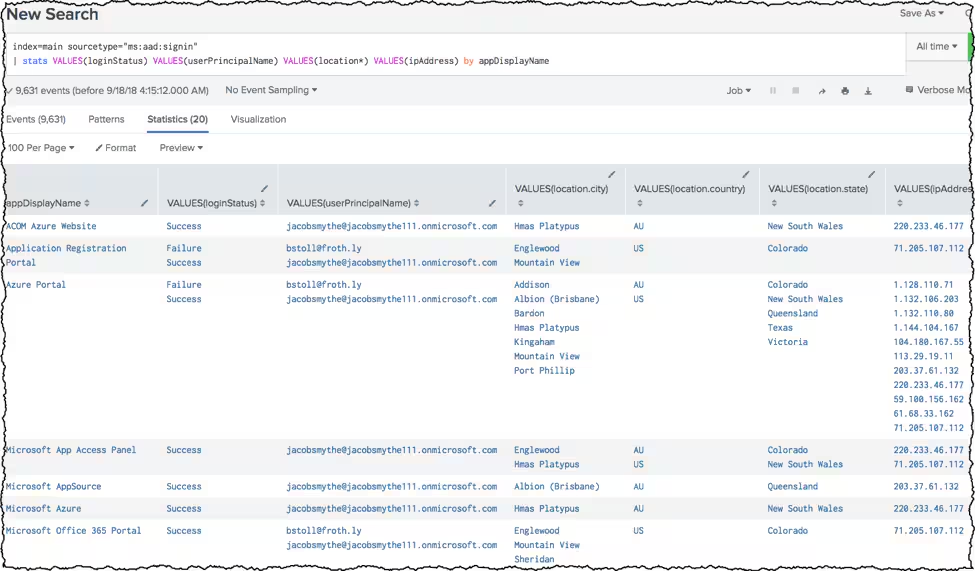
You'll notice that we can see the status of the login attempt (loginStatus), the username who attempted to log in (userPrinicipalName), the IP address (ipAddress) that the attempt came from, and finally the locations that Microsoft has identified the login was attempted from. Here's a quick breakdown of the fields I have found primarily useful:

Field
Description
userPrinicipalName
The username attempting to log in.
loginStatus
The Success or Failure of the login attempt.
appDisplayName
The name of the Microsoft Cloud Application that was accessed.
ipAddress
The IP address the access occurred from.
location.*
Several different “locations” available from Microsoft including city, country, and state.
deviceInformation
Information about the device that attempted to log in. Similar to a user agent.
failureReason
If the attempt to log in was a "Failure," this provides a good description of why the login was rejected.

Conclusion

Much like Office 365 logs, there's much more functionality in the Azure logs than what we've outlined here. Take this as an introduction and dig as deep into your Azure logs as you can; if you find something of use, please let me know!

As always, Happy Hunting! :-)

Related Articles

Predicting Cyber Fraud Through Real-World Events: Insights from Domain Registration Trends

Security
12 Minute Read

Predicting Cyber Fraud Through Real-World Events: Insights from Domain Registration Trends

By analyzing new domain registrations around major real-world events, researchers show how fraud campaigns take shape early, helping defenders spot threats before scams surface.
When Your Fraud Detection Tool Doubles as a Wellness Check: The Unexpected Intersection of Security and HR

Security
4 Minute Read

When Your Fraud Detection Tool Doubles as a Wellness Check: The Unexpected Intersection of Security and HR

Behavioral analytics can spot fraud and burnout. With UEBA built into Splunk ES Premier, one data set helps security and HR reduce risk, retain talent, faster.
Splunk Security Content for Threat Detection & Response: November Recap
Security
1 Minute Read

Splunk Security Content for Threat Detection & Response: November Recap

Discover Splunk's November security content updates, featuring enhanced Castle RAT threat detection, UAC bypass analytics, and deeper insights for validating detections on research.splunk.com.
Security Staff Picks To Read This Month, Handpicked by Splunk Experts

Security
2 Minute Read

Security Staff Picks To Read This Month, Handpicked by Splunk Experts

Our Splunk security experts share their favorite reads of the month so you can follow the most interesting, news-worthy, and innovative stories coming from the wide world of cybersecurity.
Behind the Walls: Techniques and Tactics in Castle RAT Client Malware
Security
10 Minute Read

Behind the Walls: Techniques and Tactics in Castle RAT Client Malware

Uncover CastleRAT malware's techniques (TTPs) and learn how to build Splunk detections using MITRE ATT&CK. Protect your network from this advanced RAT.
AI for Humans: A Beginner’s Field Guide

Security
12 Minute Read

AI for Humans: A Beginner’s Field Guide

Unlock AI with the our beginner's field guide. Demystify LLMs, Generative AI, and Agentic AI, exploring their evolution and critical cybersecurity applications.
Splunk Security Content for Threat Detection & Response: November 2025 Update

Security
5 Minute Read

Splunk Security Content for Threat Detection & Response: November 2025 Update

Learn about the latest security content from Splunk.
Operation Defend the North: What High-Pressure Cyber Exercises Teach Us About Resilience and How OneCisco Elevates It

Security
3 Minute Read

Operation Defend the North: What High-Pressure Cyber Exercises Teach Us About Resilience and How OneCisco Elevates It

The OneCisco approach is not about any single platform or toolset; it's about fusing visibility, analytics, and automation into a shared source of operational truth so that teams can act decisively, even in the fog of crisis.
Data Fit for a Sovereign: How to Consider Sovereignty in Your Digital Resilience Strategy
Security
5 Minute Read

Data Fit for a Sovereign: How to Consider Sovereignty in Your Digital Resilience Strategy

Explore how digital sovereignty shapes resilient strategies for European organisations. Learn how to balance control, compliance, and agility in your data infrastructure with Cisco and Splunk’s flexible, secure solutions for the AI era.