Deploy, Test, Monitor: Mastering Microsoft AppLocker, Part 1
Keeping your organization's IT infrastructure secure is a critical task. As threats evolve daily, it's crucial to stay one step ahead of adversaries. After diving deep into Attack Surface Reduction (ASR), our focus now shifts to another powerful security feature: Microsoft's AppLocker. AppLocker empowers IT and security professionals to take precise control over which applications and scripts can operate on their systems, significantly bolstering defenses against unauthorized software and malicious actors.
In this two-part blog series, the Splunk Threat Research Team will guide you through the process of activating, configuring, and effectively using AppLocker. Our aim is to provide you with clear, actionable guidance you can use to establish robust application control policies with ease.
In this blog, we’ll provide a comprehensive overview of AppLocker and guidance for getting started with AppLocker policies. Then in part two, we’ll focus on how you can use Splunk to ingest, visualize, and analyze AppLocker events.
AppLocker Overview
Microsoft AppLocker, as described by Microsoft, helps organizations control which apps and files may be run. These include executable files, scripts, Windows Installer files, dynamic-link libraries (DLLs), packaged apps, and packaged app installers.
How AppLocker Can Reduce Your Attack Surface
The following table covers the file extensions that AppLocker can audit or block out of the box:
Note that expanding to HTML Applications (HTA), or Compiled HTML Help (CHM) and other file extensions will not get audited or prevented by AppLocker.
A misconception with AppLocker is that it can block nearly any file extension or binary type, but unfortunately that is not true. It is heavily restricted to these listed file extensions, so it’s important to layer your defenses with AppLocker and other prevention solutions. However, by reviewing reports and monitoring what is most commonly used in malicious software, we can reduce the attack surface immensely. For example, take a malicious HTA file that writes a VBS script to disk and attempts to run it: the VBS will be blocked, but the preceding HTA file will have run fine in this scenario with the default AppLocker rules.
Below is a demo of a non-privileged account, Bob, running an HTA file from Bob’s Downloads directory. Within the HTA is a button for the different Windows script hosts. The HTA will write the file to Bob’s user profile directory and run each script. Fortunately for Bob, AppLocker will block all of these scripts. Then, the demo shows a privileged account running the same HTA receiving appropriate prompts from each file.
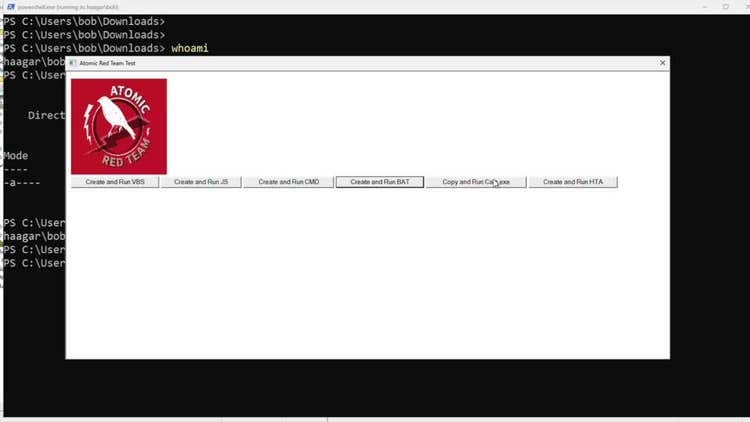
We will cover this Atomic testing HTA and additional tests in our testing section later.
What Do AppLocker Policy Files Look Like?
AppLocker policies are written in XML in a very similar format as WDAC. It is possible to export the XML in the Group Policy Object editor, modify, and re-import. Depending on your requirements, this may provide a great way to track changes in GitHub.
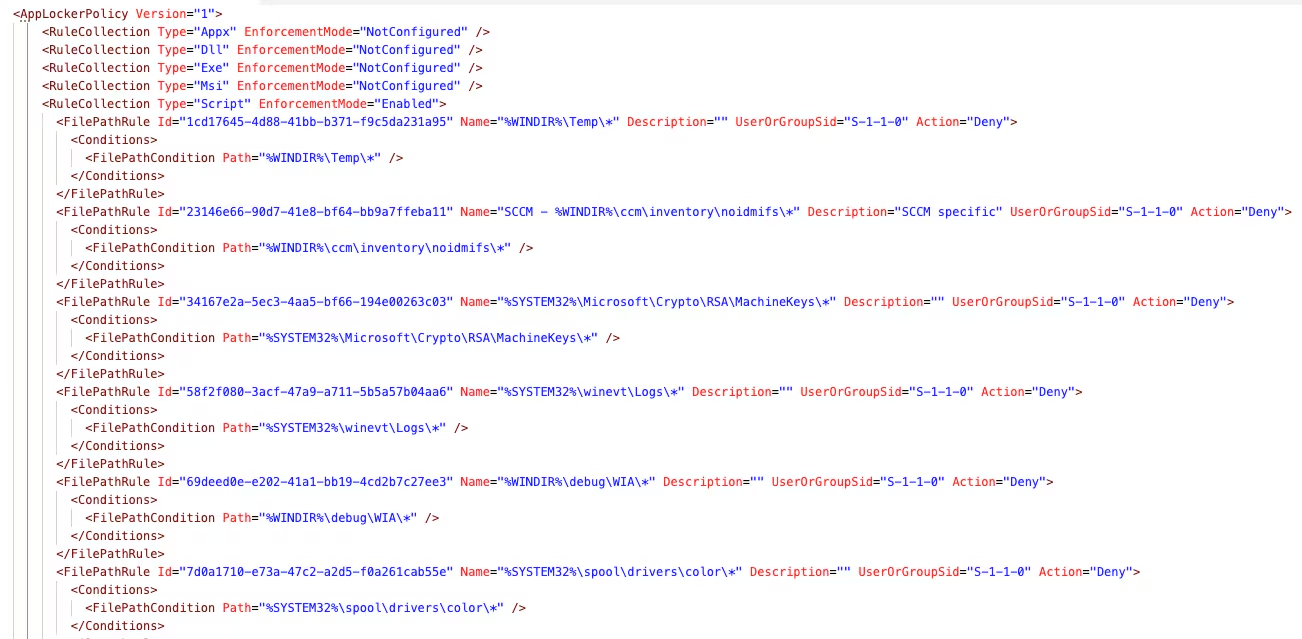
(Example Applocker XML Policy, Splunk 2024)
How AppLocker Rule Preferences Work
AppLocker rules can be based on three different criteria: the publisher, file hash, and path. These criteria determine how AppLocker identifies and applies restrictions to software on your system. Each type of rule has its advantages and considerations:
Publisher Rules
These are based on the digital signature of the executable file, including the publisher name, product name, file name, and version. Publisher rules are flexible because they allow all versions of a trusted application to run or restrict them up to a specific version. They are best used with signed code from known software publishers.
File Hash Rules
These are based on a specific file's unique hash value. Since hashes are unique to each file, this rule type is very secure, but it's also less flexible. If a file is updated or patched, its hash will change, and you’ll need to create a new rule. File hash rules are suitable for software that doesn't get updated frequently or lacks a digital signature.
Path Rules
These allow or deny executables based on their file path. Path rules are very easy to create and manage, but they're also less secure because an unauthorized user could potentially move malicious files into an allowed path. You can specify a particular folder, all its subfolders, and set restrictions on specific file types by mentioning the extension.
When AppLocker processes rules, it follows a specific hierarchy to determine which rule to apply:
- Deny rules take precedence: If there are both allow and deny rules for a specific app, the deny rule will always be applied.
- More specific rules take precedence: Among allow rules, rules that are more specific will take precedence over less specific ones. For instance, a hash rule will be applied over a path rule for the same application because the hash rule is tied to a specific file rather than a location.
- Rules with exceptions: Rules can also have exceptions, which are conditions where the rule would not apply. These exceptions must be carefully crafted to avoid inadvertently allowing malicious software to run.
In crafting your AppLocker policy, consider the environment in which it will be applied. Enterprises with a stable list of applications may favor hash rules for their security, while dynamic environments with frequently updated software might prefer publisher rules to reduce maintenance. Path rules are useful for quick restrictions but should be supplemented with other types when higher security is needed.
Getting Started with AppLocker
In the next few sections we’re going to break down the basics of AppLocker policies, allow and deny rules, enforcement levels, policy deployment, and Atomic tests.
Enabling AppLocker
In this blog, we’ll use Group Policy to enable one or many policies across the environment. As a deployment strategy, it’s recommended to create a new Group Policy Object (GPO) for each application (policy type) and stack them accordingly. For example, create an exe policy for your environment and deploy it as its own GPO and so forth. By stacking, we can modify specific policies and deploy to all or limited sets of endpoints for policy application.
Generating AppLocker Policies
In the Group Policy Management Console (GPMC), it's simple enough to generate the default policies for each. Create a new policy and drill down into Computer Configuration -> Policies -> WIndows Settings -> Security Settings -> Application Control Policies.
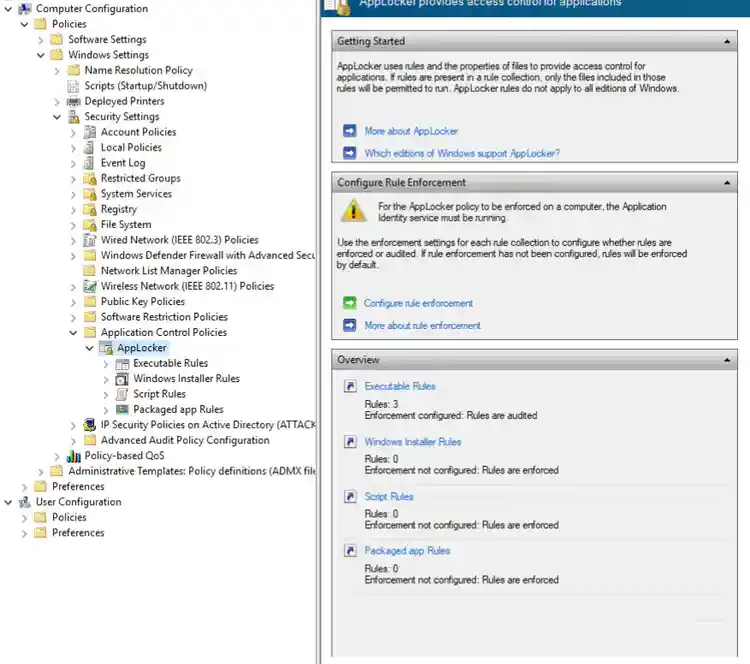
(Windows Group Policy Editor, Splunk 2024)
Right clicking each policy will provide a dropdown. By selecting “Create Default Rules,” it will generate three rules.
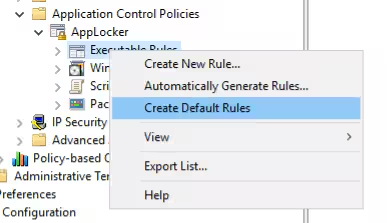
(Windows Group Policy Editor for AppLocker, Splunk 2024)
Here are the three default rules we generated:

(Windows AppLocker Default Rules, Splunk 2024)
Applying AppLocker Policies
Let’s break down how these three rules work and how you can apply them.
Allow Everyone (Default Rule) All files located in the Program Files folder
This rule allows all users ("Everyone") to execute any files located within the Program Files directory on the computer. The condition for this rule is the file path, meaning it applies to any executable file located in that specific directory. There are no exceptions listed, so the rule is applied universally within the specified path.
Allow Everyone (Default Rule) All files located in the Windows folder
Similar to the first rule, this one allows all users to run executable files located in the Windows directory. This is a common default rule because the Windows directory contains system files necessary for the operating system to function properly, and it is assumed that files in this location are trusted.
Allow BUILTIN\Administrators (Default Rule) All files
This rule allows users who are part of the "Administrators" group on the computer to execute all files. It doesn't restrict the execution to a certain path, which means administrators have the ability to run any executable file located anywhere on the system. This rule is in place because administrators typically need to run various tools and applications for maintenance and configuration purposes, and thus need unrestricted access.
Applying Allow and Deny Rules
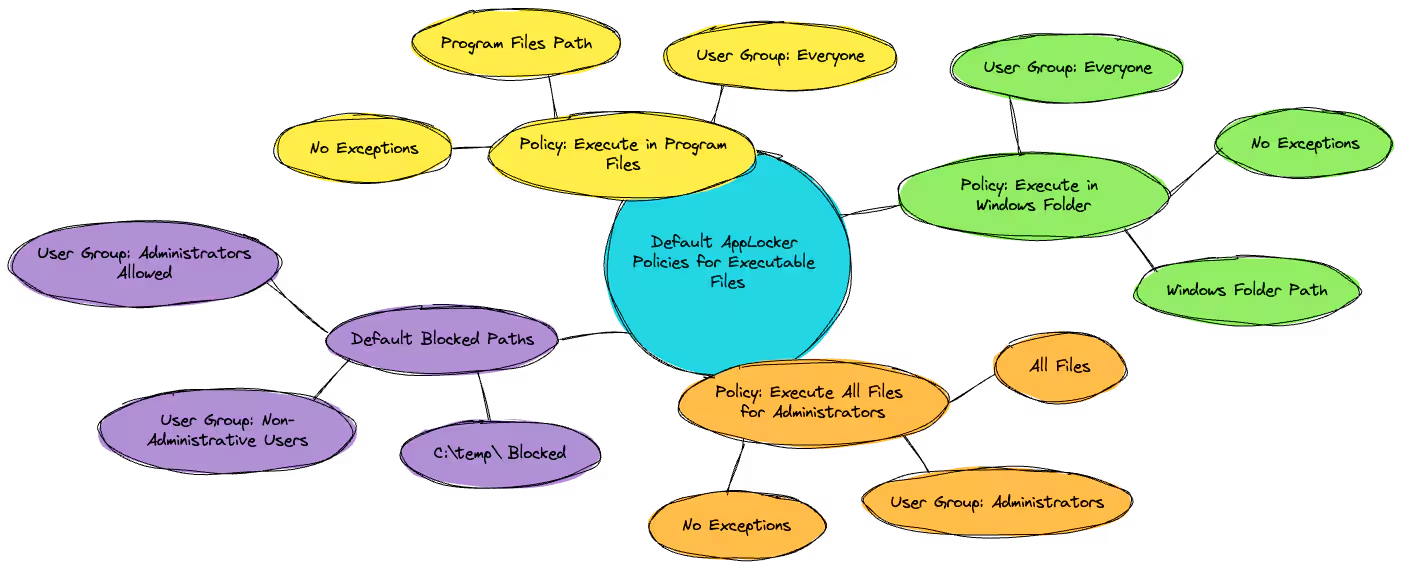
(AppLocker default rules mindmap, Splunk 2024) (larger image here)
Based on the three default rules we showed, there is no rule explicitly allowing or denying the execution of .exe files from, for example, the C:\temp\ directory. The rules only specify that files located in the Program Files folder and the Windows folder are allowed to run for everyone, and that members of the Administrators group can run all files.
AppLocker works on a "allow list" principle, which means that if a file is not explicitly allowed by a rule, it is blocked. Since there is no allow rule for the C:\temp\ directory, executable files from that location would not be allowed to run for users who are not part of the Administrators group. However, for members of the Administrators group, the third rule allows all files to be executed, which means administrators would still be able to run executables from C:\temp\ or any other directory.
If you want to explicitly prevent all users, including administrators, from running executable files from the C:\temp\ directory, you would need to create a new rule that explicitly denies execution of .exe files from that path. Remember that deny rules take precedence over allow rules in AppLocker.
Applying Rules Using Enforcement Levels
AppLocker provides different enforcement levels that determine how rules are applied to the specified user or group. These enforcement levels allow administrators to test and implement AppLocker policies with varying degrees of strictness. Here's an overview of the enforcement levels available in AppLocker:
Not Configured
When AppLocker rules are set to "Not Configured," AppLocker does not apply any control over the execution of files. This is the default state before any AppLocker policies are defined.
Audit Only
This enforcement level allows all files to run but logs events for files that would have been blocked if the policy were enforced. This mode is crucial for testing AppLocker rules to understand their impact without affecting the end-user experience. It helps administrators identify potential issues, such as legitimate applications being blocked (false positives), before fully enforcing the rules.
Enforce Rules
At this level, AppLocker actively enforces the configured rules. Files that do not meet the criteria defined in the allow rules are blocked, and their execution attempts are logged. This mode should be used with caution and typically after a thorough testing phase using the "Audit Only" mode to ensure that legitimate applications are not inadvertently blocked.
Deploying AppLocker Policies
With Windows Group Policy, it’s quite simple to deploy our policy by applying it to an Organization Unit (OU) using the Group Policy Management Console. In this particular instance, we’ve applied the AppLocker EXE policy to a group of systems.
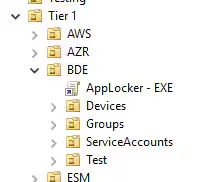
(Active Directory organization units, Splunk 2024)
Testing AppLocker Policies
Now we’re going to shift gears and focus on testing a script policy. In the environment now, we have a script policy using the default rules.
We will be using the default rules created above in our Group Policy Object and have created a local user named Bob. Bob will be attempting to run different scripts from c:\temp\.
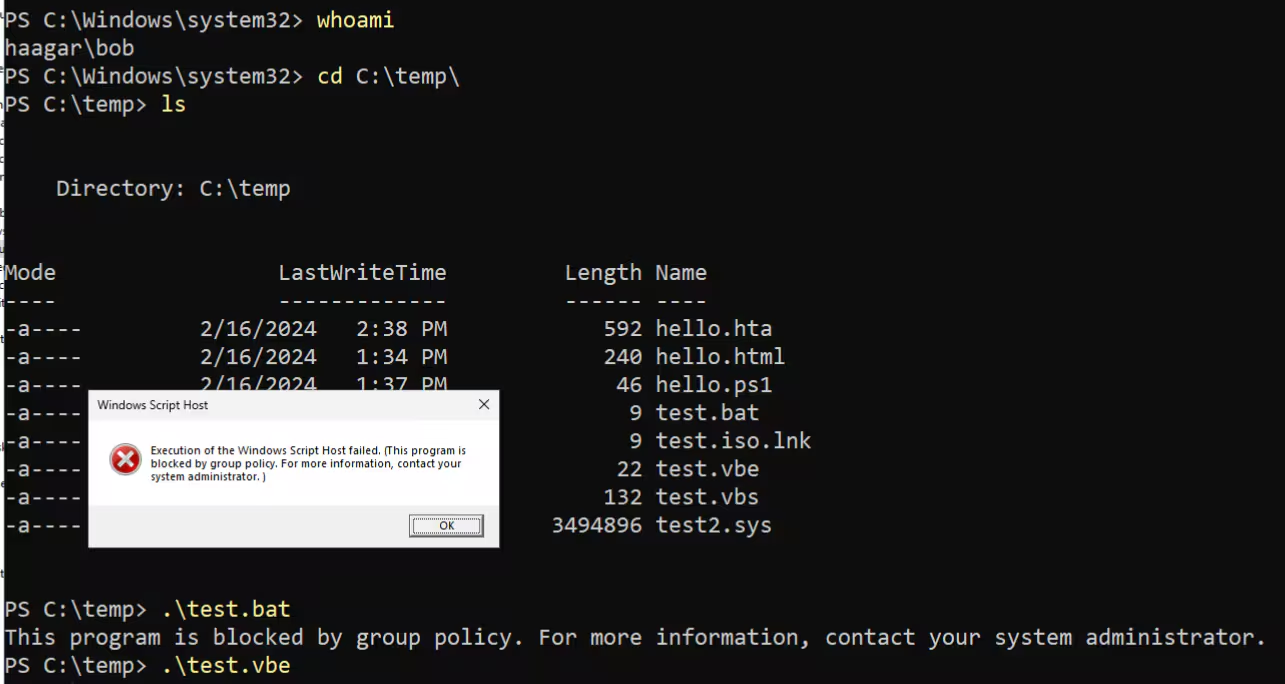
(AppLocker testing, Splunk 2024)
We see that Bob has attempted to run a batch script and a VBE (encrypted VBS) file, and both were blocked.
Back to our original statement whether a script policy could/would block an HTA file: out of the box it does not. This particular HTA is using javascript to generate a popup.
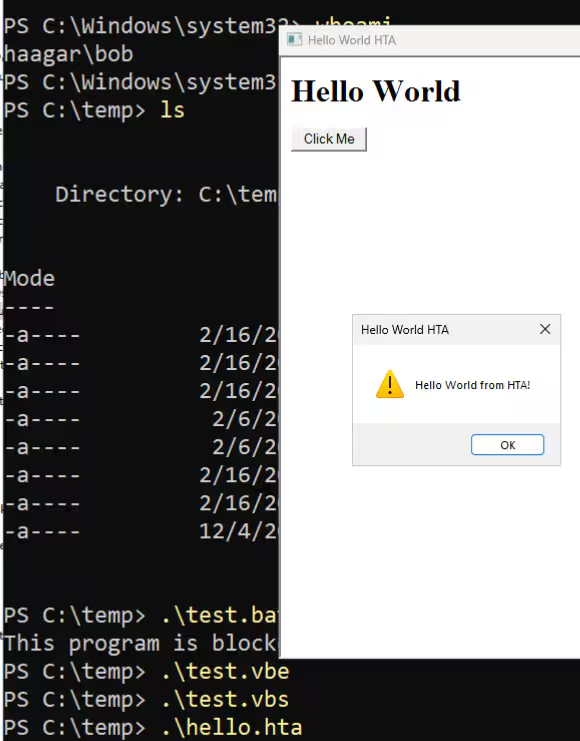
(AppLocker testing with non-privileged user, Splunk 2024)
Atomic Tests for AppLocker
Now, if you’d like to test some of these, here are the Atomic Tests:
Test.bat
echo test
Test.vbs
' Print "Hello World" to the console
WScript.Echo "Hello World"

' Popup a message box with "Hello World"
MsgBox "Hello World"
Test.vbe
MsgBox "Hello World"
Hello.hta
<!DOCTYPE html>
<html>
<head>
    <title>Hello World HTA</title>
    <hta:application
        applicationname="HelloWorldHTA"
        border="thin"
        borderstyle="normal"
        caption="yes"
        showintaskbar="yes"
        singleinstance="yes"
        sysmenu="yes"
        windowstate="normal">
</head>
<body>
    <h1>Hello World</h1>
    <input type="button" value="Click Me" onclick="showMessage()">
<script type="text/javascript">
        function showMessage() {
            alert('Hello World from HTA!');
        }
</script>
</body>
</html>
In the earlier demo video, we shared an HTA that had multiple options to employ different procedures for AppLocker testing. You can check out the GIST here that includes the HTA. Download and save it. For testing AppLocker, we recommend running it as Administrator and a non-administrative/privilege account.
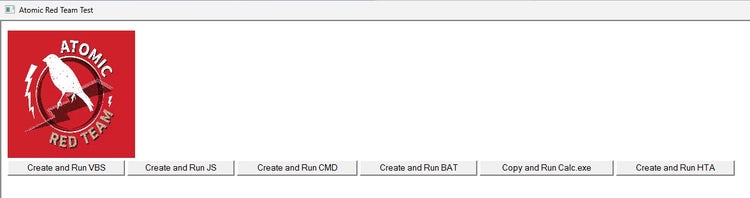
(AppLocker HTA Testing, Splunk 2024)
Depending on the button clicked, the HTA performs different actions:
2. The VBS script is written to the file.
3. The VBS file is executed, displaying a message box with the text "Hello from Atomic Red Team - VBS".
2. The JS script is written to the file.
3. The JS file is executed with WScript, displaying the message "Hello from Atomic Red Team - JS" in the console.
2. The CMD commands are written to the file.
3. The CMD file is executed, displaying the message "Hello from Atomic Red Team - CMD" in the console and waiting for user input.
2. The BAT commands are written to the file.
3. The BAT file is executed, displaying the message "Hello from Atomic Red Team - BAT" in the console and waiting for user input.
2. The copied calc.exe file is executed from the user's profile directory.
2. The HTA content is written to the file.
3. The new HTA file is executed with mshta.exe, displaying the message "Hello from the new HTA!" in a new HTA window.
PowerShell Tests for AppLocker
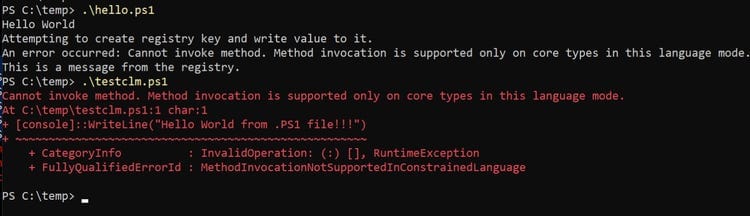
While testing our PowerShell scripts, we expected them to be blocked by our AppLocker rules but surprisingly, they ran just fine. We stumbled upon a blog that explained a similar situation.
It turns out the reason our scripts were running despite the block policy is because of something called PowerShell's Constrained Language Mode. This mode still lets scripts run, but in a safer, more limited way, even when AppLocker thinks they should be blocked.
This was confusing at first because it looked like our scripts bypassed AppLocker, but actually, it was PowerShell's safety features kicking in. The blog pointed out that having clearer rules and better logging could help clear up this confusion, making it easier to manage script security. Essentially, AppLocker and PowerShell work together to not just decide if a script can run, but also control what it can do, adding an extra layer of security.
Here are the Atomic tests we used to examine the behaviors of scripts being blocked and allowed based on the paragraph above.
Allowed
# HelloWorld.ps1
Write-Output "Hello World"
Blocked
[console]::WriteLine("Hello World from .PS1 file!!!")
Allowed and Blocked
# HelloWorld.ps1
Write-Output "Hello World"

# Obfuscated way to create a registry key and write a value to it
$part1 = 'HKCU:\Soft'
$part2 = 'ware\DemoKey'
$regPath = $part1 + $part2
$keyName = 'De' + 'moValue'
$keyValue = 'This is a test ' + 'value'

Write-Output "Attempting to create registry key and write value to it."

Try {
    $checkPath = $regPath -replace 'HKCU:', 'HKEY_CURRENT_USER'
    # Obfuscated command to check if the path exists
    if (-not ([Microsoft.Win32.Registry]::GetValue($checkPath, $keyName, $null))) {
        Invoke-Expression -Command "New-Item -Path $regPath -Force"
        Write-Output "Registry key created: $regPath"

    }

    # Obfuscated command to write a value to the registry key
    Invoke-Expression -Command "New-ItemProperty -Path $regPath -Name $keyName -Value $keyValue -PropertyType String -Force"

    Write-Output "Registry value set: [$regPath] $keyName = '$keyValue'"
} Catch {
    Write-Output "An error occurred: $_"
}

# Step 1: Write a command to the registry
$regPath = "HKCU:\Software\DemoKey"
$keyName = "DemoCommand"
# This is a benign command for demonstration purposes
$commandString = "Write-Output 'This is a message from the registry.'"

# Ensure the registry path exists
if (-not (Test-Path $regPath)) {
    New-Item -Path $regPath -Force
}
Set-ItemProperty -Path $regPath -Name $keyName -Value $commandString

# Step 2: Retrieve and execute the command from the registry
$retrievedCommand = Get-ItemProperty -Path $regPath -Name $keyName | Select-Object
-ExpandProperty $keyName

# Execute the retrieved command
Invoke-Expression -Command $retrievedCommand
(AppLocker Script Blocking, Splunk 2024)
Summary
Microsoft's AppLocker is a powerful security feature that enables IT and security professionals to control which applications and scripts can run on their systems. AppLocker supports executable files, scripts, Windows Installer files, dynamic-link libraries (DLLs), packaged apps, and packaged app installers. By controlling application execution, AppLocker helps prevent malware execution, enforces software standardization, and reduces the attack surface.
Getting started with AppLocker involves enabling it through Group Policy, generating default policies, and applying allow and deny rules based on publisher, file hash, or path. Testing AppLocker policies is crucial to ensure legitimate applications are not inadvertently blocked. The blog provides examples of testing AppLocker with a non-privileged user and offers a set of Atomic tests for further testing.
When combined with other security measures, AppLocker is a key component in creating a multi-layered defense against potential attacks, enhancing your organization's security posture and reducing the attack surface.
Learn More
Visit research.splunk.com to view the Splunk Threat Research Team's complete security content repository. You can implement this content using the Splunk ES Content Update app or the Splunk Security Essentials app.
Related Articles

Predicting Cyber Fraud Through Real-World Events: Insights from Domain Registration Trends

When Your Fraud Detection Tool Doubles as a Wellness Check: The Unexpected Intersection of Security and HR

Splunk Security Content for Threat Detection & Response: November Recap

Security Staff Picks To Read This Month, Handpicked by Splunk Experts

Behind the Walls: Techniques and Tactics in Castle RAT Client Malware

AI for Humans: A Beginner’s Field Guide

Splunk Security Content for Threat Detection & Response: November 2025 Update

Operation Defend the North: What High-Pressure Cyber Exercises Teach Us About Resilience and How OneCisco Elevates It