Using Splunk Federated Search for Amazon S3 to Search AWS WAF Logs: Part One
Partners Travis KaneLog, logs everywhere you look! Did you know in 2025 we are tipped to be generating over 181 zettabytes of data globally? This is why now, more than ever, it’s essential to choose a data strategy that allows you to immediately query the data you need right now — then select other types of data to query later.
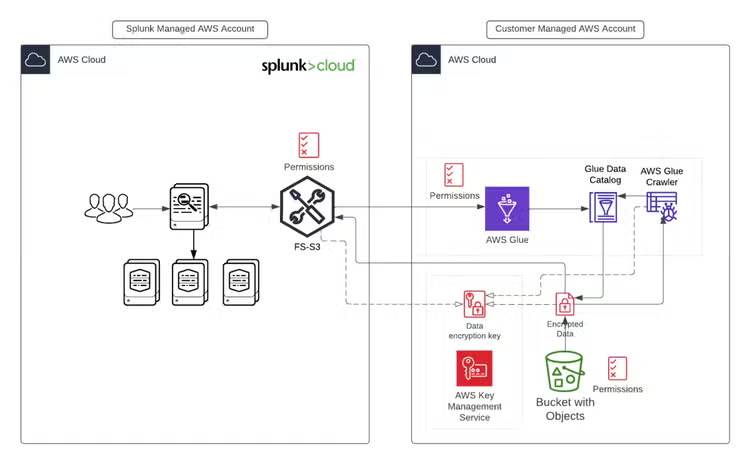
In 2023 Splunk launched Federated Search for Amazon S3 (or “FS-S3” for short) to enable Splunk Cloud Platform customers the ability to configure a connection between AWS Glue and Amazon S3, then search the data in place without having to ingest it into Splunk. As we will explain later, this is an important piece of any data strategy as different types of data have different business requirements around speed and cost. FS-S3 helps with this.
Below is a brief diagram of how it works:
Before we dive into anything, let’s first ask the important question: WHY?
Why Do We Need Federated Search?
Data volumes are always increasing, but more importantly, at an exponential rate. The fact it's always increasing means you need to think differently around how you store and consume that data. You cannot afford (both from a business lens and a pure cost perspective) to just treat all of the data the same. Tiering your data into what’s high value based on business use cases is a good place to start. Kind of like when we were children and our parents told you to pick your favourite toy to take on a car trip. This does not mean the “other” data is not of value, it may be required for audit or post investigation purposes.
When we refer to this as use cases from a security perspective, the following diagram helps explain it:
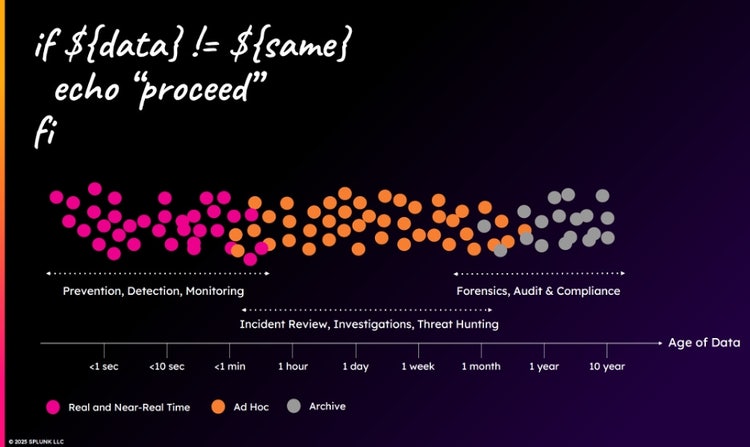
On the left hand side and towards the middle we have our high value business critical data. This is used for things such as security prevention, security detection or monitoring of business critical services. Then, on the right hand side, we have the rest of our orange data moving into the grey, which is deemed to be of lesser importance for immediate access. This could be required for incident reviews, forensic investigations or compliance purposes. An important thing to note about this diagram though, is that in this example we have determined the use of data based on time, in that data which is recent (last few minutes) is business critical and then data which is older, say 1 month or more, is deemed less useful. This is not always the case and not the only lens you should think about when determining which data belongs into which category.
In a recent report published by Splunk, “The New Rules of Data Management,” we dive deep into the importance of reviewing and adapting your requirements based on three important items:
- Data quality
- Data reuse
- Data tiering
This report is really worth the read — and for this blog we’ll be focusing on the data tiering piece.
Having a platform that can help you tier or clarify your data into categories of “what I need now” (hot data) and “what I need when I need it” (old or infrequent data) is important, as that hot data generally sits on the most expensive architecture as it needs to be performant. Conversely, old or infrequent data needs to use a cost-effective architecture as durability and retention are the main criteria. So you need a platform that both respects that and is able to offer you both.
A new trend over the past few years is the ability to search in-place. It is also often referred to as ‘data federation.’ This is the best place to put that data which is “what I need when I need it!”
Ok, so hopefully that answers ‘The Why’. So let’s move onto the next question…What!
What Types of Data Should I Use for Searching in Place?
A common question I get from Splunk users is “which data sources would be suitable for searching in place?” Well technically the answer is any data source, but let’s dive a little deeper into my theory of what a good example could be.
From a holistic approach, logs that fall into the category of ‘I want to randomly search something on an infrequent basis’ would be ideal candidates for FS-S3. For me an example of this could be logs generated by AWS Web Application Firewall (WAF).
AWS WAF, if you haven’t looked into its logs, generates a lot! When you configure AWS WAF to send logs to Amazon S3 you will see that it not only creates folders for {year}/{month}/{day} but it even adds {hour}/{minute} too! Usually in 5 minute increments.
But the good thing about this format is it can partition well and make it a good candidate for FS-S3 searching.
So let’s quickly look into how we can configure AWS Glue for AWS WAF and then how to set up Splunk FS-S3 to search the logs.
Configuring AWS Glue for AWS WAF
As mentioned earlier AWS WAF creates folders down to 5 minute increments. Because of this I prefer to use Amazon Athena DDL with partition projection enabled instead of using something like a glue crawler. This is because glue crawlers are a point in time schema creation, which means you would have to either automate or manually run it every 5 minutes to make sure you are getting the schema for the latest logs. Athena with DDL partition projection lets you speed up query processing of highly partitioned tables and automate partition management.
So off to Athena and S3 we go!
QUICK ASSUMPTIONS:
- We are assuming you already have AWS WAF logs going to S3.
- You are a little familiar with AWS Glue and Amazon Athena
- The DDL code example below is for the Amazon CloudFront WebACL example. The DDL for other non CloudFront examples may be needed for it to work in your setup.
- You must be setting up Glue in the same region as your Splunk Cloud.
STEPS
-
Open an AWS console to your Amazon S3 bucket for AWS WAF.
-
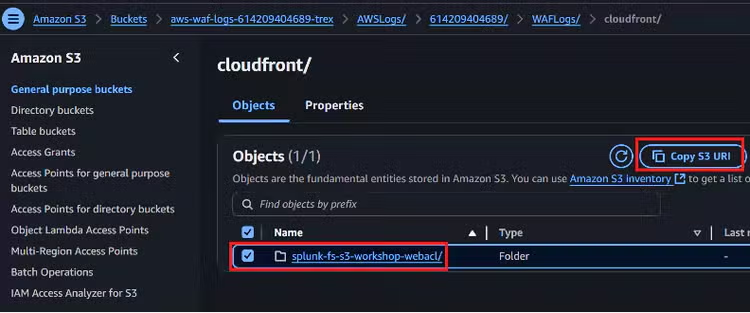
Navigate through the folders to just before the folder for {year}. See example screen shot below for a sample CloudFront WebACL logs in WAF:
-
Leave this tab open but eventually we will copy the S3 URI as shown above.
-
In a new tab open up your Amazon Athena console.
-
Copy and paste the code below into a new Athena query make sure you also select whichever Glue database you are using for your tables:
CREATE EXTERNAL TABLE `waf-logs-ddl`( `timestamp` bigint, `formatversion` int, `webaclid` string, `terminatingruleid` string, `terminatingruletype` string, `action` string, `terminatingrulematchdetails` array>>, `httpsourcename` string, `httpsourceid` string, `rulegrouplist` array>>>,nonterminatingmatchingrules:array>>,challengeresponse:struct,captcharesponse:struct>>,excludedrules:string>>, `ratebasedrulelist` array>, `nonterminatingmatchingrules` array>>,challengeresponse:struct,captcharesponse:struct>>, `requestheadersinserted` array>, `responsecodesent` string, `httprequest` struct>,uri:string,args:string,httpversion:string,httpmethod:string,requestid:string,fragment:string,scheme:string,host:string>, `labels` array>, `captcharesponse` struct, `challengeresponse` struct, `ja3fingerprint` string, `ja4fingerprint` string, `oversizefields` string, `requestbodysize` int, `requestbodysizeinspectedbywaf` int) PARTITIONED BY ( `log_time` string) ROW FORMAT SERDE 'org.openx.data.jsonserde.JsonSerDe' STORED AS INPUTFORMAT 'org.apache.hadoop.mapred.TextInputFormat' OUTPUTFORMAT 'org.apache.hadoop.hive.ql.io.HiveIgnoreKeyTextOutputFormat' LOCATION '' TBLPROPERTIES ( 'projection.enabled'='true', 'projection.log_time.format'='yyyy/MM/dd/HH/mm', 'projection.log_time.interval'='1', 'projection.log_time.interval.unit'='minutes', 'projection.log_time.range'='>,NOW', 'projection.log_time.type'='date', 'storage.location.template'='/${log_time}') -
You will see there are three sections in this DDL which need to be updated. Replace those sections with the information described below:
- <S3 URI> - Copy the S3 URI we showed you above and replace it in both sections. Make sure the folder structure looks correct in the DDL.
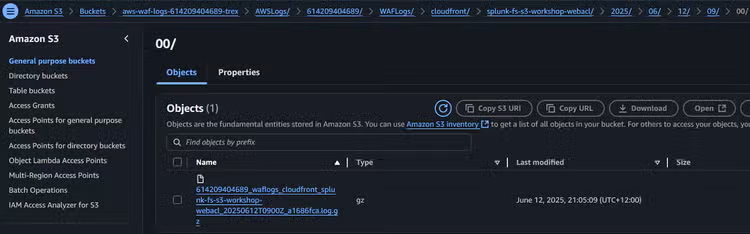
- <FIRST DATE IN S3> - This is where you navigate in the S3 folders until you get to the first date and time of your log file. E.g. 2025/06/12/09/00 (see example below):
-
Once filled in, those three parameters should look something like the below:
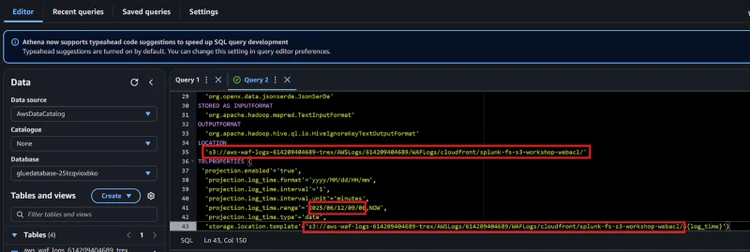
-
Once happy you can click the RUN button.
-
Once completed navigate to AWS Glue and click on our new table waf-logs-ddl as we will need the information from this screen for our next step. See example below
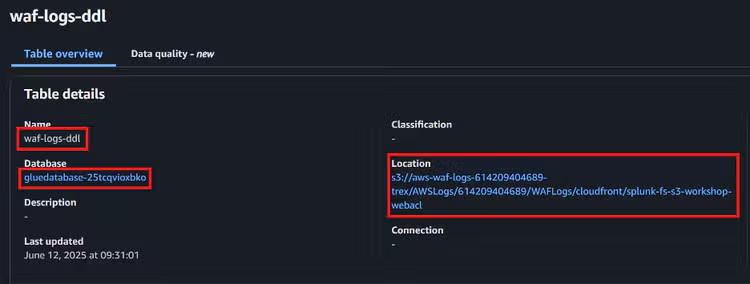
Now that we have the AWS pieces in place to use Splunk’s Federated Search for Amazon S3, we'll wrap up part 1 of this blog. I hate to leave you on a cliffhanger like a typical TV drama series, but part 2 will be published soon so you won’t have to wait long!
In the second part of the blog, we'll step through how to configure the Splunk side of configuring Splunk Federated Search for Amazon S3.
Hope you enjoyed this and feedback or ideas are always welcome!
Related Articles

Splunk Now Generally Available on Microsoft Azure

Building the next generation of Security Ninjas - ECS is full on with Splunk