Splunk Attack Range v5
Security Splunk Threat Research TeamThe Splunk Attack Range is an open source project that lets security teams spin up instrumented cloud environments, simulate adversary behavior, and use the generated telemetry to build and test detections in Splunk. Whether you are a detection engineer tuning rules, a purple team validating coverage, or a developer automating tests, Attack Range gives you a repeatable, cloud-based lab. This post highlights what Attack Range does, how it works, and how to get started - whether you prefer a web UI, a REST API, or the command line.
Check out this short demo video:
What Is Splunk Attack Range?
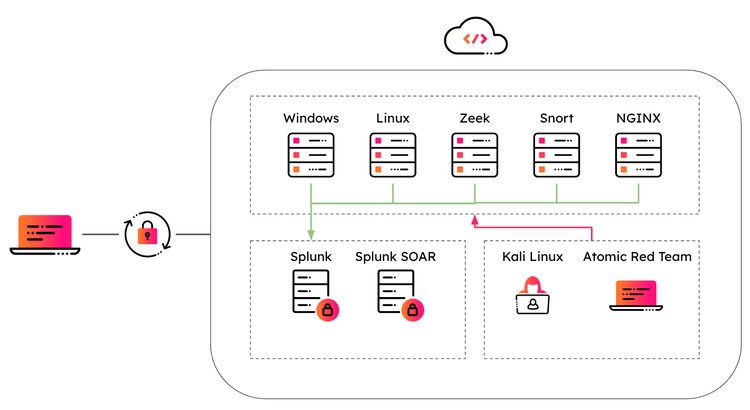
Splunk Attack Range builds instrumented cloud environments on AWS, Azure, or GCP. You get a small, production-like lab: a Splunk instance, Windows and Linux servers, optional Kali for red-team style testing, Zeek for network visibility, Active Directory–style layouts, and more - all provisioned with Terraform (infrastructure) and Ansible (configuration). The range can simulate attacks (e.g. via Atomic Red Team) against chosen targets; the resulting telemetry (logs, events, network data) is forwarded into Splunk so you can develop, tune, and validate detections in a safe, isolated environment.
In short: build labs → simulate attacks → use the telemetry in Splunk for detection development and testing.
Typical use cases include building new Splunk detection content, testing existing rules, running purple-team exercises, and automating detection tests in CI/CD. Because the lab is created from templates and accessed only over a VPN, you avoid exposing lab systems on the public internet and keep your detection workflow consistent across teams and clouds.
What’s New in v5.0 and How It Works
Docker Compose - First Experience
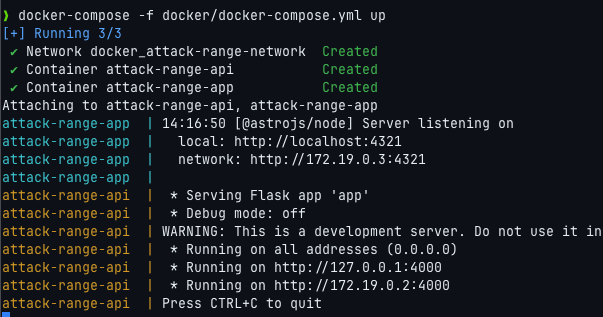
The recommended way to run Attack Range is Docker Compose. One command starts the API, web app, and (optionally) the CLI - no need to install Python, Ansible, or Terraform locally. Each component has a clear role:
- Web app (port 4321): Build and destroy ranges, view status of all your ranges (building, running, error), run simulations, and share access. You pick a template, start the build, download the WireGuard config when status is Waiting for VPN, connect, then continue the build. The app talks to the API (e.g. http://localhost:4000 or PUBLIC_API_URL in Docker).
- REST API (port 4000): Full programmatic access: health checks, two-phase build, status polling, list/destroy, simulate, share, templates, and configs. Interactive docs at (http://localhost:4000/openapi/swagger); OpenAPI JSON at /openapi/openapi.json. All build and destroy operations are asynchronous: you get an attack_range_id and poll the status endpoint until the range is running or error.
- CLI (optional): Run attack_range build | destroy | simulate | share either inside Docker (recommended) or locally with Python, Ansible, Terraform, and your cloud CLI installed. Ideal for scripts and terminal-based workflows.
Detection engineers can choose the interface that fits: the UI for ad-hoc builds and sharing, the API for CI/CD and automation, or the CLI for power users and scripting.
Two-Phase Build and WireGuard VPN
Attack Range uses a two-phase build so lab machines are never exposed on the public internet:
- Phase 1 (VPN): Terraform creates the VPC/subnet and a router instance in the cloud. Ansible configures WireGuard on the router and generates a client config. Status becomes Waiting for VPN (or wait_for_vpn in the API).
- You: Download the WireGuard config (from the app or via GET /attack-range/status/<id>), import it into the WireGuard app (Desktop or mobile), and turn the tunnel on.
- Phase 2 (Lab): You continue the build—in the app (e.g. Continue build), via a second API call with attack_range_id, or by answering the CLI prompt. Ansible is provisioning Splunk, Windows, Kali, Zeek, etc. Status becomes running.
Lab hosts get private IPs (e.g. in 10.0.2.x); only the VPN router has a public IP. Access is VPN-only: you must be connected with a valid WireGuard client to reach Splunk, RDP, SSH, or Guacamole.
Multi-Cloud: AWS, Azure, and GCP
Attack Range supports AWS, Azure, and GCP. The same concepts apply everywhere: pick a template (e.g. aws/splunk_minimal_aws, azure/splunk_windows_azure, gcp/splunk_ad_gcp), start the build, connect to the VPN, and continue. Credentials are mounted from your host into the Docker stack: AWS uses ~/.aws (e.g. aws configure), Azure uses ~/.azure (e.g. az login), GCP uses ~/.config/gcloud (e.g. gcloud auth login). The API provides GET /providers/check to see which provider CLIs and credentials are available, which is useful when driving the stack from scripts or the CLI.
Each range has a config file in config/<attack_range_id>.yml created from the template at build start; it includes the provider block (e.g. aws.region, azure.location, gcp settings), general settings (passwords, IP whitelist, description), and the list of servers with instance types and Ansible roles. The app and API manage these configs; do not edit them manually to avoid out-of-sync state or failed operations.
Templates for Every Use Case
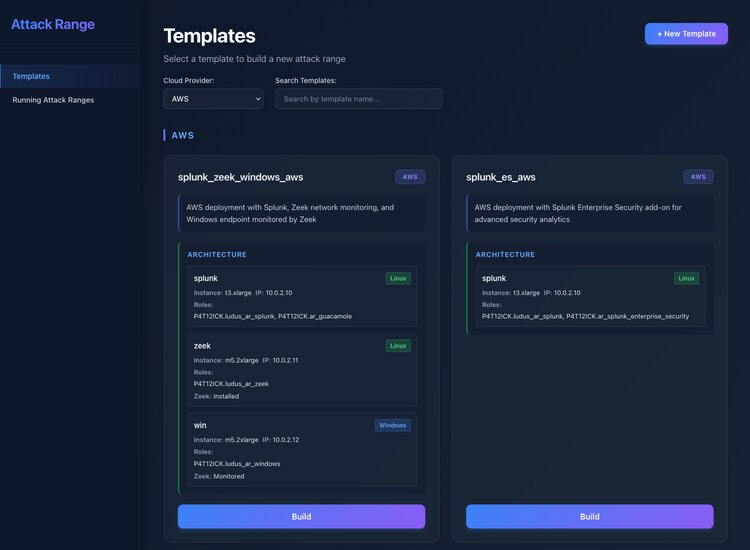
Templates are YAML files under templates/aws/, templates/azure/, and templates/gcp/. They define the layout of a range: general settings, provider block, and the list of servers (name, instance type, IP octet, Linux/Windows, user, and roles). You reference a template by provider + name (e.g. aws/splunk_minimal_aws), by name only (searched across providers), or with the `.yml` extension.
You can create a custom template by copying an existing file (e.g. splunk_windows_aws.yml), editing the general and attack_range sections (add/remove servers, change instance types, adjust roles and vars), and building from it (e.g. aws/my_custom_template). Do not set attack_range_id or status in the template—those are set when a range is created. The API offers GET /templates to list all templates and GET /templates/<provider>/<name> to fetch the full content.
Simulate and Build Detections
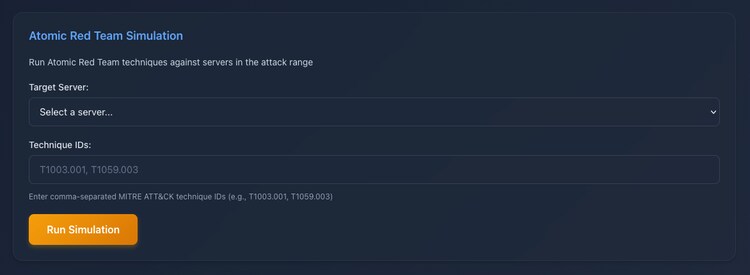
Once a range is running, you can simulate attacks (e.g. Atomic Red Team techniques) against a target server. You specify the attack range ID, the target server name (as in the template), and a comma-separated list of technique IDs.
- Web app: Pick the range, choose the target server and technique list, and run the simulation.
- API: POST /attack-range/simulate with a body such as `{"attack_range_id": "<id>", "target": "win", "techniques": "T1003.001,T1059.003"}`.
- CLI: attack_range simulate -t <target_server_name> -te T1003.001,T1059.003; use -c <config_path_or_id> if you have more than one config in config/.
The simulation runs the selected techniques on the target host; the resulting telemetry flows into Splunk so you can build, tune, and validate detections. Config can be a path or an attack range ID (e.g. the UUID); if omitted and there is exactly one `*.yml` in `config/`, that config is used.
Share Access with Your Team
You can give others access to the same range by generating additional WireGuard client configs. The VPN supports multiple peers: the first (client1) is created at build time; sharing adds a new peer (e.g. alice). The backend generates a new key pair and WireGuard config, updates the router via the VPN playbooks, and stores the config in the range’s YAML under general.sharing.<name> (and returns it in the API response).
You can share when the range is in running. In the app, open the range, use the Share action, and enter a name; the app shows or downloads the new config. Via API: POST /attack-range/share with {"attack_range_id": "<id>", "name": "alice"}; the response includes the new client config. Via CLI: attack_range share -n alice (and -c <attack_range_id_or_path> if you have multiple configs). Send the config and the same credentials (Splunk, RDP, SSH) to the other person over a secure channel; they import the config into WireGuard and connect. Multiple users can be connected at once. Revocation of a single user is not automated; to revoke someone you would need to remove their peer from the WireGuard server or destroy and rebuild the range.
Use Any Ansible Galaxy Role
Templates define which Ansible roles run on each server. Attack Range installs every role you list (via ansible-galaxy install) and runs them at build time in the order specified. You can use any Ansible Galaxy role - not only the ones shipped with Attack Range. Use the Galaxy role name as on Ansible Galaxy (e.g. namespace.role_name like P4T12ICK.ludus_ar_splunk or geerlingguy.nginx). In the template you can list a role as a string or as a dict with role and optional vars (and inventory_name if the role expects a specific host group). Example:
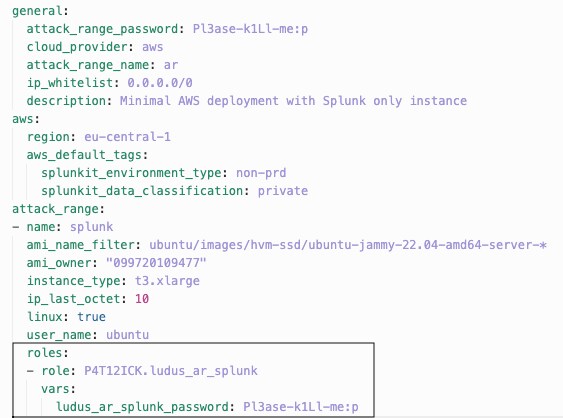
To add a custom Splunk app, monitoring, or security tool: copy a template, add the Galaxy role to the right server’s roles list (with vars if needed), save, and build from that template. No Attack Range code changes are required; the controller scans the config for all role names and runs ansible-galaxy install for each before executing the generated lab playbook.
Summary
Splunk Attack Range gives security teams a consistent way to:
- Build instrumented labs on AWS, Azure, or GCP via Docker Compose, web app, API, or CLI, using templates that define servers and Ansible roles.
- Secure access with a two-phase build and WireGuard VPN so lab IPs stay off the public internet; share access by generating additional WireGuard client configs for teammates.
- Simulate attacks (e.g. Atomic Red Team) from the app, API, or CLI and use the telemetry in Splunk for detection development and validation.
- Customize ranges with custom templates and any Ansible Galaxy role, without modifying Attack Range code.
- Automate via the REST API (async build/destroy, status polling, simulate, share) and optional CLI for scripts and CI/CD.
Feedback
Any feedback or requests? Feel free to put in an issue on GitHub and we’ll follow up. Alternatively, join us on the Slack channel #security-research.
Contributors
We would like to thank Patrick Bareiss for authoring this post and the entire Splunk Threat Research Team for their contributions.
Related Articles
Staff Picks for Splunk Security Reading August 2023

LLM Security: Splunk & OWASP Top 10 for LLM-based Applications