Using metadata & tstats for Threat Hunting
Using metadata and tstats to quickly establish situational awareness

To effectively hunt, understanding the data you have and don’t have for your hosts is key. Without this knowledge, you risk making assumptions that lead to poor decisions whilst threat hunting.
Today, I am going to share with you my methodology around initial information gathering and how I use the metadata and tstats commands to understand the data available to me when I start threat hunting.
(Part of our Threat Hunting with Splunk series, this article was originally written by Domenico “Mickey” Perre. We've updated it recently to maximize your value.)
The metadata command for threat hunting
Let’s start by looking at metadata. The metadata command is a generating command, which means it is the first command in a search.
For those not fully up to speed on Splunk, there are certain fields that are written at index time. These fields are:
- _time, source (where the event originated; could be a filepath or a protocol/port value)
- sourcetype (type of machine data)
- host (hostname or IP that generated an event)
These metadata fields (see what I did there?) can be searched and returned with values that include first time, last time and count for a particular value. Here are a couple of examples.
Know thy data: timeframes & sourcetypes
My manager has tasked me to start hunting based on some indicators recently gathered. My first thought is to see that I have data sets available to me that pertain to the time I am hunting in. This is a quick search that I could run to enumerate sourcetypes in Splunk for the past seven days.
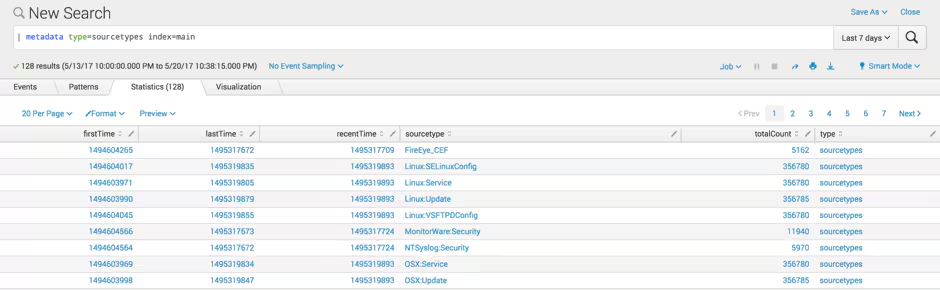
As you can see, in the past seven days I have 5,162 FireEye events. Doing a little epoch time conversion, I determine that the data first hit my indexer on May 12 2017 at 2:31:00 GMT and the last time it was seen on my indexer was May 20 2017 22:01:12 GMT.
Based on the time range of my search — May 13 22:00 GMT to May 20 22:38:15 GMT — I have a high level of confidence that my FireEye data is fairly current, but if my investigation goes back before May 12, I don’t have FireEye data to work with, which could impact how I approach this activity or lower my confidence in determining when something was first seen in my network.
Know thy data: hosts
Now that I know what types of data I have in Splunk, let's see which hosts are sending data through—do I have current data for all my hosts?
Maybe I want to isolatehosts that are writing to a specific index. In this case, I want to see all the hosts that have data in the ‘os’ index because I know data in that index will be of importance to me in my hunt.
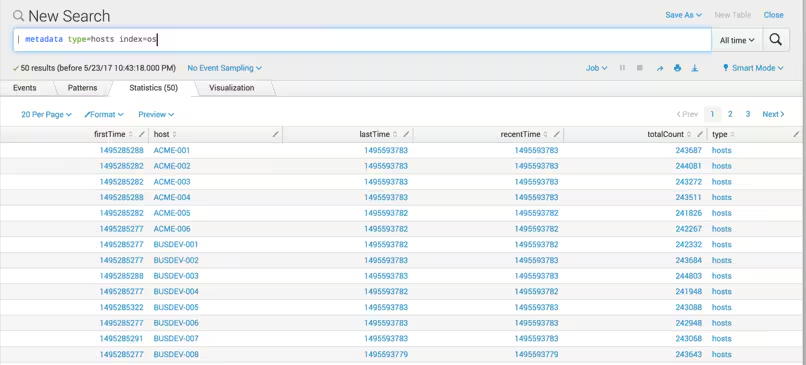
The metadata command does not have a lot of options to it, but you can narrow down the search to:
- Specific indexes
- Search peers or server groups
- Sourcetypes (like I did above)
Once you have a result set, you can flex your SPL muscles on the results to get additional information out of it. Perhaps you want to improve situational awareness prior to hunting and check if there are specific hosts that have not sent data to Splunk in the past 24 hours.
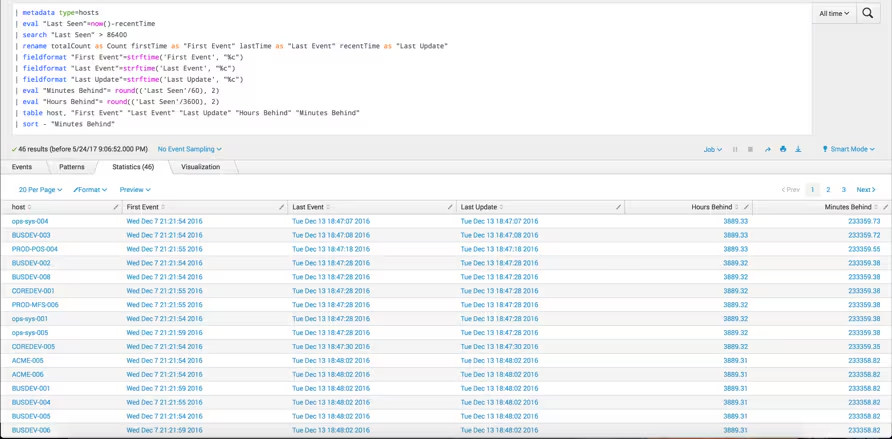
In this search, I used the metadata command to get a list of hosts. Using the eval, search and fieldformat commands, I was able to:
- Filter down to hosts that had not logged for more than 24 hours.
- Change the time values to something more user friendly to view than what I showed in the first example.
- Sort and output in a table view that can be quickly consumed.
A couple of final thoughts on metadata. It requires the get_metadata capability to be associated with a role the user has before it can be used. (Fun fact: Did you know that under the hood, you actually run the metadata command when you click the Data Summary button on the Search home page?)
And now for something completely different… (No, not really).
The tstats command for hunting
Another powerful, yet lesser known command in Splunk is tstats. The tstats command — in addition to being able to leap tall buildings in a single bound (ok, maybe not) — can produce search results at blinding speed.
Much like metadata, tstats is a generating command that works on:
- Indexed fields (host, source, sourcetype and _time)
- Data models
(I love data models as much as the next guy, but there isn’t enough space to talk about them in this post, so let’s save them for another time.)
In the meantime, I want to improve on my already established situational awareness and answer a fundamental question when starting a hunt — what information do I have access to and do I have any blind spots? Maybe I want to quickly get a view into my DNS events.
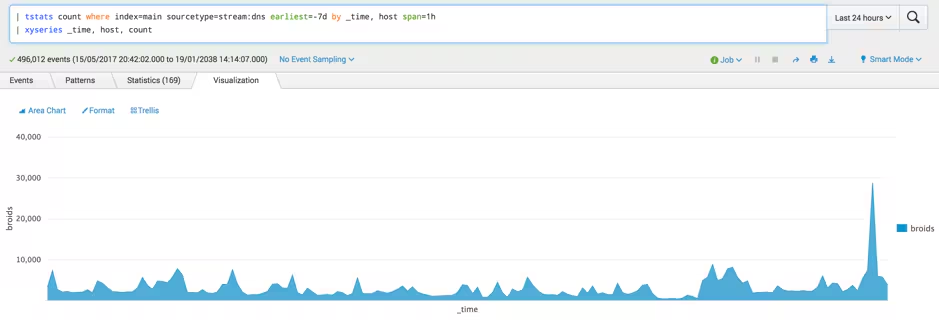
I can quickly generate a total count of events for the past seven days where the sourcetype is stream:dns and the data resides in the main index. In this search, data is broken out by _time and host in 1-hour intervals. Like metadata — once I execute my initial search — I can use SPL to format the data as I see fit, in this case using the xyseries command and then apply an Area Chart to it to generate a graph of events coming from the host where I am collecting DNS.
It's important to note that using tstats in this manner is not optimal for more than a handful of hosts. If you are looking for a tabular output and counts, no worries this can be highly effective. Trying to graph too many hosts can get very busy, making it difficult for an analyst to quickly consume.
With that gentle warning, let’s build a search to quickly identify hosts that are logging more or less data than might be normally expected. Placing boundaries on the data — even when it is coming from a large number of hosts — can be easily done.
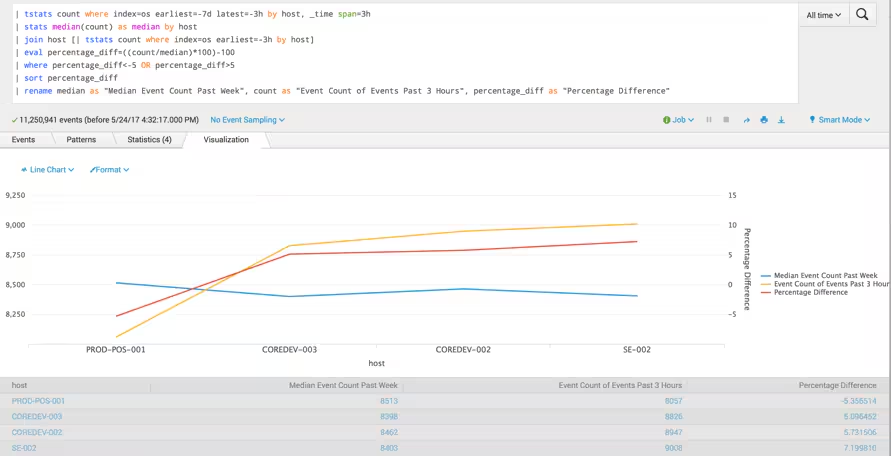
For this search, I am looking at hosts logging to the index ‘os’ and I want to look back over the past seven days in carving the time in 3-hour intervals to find the median count of events by host. Statistical options that might be appropriate to use here:
I then looked back over the past 3 hours for the same information. To determine the percentage difference between the median and the current count, we divided to get a percentage value and filtered for results +/-5%. Sorting and renaming fields makes it easy to consume since I now have my outliers, as well as producing a graph that shows the median and the current event volumes charted along with the percentage difference.
Metadata & tstats for hunting out baddies
Hopefully this provides you a good idea of the power of metadata and tstats commands and how you can use these capabilities to quickly gain situational awareness as it pertains to your hosts and sourcetypes as you begin hunting.
As always, happy hunting!
Related Articles

Onboarding Windows Events to Powershell Threat Detection in UBA

Hey SDDL SDDL: Breaking Down Windows Security One ACE at a Time

Autonomous Adversaries: Are Blue Teams Ready for Cyberattacks To Go Agentic?

Introducing DECEIVE: A Proof-of-Concept Honeypot Powered by AI

Now Available: Splunk Enterprise Security Content Update App 5.0

Cloud SOAR Achieves IRAP Assessment Along With Enterprise Security 8.0, DMX Edge Processor & Federated Search S3

Matching AI Strengths to Blue Team Needs

Logs Are for Campfires: Splunk’s Asset and Risk Intelligence Leaves No Vulnerability Undiscovered!