Building custom search commands in Python part I – A simple Generating command
Custom search commands in our Python SDK allow you to extend Splunk’s search language and teach it new capabilities. In this and other upcoming posts we’re going to look at how to develop several different search commands to illustrate what you can do with this.
In this post, we’re going to focus on building a very basic Generating command. A generating command generates events which can be from any source, for example an internal system, or an external API. We’re going to create a GenerateHello command that will generate Hello World events based on a supplied count. The command is not very useful in itself, but it is a quick way to see how you can author custom commands.
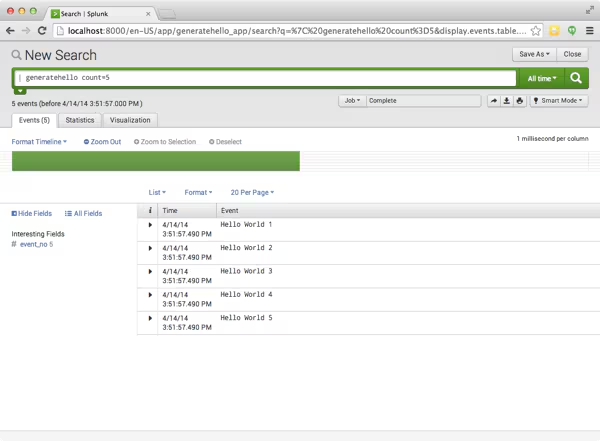
Below is a screenshot of using the command we’re going to build. As you can see it outputs a series of “Hello World” events.
Creating the Application skeleton
Custom search commands are deployed via a Splunk application. As with any Splunk app there is a specific file layout and some configuration files that are required. Fortunately the Splunk SDK for Python includes a template which you can use as a start point. Here are the steps to create a new app using the template.
- Go to your $SPLUNK_HOME/etc/apps folder and create a new folder called generatehello_app.
- In another folder i.e. “~/” go clone the Splunk SDK for Python using the following command: git clone git@github.com:splunk/splunk-sdk-python.git.
- Go into that folder you just installed and run the setup. [sudo] python setup.py install
- Next copy the contents of “./splunk-sdk-python/examples/search_commands_template” to $SPLUNK_HOME/etc/apps/generatehello_app.
- Copy the “./splunk-sdk-python/splunklib folder into the $SPLUNK_HOME/etc/apps/generatehello_app/bin folder
- Go into the bin folder of the new app. You will see 3 .py files. Delete report.py and stream.py as we’re creating a generating command.
- Rename generating.py to generatehello.py.
Now we need to do some search and replacing in the template. Edit bin/generatehello.py, and app.conf, commands, conf and logging.conf in the default folder.
- Replace each instance of $(command.title()) with GenerateHello.
- Replace each instance of $(command.lower()) with helloworld as this is the name of the command.
- Replace each of the remaining $(…) values with the appropriate information based on the name. The specific values in this case don’t really matter, but you must put something.
Implementing the GenerateHello Command
Authoring a search command involves 2 main steps, first specify parameters for the search command, second implement the generate() function with logic which creates events and returns them to Splunk.
Edit generatehello.py in the bin folder and paste the following code:
import sys, time
from splunklib.searchcommands import \
    dispatch, GeneratingCommand, Configuration, Option, validators

@Configuration()
class GenerateHelloCommand(GeneratingCommand):
    count = Option(require=True, validate=validators.Integer())

    def generate(self):
        for i in range(1, self.count + 1):
            text = 'Hello World %d' % i
            yield {'_time': time.time(), 'event_no': i, '_raw': text }

dispatch(GenerateHelloCommand, sys.argv, sys.stdin, sys.stdout, __name__)
What the code is doing:
- The GenerateHelloCommand derives from GeneratingCommand
- A count parameter is declared for the command using the Option decorator. Parameters can be optional or required, this one is specified as required. Additionally a validator is specified constraining the value to be an integer
- A for loop runs to generate Python hash objects representing events.
- event_no is set on each event representing the message count. This surfaces in Splunk as a field that can be selected in the field picker.
- _time is set on each event to a timestamp. Splunk expects that all events have a timestamp associated, so this must be set.
- _raw key is set. This field is an optional, if Splunk sees this it then it will display it by default in Raw or List mode. Raw commonly contains the full source event as it does here.
Testing the command outside of Splunk
Now that the command is created, we can run it right at the command line. This is really convenient in particular for debugging and you’ll probably prefer using this technique as you develop commands.
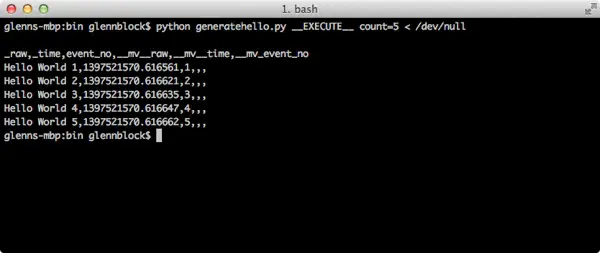
Enter the following at the terminal to run the command and have it generate 5 events.
python.py generatehello.py __EXECUTE__ count=5 < /dev/null
You should see output similar to the following showing that the events are getting properly generated:
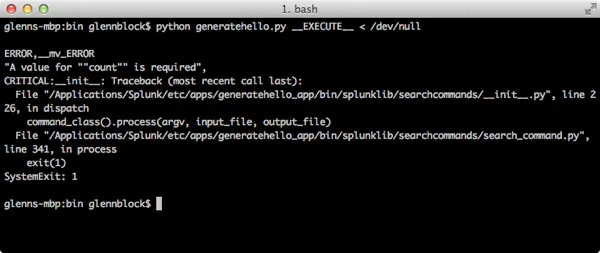
If you try to run without passing count, you’ll get an error as count is required:
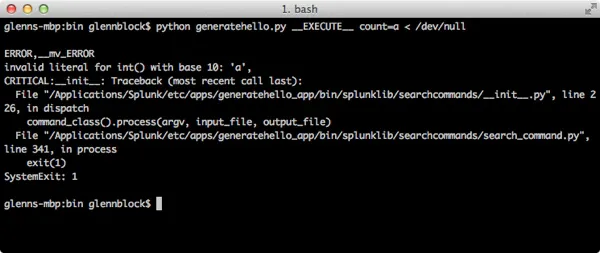
And if a letter is provided for count, it will also fail as it is not an Integer:
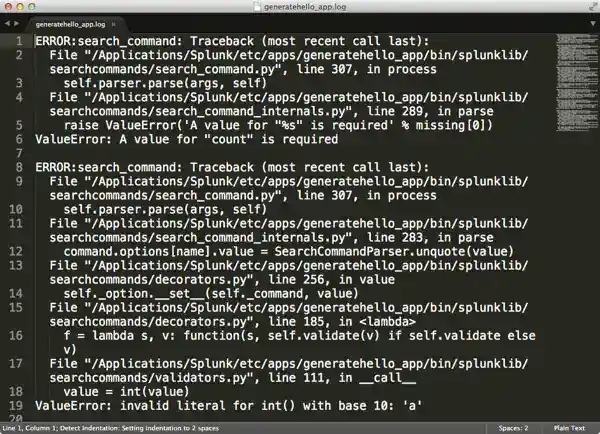
Finally, any error output that is generated is also available within the log file which is in the root of the application:
Testing the command inside of Splunk
Now that we can see that the command is working we can test it out in Splunk. If your Splunk instance is already running, you’ll need to restart it to have it load the new command either using the Splunk CLI or from Splunk UI.
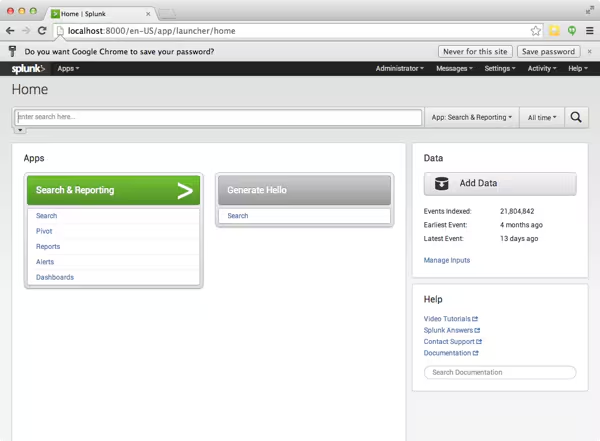
Once you have logged in to the instance you should the new app has been loaded. Notice below the “Generate Hello” app:
Clicking on that app will then take you to the search screen. Entering “| helloworld count=5” at the search bar should return the expected “Hello World” events as in the screenshot below. You can see Splunk has picked up our events!
You can see in the screenshot that the event_no field has also been picked up, allowing it to be selected if the view is switched to “Table”
It’s that easy!
Next steps
Now that the search command is complete, the app can be packaged and up as any other application and then published on Splunk Apps or put on a share where it can be imported into a Splunk instance. You can also configure permissions for the app, or change it’s visibility to allow the commands to be accessible from anywhere within Splunk.
Summary
In this post we built a very simple example of a generating command, but even in its simplicity, it shows its power!
You can find a working version of the command we created in this post, along with instructions on installation in our Python SDK source on Github in the examples folder.
Enjoy!
----------------------------------------------------
Thanks!
Glenn Block